
1. Product Overview
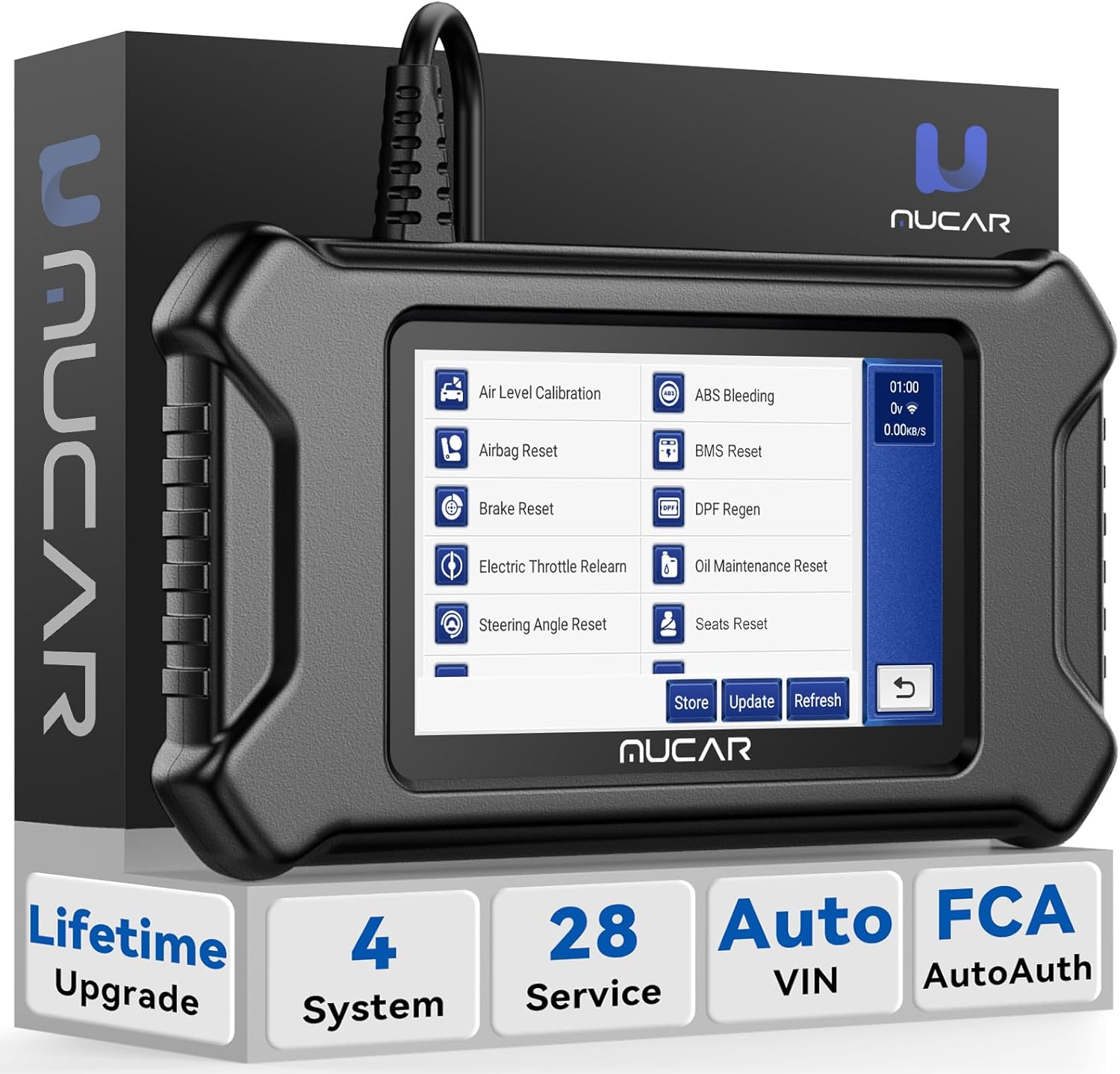
The MUCAR CS90 is an advanced OBD2 diagnostic scanner designed for comprehensive vehicle analysis. It offers extensive diagnostic capabilities across multiple vehicle systems and provides a wide range of maintenance reset services. This tool is equipped with an intuitive interface and supports continuous updates to ensure compatibility with the latest vehicle models and diagnostic protocols.
Key Features:
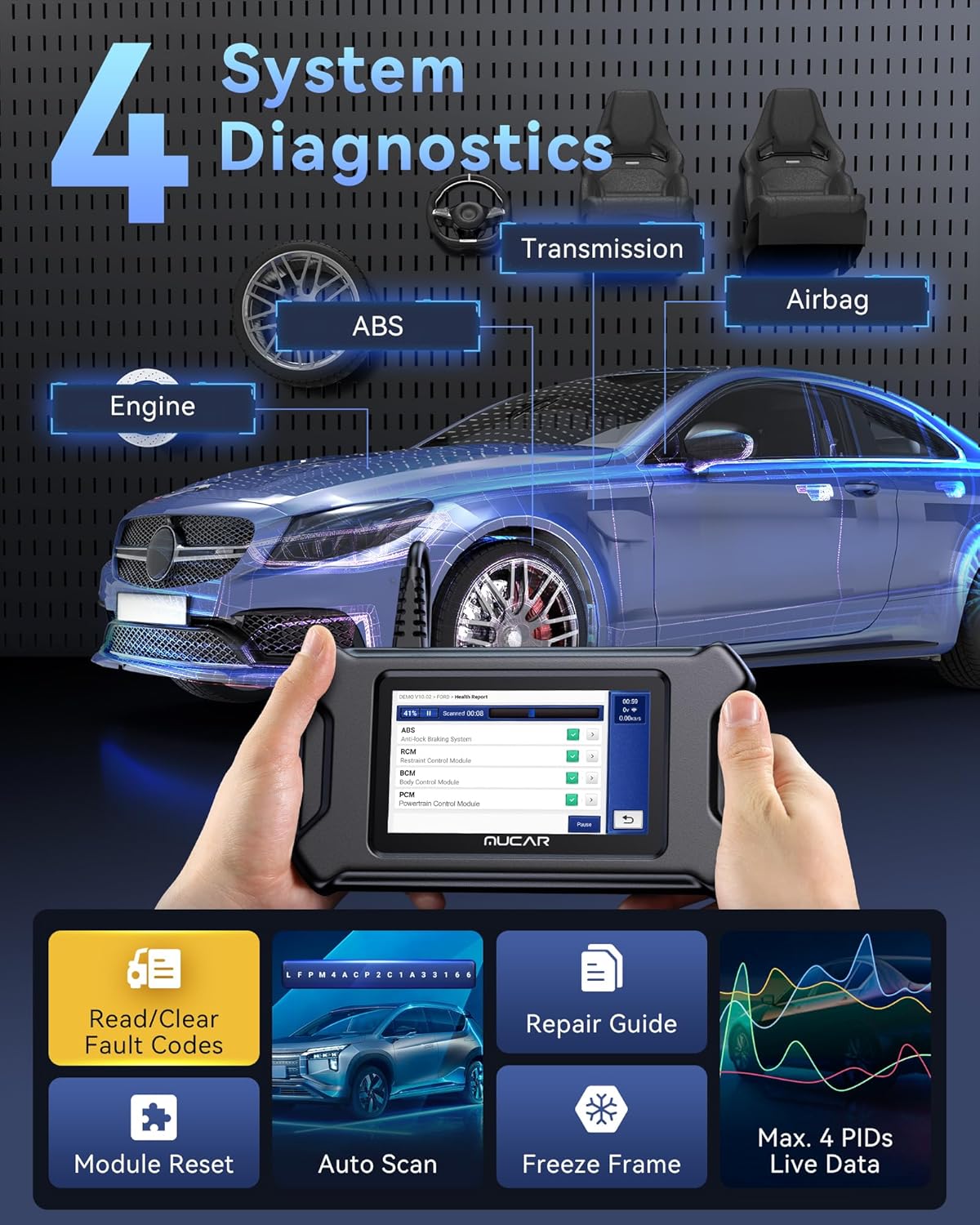
- 4 System Diagnostics: Engine, Transmission, Anti-lock Braking System (ABS), and Supplemental Restraint System (SRS).
- 28+ Maintenance Reset Services: Including Oil Reset, SAS Calibration, ABS Bleeding, Injector Coding, and more.
- Full OBD2 Functions: Supports all 10 OBD2 test modes for complete emission-related diagnostics.
- Auto VIN Technology: Automatically identifies vehicle information for quick diagnostics.
- Lifetime Free Updates: Ensures access to the latest software features and vehicle coverage.
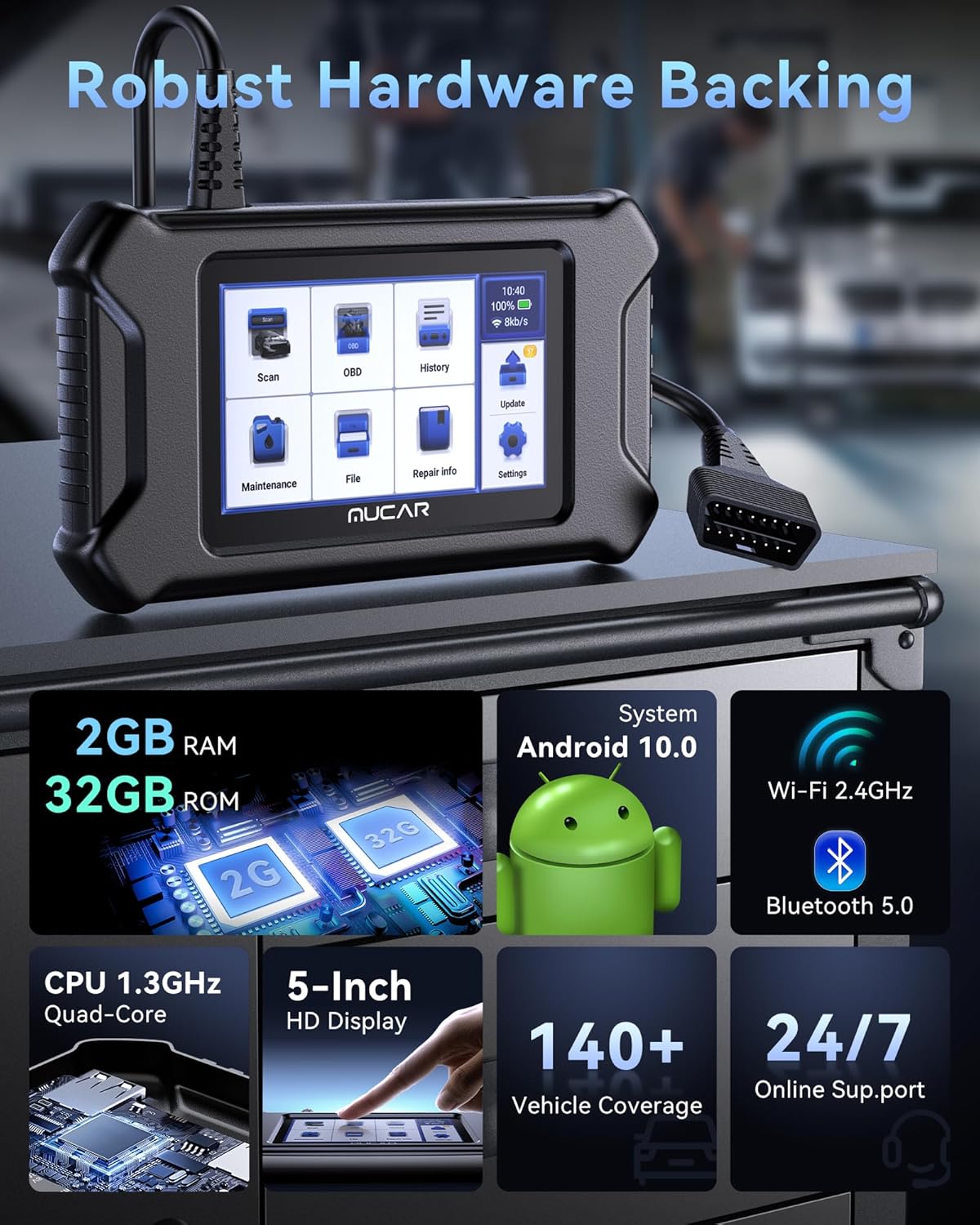
- User-Friendly Interface: Powered by Android 10.0 with a 5-inch HD display.
- Robust Hardware: Features a 1.3GHz Quad-Core CPU, 2GB RAM, and 32GB ROM.
- Connectivity: Built-in Wi-Fi 2.4GHz and Bluetooth 5.0.
- Wide Vehicle Coverage: Supports over 140 vehicle brands.
2. What's in the Box
Upon opening the product packaging, verify that all the following items are present and in good condition:
- MUCAR CS90 Scanner Unit
- Type-C USB Cable
- User Manual (this document)
3. Setup Guide
3.1 Powering On the Device
The MUCAR CS90 scanner does not have a dedicated power button. It powers on automatically when connected to a power source.
- Via OBD2 Port: Connect the diagnostic cable from the scanner to the vehicle's OBD2 port. Turn the vehicle's ignition to the 'ON' position (engine off). The scanner will power on.
- Via USB-C Cable: Connect the provided Type-C USB cable to the scanner and a compatible USB power adapter (not included) or a computer. The scanner will power on.
3.2 Initial Configuration
Upon first use or after a factory reset, you may need to configure basic settings.
- Language Selection: Choose your preferred language from the available options.
- Wi-Fi Connection: Navigate to the 'Settings' menu, then 'Network & Internet' to connect to a stable Wi-Fi network. A Wi-Fi connection is essential for software updates and online support.
- Time Zone: Set the correct time zone for accurate diagnostic report timestamps.
3.3 Software Updates
It is recommended to update the software to the latest version immediately after initial setup to ensure optimal performance and access to the newest features and vehicle compatibility.
- Ensure the device is connected to a stable Wi-Fi network.
- From the main menu, tap on the 'Update' icon.
- The system will check for available updates. Follow the on-screen prompts to download and install any new software or vehicle diagnostic packages.

4. Operating Instructions
4.1 Connecting to a Vehicle
- Locate the vehicle's 16-pin OBD2 diagnostic port. This port is typically found under the dashboard on the driver's side.
- Plug the diagnostic cable from the MUCAR CS90 scanner firmly into the vehicle's OBD2 port.
- Turn the vehicle's ignition to the 'ON' position. The scanner will power on automatically.
4.2 Vehicle Identification (Auto VIN / Manual Selection)
After connecting, the scanner will attempt to automatically identify the vehicle's information using its Auto VIN feature.
- Auto VIN: If successful, the scanner will display the vehicle's make, model, and year. Confirm the information to proceed.
- Manual Selection: If Auto VIN is not supported by the vehicle or fails, you can manually select the vehicle's make, model, and year from the provided list.

4.3 Diagnostic Functions
4.3.1 4-System Diagnostics (Engine, Transmission, ABS, SRS)
This function allows you to access and diagnose the four core electronic control systems of your vehicle.
- From the main menu, select 'Diagnose'.
- Choose the specific system you wish to diagnose (Engine, Transmission, ABS, or SRS).
- The scanner will read Diagnostic Trouble Codes (DTCs), display live data streams, and provide options to clear codes.
- A repair guide may be available for specific DTCs to assist in troubleshooting.
4.3.2 28+ Maintenance Reset Services
The CS90 provides a comprehensive suite of reset and maintenance functions. Note: Compatibility for specific services may vary by vehicle make, model, and year. Always check compatibility before performing a service.
- Oil Reset: Resets the oil life reminder after an oil change.
- SAS Calibration: Calibrates the Steering Angle Sensor.
- ABS Bleeding: Performs ABS brake bleeding to remove air from the brake lines.
- Injector Coding: Codes new injector numbers to the ECU.
- Brake Reset: Resets the electronic parking brake (EPB) after brake pad replacement.
- Airbag Reset: Resets airbag crash data.
- DPF Regeneration: Initiates Diesel Particulate Filter regeneration.
- BMS Reset: Registers a new battery after replacement.
- Immobilizer: Performs key matching functions.
- Throttle Adaptation: Relearns throttle body position.
- Suspension Reset: Adjusts vehicle height sensor calibration.
- Gear Learning: Performs crankshaft position sensor adaptive learning.
- TPMS Reset: Resets Tire Pressure Monitoring System sensors.
- Sunroof Reset: Initializes the sunroof control unit.
- NOx Sensor Reset: Resets the NOx sensor learning value.
- Seats Calibration: Calibrates seat memory functions.
- Adblue Reset: Resets AdBlue (DEF) system.
- AFS Headlamp Reset: Initializes the Adaptive Front-lighting System.
- Gearbox Reset: Resets transmission adaptive learning values.
- Language Change: Changes the display language of the vehicle's instrument cluster.
- Transport Mode: Deactivates transport mode for new vehicles.
- Coolant Bleed: Bleeds air from the cooling system.

4.3.3 Full OBD2 Functions
The CS90 supports all 10 modes of OBD2 testing, crucial for emission-related diagnostics.
- Read/Clear DTCs: Reads and clears generic and manufacturer-specific diagnostic trouble codes.
- MIL Fault Indicator Light: Turns off the Check Engine Light (MIL) after repairs.
- Live Data: Displays real-time data from the vehicle's sensors in text or graph format.
- EVAP System Test: Initiates a test of the evaporative emission control system.
- On-Board Monitor Test: Retrieves test results for emission-related powertrain components.
- View Freeze Frame: Displays a snapshot of vehicle conditions when an emission-related fault occurred.
- O2 Sensor Test: Retrieves O2 sensor monitoring test results.
- Check Vehicle Info: Retrieves vehicle identification number (VIN), calibration ID (CALID), and calibration verification number (CVN).
- I/M Readiness: Checks the readiness of emission monitors.
- DTCs Code Look-up: Provides definitions for diagnostic trouble codes.
4.4 Live Data Stream Analysis
The scanner allows for detailed analysis of live sensor data.
- Real-time Monitoring: View multiple Parameter IDs (PIDs) simultaneously.
- Graphing & Playback: Data can be displayed graphically for easier interpretation and recorded for later review.
- CSV Export: Export recorded data as CSV files for external analysis.

4.5 Diagnostic Reports
The CS90 can generate comprehensive diagnostic reports.
- Customizable Reports: Generate reports with vehicle information, diagnostic results, and customizable details.
- Sharing: Reports can be easily shared via email or other methods.
4.6 Offline Diagnosis
The device supports offline diagnosis, allowing you to perform basic diagnostic functions even without an active Wi-Fi connection.
5. Maintenance
5.1 Software Updates
Regular software updates are crucial for maintaining optimal performance, expanding vehicle coverage, and adding new features. Connect the device to Wi-Fi and check for updates periodically via the 'Update' icon on the main menu.
5.2 Cleaning the Device
To ensure the longevity of your MUCAR CS90 scanner:
- Wipe the screen and exterior with a soft, damp cloth.
- Avoid using abrasive cleaners or solvents.
- Keep the diagnostic port free from dust and debris.
6. Troubleshooting
Common Issues and Solutions:
- Device does not power on: Ensure the diagnostic cable is securely connected to the vehicle's OBD2 port and the ignition is in the 'ON' position, or connect via USB-C to a power source.
- Fault code returns after clearing: If a diagnostic trouble code reappears after being cleared, it indicates that the underlying issue has not been fully resolved. Further diagnosis and repair are required.
- Compatibility issues with specific services: Not all vehicles support every reset service. Refer to the compatibility list or contact support for specific vehicle models.
- Wi-Fi connection issues: Ensure the device is within range of a known Wi-Fi network and the password is entered correctly. Try restarting the device and the Wi-Fi router.
Online Support:
For any malfunctions or technical assistance, utilize the 'FEEDBACK' icon on the device to submit an online report. You can also contact our dedicated mechanics and technicians via email at service@mucarco.com.
7. Specifications
| Operating System | Android 10.0 |
| CPU | 1.3GHz Quad-Core |
| Memory | 2GB RAM, 32GB ROM |
| Display | 5-inch HD Touchscreen |
| Connectivity | Wi-Fi 2.4GHz, Bluetooth 5.0 |
| Vehicle Coverage | 140+ Brands (Universal Fit) |
| Item Weight | 1.61 pounds |
| Package Dimensions | 10.47 x 8.19 x 2.91 inches |
| Language Support | English (and others, refer to device settings) |
8. Warranty and Support
8.1 Product Warranty
The MUCAR CS90 Diagnostic Tool comes with a 1-year warranty from the date of purchase. This warranty covers manufacturing defects and ensures the product functions as intended under normal use. Please retain your proof of purchase for warranty claims.
8.2 Lifetime Free Updates
Enjoy lifetime free software updates for your device. These updates provide access to the latest vehicle models, diagnostic functions, and performance enhancements without any annual fees or restrictions. Connect your device to Wi-Fi to receive these updates.
8.3 Technical Support
For technical assistance, troubleshooting, or any product-related inquiries, please contact our support team:
- Email Support: Reach out to our dedicated mechanics and technicians at service@mucarco.com.
- In-App Feedback: Use the 'FEEDBACK' function within the device's interface to submit issues directly. This allows for speedy troubleshooting and potential remote assistance.


