
Genérico 001
Genérico 001 3-Lens Full HD 1080p Dashcam User Manual
Model: 001
1. Introduction
Thank you for choosing the Genérico 001 3-Lens Full HD 1080p Dashcam. This device is designed to provide comprehensive video surveillance for your vehicle, recording simultaneously from the front, interior, and rear. It features Full HD 1080p resolution, infrared night vision, G-sensor collision detection, loop recording, and motion detection. Please read this manual carefully before use to ensure proper operation and maintenance.
2. Safety Information
- Do not operate the dashcam or attempt to adjust settings while driving. This may distract you and lead to an accident.
- Ensure the dashcam is securely mounted and does not obstruct your view of the road or interfere with airbag deployment.
- Use only the provided car charger. Using unauthorized chargers may damage the device or cause fire.
- Do not expose the dashcam to extreme temperatures, direct sunlight for prolonged periods, or moisture.
- Keep the device away from children.
- Regularly check the MicroSD card for errors and format it periodically to ensure optimal recording performance.
3. Package Contents
Please check the package for the following items:
- Genérico 001 Dashcam Unit
- Suction Cup Mount
- Car Charger (12V/24V)
- Rear Camera
- User Manual
Note: A MicroSD card (up to 32GB) is required for recording and is NOT included in the package.

Image: Included items with the Genérico 001 Dashcam.
4. Product Overview
The Genérico 001 Dashcam features a compact design with three integrated cameras and a 4-inch LCD screen for real-time viewing and settings adjustment.
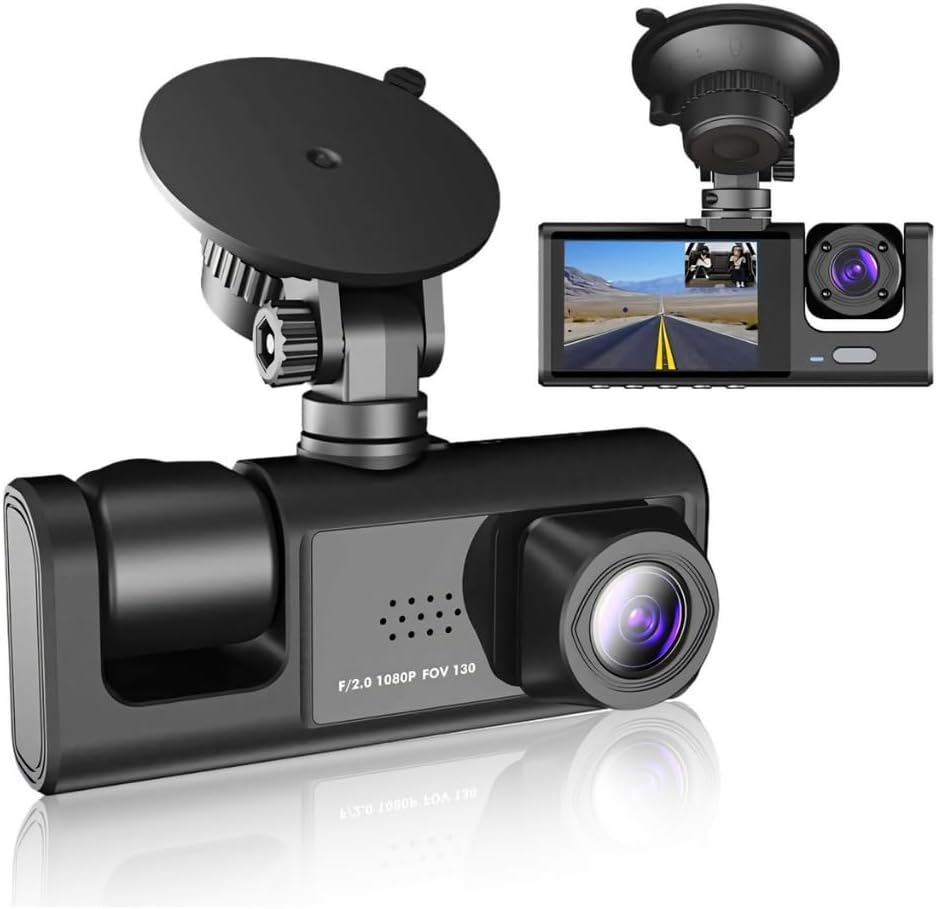
Image: Front view of the Genérico 001 Dashcam with its mount.
4.1 Camera Lenses
- Front Camera: Records the road ahead in Full HD 1080p.
- Internal Camera: Records the vehicle's interior, useful for ride-share drivers. Features infrared night vision.
- Rear Camera: Records the view behind the vehicle.

Image: Depiction of the three camera views (front, internal, rear).
4.2 Device Dimensions

Image: Physical dimensions of the dashcam unit and its suction cup mount.
5. Setup
5.1 Inserting the MicroSD Card
- Locate the MicroSD card slot on the dashcam.
- Insert a Class 10 or higher MicroSD card (up to 32GB) into the slot until it clicks into place.
- It is recommended to format the MicroSD card within the dashcam's settings menu before first use.
5.2 Mounting the Dashcam
- Clean the windshield area where you intend to mount the dashcam.
- Attach the suction cup mount to the dashcam.
- Press the suction cup firmly against the windshield and engage the locking lever to secure it.
- Adjust the dashcam's angle to ensure a clear view of the road ahead. Ensure it does not obstruct your driving view.
5.3 Connecting Power
- Connect the car charger to the dashcam's power input port.
- Plug the other end of the car charger into your vehicle's 12V/24V power outlet (cigarette lighter socket).
- The dashcam will typically power on automatically when the vehicle's ignition is turned on.
5.4 Installing the Rear Camera
- Connect the rear camera cable to the designated port on the main dashcam unit.
- Route the cable neatly along the vehicle's interior trim to the rear of the vehicle.
- Mount the rear camera in a suitable location, typically above the rear license plate or inside the rear window, ensuring a clear view.
- If the rear camera has a power wire for reverse trigger, connect it to your vehicle's reverse light power supply for automatic display of parking guidelines when reversing.

Image: The rear camera unit with its LED lights and features.
6. Operating Instructions
6.1 Power On/Off
- Automatic: The dashcam will power on and begin recording automatically when connected to the car charger and the vehicle's ignition is turned on. It will power off automatically when the ignition is turned off.
- Manual: Press and hold the Power button to manually turn the device on or off.
6.2 Recording Modes
- Loop Recording: The dashcam continuously records video in short segments (e.g., 1, 3, or 5 minutes). When the MicroSD card is full, it automatically overwrites the oldest unlocked footage.
- G-Sensor (Collision Detection): In the event of a sudden impact or collision, the built-in G-sensor will automatically detect the event and lock the current video file, preventing it from being overwritten by loop recording.
- Motion Detection: When enabled, the dashcam will automatically start recording if it detects movement in front of the vehicle while parked. This feature requires a continuous power supply (e.g., hardwiring kit, not included) to function when the vehicle is off.
- Parking Monitor: Similar to motion detection, this feature can record short video clips if an impact is detected while the vehicle is parked.

Image: Explanation of the automatic loop recording function.

Image: Integrated G-Sensor protecting video files during collisions.
6.3 Menu Navigation and Settings
Use the buttons on the dashcam to navigate through the menu options on the 4-inch LCD screen. Common settings include:
- Resolution: Set video resolution (e.g., 1080p).
- Loop Recording: Adjust segment length (e.g., 1/3/5 minutes).
- G-Sensor Sensitivity: Adjust the sensitivity of the collision detection.
- Motion Detection: Enable or disable.
- Date/Time: Set the correct date and time. This is crucial for accurate video timestamps.
- Audio Recording: Enable or disable microphone.
- Format SD Card: Erase all data on the MicroSD card.
6.4 Playback
You can review recorded videos directly on the dashcam's LCD screen or by removing the MicroSD card and inserting it into a computer or compatible device.
7. Maintenance
7.1 Cleaning the Device
- Use a soft, dry cloth to clean the dashcam body.
- For lenses, use a specialized lens cleaning cloth and solution to avoid scratches.
- Do not use abrasive cleaners or solvents.
7.2 MicroSD Card Care
- Format the MicroSD card every 2-4 weeks to maintain optimal performance and prevent data corruption.
- Replace the MicroSD card if you notice frequent errors or recording issues.
8. Troubleshooting
| Problem | Possible Cause | Solution |
|---|---|---|
| Dashcam does not power on. | No power from car charger; faulty charger; loose connection. | Check car charger connection and vehicle's power outlet. Try another charger if available. Ensure vehicle ignition is on. |
| Dashcam does not record. | MicroSD card full or faulty; card not inserted correctly; recording mode off. | Format the MicroSD card. Reinsert the card. Check recording settings. Replace card if issues persist. |
| Poor video quality (blurry, dark). | Protective film on lens; dirty lens; low light conditions; incorrect settings. | Remove any protective films from the lenses. Clean lenses. Ensure night vision is active in low light. Check resolution settings. |
| Date/Time resets after power off. | Internal battery issue; settings not saved. | Ensure date/time settings are saved correctly. If the issue persists, the internal battery (for retaining settings) may be depleted or faulty. Contact support if under warranty. |
| Buttons are unresponsive or difficult to use. | Firmware issue; physical defect. | Try restarting the device. If the problem persists, it may indicate a hardware issue. |
9. Specifications
| Feature | Detail |
|---|---|
| Model Name | 3-Lens Full HD Vehicle Camera (Model 001) |
| Brand | Genérico |
| Video Resolution | 1080p Full HD |
| Number of Lenses | 3 (Front, Internal, Rear) |
| Display | 4-inch LCD Screen |
| Special Features | Compact Design, Motion Sensor, Night Vision (Infrared) |
| Storage | Supports MicroSD card up to 32GB (not included) |
| Power Source | Car Charger (12V/24V) |
| Dimensions | 5 x 11 x 11 cm (approximate, main unit) |
| Weight | 320 g (approximate) |
| Color | Black |
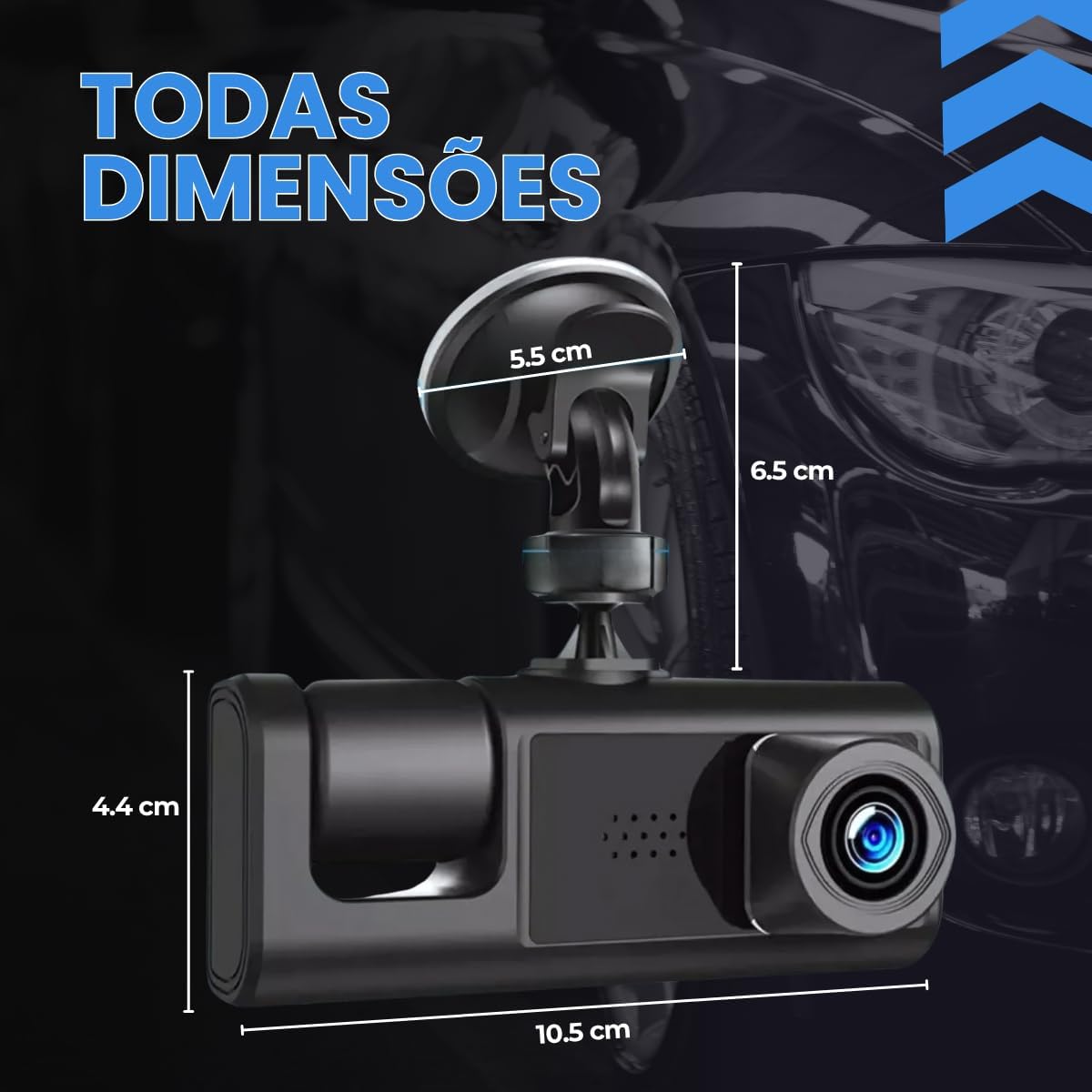
Image: Comparison highlighting the enhanced features of the current dashcam version.
10. Warranty and Support
For warranty information and technical support, please refer to the contact details provided by your retailer or the product packaging. Keep your purchase receipt as proof of purchase.
For further assistance, you may also visit the product page on Amazon: Amazon Product Page
Ask a question about this manual
Ask about setup, troubleshooting, compatibility, parts, safety, or missing instructions. Manuals+ will review the question and use this page’s manual context to help answer it.