
Introduction
This manual provides detailed instructions for the installation, operation, and maintenance of your Jortan Outdoor WiFi PTZ Security Camera. Please read this manual thoroughly before using the product to ensure correct setup and optimal performance. Keep this manual for future reference.
The Jortan Outdoor WiFi PTZ Security Camera is designed for both indoor and outdoor surveillance, offering features such as pan, tilt, and zoom control, infrared night vision, two-way audio, and motion detection. It connects via Wi-Fi and is managed through the Yoosee application.
Product Overview
Key Features
- PTZ Control: Remotely pan, tilt, and zoom the camera for comprehensive coverage.
- Infrared Night Vision: Provides clear video recording in low-light conditions.
- 2-Way Audio: Enables live communication through the camera's built-in microphone and speaker.
- Motion Detection: Triggers real-time alerts upon detecting movement.
- IP66 Rated: Ensures durability and weather resistance for outdoor use.
- Local Storage: Supports video recording to a micro SD card (not included).
Package Contents
The package includes the Jortan Outdoor WiFi PTZ Security Camera, a power adapter, and mounting screws.
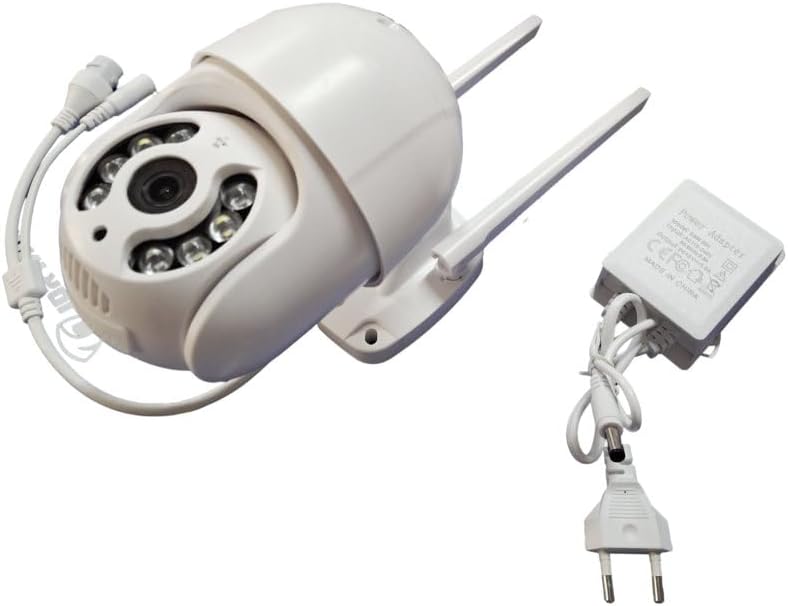
Image: The Jortan Outdoor WiFi PTZ Security Camera shown alongside its power adapter and connection cables, illustrating the complete set of components.
Setup Guide
1. Physical Installation
Select a suitable location for mounting the camera, ensuring it has a clear view of the area you wish to monitor and is within range of your Wi-Fi network. Use the provided mounting screws to securely attach the camera to a wall or ceiling. The camera is IP66 rated for outdoor durability.
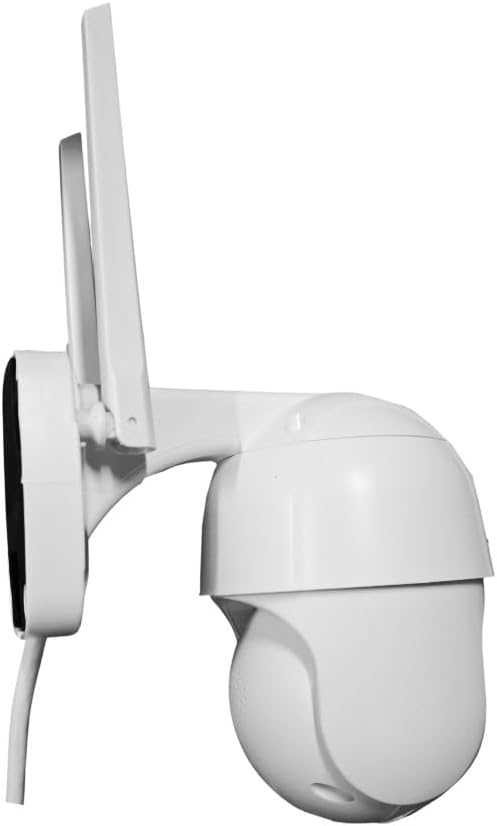
Image: Side view of the Jortan Outdoor WiFi PTZ Security Camera, highlighting the integrated mounting bracket for secure installation.
2. Power Connection
Connect the provided power adapter to the camera's power input port and then plug the adapter into a standard electrical outlet. The camera will power on and initiate its startup sequence.
3. App Download and Account Creation
- Download the Yoosee app from your smartphone's app store (Google Play Store for Android or Apple App Store for iOS).
- Open the Yoosee app and follow the on-screen instructions to create a new user account or log in if you already have one.
4. Camera Pairing
- In the Yoosee app, tap the 'Add Device' or '+' icon.
- Select the option to add a new camera and follow the app's prompts to connect the camera to your 2.4GHz Wi-Fi network. Ensure your smartphone is connected to the same Wi-Fi network during the pairing process.
- The app will guide you through scanning a QR code on the camera or using sound wave pairing.
- Once successfully paired, you can name your camera and begin live viewing.
Operating Instructions
PTZ Control
From the live view interface in the Yoosee app, use the directional controls to pan (rotate horizontally), tilt (rotate vertically), and zoom the camera lens to adjust your viewing angle and focus on specific areas.
Night Vision
The camera automatically switches to infrared night vision mode in low-light conditions, providing clear black and white video footage. No manual adjustment is typically required.
Two-Way Audio
To use the two-way audio feature, tap the microphone icon in the Yoosee app's live view. You can then speak into your phone, and your voice will be projected through the camera's speaker. Tap the speaker icon to listen to audio from the camera's surroundings.
Motion Detection and Alerts
Configure motion detection settings within the Yoosee app. You can set detection zones, sensitivity levels, and schedule times for alerts. When motion is detected, the camera will record footage and send push notifications to your smartphone.
Local Storage (Micro SD Card)
The camera supports local storage via a micro SD card (up to 128GB, not included). To install, power off the camera, locate the SD card slot (refer to the camera's physical design), and insert the card. Format the SD card through the Yoosee app settings for proper recording. Recorded footage can be accessed and replayed directly from the app.
Maintenance
- Cleaning: Periodically clean the camera lens with a soft, dry cloth to ensure clear image quality. Do not use harsh chemicals.
- Firmware Updates: Check the Yoosee app regularly for available firmware updates. Keeping the camera's firmware updated ensures optimal performance and security.
- Power Supply: Ensure the power adapter and cable are free from damage.
Troubleshooting
- Camera Not Connecting to Wi-Fi:
- Ensure your Wi-Fi network is 2.4GHz. The camera does not support 5GHz Wi-Fi.
- Check that the Wi-Fi password entered in the app is correct.
- Move the camera closer to your Wi-Fi router to improve signal strength.
- Restart the camera and your router.
- No Video Feed:
- Verify the camera is powered on and connected to Wi-Fi.
- Check your internet connection.
- Restart the Yoosee app.
- Poor Night Vision:
- Ensure the camera lens is clean and free from obstructions.
- Avoid placing the camera near reflective surfaces that might interfere with infrared illumination.
- Motion Alerts Not Received:
- Check motion detection settings in the Yoosee app (sensitivity, detection zones, schedule).
- Ensure push notifications are enabled for the Yoosee app in your phone's settings.
Specifications
| Feature | Detail |
|---|---|
| Manufacturer | Jortan |
| Product Dimensions | 18 x 18 x 12 cm |
| Special Features | 2 Way Audio, Local Recording, Motion Sensor, Night Vision, PTZ Technology |
| Indoor/Outdoor Usage | Outdoor |
| Connectivity Protocol | Wi-Fi (2.4GHz only) |
| Mounting Type | Wall Mount |
| Video Capture Resolution | 720p |
| Included Components | Mounting Screw |
Warranty and Support
Specific warranty information is not provided with this product. Please refer to the retailer's return policy or contact the seller directly for details regarding warranty coverage.
For technical support or further assistance, please refer to the help section within the Yoosee application or contact the app's support channels. Ensure you have your product model and purchase details available when seeking support.