
Mivi Hip Hop 500
Mivi Hip Hop 500 Soundbar Instruction Manual
Model: Hip Hop 500
1. Introduction
The Mivi Hip Hop 500 is a high-performance 2.2 channel soundbar designed to deliver an immersive audio experience. With 120 watts of power, dual full-range speakers, and dual built-in subwoofers, it enhances your entertainment with rich, dynamic sound. This manual provides essential information for setting up, operating, and maintaining your soundbar.
2. What's in the Box
- Mivi Hip Hop 500 Soundbar
- Remote Control
- Power Cable
- User Manual (this document)
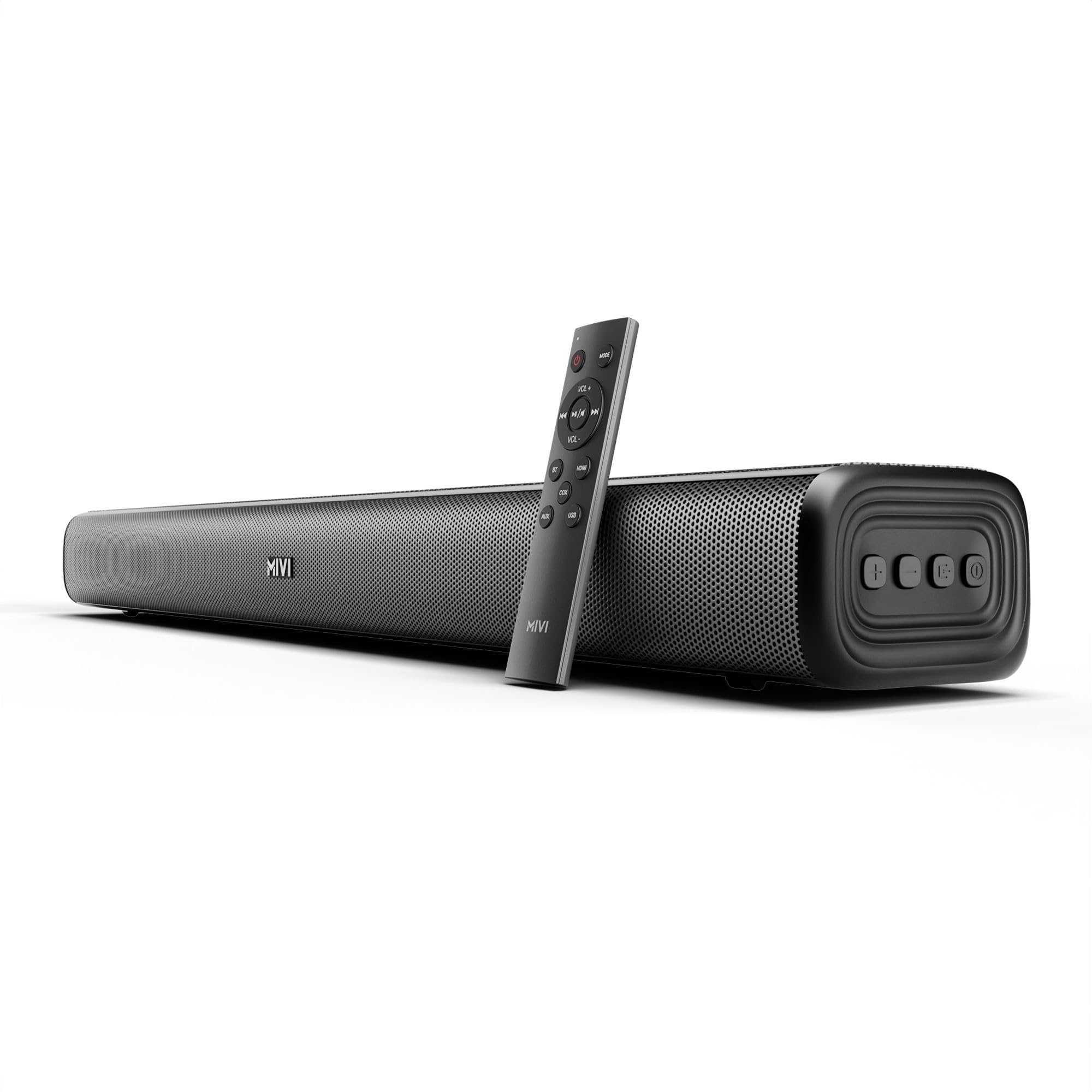
Image: Mivi Hip Hop 500 Soundbar with its remote control and power cable.
3. Product Features
- 120 Watts Output: Powerful audio for an enhanced listening experience.
- 2.2 Channel Audio: Features dual full-range speakers and dual built-in subwoofers for deep bass and clear highs.
- Multiple Connectivity Options: Supports HDMI, Bluetooth v5.3, AUX, USB, and Coaxial inputs.
- Remote Control: Full control over volume, input selection, and sound modes from a distance.
- Sleek Design: Crafted for modern home aesthetics.

Image: The Mivi Hip Hop 500 Soundbar highlighting its 120 Watts output.

Image: The Mivi Hip Hop 500 Soundbar emphasizing its 2.2 channel audio output.
4. Setup
4.1 Placement
Place the soundbar on a stable, flat surface directly in front of your television. Ensure there are no obstructions blocking the soundbar's speakers. For optimal sound, position it centrally.

Image: Proper placement of the soundbar in a home entertainment setup.
4.2 Power Connection
- Connect the power cable to the DC 20V port on the back of the soundbar.
- Plug the other end of the power cable into a wall outlet.
- The soundbar will enter standby mode.

Image: Rear panel of the soundbar showing the DC 20V power input and other connectivity ports.
5. Operating Instructions
5.1 Power On/Off
- Press the Power button on the soundbar or the remote control to turn the unit on or off.
5.2 Volume Control
- Use the VOL+ and VOL- buttons on the remote control or the soundbar to adjust the volume.
5.3 Input Selection
Press the MODE button on the remote control or the soundbar to cycle through available input sources: HDMI, Bluetooth, AUX, USB, and Coaxial.
5.4 Sound Modes
The soundbar offers different sound modes for optimized audio. Use the dedicated buttons on the remote control (e.g., MUSIC, MOVIE) to select the desired mode.

Image: Remote control for the Mivi Hip Hop 500 Soundbar, showing various function buttons.
6. Connectivity Options
6.1 Bluetooth Pairing
- Turn on the soundbar and select Bluetooth mode using the MODE button. The indicator light will flash.
- Enable Bluetooth on your device (smartphone, tablet, etc.) and search for "Mivi Hip Hop 500".
- Select the soundbar from the list to pair. A confirmation sound will indicate successful pairing.
6.2 HDMI (ARC) Connection
Connect an HDMI cable from the HDMI (ARC) port on your television to the HDMI TV port on the soundbar. Ensure your TV's HDMI ARC function is enabled in its settings.
6.3 AUX Connection
Use a 3.5mm audio cable to connect your device's audio output to the AUX port on the soundbar. Select AUX mode on the soundbar.
6.4 USB Playback
Insert a USB drive containing audio files into the USB port on the soundbar. The soundbar will automatically switch to USB mode and begin playback.
6.5 Coaxial Connection
Connect a coaxial audio cable from your device's coaxial output to the COAXIAL port on the soundbar. Select Coaxial mode on the soundbar.
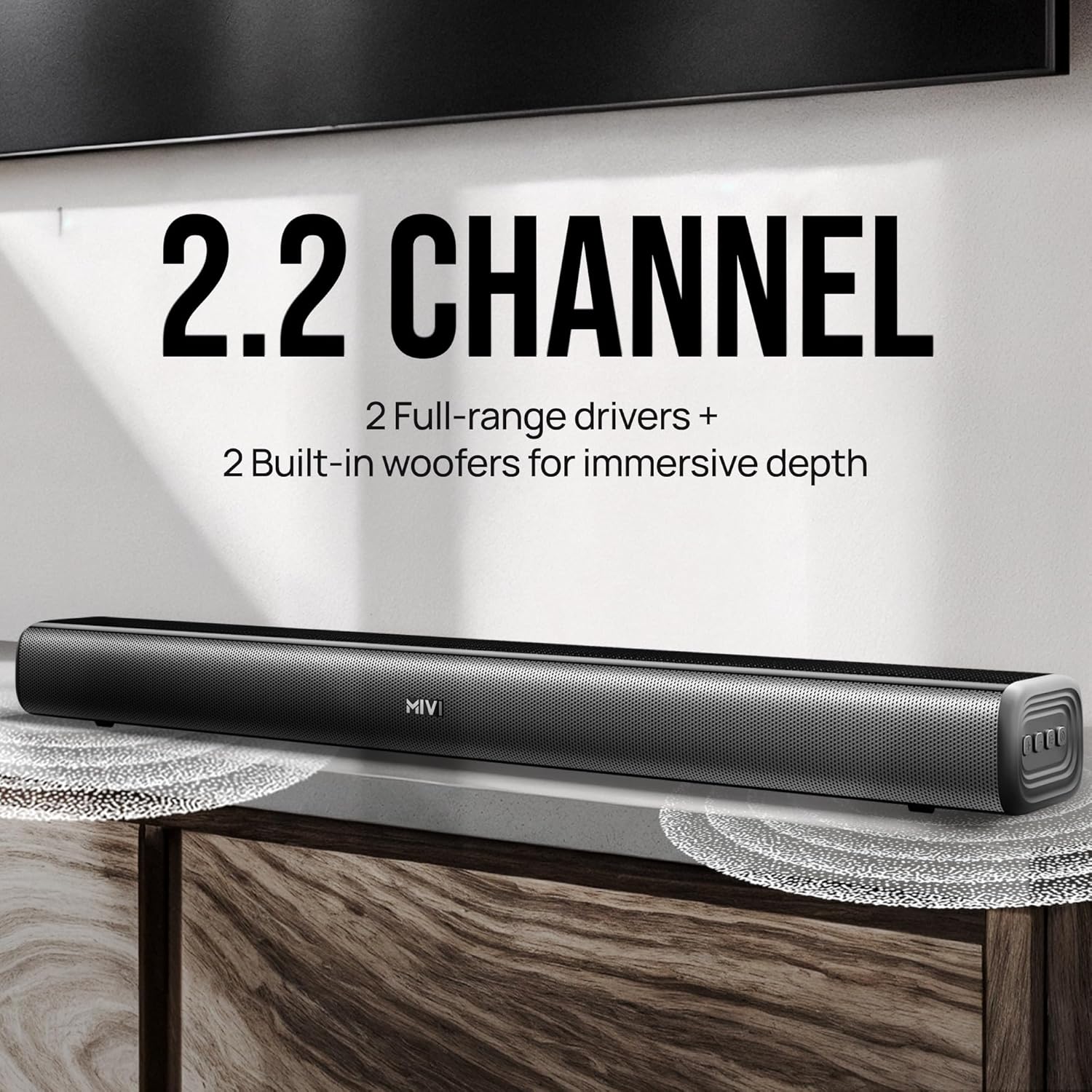
Image: Detailed view of the soundbar's rear panel, illustrating HDMI, Coaxial, AUX, USB, and DC input ports.
7. Remote Control
The included remote control provides convenient access to all soundbar functions. Ensure the remote has working batteries and is pointed towards the soundbar's sensor.

Image: The Mivi Hip Hop 500 Soundbar remote control, showing its layout and buttons.
Remote Functions:
- Power: Turns the soundbar on/off.
- Mute: Mutes or unmutes the sound.
- MODE: Switches between input sources (HDMI, Bluetooth, AUX, USB, Coaxial).
- VOL+/VOL-: Adjusts volume up or down.
- Play/Pause: Controls media playback (for Bluetooth/USB modes).
- Previous/Next: Skips tracks (for Bluetooth/USB modes).
- MUSIC/MOVIE: Selects preset sound modes.
8. Maintenance
- Cleaning: Use a soft, dry cloth to wipe the surface of the soundbar. Do not use liquid cleaners or abrasive materials.
- Storage: If storing the soundbar for an extended period, disconnect it from power and store it in a cool, dry place.
- Avoid Liquids: Keep the soundbar away from water and other liquids to prevent damage.
9. Troubleshooting
| Problem | Possible Solution |
|---|---|
| No power | Ensure the power cable is securely connected to both the soundbar and a working power outlet. |
| No sound |
|
| Bluetooth pairing fails |
|
| Remote control not working |
|
10. Specifications
| Brand | Mivi |
| Model Name | Hip Hop 500 |
| Speaker Maximum Output Power | 120 Watts |
| Number of Audio Channels | 2.2 |
| Connectivity Technology | Auxiliary, Bluetooth v5.3, DC, USB, Coaxial, HDMI |
| Audio Output Mode | Surround |
| Control Method | Remote |
| Speaker Size (Length) | 57.79 Centimeters |
| Item Weight | 13.52 Kilograms (Note: This may refer to shipping weight) |
| Compatible Devices | Laptop, Smartphone, Tablet, Television |
| Power Source | Corded Electric |
| Country of Origin | India |
11. Warranty and Support
11.1 Warranty Information
The Mivi Hip Hop 500 Soundbar comes with a 1-Year Warranty from the date of purchase. Please retain your purchase receipt for warranty claims. The warranty covers manufacturing defects under normal use.
11.2 Customer Support
For any support, service, or warranty-related queries, please contact Mivi customer service. You can find contact details on the official Mivi website or refer to the contact information provided with your product packaging.
Manufacturer Address: Mivi, Plot No, 29, Rd Number 76, Jubilee Hills, Hyderabad, Telangana 500033, India.
Ask a question about this manual
Ask about setup, troubleshooting, compatibility, parts, safety, or missing instructions. Manuals+ will review the question and use this page’s manual context to help answer it.