
Introduction
This manual provides essential information for setting up, operating, maintaining, and troubleshooting your HP OMEN 16L TG03 Gaming Desktop. This high-performance system is equipped with an Intel Core Ultra 7 265F processor, NVIDIA GeForce RTX 5060 graphics, 64GB DDR5 RAM, and a 2TB SSD, designed for demanding gaming and creative tasks. It also includes a Thunderobot KG3089R Gaming Keyboard.
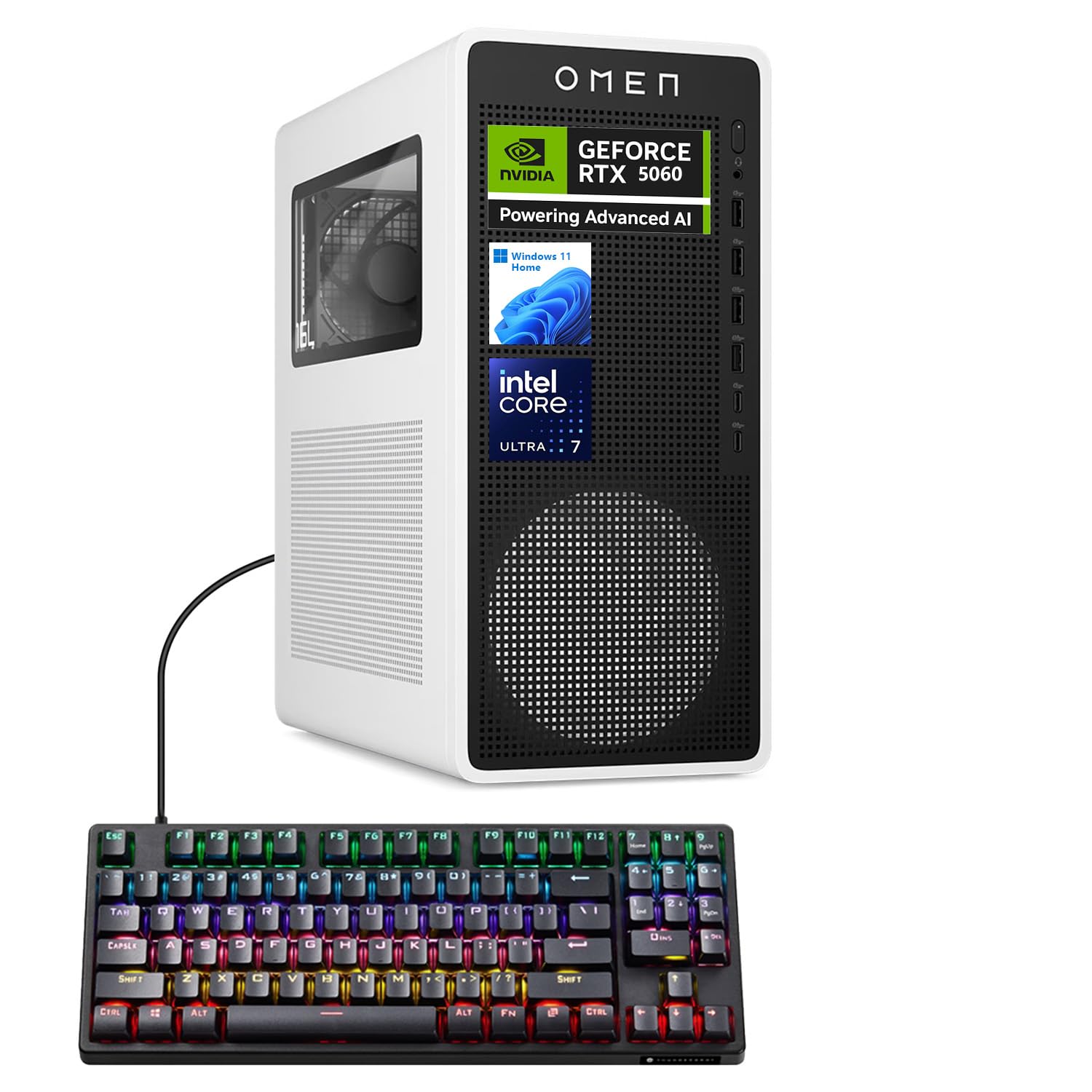
Figure 1: HP OMEN 16L TG03 Gaming Desktop with included Thunderobot Keyboard.
1. Setup Guide
1.1 Unboxing and Placement
- Carefully remove all components from the packaging. Ensure all accessories, including the Thunderobot keyboard, are present.
- Place the desktop on a stable, flat surface with adequate ventilation. Avoid blocking air vents.
1.2 Connecting Peripherals
- Monitor: Connect your monitor to the graphics card's HDMI or DisplayPort outputs. The NVIDIA GeForce RTX 5060 supports multiple displays.
- Keyboard and Mouse: Connect the Thunderobot KG3089R Gaming Keyboard and your mouse to any available USB Type-A ports.
- Power: Connect the power cable to the desktop's power supply and then to a grounded electrical outlet.
- Network: For wired internet, connect an Ethernet cable to the RJ-45 port. For wireless, ensure Wi-Fi antennas are properly connected (if external).
- Audio: Connect speakers or headphones to the audio ports.

Figure 2: Rear view of the HP OMEN 16L TG03 Desktop showing various ports for connectivity.

Figure 3: HP OMEN 16L TG03 Desktop connected to a monitor, showcasing the OMEN Gaming Hub interface.
1.3 Initial Power On
- Press the power button located on the front of the desktop.
- Follow the on-screen instructions to complete the Windows 11 Home operating system setup. This typically involves setting up user accounts, network connections, and privacy settings.
2. Operating Instructions
2.1 Basic Operation
- Power On/Off: Press the power button to turn on. To shut down, use the Windows Start menu (Start > Power > Shut down).
- Restart: Use the Windows Start menu (Start > Power > Restart).
- Sleep Mode: Use the Windows Start menu (Start > Power > Sleep).
2.2 Gaming and Performance Features
- OMEN Gaming Hub: This pre-installed software allows you to monitor system performance, customize RGB lighting, optimize game settings, and access OMEN AI features.
- NVIDIA GeForce RTX 5060: Leverage the dedicated graphics card for high-fidelity gaming and demanding creative applications. Ensure graphics drivers are up to date for optimal performance.
- AI-Ready Capabilities: The Intel Core Ultra 7 processor and NVIDIA RTX 5060 GPU provide advanced AI processing capabilities for enhanced gaming, content creation, and productivity.

Figure 4: Overview of NVIDIA RTX 50 Series graphics card features, including DLSS 4 and AI-Powered Creativity.
2.3 Thunderobot KG3089R Keyboard Shortcuts
The included Thunderobot KG3089R Gaming Keyboard features several shortcut key combinations:
- FN + F9: Switch lighting effects.
- FN + Win: Lock the Windows key to prevent accidental presses during gaming.
- Refer to the keyboard's dedicated manual for a complete list of functions.

Figure 5: Thunderobot KG3089R Gaming Keyboard highlighting FN key combinations for lighting and Windows key lock.
3. Maintenance
3.1 Cleaning
- Exterior: Use a soft, damp cloth to clean the exterior surfaces. Avoid abrasive cleaners.
- Vents: Regularly check and clean dust from the air vents using compressed air to ensure proper airflow and prevent overheating.
- Keyboard: Use compressed air to remove debris from under the keycaps.
3.2 Software Updates
- Windows Updates: Regularly check for and install Windows 11 updates to ensure system stability and security. (Settings > Windows Update).
- Driver Updates: Keep your graphics drivers (NVIDIA GeForce Experience) and other hardware drivers updated for optimal performance and compatibility.
- OMEN Gaming Hub: Ensure the OMEN Gaming Hub software is updated to access the latest features and optimizations.
3.3 System Backup
- Regularly back up important data to an external drive or cloud storage to prevent data loss.
- Consider creating a system restore point before major software changes.
4. Troubleshooting
4.1 Common Issues and Solutions
- No Power:
- Ensure the power cable is securely connected to both the desktop and the electrical outlet.
- Verify the power outlet is functional.
- No Display:
- Check that the monitor is powered on and the video cable is securely connected to the graphics card output, not the motherboard's integrated graphics port.
- Try a different video cable or monitor if available.
- System Slowdown:
- Close unnecessary applications running in the background.
- Check for malware or viruses.
- Ensure sufficient free space on the 2TB SSD.
- Verify system temperatures using OMEN Gaming Hub to rule out overheating.
- Keyboard Not Responding:
- Ensure the keyboard cable is securely connected to a USB port.
- Try connecting the keyboard to a different USB port.
- If the Windows key is locked (FN + Win), unlock it.
4.2 Contacting Support
If you encounter issues that cannot be resolved with the above steps, please refer to the official HP support website or contact their customer service for assistance. Have your product model (OMEN 16L TG03) and serial number ready.
5. Specifications
| Feature | Detail |
|---|---|
| Brand | HP |
| Model Name | OMEN 16L TG03 (HSC-F007MT) |
| Operating System | Windows 11 Home |
| Processor | Intel Core Ultra 7 265F (20 Cores, up to 5.30GHz) |
| Graphics Card | NVIDIA GeForce RTX 5060 (8GB GDDR7) |
| RAM | 64GB DDR5 (4800 MHz) |
| Storage | 2TB PCIe NVMe M.2 SSD |
| Front Ports | Headphone/MIC combo jack, 4x SuperSpeed USB Type-A (5Gbps), 2x USB Type-C (10Gbps) |
| Rear Ports | 3x Headphone/MIC combo jack, HDMI Out, 4x USB 2.0 Type-A, RJ-45, 3x DisplayPort |
| Wireless Connectivity | Wi-Fi 6, Bluetooth |
| Dimensions (H x W x D) | 13.26 x 6.1 x 12.12 inches |
| Weight | 13.91 Pounds |
| Included Accessory | Thunderobot KG3089R Gaming Keyboard |
6. Warranty Information
Your HP OMEN 16L TG03 Gaming Desktop is covered by a manufacturer's warranty. The specific terms and duration of the warranty may vary by region and purchase date. Please refer to the warranty documentation included with your product or visit the official HP support website for detailed information. Keep your proof of purchase for warranty claims.
7. Customer Support
For further assistance, technical support, or to download the latest drivers and software, please visit the official HP support website: support.hp.com. You may also find helpful resources and community forums on the OMEN Gaming Hub application.


