
Introduction
This manual provides comprehensive instructions for the setup, operation, and maintenance of your JBL Bar 300MK2-5.0 Channel All-in-one soundbar. Please read this manual thoroughly before using the product to ensure proper and safe operation.
The JBL Bar 300MK2 delivers immersive, cinematic sound with Dolby Atmos® and MultiBeam™ 3.0 technology, enhancing your entertainment experience with crystal-clear dialogue and a wide soundstage. It is designed for seamless integration with various home entertainment systems.
What's in the Box
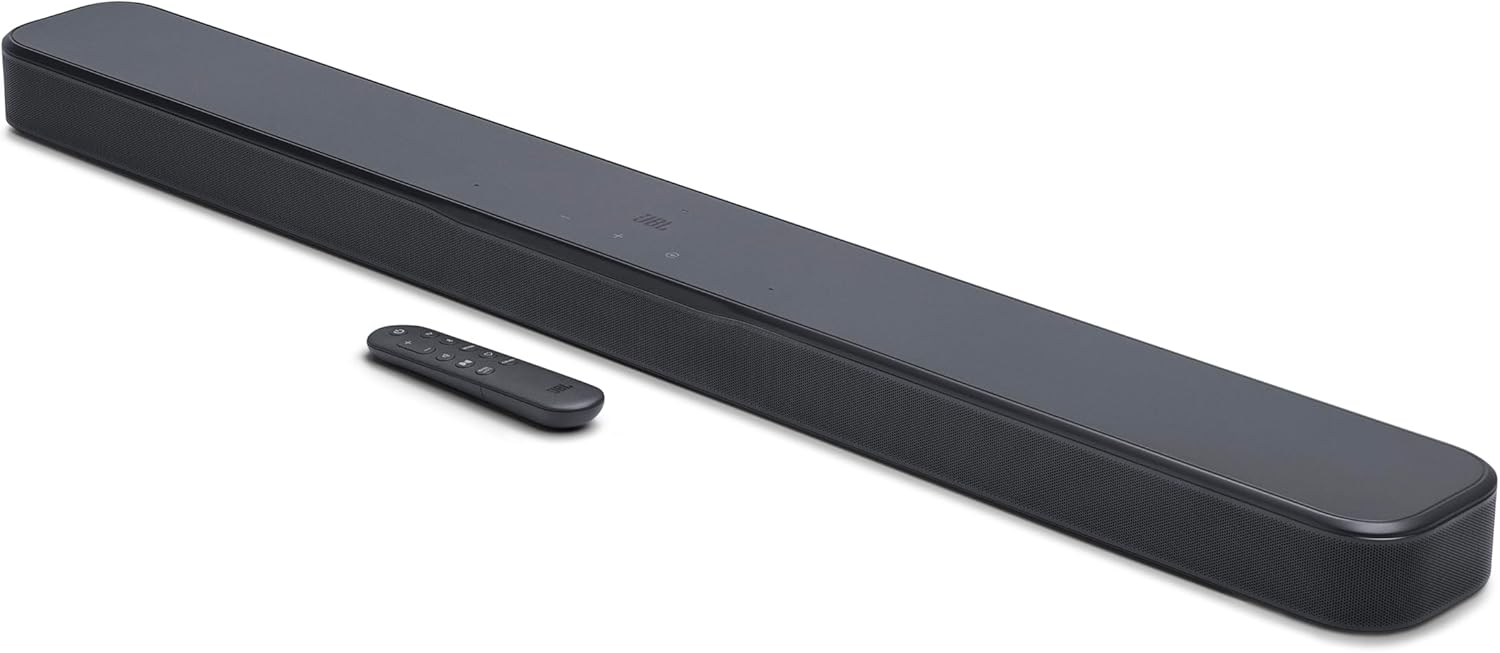
Image: The JBL Bar 300MK2 soundbar shown with its remote control. The soundbar is black with a sleek, rectangular design, and the remote is compact with various control buttons.
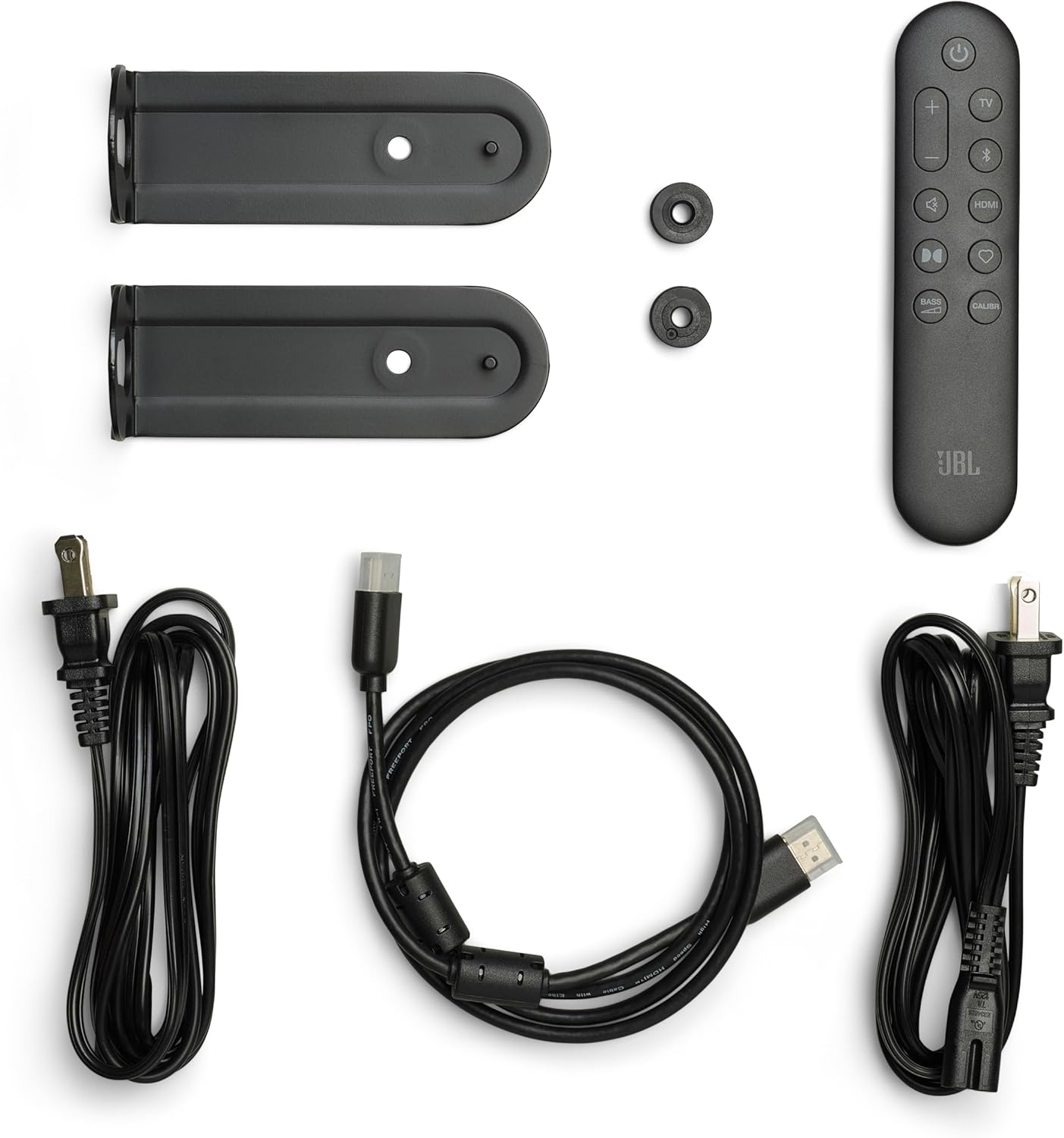
Image: All included components of the JBL Bar 300MK2 package laid out. This includes the soundbar, remote control, power cords, HDMI cable, and wall-mount brackets.
Verify that all items listed below are included in your package:
- 1x Bar 300M2 soundbar
- Remote control with 2 x batteries
- Power cords & 1 x HDMI cable
- 2 x L-shape wall-mount bracket (main bar) & Wall mount template
- Quick start guide & Safety instruction and Warranty card
Setup
Placement
The JBL Bar 300MK2 can be placed on a flat surface in front of your TV or wall-mounted. Ensure the soundbar is positioned centrally relative to your TV for optimal sound distribution.
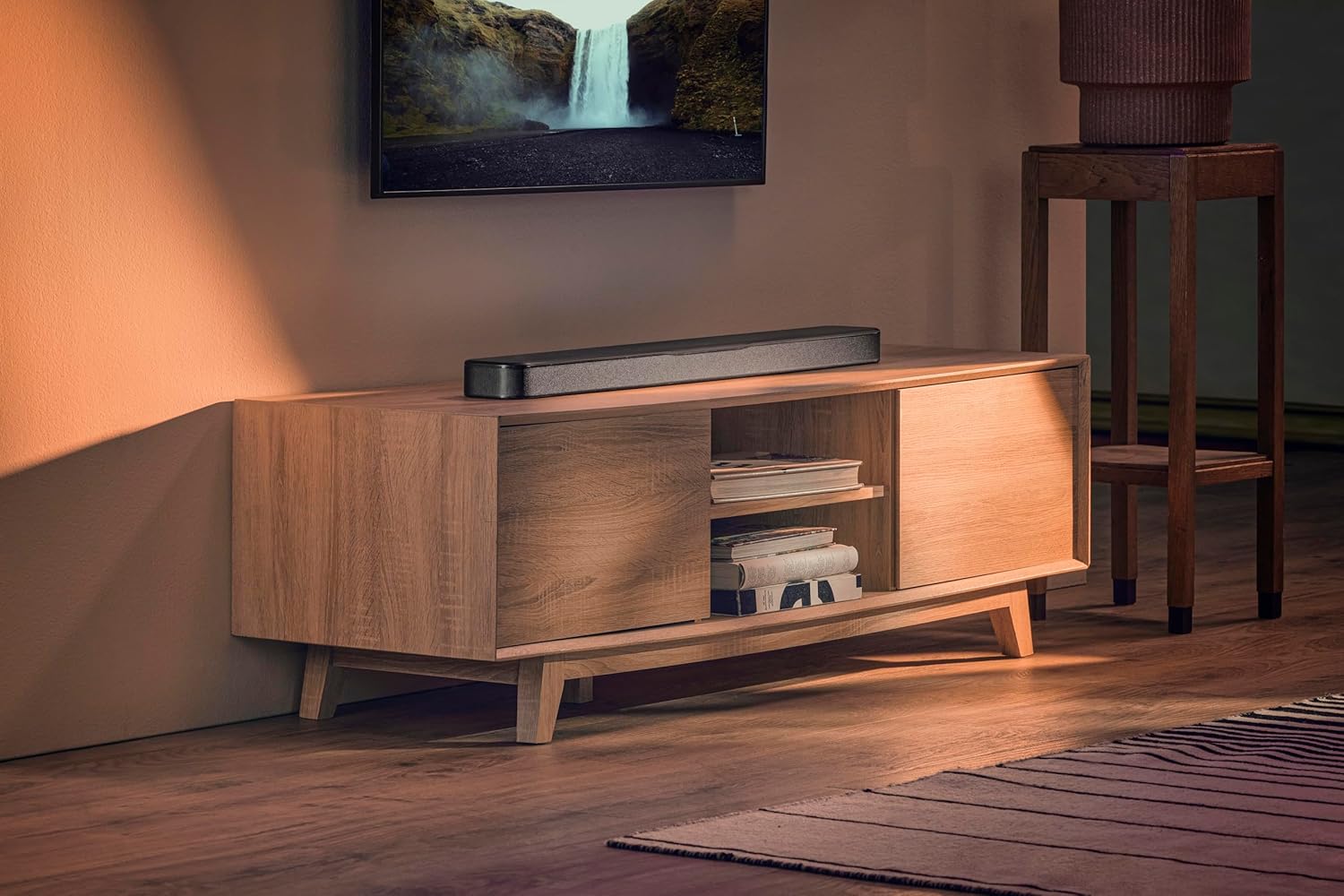
Image: The JBL Bar 300MK2 soundbar positioned on a media console directly below a wall-mounted television, demonstrating a typical home setup.
Connections
Connect the soundbar to your television and other devices using the available ports. For the best audio experience, use the HDMI eARC connection.

Image: A close-up view of the rear panel of the JBL Bar 300MK2 soundbar, highlighting the power input, USB port, HDMI IN, HDMI OUT (TV ARC/TV eARC), and Optical audio input ports.
- Power: Connect the power cord to the soundbar and then to a power outlet.
- HDMI eARC (Recommended): Connect an HDMI cable from the HDMI OUT (TV ARC/TV eARC) port on the soundbar to the HDMI ARC/eARC port on your TV. This allows for uncompressed Dolby Atmos surround sound and TV remote control of the soundbar volume.
- HDMI IN: If you have an external device like a gaming console or Blu-ray player, connect its HDMI output to the HDMI IN port on the soundbar.
- Optical: As an alternative to HDMI, connect an optical cable from the OPTICAL port on the soundbar to the optical output on your TV. Note that optical connection does not support Dolby Atmos.
- USB: The USB port (5V 500mA) is for service updates only.
Initial Power On and Calibration
After connecting, power on the soundbar. The soundbar features easy sound calibration to optimize audio for your room's acoustics.
- Press the power button on the soundbar or remote control to turn it on.
- Use the JBL ONE App for initial setup and calibration. The app will guide you through the process, discovering how sound reflects off your walls and furniture to deliver the best 3D surround effects.
Operating Instructions
Remote Control Functions
The included remote control provides convenient access to various soundbar functions.

Image: A top-down view of the JBL Bar 300MK2 soundbar, showing the touch-sensitive control buttons on its surface, including power, volume up/down, and input selection.
- Power Button: Turns the soundbar on or off.
- Volume +/-: Adjusts the master volume.
- Source Selection: Switches between HDMI, Optical, Bluetooth, and Wi-Fi inputs.
- Bass Adjustment: Controls the level of bass output.
- Calibration Button: Initiates the sound calibration process.
- PureVoice: Activates or deactivates the PureVoice 2.0 feature for enhanced dialogue clarity.
JBL ONE App
The JBL ONE App provides advanced control and customization options for your soundbar.
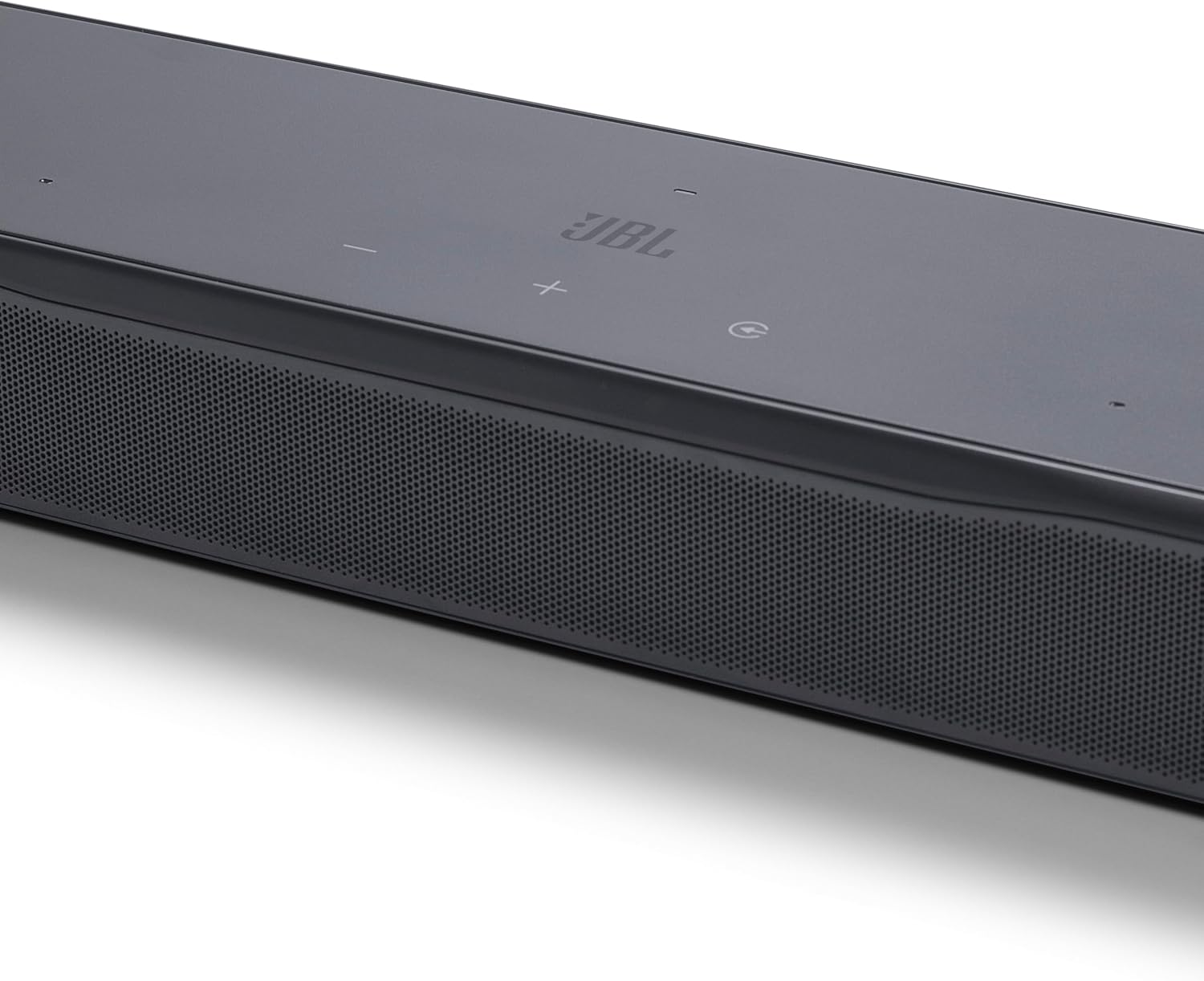
Image: A person holding a smartphone displaying the JBL ONE App interface, with the JBL Bar 300MK2 soundbar visible in the background, illustrating app control.
- Download the JBL ONE App from your device's app store.
- Use the app to customize the sound with a precise equalizer, browse music apps, and receive software updates.
Audio Technologies
- Dolby Atmos®: Provides an immersive, multi-dimensional audio experience.
- MultiBeam™ 3.0: Delivers a wide, cinema-like soundstage by reflecting sound off walls.
- PureVoice 2.0: Automatically optimizes dialogue clarity, ensuring every word is heard.
- SmartDetails: Enhances subtle audio details for a richer listening experience.
Streaming and Voice Assistant Integration
The soundbar supports various streaming services and integrates with voice assistant-enabled speakers.
- Music Streaming: Enjoy music and podcasts via AirPlay, Google Cast, Spotify Connect, Tidal Connect, and Roon Ready.
- Voice Assistant: Link the soundbar to your Google Assistant or Siri-enabled devices for hands-free control of music playback.
Maintenance
Cleaning
- Always unplug the soundbar from the power outlet before cleaning.
- Use a soft, dry cloth to wipe the surfaces of the soundbar.
- Do not use liquid cleaners, abrasive cleaners, or aerosol sprays, as they may damage the finish or internal components.
Storage
- If storing the soundbar for an extended period, disconnect all cables and place it in its original packaging or a suitable protective container.
- Store in a cool, dry place away from direct sunlight and extreme temperatures.
Troubleshooting
| Problem | Possible Cause | Solution |
|---|---|---|
| No power | Power cord not connected securely. | Ensure the power cord is firmly plugged into the soundbar and a working power outlet. |
| No sound | Incorrect input source selected; Volume too low; Cables not connected properly. | Select the correct input source (HDMI, Optical, Bluetooth). Increase the volume. Check all audio cable connections. Ensure TV audio output is set to external speakers. |
| Poor sound quality / Distortion | Audio source issue; Room acoustics; Incorrect sound settings. | Try a different audio source. Run the sound calibration process via the JBL ONE App. Adjust equalizer settings in the app. |
| Remote control not working | Batteries are dead or inserted incorrectly; Obstruction between remote and soundbar. | Replace batteries. Ensure line of sight between remote and soundbar. |
| Bluetooth pairing issues | Soundbar not in pairing mode; Device too far. | Put the soundbar into Bluetooth pairing mode. Ensure your device's Bluetooth is on and within range. |
Specifications
- Model Name: Bar 300MK2
- Model Number: JBLBAR300M2BLKAM
- Speaker Type: Soundbar
- Surround Sound Channel Configuration: 5.0
- Speaker Maximum Output Power: 450 Watts
- Frequency Response: 20 Hz (lower bound, typical for soundbars, assuming it's 20Hz-20kHz range)
- Connectivity Technology: Bluetooth, HDMI, Optical, USB, Wi-Fi, Airplay, Google Cast, Spotify Connect, Tidal Connect, Roon Ready
- Product Dimensions (D x W x H): 4.1" x 37" x 2"
- Item Weight: 10.5 Pounds
- Color: Black
- Special Features: Built-in Microphone, Display, Dolby Enabled (Dolby Atmos), Multi Room Audio, USB Port, PureVoice 2.0, MultiBeam 3.0, SmartDetails, Easy Sound Calibration, JBL ONE App, Works with Voice Assistant-Enabled Speakers
- Compatible Devices: Gaming Console, Home Theater, Smartphone, Streaming Device, Television
Warranty and Support
Warranty Information
This product is covered by a limited warranty. Please refer to the "Quick start guide & Safety instruction and Warranty card" included in your package for detailed warranty terms and conditions. Retain your proof of purchase for warranty claims.
Customer Support
For technical assistance, troubleshooting, or service inquiries, please visit the official JBL support website or contact their customer service. Contact information can typically be found on the JBL website or in the included documentation.
Note: Always refer to the latest information available on the manufacturer's official website for the most up-to-date support resources and warranty details.


