
1. Introduction
Thank you for choosing the CP Plus CP-V44G 4MP Outdoor 4G SIM-Based Wireless Security Camera. This manual provides essential information for the proper installation, operation, and maintenance of your security camera. Please read this manual thoroughly before using the product to ensure optimal performance and safety.
2. Product Overview
2.1 Key Features
- 4G SIM-Based Connectivity: Operates independently without Wi-Fi, ideal for remote locations.
- 4MP Full HD Video: Captures clear footage at 2560x1440 resolution with H.265 compression.
- PIR Motion & Human Detection: Advanced AI-based detection reduces false alarms.
- Full-Color Night Vision: Utilizes white LEDs and a CMOS sensor for clear, colored images in low light up to 20 meters.
- Two-Way Audio: Enables real-time communication via the mobile app.
- Built-in Siren: Automatic siren activation upon intrusion detection.
- Local Storage: Supports microSD card up to 256GB (card not included).
- Battery Powered: Equipped with a 10400mAh rechargeable battery for extended runtime.
- Outdoor Usage: Designed for outdoor surveillance.
2.2 Package Contents
Verify that all items are present in the package:
- CP Plus CP-V44G 4MP Camera Unit
- Power Adapter
- Mounting Screws
- User Manual (this document)
2.3 Camera Components
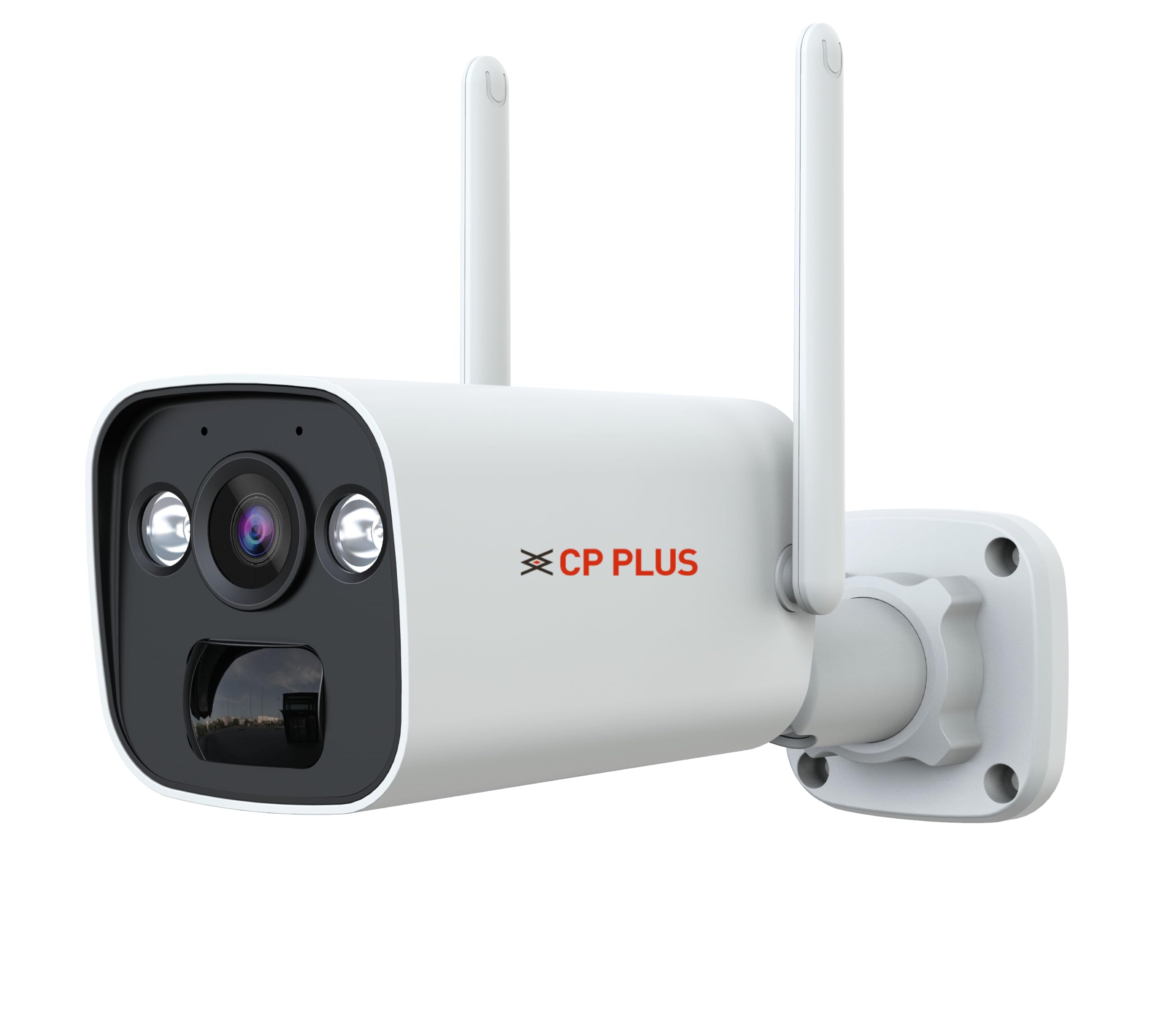
The CP-V44G camera features a bullet-style housing. Key components typically include the lens, infrared (IR) LEDs, white LEDs for full-color night vision, a microphone, a speaker, a SIM card slot, a microSD card slot, and a power input port. Specific locations of these components can be found in the diagram below.
3. Safety Information
- Ensure the camera is installed in a location that provides adequate protection from extreme weather conditions, despite its outdoor rating.
- Use only the provided power adapter. Using unauthorized power sources may damage the device and void the warranty.
- Do not attempt to disassemble or modify the camera. This can lead to electric shock or product malfunction.
- Keep the camera away from strong magnetic fields or corrosive substances.
- Ensure the mounting surface is strong enough to support the camera's weight.
- This product is not water resistant. Avoid direct exposure to heavy rain or submersion in water.
4. Setup
4.1 SIM Card Installation
- Locate the SIM card slot on the camera. This is typically protected by a rubber cover or screw-secured panel.
- Carefully open the cover.
- Insert a 4G SIM card into the slot with the metal contacts facing down, ensuring it clicks into place.
- Close the cover securely to maintain weather resistance.
4.2 MicroSD Card Installation
- Locate the microSD card slot, often adjacent to the SIM card slot.
- Insert a microSD card (up to 256GB, not included) into the slot until it clicks.
- Close the protective cover.
4.3 App Installation and Account Creation
- Download the ezyKam+ mobile application from your device's app store (Android or iOS).
- Open the app and follow the on-screen instructions to create a new user account.
4.4 Camera Pairing
- Power on the camera using the provided power adapter.
- Open the ezyKam+ app and tap on 'Add Device' or the '+' icon.
- Select the appropriate camera type (e.g., 4G Camera).
- Follow the in-app instructions to scan the QR code on the camera or manually enter its device ID.
- Once successfully paired, you can name your camera and configure initial settings.
4.5 Mounting the Camera
The camera is designed for ceiling mount installation.
- Choose a suitable mounting location that provides the desired viewing angle (95.45 degrees) and is within 20 meters of the area to be monitored at night.
- Use the mounting screws provided to securely attach the camera bracket to the ceiling.
- Adjust the camera angle as needed to cover the surveillance area.
5. Operating Instructions
5.1 Live Monitoring
Open the ezyKam+ app and select your camera from the device list to view live video feed. The video resolution is 2560x1440 at 15 frames per second.
5.2 Two-Way Audio
While viewing the live feed, tap the microphone icon in the app to speak through the camera's speaker. Tap the speaker icon to listen to audio from the camera's microphone.
5.3 Night Vision
The camera automatically switches to night vision mode in low-light conditions. The white LEDs activate to provide full-color night vision up to 20 meters.
5.4 Motion Detection and Alerts
The camera features PIR motion sensors and AI-based human detection. When motion or a human presence is detected, the camera will:
- Send a notification to your ezyKam+ app.
- Begin recording to the installed microSD card.
- Activate the built-in siren (if enabled in settings).
Adjust detection sensitivity and alert preferences within the app settings.
5.5 Recording and Playback
Recordings are stored on the microSD card. Access recorded footage through the ezyKam+ app's playback feature. You can review events by date and time.
6. Maintenance
- Cleaning: Gently wipe the camera lens and body with a soft, dry cloth. Do not use harsh chemicals or abrasive cleaners.
- Firmware Updates: Regularly check the ezyKam+ app for available firmware updates to ensure optimal performance and security. Follow in-app instructions for updates.
- Battery Management: Monitor the battery level via the app. Recharge the camera as needed using the provided power adapter.
- SD Card Management: Periodically check the storage status of your microSD card. Format the card through the app if necessary to maintain recording efficiency.
7. Troubleshooting
- Camera is Offline:
- Ensure the 4G SIM card is correctly inserted and has an active data plan.
- Check for 4G network coverage in the camera's location.
- Verify the camera is powered on and the battery is charged.
- Restart the camera by powering it off and on again.
- No Video/Poor Video Quality:
- Clean the camera lens.
- Ensure sufficient 4G signal strength.
- Check app settings for video quality options.
- Motion Detection Not Working:
- Verify motion detection is enabled in the ezyKam+ app settings.
- Adjust sensitivity settings.
- Ensure there are no obstructions blocking the PIR sensor.
- Siren Not Activating:
- Confirm the siren feature is enabled in the app's detection settings.
- Cannot Connect to App:
- Ensure your smartphone has a stable internet connection.
- Update the ezyKam+ app to the latest version.
- Try re-pairing the camera if the issue persists.
8. Specifications
| Feature | Specification |
|---|---|
| Model Name | CP-V44G |
| Effective Still Resolution | 4 MP |
| Video Capture Resolution | 1440p (2560x1440) |
| Frame Rate | 15 frames per second |
| Video Encoding | H.265 |
| Connectivity Technology | Wireless (4G Cellular) |
| Night Vision Range | 20 Metres |
| Viewing Angle | 95.45 Degrees |
| Flash Memory Supported Size Maximum | 256 GB (Micro SD) |
| Battery Power | 10400 mAh |
| Mounting Type | Ceiling Mount |
| Material | Plastic |
| Item Dimensions (LxWxH) | 21.2 x 7 x 7 Centimeters |
| Item Weight | 430 Grams |
| Control Method | App (ezyKam+) |
| Indoor/Outdoor Usage | Outdoor |
| Water Resistance Level | Not Water Resistant |
9. Warranty and Support
9.1 Warranty Information
For detailed warranty information, please refer to the warranty card included with your product or visit the official CP Plus website. Keep your purchase receipt as proof of purchase for warranty claims.
9.2 Customer Support
If you encounter any issues or have questions regarding your CP Plus CP-V44G camera, please contact CP Plus customer support. Contact details can typically be found on the official CP Plus website or within the ezyKam+ application.


