
Introduction
This manual provides detailed instructions for the safe and efficient operation of your WSTER WS-570 Retro American Truck Model Bluetooth Speaker. Please read this manual thoroughly before using the product and retain it for future reference.
What's in the Box
- WS-570 Retro American Truck Model Bluetooth Speaker
- Power Cable
- Quick Start Guide
Product Overview
Familiarize yourself with the speaker's components and controls:
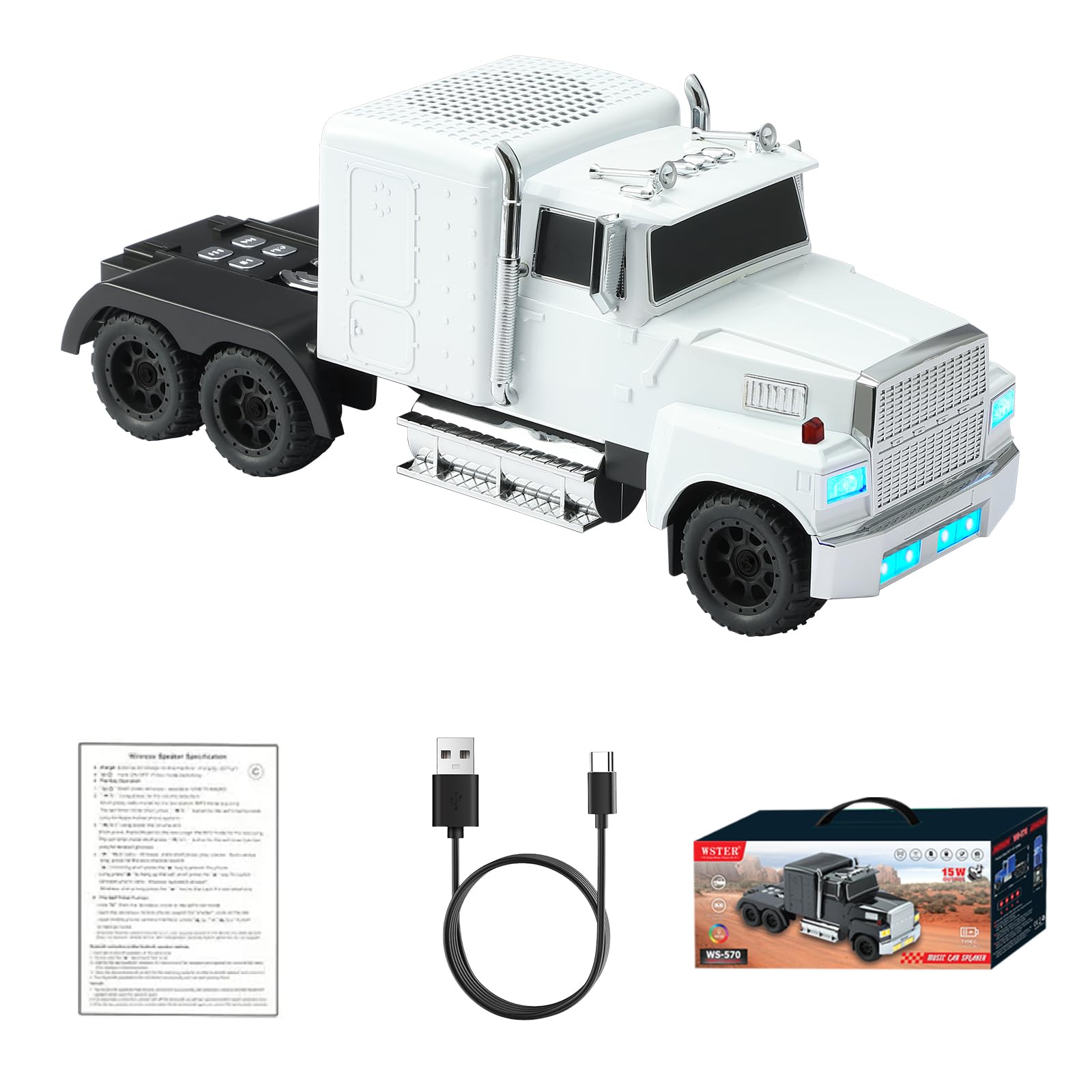
Figure 1: Front view of the WS-570 speaker, showcasing its truck design.
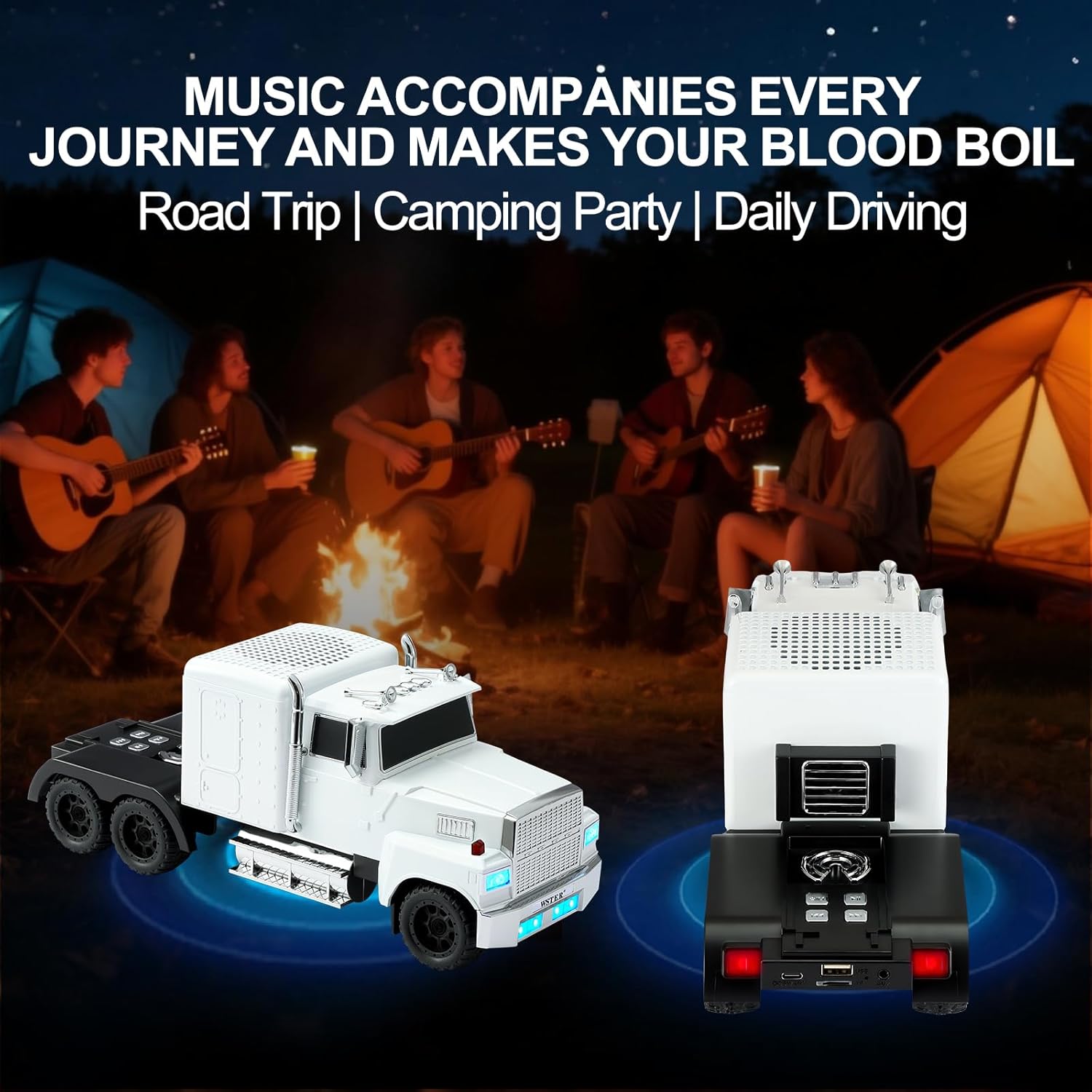
Figure 2: Rear view of the speaker, highlighting the control panel, USB, TF card, AUX, and charging ports.
Control Panel & Ports:
- Power Button: Long press to power on/off. Short press to switch modes.
- Play/Pause Button: Short press to play/pause music. During a call, short press to answer/end. Long press to reject a call.
- Previous Track/Volume Down: Short press for previous track. Long press to decrease volume.
- Next Track/Volume Up: Short press for next track. Long press to increase volume.
- USB Port: For USB drive playback.
- TF Card Slot: For TF (Micro SD) card playback.
- AUX Port: For connecting external audio devices via 3.5mm audio cable.
- DC 5V/ANT Port: USB-C charging port and external antenna connection for FM radio.
Setup
1. Charging the Speaker
Before first use, fully charge the speaker. Connect the provided power cable to the DC 5V/ANT port on the speaker and the other end to a compatible USB power adapter (not included). The LED indicator will show charging status.
2. Powering On/Off
- To Power On: Long press the Power button until the display lights up and you hear a startup sound.
- To Power Off: Long press the Power button again until the display turns off and you hear a shutdown sound.
Video 1: Demonstrates powering on and off the speaker, showing the display activation and shutdown sequence (0:04 - 0:26 in the video).
3. Bluetooth Pairing
- Ensure the speaker is powered on and in Bluetooth mode (indicated by "BLUE" on the display). If not, short press the Power button to cycle modes.
- On your mobile device, enable Bluetooth and search for available devices.
- Select "WS-570" from the list to pair. You will hear a confirmation tone once successfully connected.

Figure 3: A mobile phone displaying Bluetooth settings, showing the WS-570 available for connection.
Video 2: Illustrates the Bluetooth pairing process with a mobile device, showing how to connect to the WS-570 speaker (0:26 - 0:41 in the video).
4. TWS (True Wireless Stereo) Pairing
To achieve a stereo sound experience, you can pair two WS-570 speakers together:
- Ensure both WS-570 speakers are powered on and in Bluetooth mode, but not yet connected to any mobile device.
- Double-click the Play/Pause button on one of the speakers. You will hear a "beep" sound.
- The two speakers will automatically connect to each other. Once connected, you will hear a confirmation tone.
- Now, connect your mobile device to one of the paired speakers via Bluetooth as described in step 3. Both speakers will now play audio in stereo.

Figure 4: Two WS-570 speakers shown in a TWS paired setup.
Video 3: Shows the process of TWS pairing two WS-570 speakers for a stereo audio experience (2:55 - 3:37 in the video).
Operating Instructions
1. Playing Music
- Bluetooth Mode: After successful pairing, play music from your connected device.
- USB/TF Card Mode: Insert a USB drive or TF card into the respective port. The speaker will automatically switch to the correct mode and begin playback.
- AUX Mode: Connect an external audio device using a 3.5mm AUX cable. Short press the Power button to switch to AUX mode if it doesn't switch automatically.
Video 4: Demonstrates playing music via Bluetooth, including volume adjustment and track navigation (0:41 - 1:26 in the video).
2. Volume Control & Track Navigation
- Increase Volume: Long press the "Next Track/Volume Up" button.
- Decrease Volume: Long press the "Previous Track/Volume Down" button.
- Next Track: Short press the "Next Track/Volume Up" button.
- Previous Track: Short press the "Previous Track/Volume Down" button.
3. FM Radio Operation
- Short press the Power button to switch to FM Radio mode.
- Long press the Play/Pause button to automatically scan and save available FM stations.
- Short press the "Previous Track/Volume Down" or "Next Track/Volume Up" buttons to navigate between saved stations.
Video 5: Guides through the FM radio operation, including switching to radio mode and automatic station scanning (1:52 - 2:25 in the video).
4. Hands-Free Calling
When connected via Bluetooth, the speaker can be used for hands-free calls:
- Answer Call: Short press the Play/Pause button when an incoming call rings.
- End Call: Short press the Play/Pause button during a call.
- Reject Call: Long press the Play/Pause button when an incoming call rings.
- Switch between Phone/Speaker: During a call, short press the Play/Pause button to switch audio output between your mobile phone and the speaker.
Video 6: Demonstrates how to answer, end, and switch calls using the speaker's controls (2:25 - 2:55 in the video).
5. LED Party Lights
The speaker features built-in LED lights that enhance the audio experience. The lights will flash with the rhythm of the music. There is no specific control to change light modes mentioned in the provided data, they operate automatically with music playback.
