
1. Introduction
This manual provides detailed instructions for the installation, operation, and maintenance of your SIXTOP Android 15 Car Radio. This device is specifically designed for Citroen C4L, C4, and DS4 models manufactured between 2013 and 2017. It features a 10.1-inch touch screen, an 8-core processor, 6GB RAM, and 128GB ROM, offering a comprehensive in-car entertainment and navigation system.
Key features include Wireless CarPlay, Android Auto, Mirror Link, WiFi, Bluetooth 5.0, GPS navigation, FM/RDS radio, 32-band EQ with DSP, split-screen functionality, steering wheel control compatibility, and support for a rear view camera.

Image 1.1: Front view of the SIXTOP Android 15 Car Radio displaying its user interface.
2. Package Contents
Please verify that all items listed below are included in your package. If any items are missing or damaged, contact customer support.

Image 2.1: Overview of the car radio unit dimensions and included accessories.
- SIXTOP Android 15 Car Radio Unit
- RCA Cable
- GPS Antenna
- User Manual (this document)
- Rear View Camera
- USB Cables (x2)
- Rear View Input Cable
- Canbus Box
- External Microphone
- Power Cable
- Installation Tool
3. Setup and Installation
Professional installation is recommended for this car radio. Ensure the vehicle's power is disconnected before beginning installation. Refer to your vehicle's specific service manual for dashboard disassembly instructions.
3.1 Vehicle Compatibility
This unit is designed for Citroen C4L, C4, and DS4 models from 2013-2017. Verify your vehicle's dashboard configuration matches the provided images for proper fitment.

Image 3.1: Before and after installation view, indicating compatibility with left-hand drive Citroen C4L/C4/DS4 models.
3.2 Wiring Connections
Connect the power cable, RCA cables, USB cables, GPS antenna, and rear view camera input to the corresponding ports on the car radio unit. The Canbus box should be integrated into the vehicle's wiring harness to ensure proper communication with the car's systems, including steering wheel controls.
3.3 Initial Power-On
After installation, reconnect the vehicle's power. The unit should power on automatically. Follow any on-screen prompts for initial setup, such as language selection and time zone.
4. Operating Instructions
4.1 Wireless CarPlay and Android Auto
The unit supports wireless CarPlay and Android Auto. Connect your compatible smartphone wirelessly via Bluetooth or Wi-Fi. Once connected, you can access navigation, music, calls, and messages directly from the car radio's screen.
4.2 Mirror Link
Mirror Link allows you to display your smartphone's screen directly onto the car radio. This feature is compatible with both iOS and Android devices. Connect your phone via USB or Wi-Fi as prompted by the Mirror Link application on the head unit.
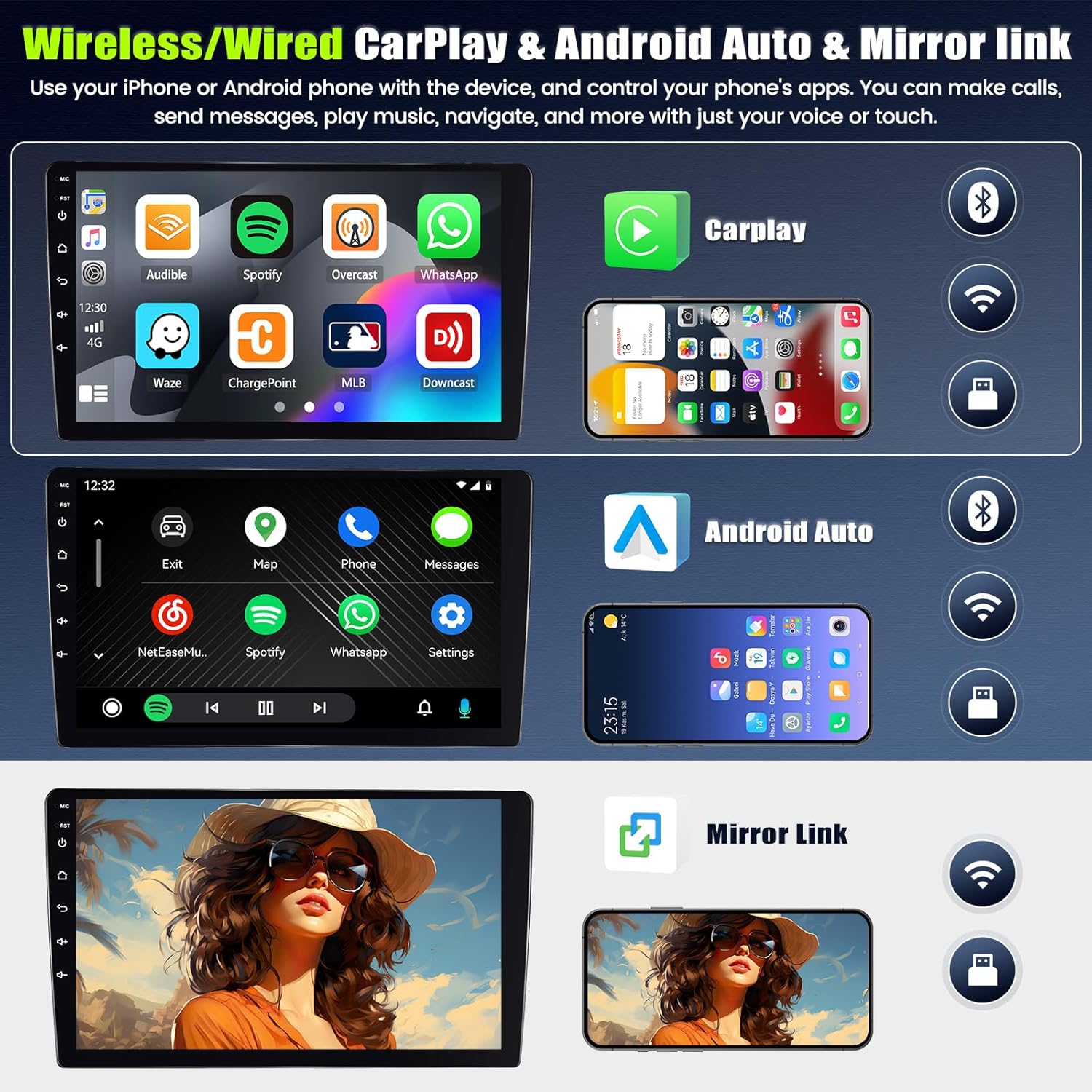
Image 4.1: Visual representation of Wireless CarPlay, Android Auto, and Mirror Link in operation.
4.3 Bluetooth 5.0
Pair your smartphone with the car radio via Bluetooth for hands-free calling and audio streaming. Navigate to the Bluetooth settings on the unit, enable Bluetooth on your phone, and select the car radio from the list of available devices. The unit supports phonebook synchronization and Bluetooth music playback.
4.4 GPS Navigation and WiFi
The unit includes integrated offline maps. For real-time traffic updates and online map services, connect the device to a Wi-Fi network. This also enables app downloads, online video streaming, and music playback. The GPS antenna ensures accurate positioning.

Image 4.2: Demonstrates WiFi connectivity, GPS navigation, Bluetooth interface, and steering wheel control setup.
4.5 FM/RDS Radio and Network Radio
Access FM radio stations with RDS support for station information. The unit also supports network radio, allowing access to online radio stations from various regions when connected to Wi-Fi.

Image 4.3: Network Radio interface and global weather display.
4.6 DSP and 32-Band EQ
The built-in Digital Signal Processor (DSP) and 32-band Equalizer (EQ) allow for precise audio customization. Adjust sound effects, balance, and specific frequency bands to optimize sound quality and reduce noise and distortion.

Image 4.4: DSP 32-band EQ interface for audio customization.
4.7 Split Screen Function
The split-screen feature allows you to run two applications simultaneously on the display. You can customize the size and position of each app window and switch between them with gestures.

Image 4.5: Examples of the split-screen functionality.
4.8 Steering Wheel Control
The unit supports integration with your vehicle's original steering wheel controls. This allows you to manage various functions such as changing songs, adjusting volume, and answering calls directly from your steering wheel, enhancing driving safety.
4.9 Rear View Camera
The included AHD rear view camera provides a clear image when reversing. The screen automatically switches to the rear view display when the vehicle is put into reverse gear, aiding in safe parking and maneuvering.

Image 4.6: Rear view camera display and steering wheel control functionality.
5. Maintenance
To ensure the longevity and optimal performance of your car radio, follow these maintenance guidelines:
- Cleaning: Use a soft, dry cloth to clean the screen and unit. Avoid abrasive cleaners or solvents that may damage the surface.
- Software Updates: Periodically check for software updates to ensure the system runs efficiently and has the latest features and security patches. Updates can typically be downloaded via Wi-Fi.
- Temperature: Avoid exposing the unit to extreme temperatures. The operating temperature range is -20°C to 75°C.
- Connections: Ensure all cables are securely connected. Loose connections can lead to intermittent functionality.
6. Troubleshooting
If you encounter issues with your car radio, refer to the following common problems and solutions:
- No Power: Check all power connections and the vehicle's fuse box. Ensure the power cable is correctly installed.
- No Sound: Verify speaker connections. Check volume levels and EQ settings. Ensure the correct audio source is selected.
- GPS Signal Loss: Ensure the GPS antenna is properly installed and has a clear view of the sky.
- Bluetooth Connection Issues: Ensure Bluetooth is enabled on both the car radio and your smartphone. Try unpairing and re-pairing the devices.
- Touch Screen Unresponsive: Perform a system reset (refer to the unit's settings for the reset option, or consult the manufacturer's support).
- Rear View Camera Not Displaying: Check the camera's power and video input connections. Ensure the vehicle is in reverse gear.
- Factory Setting Code: The default factory setting code is 1234.
If problems persist, contact customer support for further assistance.
7. Specifications
| Feature | Specification |
|---|---|
| System | Android 15 |
| Chipset | 8257 (8-Core) |
| Screen Size | 10.1 inches |
| Display Resolution | 1280 x 720 |
| Memory (RAM + ROM) | 6GB + 128GB |
| Output Power | 4 x 45 W |
| Bluetooth Version | 5.0 |
| Operating Temperature | -20°C to 75°C |
| Radio Chip | 8035 (FM/RDS) |
| Power Amplifier Chip | YD7388 |
| Video Output | Supported |
| Return Input | AHD/CVBS |
| USB Interface | Double USB |
| Audio Formats | APE/FLAC/WAV/MP3/WMA etc. |
| Video Formats | MKV/RMVB/AVI/MP4/MDV etc. |
| Image Formats | PNG/JPEG/JPG/GIF/WBMP/BNP etc. |
| Item Weight | 2 Kilograms |
| Package Dimensions | 29.8 x 28.6 x 12.5 cm |
| Supported Languages | Multi-language support including English, Arabic, Chinese, French, German, Italian, Japanese, Korean, Portuguese, Russian, Spanish, Turkish, Vietnamese, Hebrew, Polish |
8. Warranty and Support
For warranty information and technical support, please refer to the contact details provided with your purchase documentation or visit the official SIXTOP website. Keep your proof of purchase for warranty claims.

