
karuisrc K610
karuisrc K610 GPS Drone User Manual
Model: K610
1. Introduction
This manual provides essential information for the safe operation and maintenance of your karuisrc K610 GPS Drone. Please read this manual thoroughly before operating the drone to ensure proper usage and to prevent damage or injury. The K610 is a foldable GPS quadcopter equipped with a 4K camera, designed for both beginners and experienced users, featuring intelligent flight modes and stable performance.

Image 1.1: The karuisrc K610 GPS Drone in flight.
2. Safety Guidelines
Operating a drone requires responsibility. Adhere to the following safety guidelines to ensure a safe flight experience for yourself and others:
- Pre-Flight Check: Always inspect the drone, propellers, and battery before each flight. Ensure all components are securely attached and undamaged.
- Environmental Conditions: Fly in open areas, away from people, animals, buildings, and obstacles. Avoid flying in strong winds, rain, snow, or fog.
- Battery Safety: Use only approved batteries and chargers. Do not overcharge or puncture batteries. Discontinue use if batteries are damaged or swollen.
- Line of Sight: Maintain visual line of sight with the drone at all times.
- Respect Privacy: Do not use the drone to invade privacy.
- Local Regulations: Be aware of and comply with all local laws and regulations regarding drone operation.
3. Package Contents
Verify that all items are present in your package:
- K610 Drone x 1
- Remote Control x 1
- Batteries x 1 (Nonstandard Battery)
- Spare Propellers x 4
- Screwdriver x 1
- USB Cable x 1
- Carrying Case x 1
- Instruction Manual x 1

Image 3.1: Included items in the karuisrc K610 drone package.
4. Components Overview
4.1 Drone
The K610 drone features a foldable design for portability, brushless motors for stable flight, and an integrated 4K camera.

Image 4.1: The karuisrc K610 drone and remote control.
4.2 Remote Control
The remote control provides intuitive flight control and a mount for your smartphone to view the FPV feed.
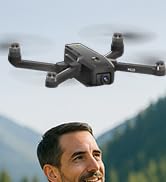
Image 4.2: Remote control with smartphone for FPV viewing.
5. Setup
5.1 Battery Installation and Charging
- Insert the modular battery into the drone's battery compartment until it clicks into place.
- To charge, remove the battery from the drone. Connect the USB charging cable to the battery and a suitable USB power adapter (not included).
- The charging indicator on the battery will show its status. Ensure the battery is fully charged before flight.

Image 5.1: Modular battery for the K610 drone.
5.2 Propeller Installation
Attach the propellers according to the markings (A and B) on the propellers and motor arms. Ensure they are securely fastened with the provided screwdriver.
5.3 Remote Control Setup
- Install 3x AA batteries (not included) into the remote control.
- Extend the phone holder and securely mount your smartphone.
5.4 App Installation and Connection
- Download the official karuisrc drone app from your smartphone's app store.
- Power on the drone, then power on the remote control.
- On your smartphone, connect to the drone's Wi-Fi network (usually named 'K610-XXXXXX').
- Open the app to establish a connection and view the live FPV feed.

Image 5.2: 5GHz WiFi transmission for real-time viewing.
5.5 Calibration
Before the first flight and after any significant change in location, perform compass and gyroscope calibration as instructed in the app or quick start guide. This ensures stable flight and accurate GPS positioning.
6. Operating
6.1 Basic Flight Controls
Refer to the remote control diagram in the quick start guide for specific joystick and button functions. Generally:
- Left Joystick: Controls altitude (up/down) and rotation (yaw left/right).
- Right Joystick: Controls forward/backward and left/right movement (pitch/roll).
6.2 Take-off and Landing
- One-Key Take-off: Press the designated take-off button on the remote or in the app. The drone will automatically ascend to a safe height and hover.
- Manual Take-off: Push both joysticks to the bottom-outer corners to unlock motors, then slowly push the left joystick up to ascend.
- One-Key Landing: Press the designated landing button. The drone will descend and land automatically.
- Manual Landing: Slowly pull the left joystick down to descend. Once landed, push both joysticks to the bottom-outer corners to stop motors.
6.3 GPS Features
The K610 drone utilizes GPS for enhanced stability and intelligent flight functions.
- Auto Return Home (RTH): The drone can automatically return to its take-off point if the signal is lost, battery is low, or the RTH button is pressed.

Image 6.1: GPS Auto Return Home functionality.
6.4 Advanced Flight Modes
Access these modes via the drone's app:
- Follow Me: The drone will automatically follow the remote control or smartphone, capturing footage as you move.
- Waypoint Flight (Tap Fly): Tap points on the map in the app, and the drone will fly along the specified path.
- Point-of-Interest (Circle Fly): Select a point on the map, and the drone will circle around it at a set radius and altitude.

Image 6.2: Advanced flight modes: Follow Me, Circle Fly, and Tap Fly.
6.5 4K Camera Operation
The K610 is equipped with a 4K UHD camera with 90° adjustable tilt for capturing high-quality aerial footage and photos.
- Photo/Video Capture: Use the dedicated buttons on the remote control or the app interface to take photos or start/stop video recording.
- Adjustable Camera Angle: The camera's tilt can be adjusted remotely via the app or remote control.
- SD Card Support: Insert an SD card (not included) into the drone for direct storage of high-resolution media.

Image 6.3: The K610's 4K HD Camera.
6.6 Product Overview Video
Watch this video for a visual guide on the karuisrc K610 GPS Drone's features and operation.
Video 6.4: Overview of the karuisrc K610 GPS Drone's features and capabilities.
7. Maintenance
Regular maintenance ensures the longevity and optimal performance of your drone.
- Cleaning: Gently wipe the drone and remote control with a soft, dry cloth after each use. Avoid using harsh chemicals.
- Propeller Inspection: Regularly check propellers for cracks, bends, or damage. Replace damaged propellers immediately using the provided spares.
- Battery Care: Store batteries in a cool, dry place. Do not store fully charged or completely depleted batteries for extended periods. Charge them to about 50-60% for long-term storage.
- Storage: When not in use, fold the drone and store it in its carrying case to protect it from dust and physical damage.
8. Troubleshooting
If you encounter issues, refer to the following common problems and solutions:
| Problem | Possible Cause | Solution |
|---|---|---|
| Drone does not take off or respond to controls. | Low battery, improper calibration, motors locked. | Charge drone/remote batteries. Perform calibration. Unlock motors (refer to section 6.2). |
| Unstable flight or drifting. | Poor calibration, strong winds, damaged propellers. | Recalibrate the drone. Fly in calm conditions. Inspect and replace damaged propellers. |
| No FPV feed on smartphone. | Wi-Fi not connected, app not open, drone/phone too far apart. | Ensure phone is connected to drone's Wi-Fi. Open the app. Move closer to the drone. |
| GPS features (RTH, Follow Me) not working. | Insufficient GPS signal, drone not calibrated. | Fly in an open area with clear sky. Wait for sufficient GPS satellites to connect (indicated by app). Perform GPS calibration. |
9. Specifications
Key technical specifications for the karuisrc K610 GPS Drone:
| Feature | Detail |
|---|---|
| Model Name | K610 |
| Item Weight | 204 Grams (7.2 ounces) |
| Camera | 4K UHD (4096×3072P images), 12 MP Effective Still Resolution, 90° Adjustable, CMOS Sensor |
| Video Capture Resolution | 1080p (MP4 format) |
| Connectivity Technology | Wi-Fi, RF (5GHz FPV Transmission) |
| Control Type | Remote Control |
| Special Features | Adjustable, Auto-Landing, Portable, GPS Auto Return, Follow Me, Waypoint Flight, Point-of-Interest Circle |
| Motor Type | Brushless Motor |
| Battery | 1 Nonstandard Lithium Ion Battery (included) |
| Flight Time | Up to 20 minutes (typical 18 minutes) |
| Material | Plastic |
| Product Dimensions | 7"L x 2"W x 8"H |

Image 9.1: Brushless motor technology for the K610 drone.
10. Warranty and Support
For warranty information or technical support, please contact karuisrc customer service. Keep your purchase receipt as proof of purchase.
- Phone: +44 7419 298225
- Email: Karuisrc@gmail.com

Image 10.1: karuisrc customer support.
Related documentsK610

Ask a question about this manual
Ask about setup, troubleshooting, compatibility, parts, safety, or missing instructions. Manuals+ will review the question and use this page’s manual context to help answer it.