
1. Introduction
This manual provides essential information for the installation, operation, and maintenance of your Acer Nitro Radeon RX 9060 XT graphics card. Please read this manual thoroughly before installation to ensure proper setup and optimal performance.

Figure 1: Front view of the Acer Nitro Radeon RX 9060 XT Graphics Card, showcasing its dual fan design.
2. System Requirements
- PCIe 5.0 x16 slot on motherboard.
- Compatible power supply with at least one 8-pin PCIe power connector.
- Operating system: Windows 10/11 64-bit or Linux 64-bit.
- Minimum 8GB system RAM (16GB recommended).
- Internet connection for driver download and updates.
3. Setup and Installation
3.1. Physical Installation
- Prepare your system: Power off your computer and disconnect all cables. Open the computer case.
- Locate PCIe slot: Identify an available PCIe 5.0 x16 slot on your motherboard. Remove any expansion slot covers that may be blocking it.
- Install the graphics card: Carefully align the graphics card with the PCIe slot and press down firmly until it is securely seated. Ensure the retention clip locks into place.
- Secure the card: Use screws to secure the graphics card to the computer case's expansion slot bracket.
- Connect power: Connect the 8-pin PCIe power connector from your power supply to the corresponding port on the graphics card.

Figure 2: Side view of the graphics card, showing the 8-pin power connector.
3.2. Display Connection
Connect your monitor(s) to the graphics card using the available ports:
- 1x HDMI 2.1a port
- 2x DisplayPort 2.1b ports
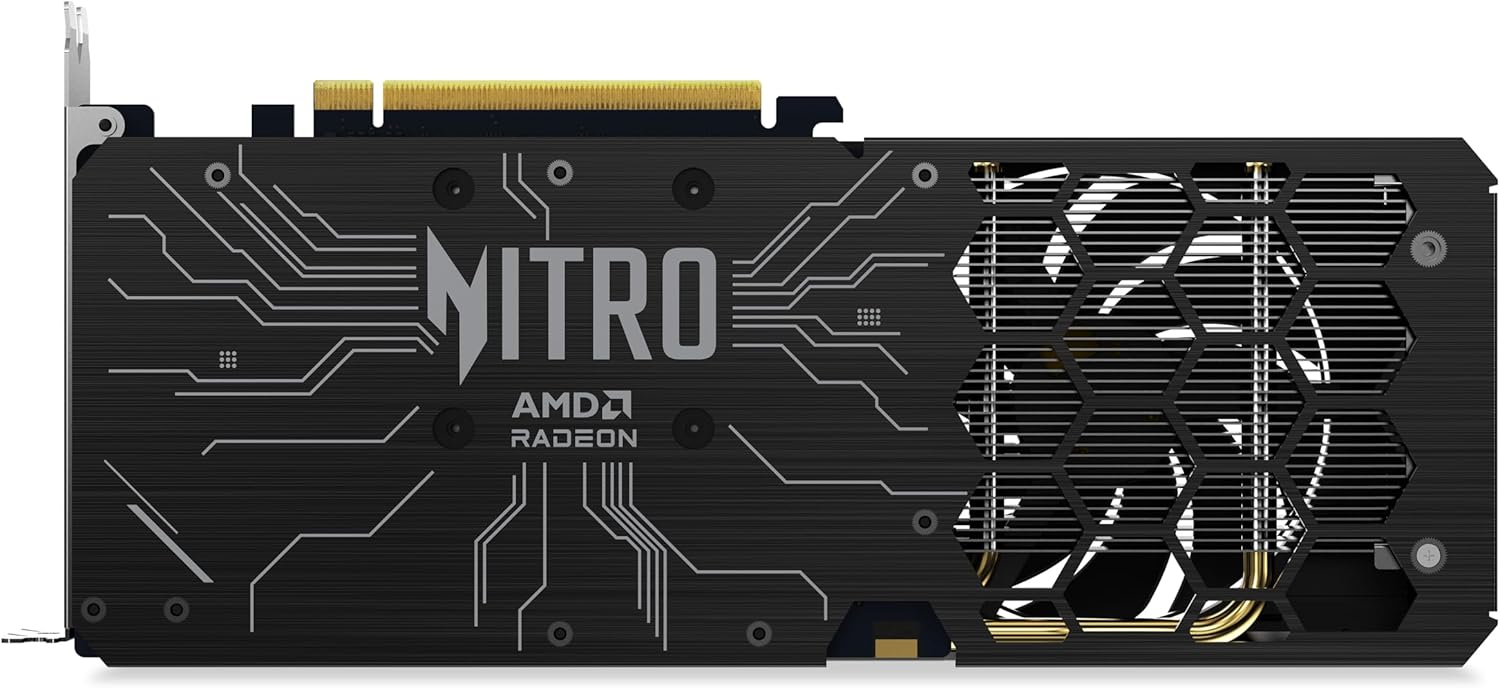
Figure 3: Rear view of the graphics card, highlighting the display output ports.
3.3. Driver Installation
- After physical installation, close your computer case and reconnect all cables. Power on your computer.
- Download the latest AMD Software Adrenaline Edition drivers from the official AMD website (www.amd.com/en/support).
- Follow the on-screen instructions to install the drivers. A system restart may be required.
4. Operating the Graphics Card
Once installed and drivers are updated, your Acer Nitro Radeon RX 9060 XT graphics card is ready for use. It is designed for high-performance computing, including gaming and demanding graphical applications.
4.1. Key Features and Technologies
- AMD Software Adrenaline Edition: Provides a comprehensive suite of tools for managing your graphics card settings, performance, and features.
- AMD Fluid Motion Frames (AFMF): Enhances frame rates for smoother gameplay.
- AMD Radeon Anti-Lag 2: Reduces input latency for more responsive gaming.
- AMD FreeSync Technology: Synchronizes display refresh rates with the graphics card for tear-free and stutter-free gaming.
- AMD FidelityFX Super Resolution (FSR): Upscales lower resolution images to higher resolutions, improving performance without significant loss in image quality.
- Optimized Ray Tracing: Advanced hardware acceleration for realistic lighting, shadows, and reflections.
4.2. Display Settings
The graphics card supports a maximum display resolution of 3840x2160. You can configure display settings through your operating system's display settings or via the AMD Software Adrenaline Edition.
5. Maintenance
Regular maintenance helps ensure the longevity and optimal performance of your graphics card.
- Dust Removal: Periodically clean dust from the fans and heatsink using compressed air. Ensure the system is powered off before cleaning.
- Fan System: The 2x Nitro FrostBlade fans are designed for high airflow and low volume. Keep the fan blades clear of obstructions.
- Driver Updates: Regularly check for and install the latest graphics drivers from AMD to benefit from performance improvements and bug fixes.

Figure 4: Top view of the graphics card, showing the Nitro FrostBlade fans.
6. Troubleshooting
If you encounter issues with your graphics card, refer to the following common troubleshooting steps:
- No Display Output:
- Ensure the graphics card is fully seated in the PCIe slot.
- Verify that the 8-pin PCIe power connector is securely attached.
- Check that the display cable is firmly connected to both the graphics card and the monitor.
- Try a different display cable or monitor if available.
- System Instability or Crashes:
- Ensure your graphics drivers are up to date. Consider performing a clean installation of the drivers.
- Check your power supply unit (PSU) to ensure it meets the power requirements for your system, including the graphics card.
- Monitor GPU temperatures using AMD Software Adrenaline Edition to check for overheating.
- Poor Performance in Games/Applications:
- Verify that your game or application is using the dedicated graphics card and not integrated graphics (if applicable).
- Adjust in-game graphics settings to a lower preset.
- Ensure background applications are not consuming excessive system resources.
- Check for driver updates.
7. Specifications
| Feature | Detail |
|---|---|
| Graphics Processor | AMD Radeon RX 9060 XT (Navi 44, RDNA 3.5 Architecture) |
| Stream Processors | 2048 |
| Base Frequency | 1.9 GHz |
| Boost Clock | 3.3 GHz |
| Memory Size | 16 GB GDDR6 |
| Memory Bus | 128-bit |
| Memory Bandwidth | 3220 Gb/s |
| GPU Clock Speed | 3300 MHz |
| Memory Clock Speed | 2500 MHz |
| Interface | PCIe 5.0 x16 |
| Video Output | 1x HDMI 2.1a, 2x DisplayPort 2.1b |
| Cooling System | 2x Nitro FrostBlade Fans |
| Power Connectors | 1x 8-pin |
| Max Resolution | 3840x2160 |
| Weight | 929 Grams |
8. Warranty Information
The Acer Nitro Radeon RX 9060 XT graphics card comes with a 3-Year Manufacturer Guarantee. Please retain your proof of purchase for warranty claims. For detailed terms and conditions, refer to the official Acer warranty policy or contact Acer support.
9. Support
For further assistance, technical support, or driver downloads, please visit the official Acer support website or AMD support website:


