
1. Introduction and Overview
This manual provides detailed instructions for the setup, operation, and maintenance of your UPERFECT 13.3" 4K OLED Portable Monitor. Please read this manual thoroughly before use to ensure optimal performance and longevity of your device.
The UPERFECT 13.3" 4K OLED Portable Monitor is designed to enhance your productivity and entertainment experience with its stunning 4K UHD resolution and vibrant OLED display. Its ultra-slim and lightweight design makes it an ideal companion for travel, remote work, and gaming.

Figure 1.1: UPERFECT 13.3" 4K OLED Portable Monitor
2. Key Features
The UPERFECT 13.3" 4K OLED Portable Monitor offers a range of advanced features:
- Stunning 4K OLED Visuals: Features a 3840x2160 4K UHD resolution OLED panel, delivering 100% DCI-P3 wide color gamut and a 100000:1 contrast ratio for exceptional color depth.
- Ultra-Bright & Vivid Display: With 500 nits brightness and 1.07 billion colors, it provides vibrant, true-to-life visuals.
- Ultra-Fast, Smooth Performance: Enjoy a fluid viewing experience with a 60Hz refresh rate and 1ms response time, ideal for gaming and fast-paced content.
- Sleek, Premium Build: Constructed with a durable full aluminum alloy housing and mirror glass panel, offering a lightweight and compact design.
- Versatile Connectivity: Supports effortless connection via USB-C or HDMI to various devices, including laptops, smartphones, and game consoles.
- Wide Viewing Angle: A 178° wide viewing angle ensures consistent and vivid images from almost any perspective.
Visual Clarity and Color Accuracy

Figure 2.1: Premium OLED Display Technology

Figure 2.2: 4K UHD Visual Immersion

Figure 2.3: High Contrast Ratio for Deep Blacks
Design and Portability
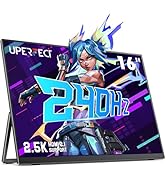
Figure 2.4: Ultra-Slim and Lightweight Profile
3. Setup Instructions
Follow these steps to set up your UPERFECT portable monitor:
- Unpack the Monitor: Carefully remove the monitor and all accessories from the packaging.
- Position the Monitor: Place the monitor on a stable, flat surface. The integrated stand allows for adjustable viewing angles.
- Connect Power: Connect the provided power adapter to the monitor's power input (usually a USB-C port designated for power, or a DC port if included).
- Connect to Device: Choose the appropriate cable (USB-C or HDMI) based on your device's output.
- USB-C Connection (Single Cable Solution): If your device supports full-featured USB-C (DisplayPort Alternate Mode and Power Delivery), connect a single USB-C to USB-C cable from your device to the monitor's USB-C port. This will provide both video signal and power.
- HDMI Connection: Connect an HDMI cable from your device to the monitor's Mini HDMI port. You will also need to connect a USB-C cable from your device or a power adapter to the monitor's USB-C power input for power.
- Power On: Press the power button on the monitor to turn it on. Your device should automatically detect the monitor.
Connectivity Ports

Figure 3.1: Monitor Connectivity Ports
Setup Demonstration
Video 3.1: Connecting the UPERFECT 13.3" 4K OLED Portable Monitor to a laptop and Nintendo Switch.
4. Operating Instructions
The monitor features intuitive controls for easy adjustment of settings.
Basic Controls
- Power Button: Located on the side of the monitor. Press and hold to turn the monitor on or off. A short press may activate/deactivate standby mode.
- Menu/OSD Button: Typically used to access the On-Screen Display (OSD) menu.
- Navigation Buttons (+/-): Used to navigate through the OSD menu and adjust settings such as brightness, contrast, volume, and input source.
On-Screen Display (OSD) Menu
To access the OSD menu, press the Menu button. Use the navigation buttons to select and adjust the following settings:
- Brightness/Contrast: Adjust the display's luminance and contrast levels.
- Volume: Control the audio output level from the built-in speakers or connected headphones.
- Input Source: Manually select between USB-C and HDMI input sources if auto-detection does not work.
- Color Settings: Fine-tune color temperature, hue, and saturation.
- Aspect Ratio: Adjust the display aspect ratio (e.g., 16:9, 4:3).
- HDR Mode: Enable or disable High Dynamic Range (HDR) for compatible content.
Refer to the on-screen prompts for specific menu navigation and option selection.
5. Maintenance
Proper maintenance ensures the longevity and optimal performance of your monitor.
Cleaning the Monitor
- Screen: Gently wipe the screen with a soft, lint-free cloth. For stubborn marks, lightly dampen the cloth with water or a non-abrasive screen cleaner. Avoid using alcohol-based cleaners or harsh chemicals.
- Body: Use a soft, dry cloth to clean the aluminum casing.
Storage
- When not in use, store the monitor in a cool, dry place, away from direct sunlight and extreme temperatures.
- Use the protective cover or original packaging to prevent dust accumulation and scratches.
6. Troubleshooting
If you encounter issues with your monitor, refer to the following common problems and solutions:
| Problem | Possible Cause | Solution |
|---|---|---|
| No display/No signal | Incorrect input source selected, loose cable connection, insufficient power. | Ensure the correct input source is selected in the OSD menu. Check all cable connections (USB-C, HDMI) are secure. Verify the monitor is receiving adequate power, especially when using HDMI. |
| Monitor does not power on | No power, faulty power adapter/cable. | Check if the power adapter is properly connected to a working outlet and the monitor. Try a different USB-C cable or power adapter if available. |
| Flickering or unstable display | Faulty cable, graphics driver issues, power fluctuations. | Replace the video cable. Update your device's graphics drivers. Ensure the monitor is connected to a stable power source. |
| No sound | Volume too low, incorrect audio output selected on device, faulty cable. | Increase the monitor's volume via the OSD menu. Check your device's audio output settings to ensure the monitor is selected. If using headphones, ensure they are properly plugged in. |
If the problem persists after trying these solutions, please contact UPERFECT customer support.
7. Specifications
Detailed technical specifications for the UPERFECT 13.3" 4K OLED Portable Monitor:
| Feature | Specification |
|---|---|
| Model Number | M133J03 |
| Screen Size | 13.3 Inches |
| Panel Type | OLED |
| Resolution | 4K UHD (3840 x 2160) |
| Aspect Ratio | 16:9 |
| Brightness | 500 Candela (Nits) |
| Contrast Ratio | 100000:1 |
| Color Gamut | 100% DCI-P3 |
| Response Time | 1ms |
| Refresh Rate | 60Hz |
| Viewing Angle | 178° |
| Connectivity | 1x Mini HDMI, 2x USB-C (Full-featured) |
| Audio | Built-in Dual Speakers, 1x 3.5mm Audio Jack |
| Product Dimensions | 7 x 12 x 0.39 inches |
| Item Weight | 3 pounds |
| Manufacturer | UPERFECT |
8. Warranty and Support
UPERFECT is committed to providing high-quality products and customer satisfaction.
- Warranty Information: For detailed warranty terms and conditions, please refer to the warranty card included with your product or visit the official UPERFECT website.
- Customer Support: UPERFECT offers 24/7 customer support to assist with any questions or issues you may have. Contact information can be found on the official UPERFECT website or in your product documentation.


