
1. Introduction
Thank you for choosing the NBD K200 64MP 4K Digital Camera. This manual provides essential information for setting up, operating, and maintaining your camera to ensure optimal performance. Please read this manual thoroughly before using the camera and retain it for future reference.
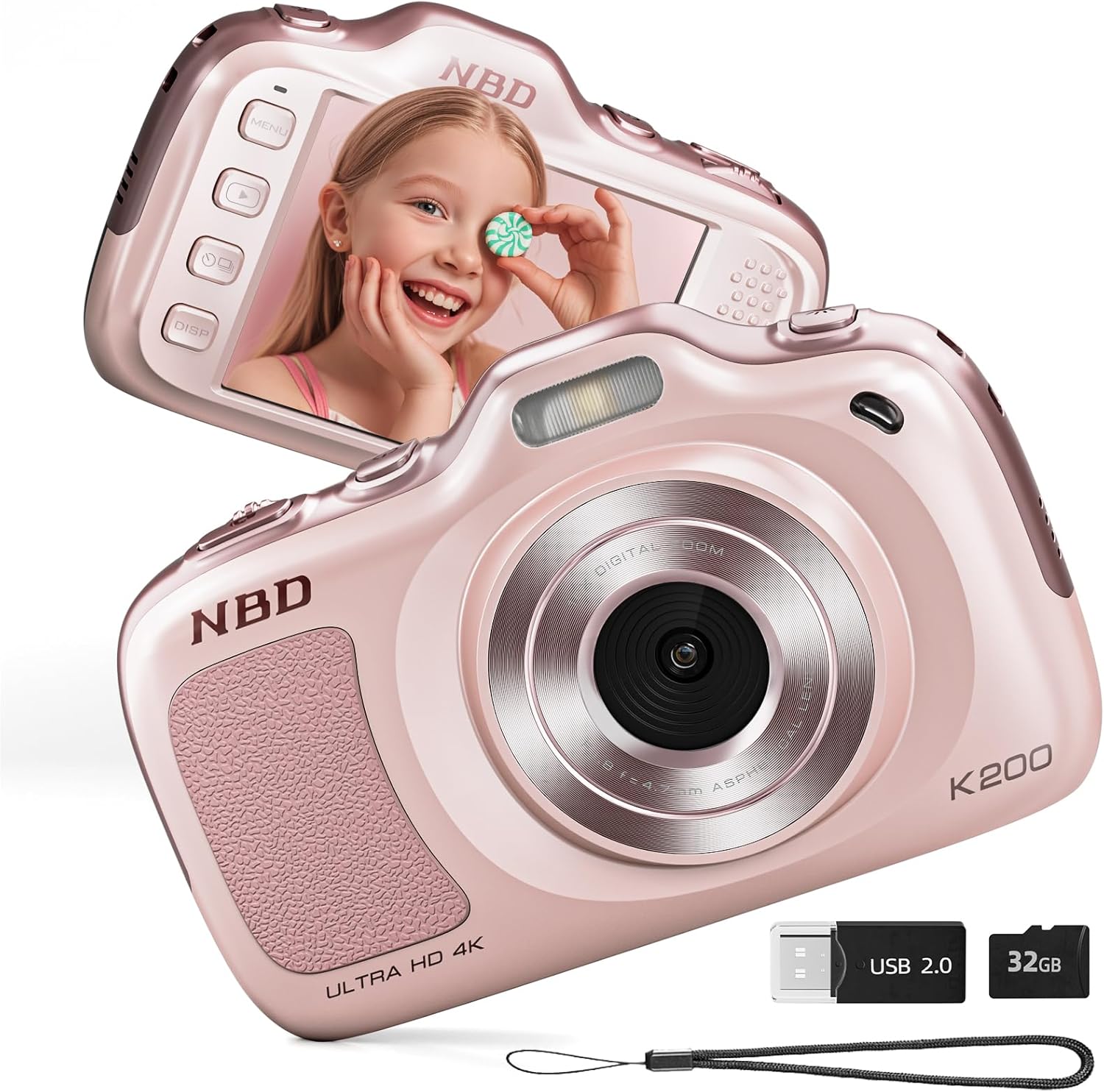
Image 1.1: Front and rear view of the NBD K200 Digital Camera.
2. Product Overview
2.1 What's in the Box
- NBD K200 Camera Body
- 32GB TF Card (pre-installed or separate)
- USB-C Cable
- Neck Strap
- Lens Cleaning Cloth
- Card Reader

Image 2.1: Included accessories with the NBD K200 camera.
2.2 Key Features
- 64 Megapixel Photos: Capture high-resolution still images.
- 4K Video Recording: Record videos in Ultra HD resolution.
- 16X Digital Zoom: Magnify distant subjects for detailed shots.
- Auto Focus: Ensures subjects are sharp and clear.
- Anti-Shake Stabilization: Reduces blur from camera movement.
- Multiple Scene Modes: Includes Sport, Portrait, Night, Beauty, and Burst modes.
- Compact and Portable Design: Lightweight for easy carrying.
- High-Speed USB Transfer: Facilitates quick transfer of files to other devices.
3. Setup
3.1 Battery Installation and Charging
- Locate the battery compartment cover on the camera.
- Open the cover and insert the two included Lithium-Ion batteries, ensuring correct polarity.
- Close the battery compartment cover securely.
- Connect the camera to a power source using the provided USB-C cable to fully charge the batteries before first use. A full charge allows for approximately 300 photos.
3.2 Memory Card Installation
- Locate the TF card slot on the side of the camera.
- Insert the included 32GB TF card into the slot until it clicks into place. Ensure the card is inserted in the correct orientation.
- To remove the card, gently press it inward until it springs out.
3.3 Attaching the Neck Strap
Thread the neck strap through the designated loop on the camera body to prevent accidental drops and for convenient carrying.

Image 3.1: The NBD K200 camera with an attached neck strap for portability.
4. Operating Instructions
4.1 Power On/Off
- To power on, press and hold the power button until the screen illuminates.
- To power off, press and hold the power button again until the screen turns off.
4.2 Taking Photos
- Ensure the camera is in photo mode (indicated on the LCD screen).
- Frame your shot using the LCD screen. The camera features auto-focus to ensure clarity.
- Press the shutter button halfway to activate auto-focus, then press fully to capture the image.

Image 4.1: Demonstrating autofocus and timer for capturing photos.
4.3 Recording Videos
- Switch the camera to video mode using the Multi-Functional Roller Button or menu options.
- Press the shutter button to start recording. A red indicator will typically appear on the screen.
- Press the shutter button again to stop recording.

Image 4.2: Capturing 4K video with the NBD K200 camera.
4.4 Zoom Function
Utilize the 16X digital zoom by adjusting the Multi-Functional Roller Button. Roll it left to zoom out and right to zoom in. The zoom level will be displayed on the screen.
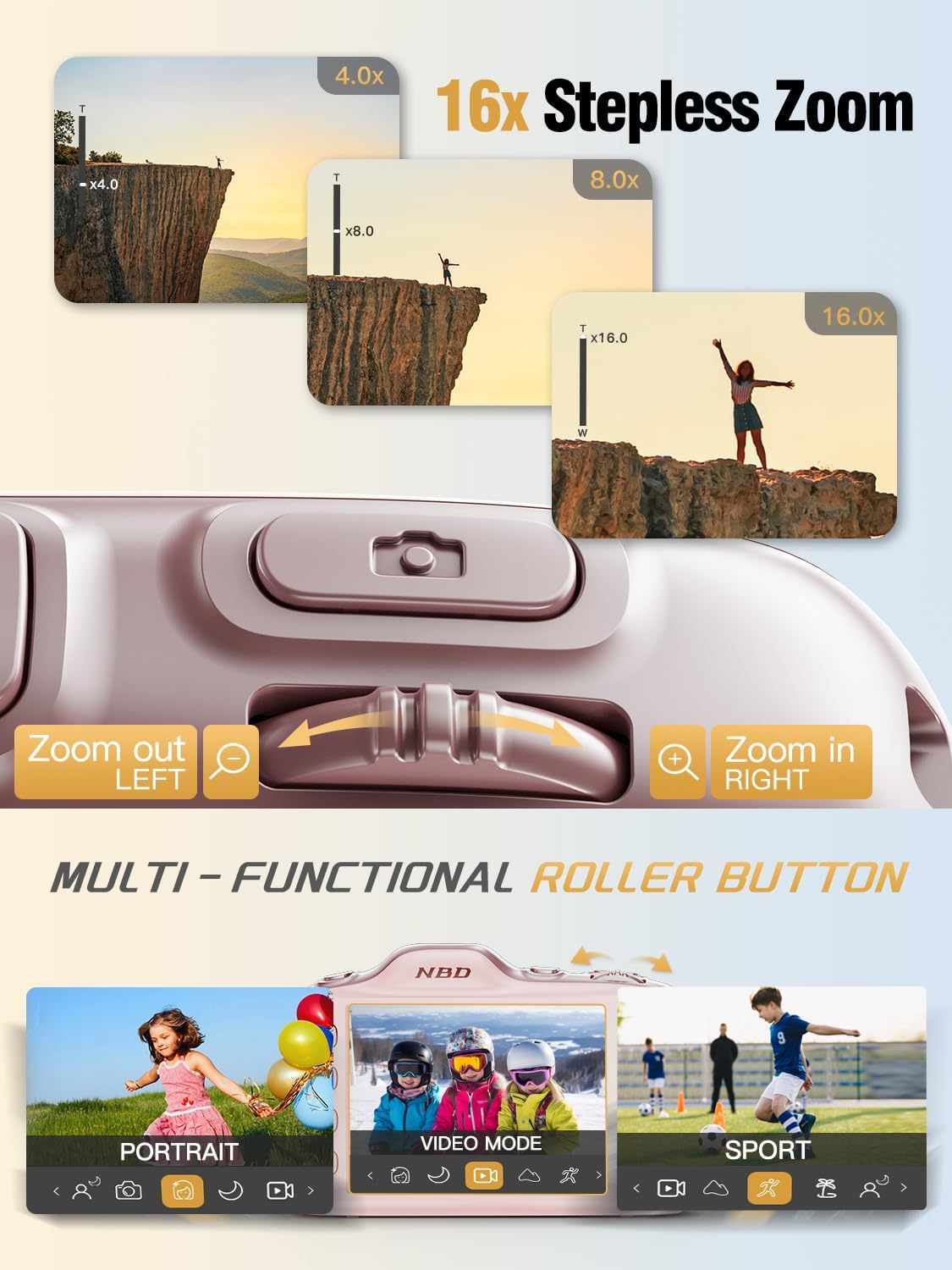
Image 4.3: Using the 16X stepless zoom feature.
4.5 Shooting Modes and Filters
The NBD K200 offers various shooting modes and built-in filters to enhance your photography:
- Sport Mode: Optimized for capturing fast-moving subjects.
- Portrait Mode: Enhances facial features and softens backgrounds.
- Night Mode: Improves image quality in low-light conditions.
- Beauty Mode: Applies subtle enhancements to portraits.
- Burst Mode: Captures a rapid sequence of photos.
- Built-in Filters: Apply effects like Vintage, Warm Tone, Cool Tone, Sepia, Sketch, and Japan Style.

Image 4.4: Overview of K200's multiple shooting modes.
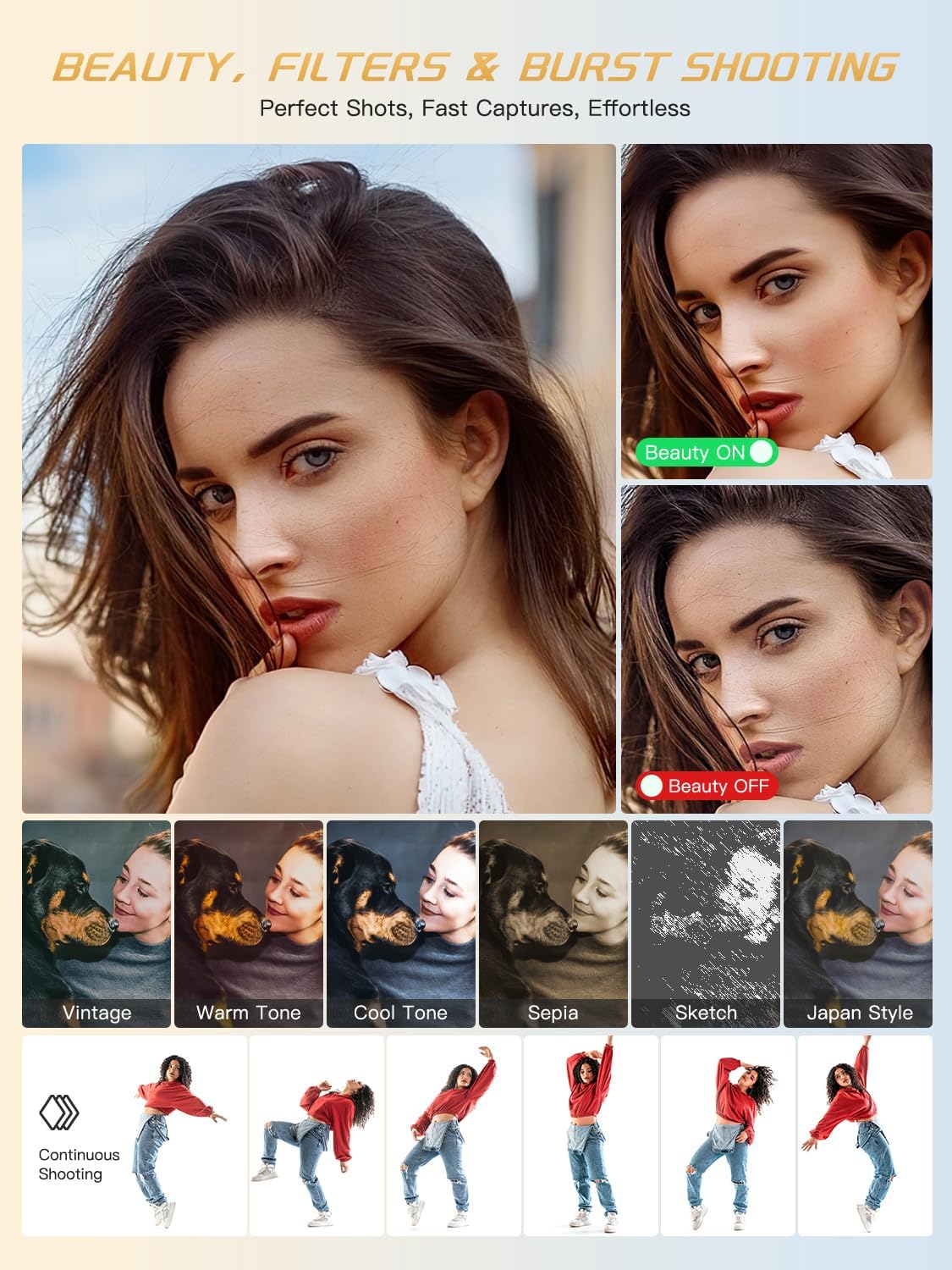
Image 4.5: Examples of beauty mode, filters, and burst shooting.
4.6 Using the Flash
The camera features a built-in flash for illuminating subjects in low-light conditions. The flash can be activated or deactivated via a dedicated physical button or through the camera's menu settings.
4.7 Transferring Files
To transfer photos and videos to a computer or smartphone:
- Connect the camera to your device using the provided USB-C cable.
- The camera will appear as a removable drive on your computer.
- Drag and drop files from the camera's memory card to your desired location.
- Alternatively, remove the TF card and use the included card reader to transfer files.
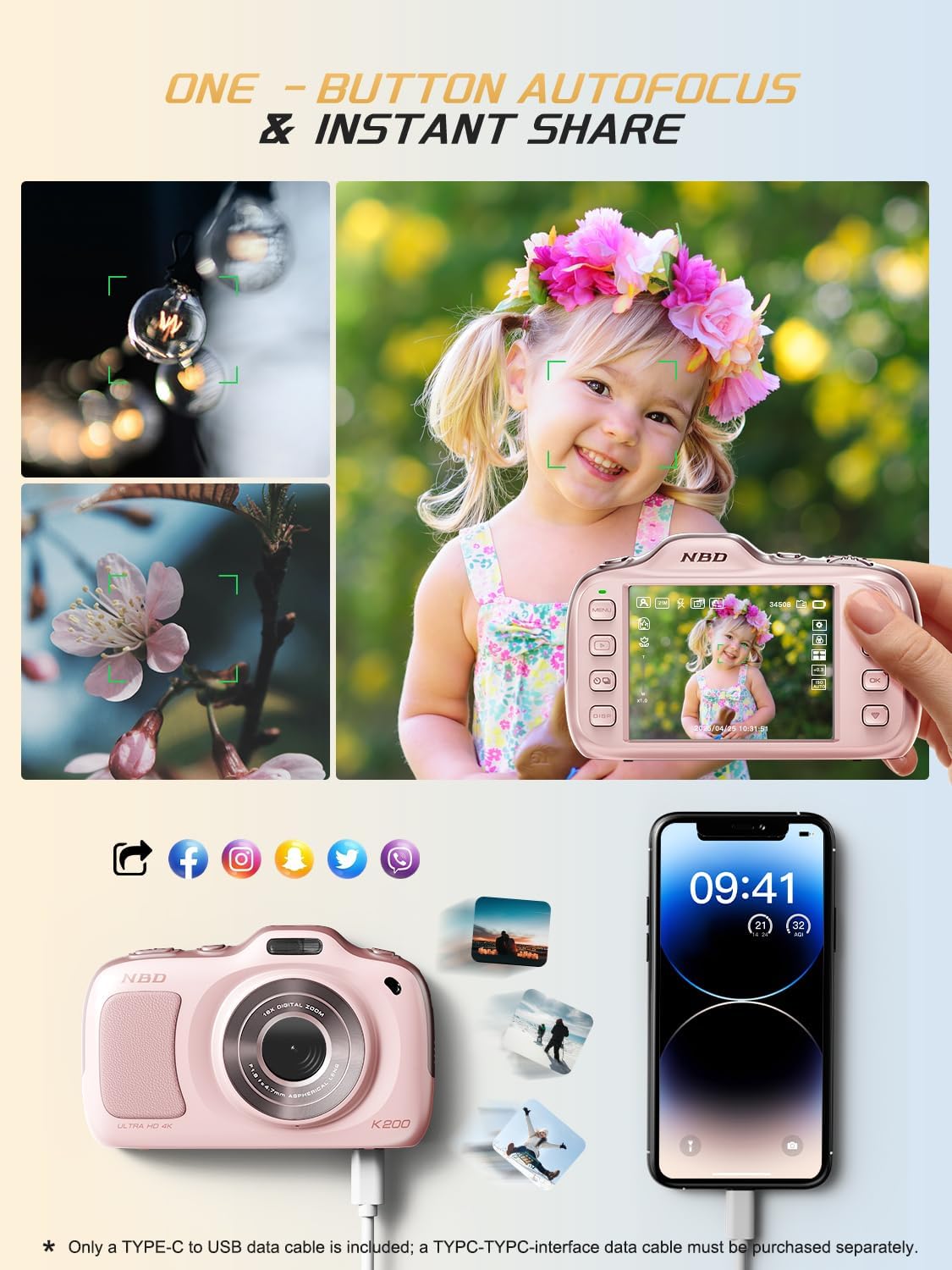
Image 4.6: One-button autofocus and instant sharing capabilities.
5. Maintenance
5.1 Cleaning the Camera
- Use the provided lens cleaning cloth to gently wipe the lens and screen.
- For the camera body, use a soft, dry cloth. Avoid using harsh chemicals or abrasive materials.
5.2 Storage
- Store the camera in a cool, dry place away from direct sunlight and extreme temperatures.
- Remove batteries if the camera will not be used for an extended period.
6. Troubleshooting
| Problem | Possible Solution |
|---|---|
| Camera does not power on. | Ensure batteries are correctly inserted and fully charged. Try charging the camera for at least 30 minutes. |
| "No Card" error message. | Check if the TF card is inserted correctly. Reinsert the card or try a different compatible TF card. |
| Images are blurry. | Ensure auto-focus is engaged. Clean the lens. Use anti-shake stabilization if available. Ensure sufficient lighting. |
| Cannot transfer files to computer. | Verify the USB-C cable connection. Try a different USB port or computer. Ensure the camera is powered on during transfer. |
7. Specifications
| Feature | Detail |
|---|---|
| Model Name | K200 |
| Photo Sensor Technology | CMOS |
| Maximum Photo Resolution | 64 MP |
| Video Resolution | 2160p (4K) at 30 FPS |
| Digital Zoom | 16x |
| Image Stabilization | Optical |
| Auto Focus Technology | Contrast Detection (19 points) |
| Aperture | F1.8 |
| Screen Size | 3 Inches LCD |
| Memory Storage | 32 GB TF Card (included) |
| Supported File Format | JPEG, MP4 |
| Battery Type | 2 Lithium Ion batteries (included) |
| Item Weight | 0.26 Kilograms |
| Connectivity Technology | USB-C |
| Water Resistance Level | Not Water Resistant |
8. Warranty and Support
NBD products are manufactured to high-quality standards. For information regarding warranty coverage, technical support, or service inquiries, please refer to the contact information provided with your purchase or visit the official NBD website. Please retain your proof of purchase for warranty claims.


