1. Introduction
This manual provides detailed instructions for the installation, operation, and maintenance of your AWESAFE Linux Autoradio. Please read this manual thoroughly before installation and use to ensure proper functionality and to avoid damage.
The AWESAFE Linux Autoradio features an 8.8-inch HD touch screen (1280x480 resolution) and is designed to enhance your in-car entertainment and connectivity experience while retaining original vehicle functions.
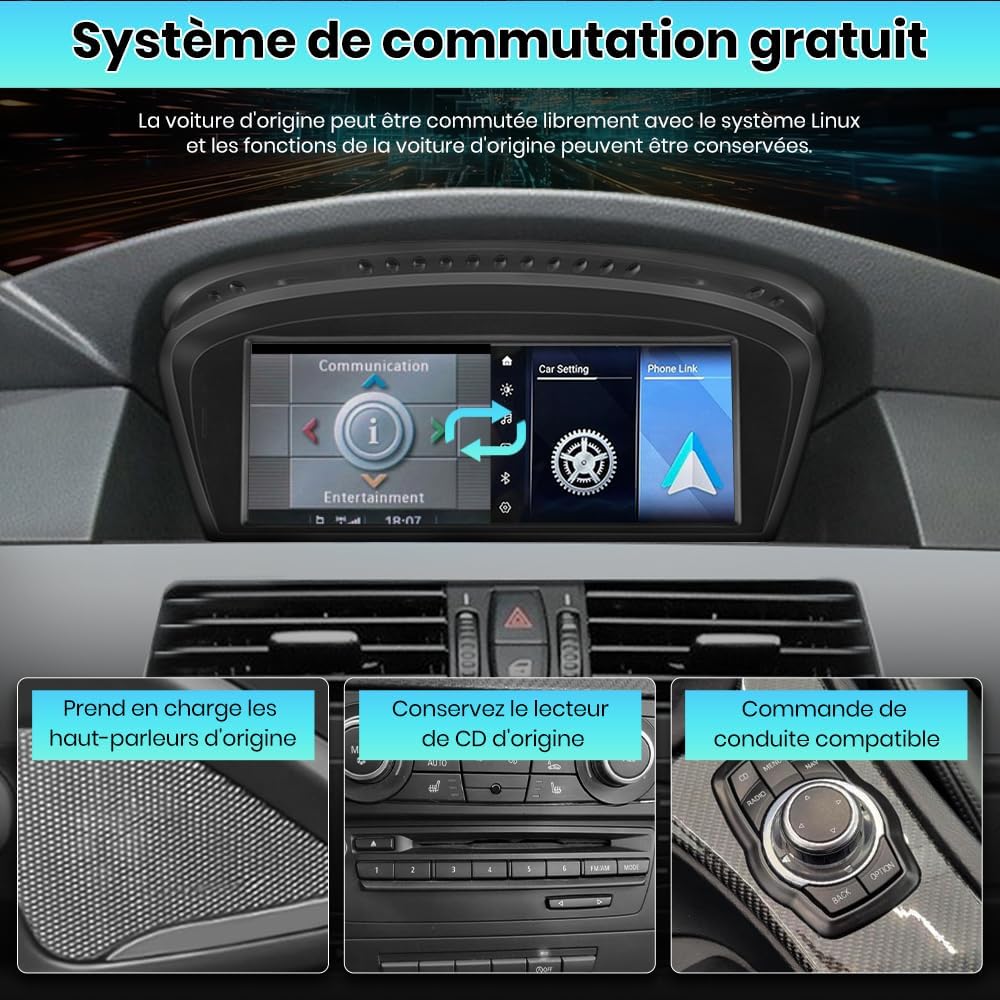
Image 1.1: AWESAFE Linux Autoradio main unit installed in a vehicle dashboard.
2. Compatibility
This autoradio is specifically compatible with BMW vehicles equipped with the CCC System from 2003-2008. This includes:
- BMW 5 Series: E60, E61, E63, E64
- BMW 3 Series: E90, E91, E92
Important: This unit is ONLY for vehicles with the CCC system. It is NOT compatible with CIC or NBT systems.
To identify your vehicle's system, check the LVDS connector type. CCC systems typically use a 10-pin LVDS connector, while CIC systems use a 4-pin LVDS connector.

Image 2.1: Visual guide for identifying CCC vs. CIC systems based on LVDS connector and menu interface.
3. What's in the Box
Upon unpacking, please verify that all the following components are included:
- AWESAFE Linux Autoradio Unit
- Connection Cables (Power harness, LVDS cable, AUX cable)
- USB Cable
- Installation Tools (Pry tool, Screwdriver)
- User Manual (This document)

Image 3.1: Overview of included components and wiring connections.
4. Setup and Installation
Professional installation is recommended. Ensure the vehicle's power is disconnected before beginning installation.
4.1 Pre-Installation Check
- Confirm your vehicle has the CCC system (refer to Section 2).
- Ensure your original car menu has AUX audio output settings. The product uses the AUX audio source for sound transmission. If your vehicle does not have a native AUX input, it may need to be activated or installed separately for audio functionality.
4.2 Installation Steps
Follow these general steps for installation. Specific vehicle disassembly instructions may vary and can often be found in vehicle-specific guides or online resources.
- Carefully remove the original display unit and trim pieces using the provided pry tool.
- Connect the new autoradio unit to the vehicle's wiring harness, including the power, LVDS, and AUX cables. Ensure all connections are secure.
- Route the USB cable to a convenient location (e.g., glove compartment).
- Mount the new autoradio unit into the dashboard opening.
- Reassemble the trim pieces.

Image 4.1: Post-installation software setup steps for accessing vehicle information, adjusting resolution, and selecting AUX input.
4.3 Initial Configuration
After physical installation, perform the following software configurations:
- Access Vehicle Information: Click the 'Car Info' icon to enter vehicle information settings.
- Factory Settings: Navigate to 'Factory Head Unit Parameter Setting' and select 'Adaptive Resolution' to ensure optimal display. (If a camera is not installed, this step may be skipped).
- Select AUX Input: In the original car menu, navigate to 'Multimedia' -> 'External devices' -> 'Tune' and select 'AUX front' or 'AUX'. This is crucial for audio output from the new unit.
5. Operating Instructions
5.1 System Switching
The autoradio allows seamless switching between the Linux system and your original vehicle's system, preserving original car functions.

Image 5.1: The system supports free switching between the Linux system and the original car system, retaining original speakers, CD player, and iDrive control.
5.2 Wireless Carplay & Android Auto
Connect your smartphone wirelessly via Bluetooth for Carplay or Android Auto functionality. This allows you to access navigation, make calls, send/receive messages, and play music directly from your phone on the autoradio's screen.
- Wireless Connection: Pair your iPhone or Android phone via Bluetooth. The system will prompt you to enable Carplay/Android Auto.
- Wired Connection: Alternatively, connect your phone using the original USB cable for Carplay or Android Auto.
- Voice Control: Use voice commands (e.g., Siri) for hands-free operation.

Image 5.2: Carplay and Android Auto interfaces for navigation, communication, and media.
5.3 Bluetooth Connectivity
The unit supports quick Bluetooth pairing for hands-free calls and wireless music streaming.
- Hands-Free Calls: Make and receive calls directly from the autoradio screen. The integrated noise-canceling microphone ensures clear communication.
- Bluetooth Music: Stream music from your mobile phone with stable, lossless audio quality within a 10-meter range.

Image 5.3: Bluetooth interface for hands-free calls and music streaming.
5.4 Mirror-Link Function
The Mirror-Link function allows you to project your smartphone's screen onto the autoradio display, enabling you to view videos or images from your phone.
5.5 Navigation
Utilize the navigation features through Carplay or Android Auto. You can use online maps to search for destinations and receive turn-by-turn directions, similar to using a smartphone.
5.6 Retaining Original Vehicle Information
The system is designed to display original vehicle information such as speed, handbrake status, seatbelt warnings, fuel level, and door status on the new screen.

Image 5.4: Display of original vehicle information on the autoradio screen.
5.7 Media Playback via WiFi
The device supports WiFi connectivity, allowing you to connect to a WiFi network or hotspot to stream online videos. You can also play videos stored on a USB device connected to the autoradio.
Note: The WiFi function is intended for streaming online videos and cannot be used to download applications or other software.

Image 5.5: Video playback via WiFi and USB.
6. Maintenance
To ensure the longevity and optimal performance of your AWESAFE Linux Autoradio, follow these maintenance guidelines:
- Cleaning: Use a soft, dry cloth to clean the screen and exterior. Avoid abrasive cleaners or solvents that could damage the surface.
- Temperature: Avoid exposing the unit to extreme temperatures, both hot and cold, as this can affect performance and lifespan.
- Software Updates: Periodically check the manufacturer's website for any available software updates to ensure the system runs efficiently and has the latest features.
- Cable Connections: Ensure all cables remain securely connected to prevent intermittent issues.
7. Troubleshooting
If you encounter issues with your autoradio, refer to the following common problems and solutions:
| Problem | Possible Cause | Solution |
|---|---|---|
| No Sound | AUX input not selected or activated in original car menu. Loose audio cable connection. | Ensure AUX is selected in your original car's audio settings (refer to Section 4.3). Check all audio cable connections. Confirm your vehicle has AUX audio output. |
| Screen Not Turning On | Loose power connection. Incorrect wiring. | Check all power cable connections. Verify wiring against the installation diagram. |
| Carplay/Android Auto Not Connecting | Bluetooth not paired. USB cable issue. Software glitch. | Ensure Bluetooth is enabled and paired. Try a different USB cable. Restart both the autoradio and your phone. |
| Original System Not Accessible | LVDS cable disconnected or improperly connected. | Check the 10-pin LVDS connector to ensure it is securely attached to the radio block. |
| WiFi Not Working | Incorrect WiFi settings. No available network. | Check WiFi settings on the unit. Ensure you are within range of a strong WiFi signal or hotspot. |
If the problem persists after attempting these solutions, please contact AWESAFE customer support.
8. Specifications
| Feature | Specification |
|---|---|
| Model Number | IBEN-88BMW |
| Screen Size | 8.8 inches |
| Resolution | 1280 x 480 |
| Controller Type | Linux |
| Connectivity | Bluetooth, USB, Auxiliary, WiFi |
| Special Features | Wireless Apple CarPlay, Android Auto, Mirror-Link, Integrated Bluetooth |
| Compatible Devices | Smartphone, iPhone |
| Audio Output Mode | Stereo |
| Number of Channels | 2 |
| Item Weight | 540 Grams |
9. Warranty and Support
9.1 Manufacturer's Warranty
This AWESAFE Linux Autoradio comes with a 2-year manufacturer's warranty from the date of purchase. This warranty covers defects in materials and workmanship under normal use. It does not cover damage caused by improper installation, accident, misuse, abuse, neglect, or unauthorized modification.
9.2 Customer Support
For technical assistance, troubleshooting beyond this manual, or warranty claims, please contact AWESAFE customer support through the retailer where the product was purchased or visit the official AWESAFE website for contact information.


