
Microwear S10
MICROWEAR S10 Series 10 Smartwatch User Manual
Model: S10 Series 10
Brand: Microwear
Introduction
This manual provides essential instructions for the setup, operation, and maintenance of your MICROWEAR S10 Series 10 Smartwatch. Please read this manual thoroughly before using your device to ensure proper function and longevity.
The MICROWEAR S10 Series 10 Smartwatch is designed to enhance your daily activities with its advanced features, including smart notifications, health monitoring, and various sports modes. It is compatible with both Android and iOS operating systems.
Package Contents
Upon unboxing, please verify that all the following items are included:
- 1 x MICROWEAR S10 Series 10 Smartwatch
- 1 x Silicone Bracelet
- 1 x Metal Bracelet (Milanese)
- 1 x Protective Film (pre-applied)
- 1 x Protective Case
- 1 x Induction Charger Cable
- 1 x Instruction Manual (QR Code on box)

Image: Contents of the MICROWEAR S10 Series 10 Smartwatch package, including the smartwatch, two different bands (silicone and Milanese metal), a protective case, a protective film, and the induction charging cable.
Setup
1. Charging the Smartwatch
- Connect the induction charger cable to a compatible USB power source (recommended: 2A 5V or 1A 5V adapter).
- Place your MICROWEAR S10 Series 10 Smartwatch onto the induction charger. Ensure the watch is correctly aligned for charging.
- The watch typically charges within 2 hours.
Important Charging Note: Do not use turbo chargers. Using an incompatible charger may damage the device and void the warranty.
2. Installing the MActive Pro App
To unlock the full functionality of your smartwatch, download and install the MActive Pro application on your smartphone.
- Scan the QR code provided in the instruction manual (located behind the box) or search for "MActive Pro" in your smartphone's app store (Google Play Store for Android, Apple App Store for iOS).
- Install the application and follow the on-screen prompts to create an account or log in.
3. Pairing with Your Smartphone
- Ensure Bluetooth is enabled on your smartphone.
- Open the MActive Pro app.
- Follow the in-app instructions to search for and connect to your MICROWEAR S10 Series 10 Smartwatch. The app will guide you through the pairing process.
- Confirm the pairing request on both your smartphone and the smartwatch.
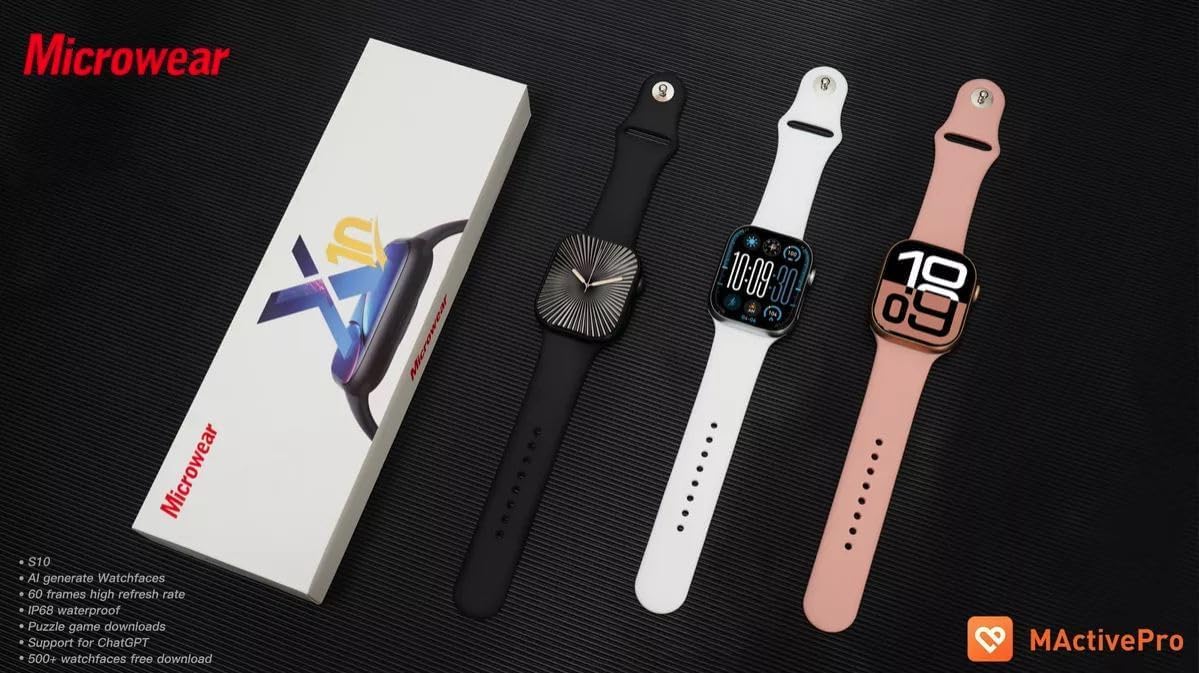
Image: Three MICROWEAR S10 Series 10 smartwatches in black, white, and pink, displayed alongside the MActivePro application logo, indicating app compatibility and various color options.
Operating Your Smartwatch
Basic Navigation
- Touch Screen: The smartwatch features a fully fit multi-touch screen for intuitive interaction.
- Crown/Button: Use the physical crown or button for power on/off, returning to the home screen, or navigating menus.
- Swipes: Swipe across the screen to access different functions, notifications, and quick settings.
Key Features and Functions
- MicroOS 10 System: Experience the upgraded operating system with enhanced performance.
- Dynamic Island: View active functions and notifications in a dynamic display area.
- Calls and Notifications: Make and receive calls directly from your wrist and get synchronous notifications from social media apps and your phone's notification center.
- Voice Assistant: Utilize integrated voice commands with ChatGPT, Alexa, Siri, and Google for hands-free control.
- NFC: Supports NFC functionality for various applications (e.g., untrapping ports using technology).
- Health Monitoring:
- 24-hour Heart Rate Monitor
- Blood Pressure Monitoring
- Blood Oxygen Monitoring
- Sleep Monitor
- Menstrual Control
Disclaimer: All measurement results are for reference only. They are based on scientific algorithms and sensors and are not intended for medical diagnosis or treatment.
- Sports Modes: Track various activities including Hiking, Running, Mountaineering, Cycling, Basketball, Badminton, Football, Yoga, Table Tennis, Skipping Rope, Tennis, and Weightlifting.
- GPS: Built-in GPS for accurate location tracking during outdoor activities.
- Other Tools: Pedometer, High-precision compass, Decibel Meter, Stopwatch, Timer, Alarm Clock, Music Player control, Camera remote control, Find Phone function, Calculator, Phone book, Password lock.

Image: The smartwatch screen showing different sports tracking options and activity data, such as steps, calories, and distance for running, walking, cycling, and other exercises.

Image: A visual representation of the smartwatch's voice control capabilities, depicting a Siri-like interface responding to commands such as "Open address book" or "Send a message."
Maintenance and Care
- Cleaning: Wipe the smartwatch and bands regularly with a soft, dry cloth. For stubborn dirt, use a slightly damp cloth and dry thoroughly.
- Charging: Always use the provided induction charger cable and a recommended power adapter (2A 5V or 1A 5V). Avoid using turbo chargers.
- Storage: Store the smartwatch in a cool, dry place when not in use.
- Band Replacement: The smartwatch supports interchangeable bands. To swap bands, locate the quick-release pins on the underside of the watch and follow the instructions for your specific band type.
Water Resistance Warning
The MICROWEAR S10 Series 10 Smartwatch is IP68 water resistant, but it is NOT approved for all water activities. It is NOT recommended for diving, saunas, heated pools, baths, or sea baths. Exposure to these conditions will void the product warranty. Do not remove warranty stamps.
Troubleshooting
| Problem | Possible Solution |
|---|---|
| Smartwatch does not turn on. | Ensure the watch is fully charged. Connect it to the charger for at least 30 minutes. |
| Cannot pair with smartphone. |
|
| Notifications are not received. |
|
| Inaccurate health data readings. |
|
| Short battery life. |
|
Specifications
| Feature | Detail |
|---|---|
| Model | S10 Series 10 |
| Manufacturer | Microwear |
| Screen Size | 47.5 mm (2.07 inches) |
| Screen Resolution | 468*548px, 346 PPI |
| Refresh Rate | 60Hz |
| Display Type | 64-bit display, Multi-touch |
| Battery Capacity | 300-450mAh (Typical: 350mAh Lithium Ion) |
| Charging Time | Approximately 2 hours |
| Water Resistance | IP68 (Not suitable for diving, saunas, heated pools, baths, or sea baths) |
| Connectivity | Bluetooth, Built-in GPS, NFC |
| Operating System | MicroOS 10 (Compatible with Android and iOS) |
| Memory Storage Capacity | 64 GB |
| Special Features | ChatGPT, Custom Activity Tracking, Gesture Control, Dynamic Island, Voice Assistant (Alexa, Siri, Google) |
| Item Shape | Square |
| Package Dimensions | 23.8 x 7.6 x 3.2 cm |
| Item Weight | 120 g |
| Country of Origin | China |
Warranty Information
The manufacturer provides a warranty for the MICROWEAR S10 Series 10 Smartwatch. Please refer to the warranty card or documentation included with your purchase for specific terms and conditions.
Important: Removing warranty stamps or exposing the device to conditions beyond its specified IP68 rating (e.g., diving, saunas, heated pools, baths, sea baths) will void the product warranty.
Support
For further assistance, technical support, or warranty claims, please contact your retailer or the manufacturer directly. You may find contact information on the product packaging or the official Microwear website.
For app-related queries, refer to the help section within the MActive Pro application.
Related documentsS10


Ask a question about this manual
Ask about setup, troubleshooting, compatibility, parts, safety, or missing instructions. Manuals+ will review the question and use this page’s manual context to help answer it.