
1. Product Overview
This manual provides instructions for the SIXWIN Android Car Stereo, designed for Lexus ES250, ES300, and ES330 models manufactured between 2001 and 2006. This unit features a 9-inch touchscreen display, Android 13 operating system, 2GB RAM, and 64GB internal storage. It supports various connectivity options including wireless CarPlay, Android Auto, Mirror Link, GPS navigation, WiFi, and Bluetooth. It also integrates with FM radio and supports a backup camera and steering wheel controls.
Important Note: This car radio is compatible only with the basic version of the specified Lexus models. It does not support vehicles with a high-configuration CD unit where the back of the CD unit is not supported.
2. Packing List
Verify that all components are present in the package before proceeding with installation.

Figure 2.1: Packing List and Unit Dimensions. The image displays the main unit with dimensions (326mm/12.8inch width, 215mm/8.4inch height, 245mm/9.6inch screen width) and a diagram of its rear ports (Power Cable, RCA Input/Output, Reversing Camera Input, USB Cable, GPS Antenna, Radio Antenna). Below are images of included accessories: USB Cable, GPS Antenna, Rear Camera Input Cable, Power Cable, RCA Cable, User Manual, Microphone, Rear Camera, and Installation Tool.
- SIXWIN Android Car Stereo Unit
- Power Cable
- USB Cable (x2)
- RCA Input/Output Cables
- GPS Antenna
- Rear Camera Input Cable
- Radio Antenna
- User Manual (this document)
- Microphone
- Rear Camera
- Installation Tools
3. Installation
Installation of the SIXWIN Android Car Stereo requires careful attention to wiring and vehicle compatibility. It is recommended that installation be performed by a qualified professional.

Figure 3.1: Installation Display and Compatibility. The top section shows a 'Before installation' image of a Lexus ES dashboard with a standard radio (labeled 'Low configuration') and an 'After installation' image with the new SIXWIN Android Car Stereo. The bottom section shows a 'High configuration' Lexus dashboard with a different factory unit (marked with an 'X' for incompatibility) and images of the back of a factory CD unit that is not supported (also marked with an 'X').
3.1 Compatibility Check
- Ensure your Lexus ES250, ES300, or ES330 is from the 2001-2006 model years.
- Verify that your vehicle has the basic factory radio configuration. This unit is not compatible with vehicles equipped with a high-configuration factory CD unit or navigation system that has a different wiring harness or physical dimensions.
3.2 Wiring Connections
- Power Cable: Connect the provided power cable harness to the car stereo and the vehicle's wiring. Ensure correct polarity and secure connections.
- USB Cables: Connect the two USB cables to the designated ports on the car stereo. These can be routed to a convenient location in the vehicle for connecting USB devices.
- RCA Input/Output: Connect the RCA cables for external audio/video devices or amplifiers as needed.
- GPS Antenna: Mount the GPS antenna in a location with a clear view of the sky, typically on the dashboard or under the windshield, ensuring it is securely attached.
- Rear Camera Input: Connect the rear camera input cable to the car stereo. Route the cable to the rear of the vehicle for connection to the backup camera.
- Radio Antenna: Connect the vehicle's FM/AM radio antenna to the car stereo.
- Microphone: Connect the external microphone to the designated port on the car stereo. Position the microphone in a location that allows for clear voice pickup during calls.
After all connections are made, secure the car stereo unit into the dashboard opening. Test all functions before fully reassembling the dashboard trim.
4. Initial Setup
Upon first power-on or after a factory reset, the system may require initial configuration.
- Language and Time: Navigate to the system settings to select your preferred language and set the correct date and time.
- WiFi Connection: Access the WiFi settings and connect to an available network. This is necessary for online GPS maps, app downloads, and system updates.
- GPS Calibration: The built-in GPS navigation system may require initial satellite acquisition. Ensure the GPS antenna has a clear view of the sky.
- Steering Wheel Control Learning: If your vehicle has steering wheel controls, you will need to configure them within the system settings. Follow the on-screen prompts to assign functions to each button.
5. Operating Instructions
5.1 Wireless CarPlay and Android Auto
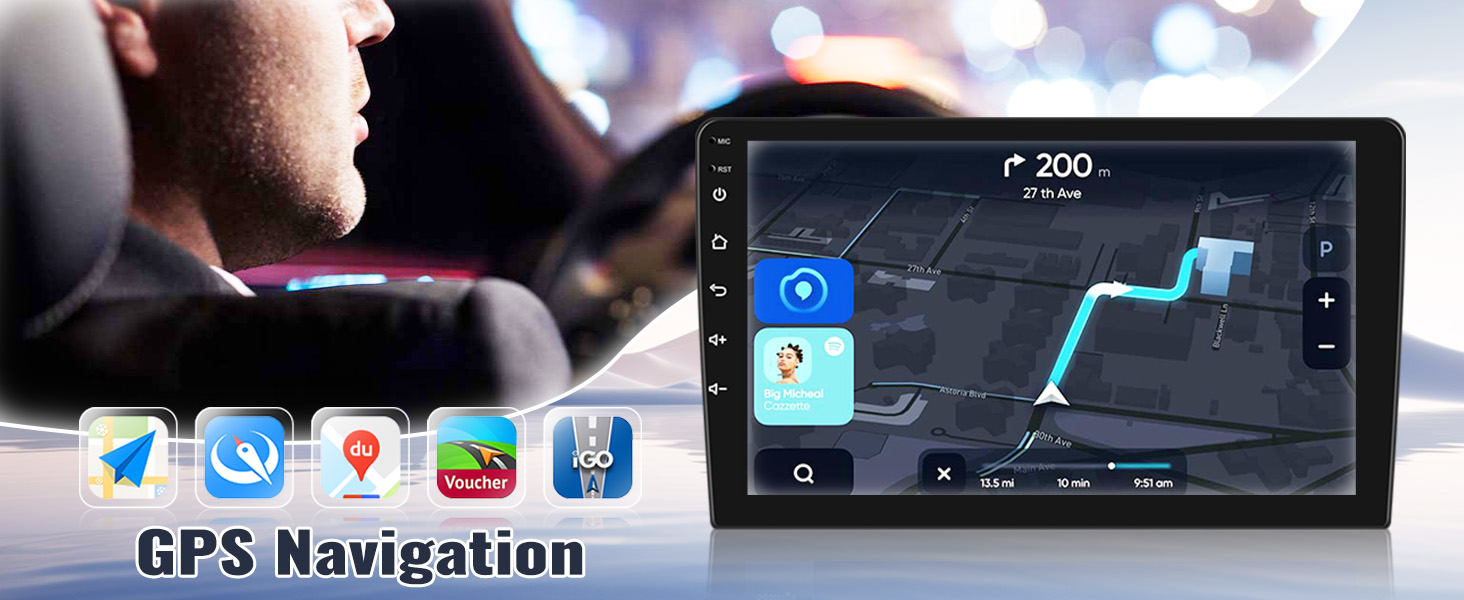
Figure 5.1: Wireless CarPlay and Android Auto Interface. The image displays the car stereo screen showing the CarPlay interface with various app icons like Phone, Music, Maps, Messages, and Spotify. A smartphone is shown wirelessly connected to the system.
This unit supports both wireless and wired CarPlay and Android Auto. This allows for seamless integration of your smartphone's features onto the car stereo display.
- Connection: Enable Bluetooth and WiFi on your smartphone. On the car stereo, select the CarPlay or Android Auto application. Follow the on-screen instructions to pair your phone. For wired connection, use a USB cable.
- Functionality: Once connected, you can access navigation, phone contacts, messages, music, and other compatible applications directly from the car stereo screen.
- Voice Control: Use voice commands (e.g., Siri for CarPlay) for hands-free operation.
5.2 Mirror Link

Figure 5.2: Mirror Link Feature. The image shows a smartphone displaying a car racing game, with its screen mirrored onto the larger car stereo display. Icons for Apple (iOS) and Android are present, indicating compatibility. Note: Mirror Link is not compatible with Samsung devices.
Mirror Link allows you to display your smartphone's screen directly onto the car stereo. This feature supports both iOS (via WiFi) and Android (via WiFi/USB) devices. Note: Mirror Link is not compatible with Samsung devices.
5.3 GPS Navigation and WiFi

Figure 5.3: GPS Navigation and WiFi Function. The top part of the image shows the car stereo displaying a map with a route highlighted, indicating GPS navigation. Various navigation app icons are visible. The bottom part shows the car stereo displaying a YouTube video, with several app icons (YouTube, TikTok, Spotify, etc.) suggesting WiFi connectivity for app downloads and streaming.
The unit includes built-in GPS navigation, supporting both online and offline maps. The 'Here We Go' application is pre-installed, allowing you to download offline maps for navigation without an internet connection.
- Online Maps: Connect to WiFi to use real-time traffic updates and online mapping services.
- Offline Maps: Use the 'Here We Go' app to download maps for your region.
- WiFi Connectivity: Connect to a mobile hotspot or local WiFi network to access the Google Play Store, download apps (e.g., YouTube, TikTok, Spotify), and browse the internet.
5.4 Bluetooth Hands-Free and FM Radio

Figure 5.4: FM RDS Radio and Bluetooth Functions. The top section shows the car stereo displaying an FM radio interface with frequency 108.00 MHz and preset stations. The bottom section illustrates Bluetooth connectivity, showing a 'Paired Devices' list on the stereo, a music player interface, and a phone dial pad, indicating hands-free calling and music streaming capabilities.
The system features Bluetooth for hands-free calling and audio streaming, along with an integrated FM radio.
- Bluetooth Pairing: Enable Bluetooth on your phone and search for the car stereo. Select the device and confirm pairing.
- Hands-Free Calling: Once paired, you can make and receive calls directly from the car stereo. The system supports downloading your phone's contact list.
- Bluetooth Music: Stream audio from your smartphone to the car stereo via Bluetooth.
- FM Radio: Access the FM radio tuner. The system offers 18 preset stations for quick access to your favorite channels.
5.5 Backup Camera and Steering Wheel Control
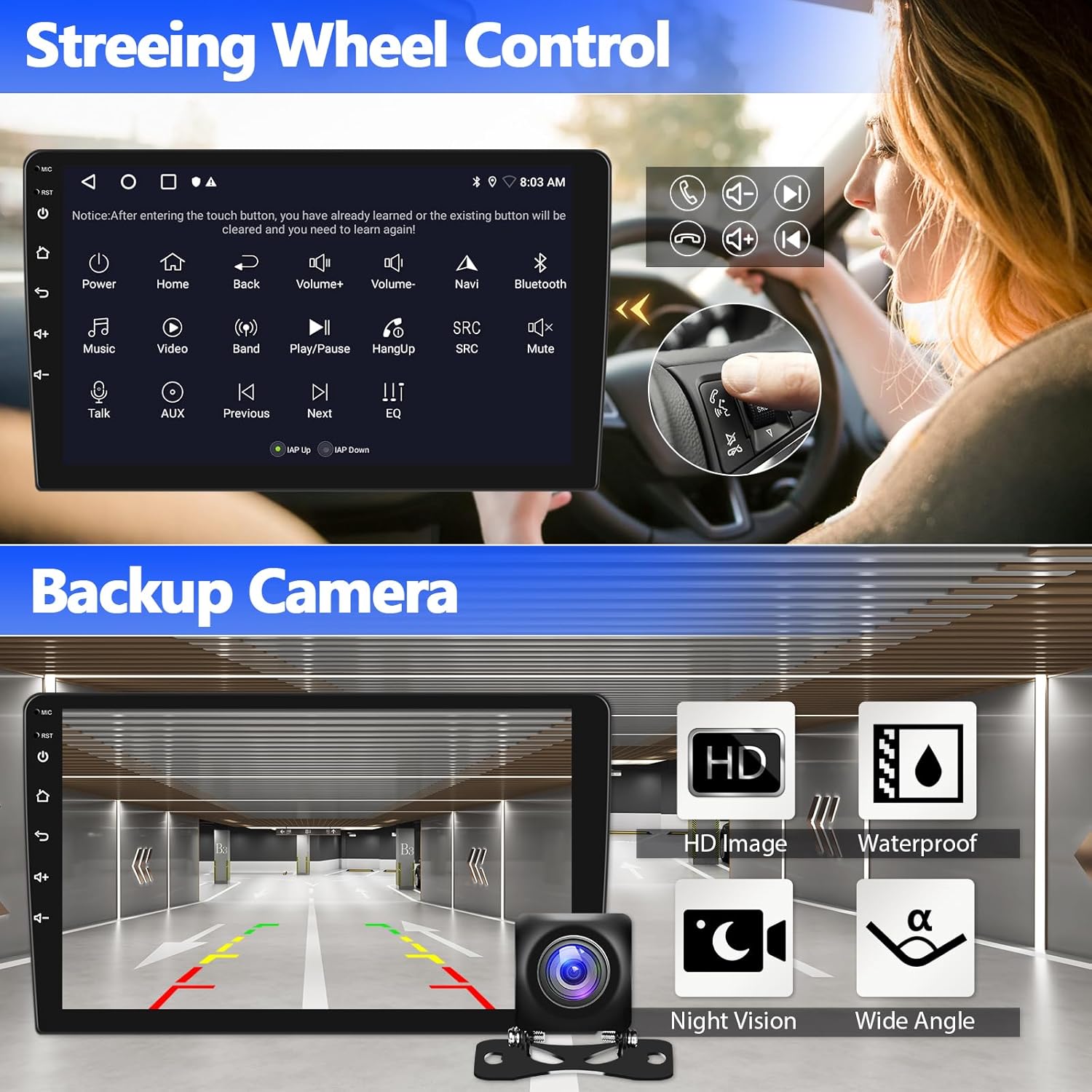
Figure 5.5: Steering Wheel Control and Backup Camera. The top section shows the car stereo displaying a 'Steering Wheel Control' interface with various button functions (Power, Home, Volume, Navi, Bluetooth, Music, Video, etc.). A driver is shown interacting with steering wheel buttons. The bottom section displays a backup camera view on the car stereo screen, with icons indicating HD image, waterproof, night vision, and wide angle capabilities.
- Backup Camera: The car stereo supports a backup camera. When the vehicle is shifted into reverse, the display automatically switches to the camera view, providing visual assistance for parking and maneuvering.
- Steering Wheel Control: The unit is compatible with your vehicle's existing steering wheel controls. After initial learning in the settings, you can control functions such as switching songs, adjusting volume, and answering calls without removing your hands from the steering wheel.
5.6 Split Screen Functionality
Figure 5.6: Mirror Link and Split Screen. The top part of the image shows the Mirror Link feature. The bottom part illustrates the Split Screen function, where the car stereo display is divided into two sections, showing a map application on one side and a music player on the other.
The split-screen feature allows you to run two applications simultaneously on the display. For example, you can view navigation on one side while controlling music playback on the other.
5.7 User Interface (UI) Themes

Figure 5.7: 1080P High Definition and 26UI Themes. The top section highlights the 1080P high-definition display with a clear image. The bottom section showcases multiple user interface themes (26UI), demonstrating different visual layouts and icon styles available for customization.
The system offers 26 different user interface themes, allowing for personalization of the display's appearance and layout. You can select your preferred theme through the system settings.
6. Maintenance
- Screen Cleaning: Use a soft, lint-free cloth to clean the touchscreen. Avoid abrasive cleaners or solvents that may damage the screen.
- Software Updates: Periodically check for system software updates via the WiFi connection to ensure optimal performance and access to new features.
- Cable Connections: Ensure all cables remain securely connected to prevent intermittent issues.
7. Troubleshooting
| Problem | Possible Cause | Solution |
|---|---|---|
| No power | Incorrect wiring, blown fuse | Check power cable connections. Inspect vehicle's fuse box and replace any blown fuses. |
| No sound | Volume too low, incorrect audio settings, loose speaker wires | Increase volume. Check audio output settings. Verify speaker wire connections. |
| GPS signal lost/inaccurate | GPS antenna obstruction, poor satellite reception | Ensure GPS antenna has a clear view of the sky. Move to an open area. |
| Bluetooth not connecting | Phone not in pairing mode, incorrect pairing process | Ensure phone's Bluetooth is on and discoverable. Re-attempt pairing process from both devices. |
| Steering wheel controls not working | Controls not learned, incorrect wiring | Go to system settings and perform the steering wheel control learning process again. Check wiring harness connections. |
| Backup camera not displaying | Camera not connected, reverse trigger wire issue | Verify backup camera cable connection. Ensure the reverse trigger wire is correctly connected to the vehicle's reverse light circuit. |
8. Specifications
- Model: 2G+64G
- Operating System: Android 13
- Display Size: 9 Inches
- Display Resolution: 1080P Full HD
- Memory (RAM): 2GB
- Storage (ROM): 64GB
- Connectivity: Wireless CarPlay, Android Auto, Mirror Link (iOS/Android), Built-in GPS, WiFi, Bluetooth
- Radio: FM Radio with 18 preset stations
- Special Features: Touchscreen, Voice Command (via connected smartphone), Split Screen, 26 UI Themes, Backup Camera Support, Steering Wheel Control Compatibility
- Item Weight: Approximately 3.19 pounds
- Package Dimensions: Approximately 15.07 x 9.88 x 3.78 inches
- Vehicle Service Type: Car (Lexus ES250 ES300 ES330 2001-2006)
9. Warranty and Support
The SIXWIN Android Car Stereo comes with a 1-year warranty from the date of purchase, covering manufacturing defects.
For online help, technical support, or to request a digital copy of the user manual, please contact us at: sixwin_vip@163.com

Figure 9.1: Customer Support. The image shows a person on the phone, representing customer service. The text below indicates the email address for online help and user manual requests.
