
Razer RZ04-05410100-R3U1
Razer BlackShark V3 Wireless Gaming Headset Instruction Manual
Model: RZ04-05410100-R3U1
1. Product Overview
The Razer BlackShark V3 is a wireless esports gaming headset designed for competitive play. It features advanced audio technology and versatile connectivity options for various platforms.

Image: The Razer BlackShark V3 Wireless Gaming Headset, showcasing its design and detachable microphone.
Key Features:
- Razer HyperSpeed Wireless Gen-2: Provides ultra-low latency wireless audio.
- Razer TriForce Titanium 50mm Drivers Gen-2: Delivers clear, powerful, and precise audio.
- Detachable Razer HyperClear Super Wideband 9.9mm Mic: Ensures high-definition voice clarity.
- Triple-Mode Connectivity: Supports 2.4 GHz wireless, Bluetooth, and wired USB-C.
- THX Spatial Audio: Offers immersive 7.1.4 surround sound (PC only).
- Long Battery Life: Up to 70 hours on a single charge.
2. What's in the Box
Verify that all components are present in your package:
- Razer BlackShark V3 Wireless Gaming Headset
- Razer HyperSpeed Wireless Gen-2 Dongle
- Detachable Razer HyperClear Super Wideband 9.9mm Microphone
- USB Type-A to Type-C Charging Cable
- User Manual (this document)

Image: The Razer BlackShark V3 headset, HyperSpeed Wireless dongle, and USB-C charging cable.
3. Setup
3.1 Charging the Headset
Before first use, fully charge the headset using the provided USB Type-A to Type-C cable. Connect the USB-C end to the headset's charging port and the USB-A end to a powered USB port (e.g., computer, wall adapter).
- The LED indicator on the headset will show charging status.
- A full charge provides up to 70 hours of battery life (up to 35 hours in dual audio mode).
3.2 Attaching the Microphone
Insert the detachable Razer HyperClear Super Wideband Microphone into the microphone port located on the left earcup. Ensure it is securely connected.

Image: The Razer BlackShark V3 headset with the detachable microphone attached.
3.3 Connecting via Razer HyperSpeed Wireless (2.4 GHz)
This mode offers the lowest latency for gaming on PC, PlayStation, and Nintendo Switch (docked mode).
- Plug the Razer HyperSpeed Wireless Gen-2 Dongle into an available USB port on your device.
- Power on your headset. It should automatically connect to the dongle.
- On your device, ensure the Razer BlackShark V3 is selected as the audio input and output device.
3.4 Connecting via Bluetooth
This mode is suitable for mobile devices, Mac, and Nintendo Switch (handheld mode).
- Power on your headset.
- Press and hold the Bluetooth button on the headset until the LED indicator blinks blue, indicating pairing mode.
- On your device, go to Bluetooth settings and select "Razer BlackShark V3" from the list of available devices.
- The LED will turn solid blue when connected.
3.5 Connecting via USB-C (Wired Mode)
For a direct wired connection, use the USB Type-A to Type-C cable.
- Connect the USB-C end of the cable to the headset.
- Connect the USB-A end to an available USB port on your device.
- The headset will function as a wired audio device.
4. Operating the Headset
4.1 Power On/Off
Press and hold the Power button on the headset for approximately 3 seconds to power it on or off.
4.2 Volume Control
Rotate the volume wheel on the left earcup to adjust the audio output level.
4.3 Microphone Mute
Press the microphone mute button on the left earcup to toggle the microphone on or off. An LED indicator on the microphone will show its status.
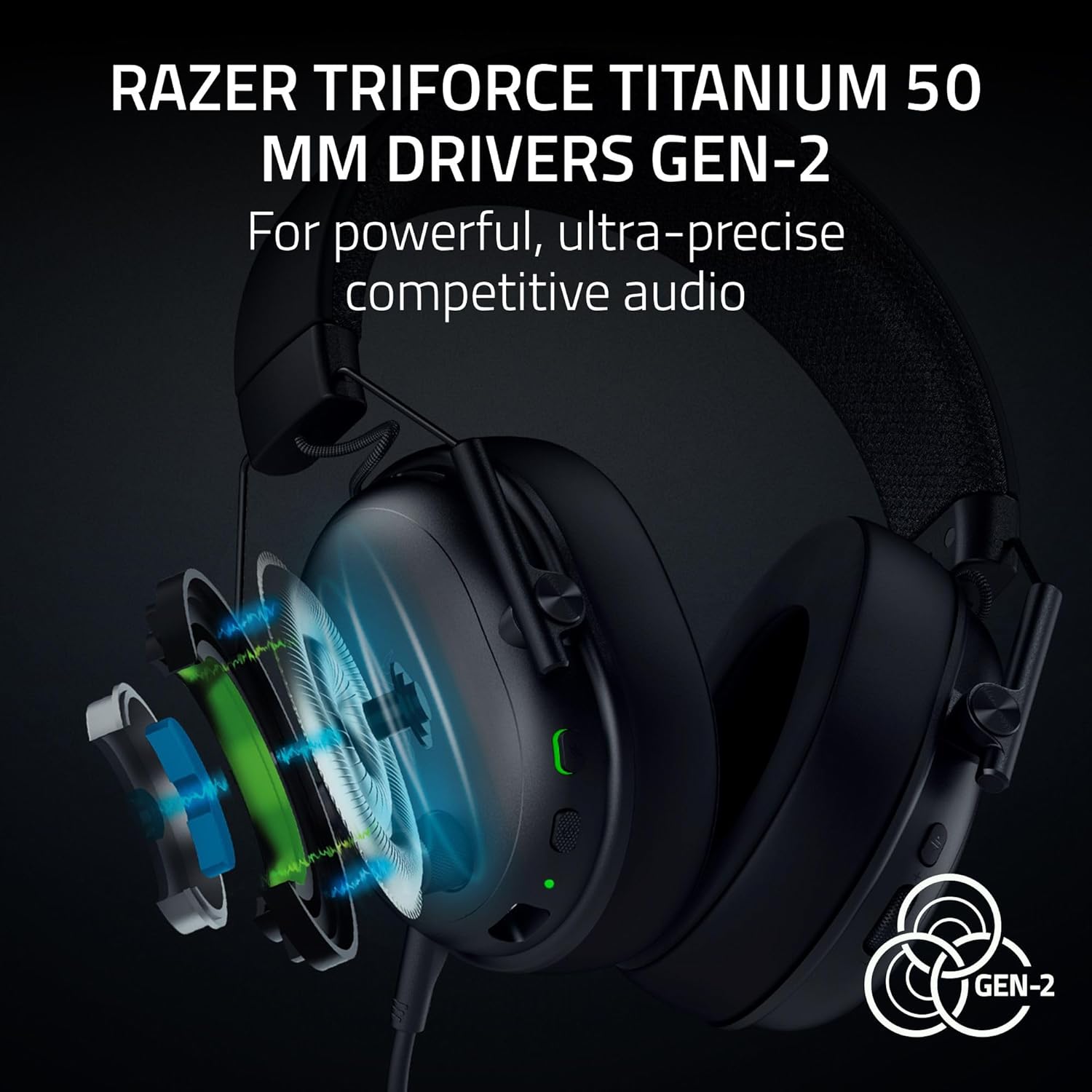
Image: Close-up of the headset's left earcup showing the volume wheel, power button, and microphone mute button.
4.4 Switching Connectivity Modes
The headset supports simultaneous 2.4 GHz and Bluetooth audio. Use the dedicated mode button to switch between or combine these modes.
4.5 Razer Synapse Software (PC Only)
For advanced customization, download and install Razer Synapse on your PC. This software allows you to:
- Customize audio equalizer (EQ) settings.
- Enable and configure THX Spatial Audio for immersive sound.
- Adjust microphone settings, including noise reduction.
- Create and save pro-tuned FPS profiles.

Image: A screenshot of the Razer Synapse mobile application interface, showing equalizer and microphone settings for the BlackShark V3 headset.
5. Maintenance
5.1 Cleaning the Headset
Regularly clean your headset to maintain its condition and hygiene.
- Use a soft, dry cloth to wipe down the earcups and headband.
- For stubborn dirt, lightly dampen the cloth with water. Avoid harsh chemicals.
- Ensure the microphone port and charging port are free of dust and debris.
5.2 Battery Care
To prolong battery life:
- Avoid fully discharging the battery frequently.
- Store the headset in a cool, dry place when not in use.
- Charge the headset periodically if it will not be used for an extended period.
5.3 Storing the Headset
When not in use, store the headset on a stand or in a protective case to prevent damage. Detach the microphone if preferred for storage.

Image: The Razer BlackShark V3 headset resting on a headset stand.
6. Troubleshooting
6.1 No Audio Output
- Ensure the headset is powered on and charged.
- Verify the correct audio output device is selected in your system settings.
- Check the volume wheel on the headset and your device's master volume.
- If using HyperSpeed Wireless, ensure the dongle is securely plugged in and the headset is connected.
- If using Bluetooth, ensure the headset is paired and connected to your device.
6.2 Microphone Not Working
- Ensure the microphone is securely attached to the headset.
- Check if the microphone mute button is disengaged (LED off).
- Verify the correct microphone input device is selected in your system settings and communication applications.
- Test the microphone with another device if possible.
6.3 Connectivity Issues
- HyperSpeed Wireless: Try plugging the dongle into a different USB port. Ensure no strong interference sources are nearby.
- Bluetooth: Try unpairing and re-pairing the headset with your device. Ensure the headset is within range.
- General: Restart both the headset and your connected device.
7. Specifications
| Feature | Detail |
|---|---|
| Model Name | BlackShark V3 |
| Item Model Number | RZ04-05410100-R3U1 |
| Connectivity Technology | 2.4 GHz Wireless (HyperSpeed), Bluetooth 5.3, USB Type-A (Wired) |
| Compatible Devices | PC, Mac, PlayStation, Nintendo Switch, Smartphone, Steam Deck |
| Audio Driver Size | 50 mm Razer TriForce Titanium Drivers Gen-2 |
| Frequency Response | 28 KHz (Headphones) |
| Sensitivity | 106 dB |
| Microphone | Detachable Razer HyperClear Super Wideband 9.9mm Mic |
| Battery Life | Up to 70 hours (wireless), 35 hours (dual audio mode) |
| Weight | Approximately 270g (without mic) |
| Noise Control | Sound Isolation |
| Material | Metal (frame), Hybrid Fabric-Leatherette (ear cushions) |
| UPC | 840272919606 |
8. Warranty and Support
8.1 Warranty Information
Razer products typically come with a limited manufacturer's warranty. Please refer to the warranty card included in your product packaging or visit the official Razer website for detailed warranty terms and conditions specific to your region and product.
8.2 Technical Support
For technical assistance, troubleshooting beyond this manual, or to report issues, please contact Razer Support through their official website. You may need your product's serial number (found on the packaging or headset) for support inquiries.
- Visit the Razer Support Website for FAQs, drivers, and contact options.
Related documentsRZ04-05410100-R3U1


Ask a question about this manual
Ask about setup, troubleshooting, compatibility, parts, safety, or missing instructions. Manuals+ will review the question and use this page’s manual context to help answer it.