
1. Important Safeguards
When using electrical appliances, basic safety precautions should always be followed to reduce the risk of fire, electric shock, and injury to persons. Read all instructions before using the CHEF iQ MiniOven. Keep this manual for future reference.
- Do not touch hot surfaces. Use handles or knobs.
- To protect against electric shock, do not immerse cord, plugs, or the appliance in water or other liquid.
- Close supervision is necessary when any appliance is used by or near children.
- Unplug from outlet when not in use and before cleaning. Allow to cool before putting on or taking off parts.
- Do not operate any appliance with a damaged cord or plug or after the appliance malfunctions or has been damaged in any manner.
- The use of accessory attachments not recommended by the appliance manufacturer may cause injuries.
- Do not use outdoors.
- Do not let cord hang over edge of table or counter, or touch hot surfaces.
- Do not place on or near a hot gas or electric burner, or in a heated oven.
- Extreme caution must be used when moving an appliance containing hot oil or other hot liquids.
- To disconnect, turn any control to 'off', then remove plug from wall outlet.
- Do not use appliance for other than intended use.
- Oversized foods or metal utensils must not be inserted in a toaster oven as they may create a fire or risk of electric shock.
- A fire may occur if the toaster oven is covered or touching flammable material, including curtains, draperies, walls, and the like, when in operation.
- Do not place any of the following materials in the oven: paper, cardboard, plastic, and other non-food items.
- Do not store any materials, other than manufacturer's recommended accessories, in this oven when not in use.
- Do not cover crumb tray or any part of the oven with metal foil. This will cause overheating of the oven.
2. Product Overview
The CHEF iQ MiniOven is a versatile 11-in-1 countertop appliance designed to simplify your cooking experience. It combines the functionalities of a toaster oven, air fryer, dehydrator, proofer, and slow cooker, among others. Featuring a powerful DC motor and intuitive touchscreen controls, it offers precise and efficient cooking.

Image 2.1: The CHEF iQ MiniOven in operation, showcasing its sleek design and digital interface, alongside a smartphone displaying the companion app.
3. Getting Started: Setup
3.1 Unboxing and Initial Inspection
- Carefully remove all packaging materials and accessories from the box.
- Inspect the MiniOven for any signs of damage. Do not operate if damaged.
- Ensure all included accessories are present: wire rack, ceramic PFAS-free baking pan, air fry/dehydrator basket, egg tray, drip tray, and glide rack.
3.2 Placement and Power Connection
- Place the MiniOven on a stable, heat-resistant, and level surface. Ensure adequate clearance (at least 6 inches) on all sides and above the appliance for proper ventilation.
- Plug the power cord into a grounded 1750W electrical outlet.
3.3 Initial Cleaning
- Before first use, wipe the exterior of the MiniOven with a damp cloth.
- Wash all removable accessories (racks, trays, baskets) in warm, soapy water. Rinse thoroughly and dry completely.
- Run the oven empty on a 'Bake' setting at 350°F (175°C) for approximately 15 minutes to burn off any manufacturing residues. A slight odor or smoke is normal during this initial use. Ensure good ventilation.
3.4 App Pairing (Optional but Recommended)
For full smart features, download the free CHEF iQ App on your smart device and follow the in-app instructions to pair with your MiniOven via Wi-Fi. This enables remote control, guided cooking, and access to numerous recipes.

Image 3.1: The CHEF iQ App provides full control and guided cooking instructions for the MiniOven.
4. Operating Instructions
4.1 Touchscreen Controls
The MiniOven features an intuitive touchscreen display with haptic feedback and audio alerts. You can manually select cooking functions, adjust temperature and time, and access presets directly from the unit.

Image 4.1: The intuitive touchscreen display allows for direct control of the MiniOven.
4.2 Cooking Functions Overview
The MiniOven offers 11 distinct cooking functions:
- Bake: Ideal for cakes, cookies, and casseroles.
- Broil: Perfect for browning, toasting, or quick cooking of thin cuts of meat.
- Air Fry: Circulates hot air for crispy results with little to no oil.
- Dehydrate: Low-temperature cooking for drying fruits, vegetables, and jerky.
- Toast: For perfectly browned toast, bagels, and waffles.
- Proof: Provides a warm, consistent environment for rising dough.
- Slow Cook: Long, low-temperature cooking for tender meats and stews.
- Keep Warm: Maintains food at a serving temperature.
- Reheat: Gently warms leftovers without overcooking.
- Roast: For cooking meats and vegetables with a browned exterior and tender interior.
- Air Broil: Combines air circulation with top heating for faster broiling.
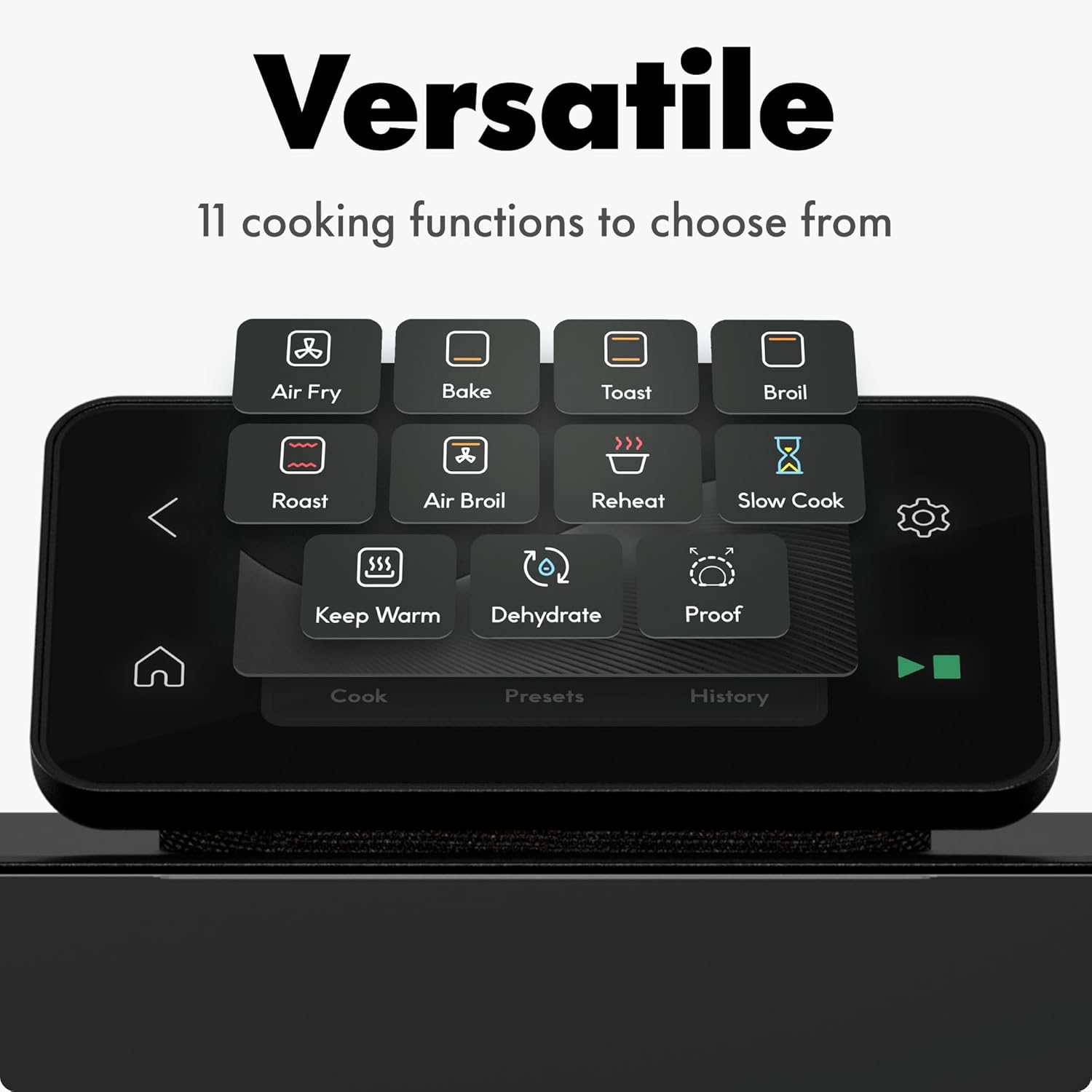
Image 4.2: The MiniOven's display highlights its 11 versatile cooking functions.
4.3 Using Rack Positions
The MiniOven features three rack positions. LED indicator lights will suggest the optimal rack placement for your selected cooking function or preset to ensure best results.
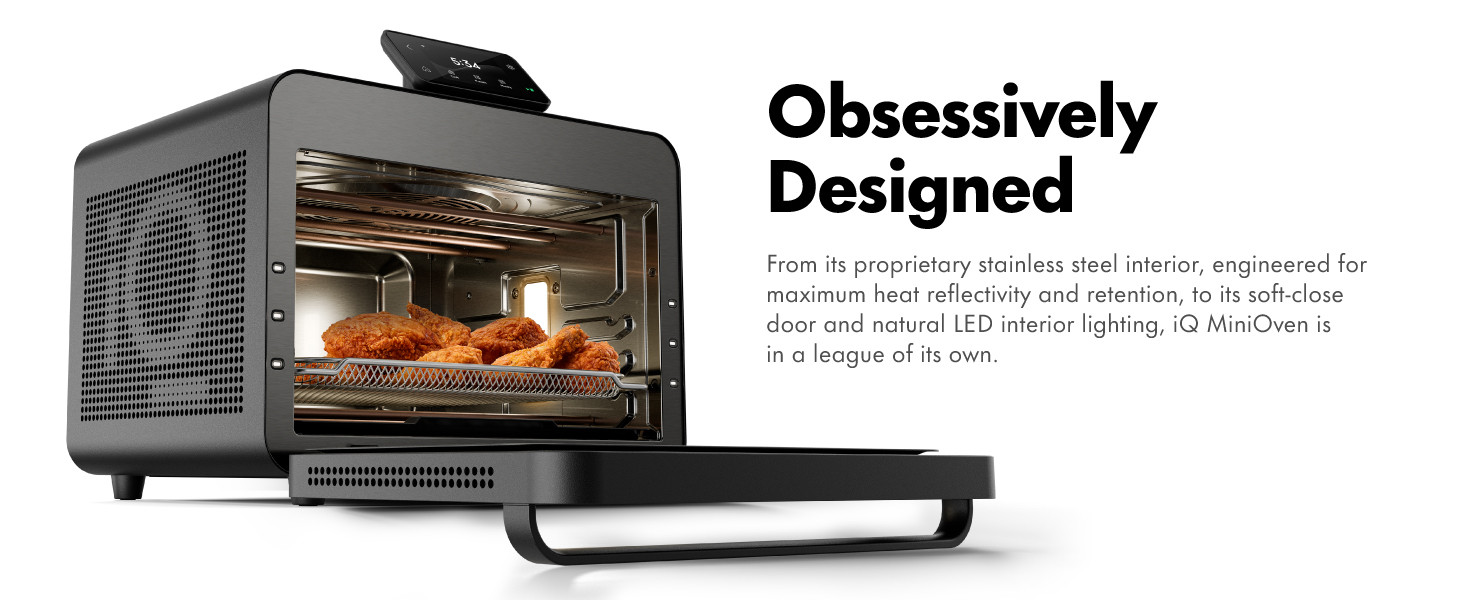
Image 4.3: Rack indicator lights guide optimal placement for various cooking tasks.
4.4 Guided Cooking with the CHEF iQ App
The CHEF iQ App provides step-by-step guided cooking for numerous chef-tested recipes. Once paired, you can select a recipe, and the app will control the MiniOven's settings, including temperature, time, and function. It also offers an unlimited Wi-Fi range for monitoring your cooking remotely.
The MiniOven is fully compatible with the iQ Sense Smart Cooking Thermometer (sold separately), allowing for precise internal temperature monitoring and automatic adjustments for perfect results.

Image 4.4: The MiniOven integrates with the iQ Sense thermometer for intelligent cooking.
5. Maintenance and Cleaning
5.1 General Cleaning
- Always unplug the MiniOven and allow it to cool completely before cleaning.
- Wipe the exterior with a damp cloth and mild detergent. Do not use abrasive cleaners or scouring pads.
- Clean the interior walls with a damp cloth and mild, non-abrasive cleaner. For stubborn stains, a paste of baking soda and water can be used, then wiped clean.
- The soft-close door and edge-to-edge glass viewing window can be cleaned with a glass cleaner or damp cloth.
5.2 Cleaning Accessories
- All removable accessories (wire rack, ceramic baking pan, air fry/dehydrator basket, egg tray, drip tray, glide rack) should be washed in warm, soapy water. Rinse thoroughly and dry completely before storing or re-using.
- The ceramic baking pan is PFAS-free for easy cleaning.
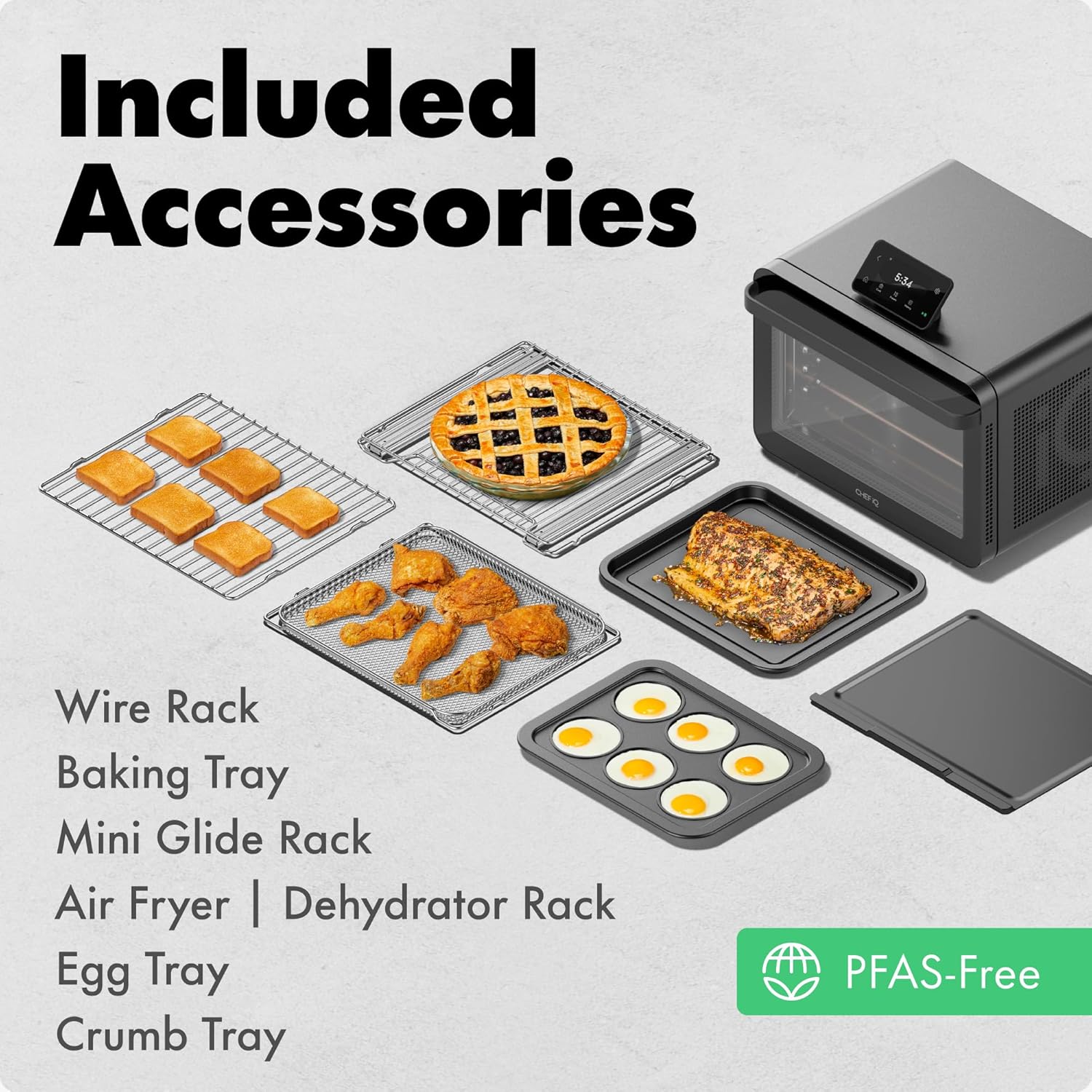
Image 5.1: Included accessories are designed for easy cleaning and versatile cooking.
6. Troubleshooting
| Problem | Possible Cause | Solution |
|---|---|---|
| MiniOven does not turn on. | Not plugged in; power outlet issue; appliance malfunction. | Ensure the power cord is securely plugged into a working outlet. Check circuit breaker. Contact customer support if the issue persists. |
| Food is not cooking evenly. | Incorrect rack position; overcrowding; uneven food placement. | Refer to rack indicator lights for optimal placement. Avoid overcrowding the oven. Ensure food is spread evenly on trays. |
| App is not connecting to MiniOven. | Wi-Fi connectivity issues; incorrect pairing steps. | Ensure your MiniOven and smart device are on the same Wi-Fi network. Restart both the app and the MiniOven. Follow app pairing instructions carefully. |
| Smoke or unusual odor during operation. | Food residue; initial burn-off; excessive grease. | A slight odor is normal during first use. For subsequent uses, ensure the oven and accessories are clean. Reduce grease if cooking fatty foods. If smoke is excessive or persistent, unplug immediately and contact support. |
7. Specifications
- Brand: CHEF iQ
- Model Name: iQ MiniOven™
- Item Model Number: CQ50-AM
- Color: Black
- Product Dimensions: 16.14"D x 16.34"W x 14.41"H
- Capacity: 25 Quarts
- Special Features: 11 Cooking Functions, Compact Footprint, 5 PFAS-Free Accessories, Pairs with CHEF iQ App, Powerful DC Motor
- Control Type: Touch Control, App Control
- Door Style: Dropdown Door (Soft-close)
- Door Material Type: Tempered Glass
- Power Source: Electric (1750W)
- Temperature Range: 70-500 Degrees Fahrenheit
- Number of Shelves: 3
- Item Weight: 26.2 pounds
- UPC: 810170925429
8. Warranty and Support
8.1 Limited Warranty
The CHEF iQ MiniOven comes with a three-year limited warranty from CHEF iQ. This warranty covers defects in materials and workmanship under normal use. Please retain your proof of purchase for warranty claims.
8.2 Customer Support
For technical assistance, troubleshooting, or warranty inquiries, please visit the official CHEF iQ website or contact their customer support directly. You can also find additional resources and FAQs within the CHEF iQ App.
For more information, visit: CHEF iQ Store on Amazon

