
1. Introduction
Thank you for choosing the Maxcom Comfort MM834 4G Senior Flip Phone. This manual provides essential information for setting up, operating, and maintaining your device. Please read it carefully to ensure proper use and to maximize the phone's features.
2. Package Contents
Please check the package for the following items:
- Maxcom Comfort MM834L 4G Senior Flip Phone
- Battery (1000 mAh Li-ion)
- Charging Cable
- User Manual
3. Device Overview
Familiarize yourself with the physical features of your Maxcom MM834L phone.
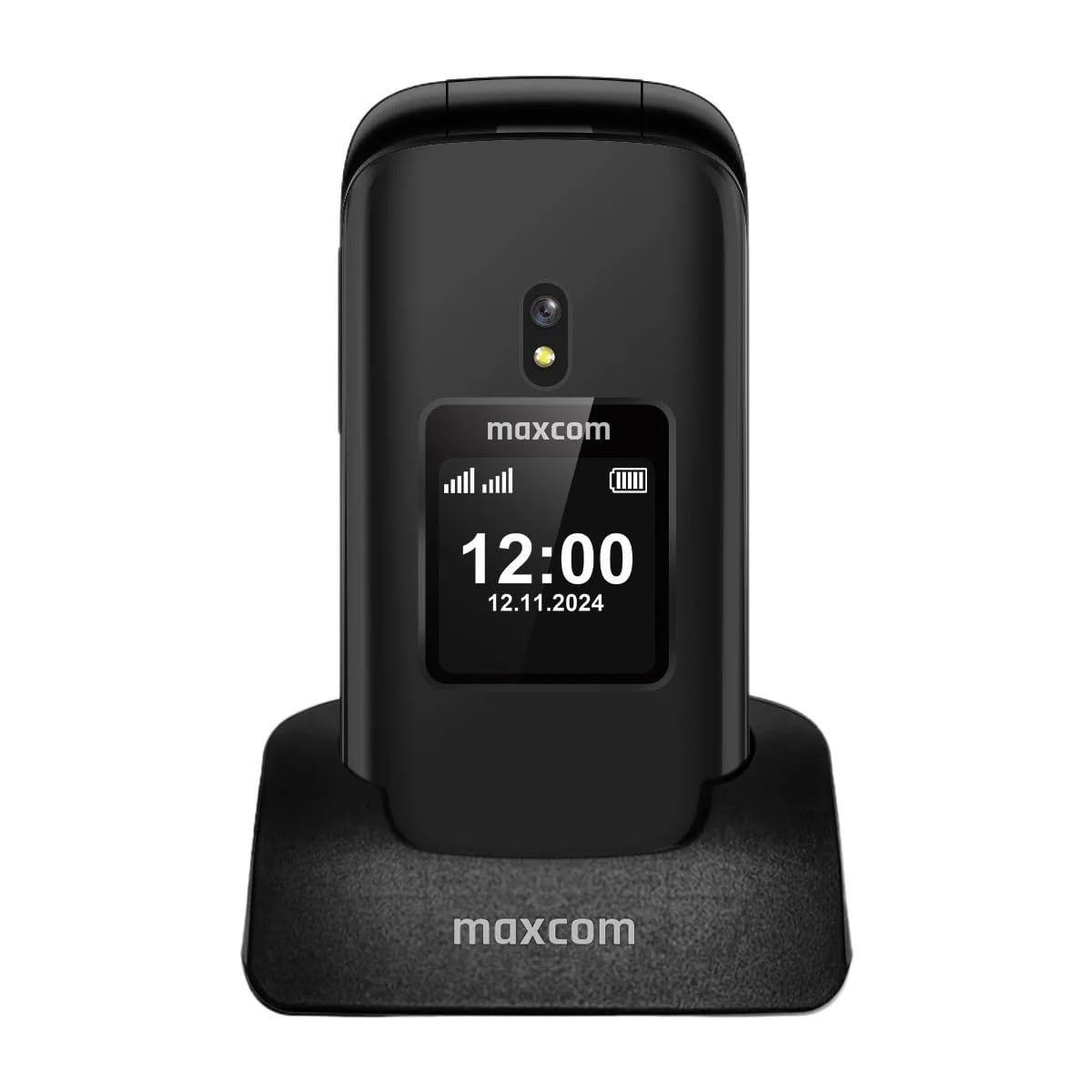
Figure 3.1: Front view of the Maxcom MM834L phone when open, displaying the main screen and the large, easy-to-use keypad.
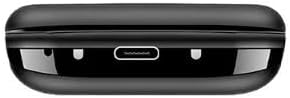
Figure 3.2: Bottom view of the phone, highlighting the USB-C charging port for convenient power connection.
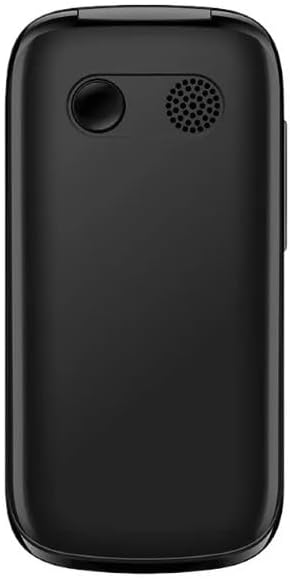
Figure 3.3: Rear view of the phone, featuring the integrated camera and the external speaker for clear audio output.

Figure 3.4: Side view of the phone, indicating the location of the volume control buttons.

Figure 3.5: The phone features two displays: a 2.4-inch main internal screen and a 1.44-inch external screen. The external display shows time, battery status, and caller information without needing to open the phone.
4. Setup
4.1. Installing the SIM Card(s) and Battery
- Open the back cover of the phone.
- Insert your SIM card(s) into the designated slot(s). The MM834L supports Dual SIM functionality. Ensure the gold contacts face downwards and the card is correctly oriented.
- Insert the battery into its compartment, aligning the contacts.
- Replace the back cover, ensuring it clicks securely into place.

Figure 4.1: The Maxcom MM834L supports Dual SIM, allowing the use of two separate telephone numbers.
4.2. Charging the Battery
Before first use, fully charge the phone's battery. Connect the charging cable to the phone's USB-C port and plug the other end into a power adapter. The battery indicator on the screen will show charging status. A full charge typically takes a few hours.

Figure 4.2: The 1000 mAh battery provides extended usage time for the MM834L phone.
4.3. Powering On/Off
- To power on: Press and hold the End Call/Power button (red button) until the screen lights up.
- To power off: Press and hold the End Call/Power button until the power off options appear, then select 'Power off'.
5. Operating Instructions
5.1. Making Calls
- Open the flip to activate the main screen.
- Dial the desired phone number using the keypad.
- Press the Call button (green button) to initiate the call.
- To end a call, press the End Call button (red button).
5.2. Answering Calls
- When the phone rings, open the flip to answer the call automatically, or press the Call button.
- To reject a call, press the End Call button.
5.3. Sending and Receiving Messages
- From the main menu, navigate to 'Messages'.
- Select 'Write message' or 'New SMS'.
- Enter your message using the keypad.
- Enter the recipient's phone number or select from your contacts.
- Select 'Send'.
5.4. SOS Function
The MM834L features a dedicated SOS button for emergencies.
- To activate: Press and hold the SOS button on the back of the phone for a few seconds.
- The phone will automatically call and send an emergency SMS to pre-set contacts.
- Ensure emergency contacts are set up in the phone's settings under the SOS menu.

Figure 5.1: Key features include 4G VoLTE for clear calls, dual screens, a dedicated SOS button, and large, easy-to-press buttons.
6. Maintenance
- Cleaning: Use a soft, dry cloth to clean the phone's surface. Avoid liquid cleaners or abrasive materials.
- Storage: Store the phone in a cool, dry place away from direct sunlight and extreme temperatures.
- Battery Care: Do not expose the battery to high temperatures or dispose of it in fire. Recycle batteries according to local regulations.
- Water Resistance: This phone is not waterproof. Avoid exposure to water or high humidity.
7. Troubleshooting
| Problem | Possible Cause | Solution |
|---|---|---|
| Phone does not power on | Battery is depleted or not installed correctly. | Charge the battery. Ensure the battery is correctly inserted. |
| Cannot make or receive calls | No SIM card, SIM card not active, or out of network coverage. | Ensure SIM card is inserted and active. Check network signal strength. Contact your service provider. |
| Poor call quality | Weak network signal or interference. | Move to an area with better network coverage. Avoid sources of interference. |
| Battery drains quickly | High usage, background applications, or old battery. | Reduce screen brightness. Close unnecessary applications. Consider replacing the battery if it's old. |
8. Specifications
| Feature | Specification |
|---|---|
| Model | MM834L |
| Dimensions | 10 x 5 x 8 cm |
| Weight | 210 grams |
| Main Screen Size | 2.4 inches |
| External Screen Size | 1.44 inches (implied from A+ content) |
| Display Type | LCD |
| Resolution | 240 x 320 |
| Battery Capacity | 1000 mAh (Lithium-ion) |
| Cellular Technology | 4G (LTE, VoLTE) |
| SIM Card Slots | Dual SIM |
| Flash Memory | 1 MB |
| Form Factor | Flip (Pieghevole) |
9. Warranty and Support
Your Maxcom Comfort MM834L phone is covered by a manufacturer's warranty. Please refer to the warranty card included in your package for details on coverage and duration. For technical support, service, or further inquiries, please contact Maxcom customer service through their official website or the contact information provided with your purchase.


