
1. Introduction
This manual provides comprehensive instructions for the Redragon K738 Wireless Mechanical Keyboard. The K738 is a 75% layout (82-key) keyboard featuring a gasket-mounted design, customizable RGB backlighting, and versatile 3-mode connectivity (2.4GHz wireless, Bluetooth, and USB-C wired). It is equipped with pre-lubed linear switches and supports hot-swapping for personalized customization.
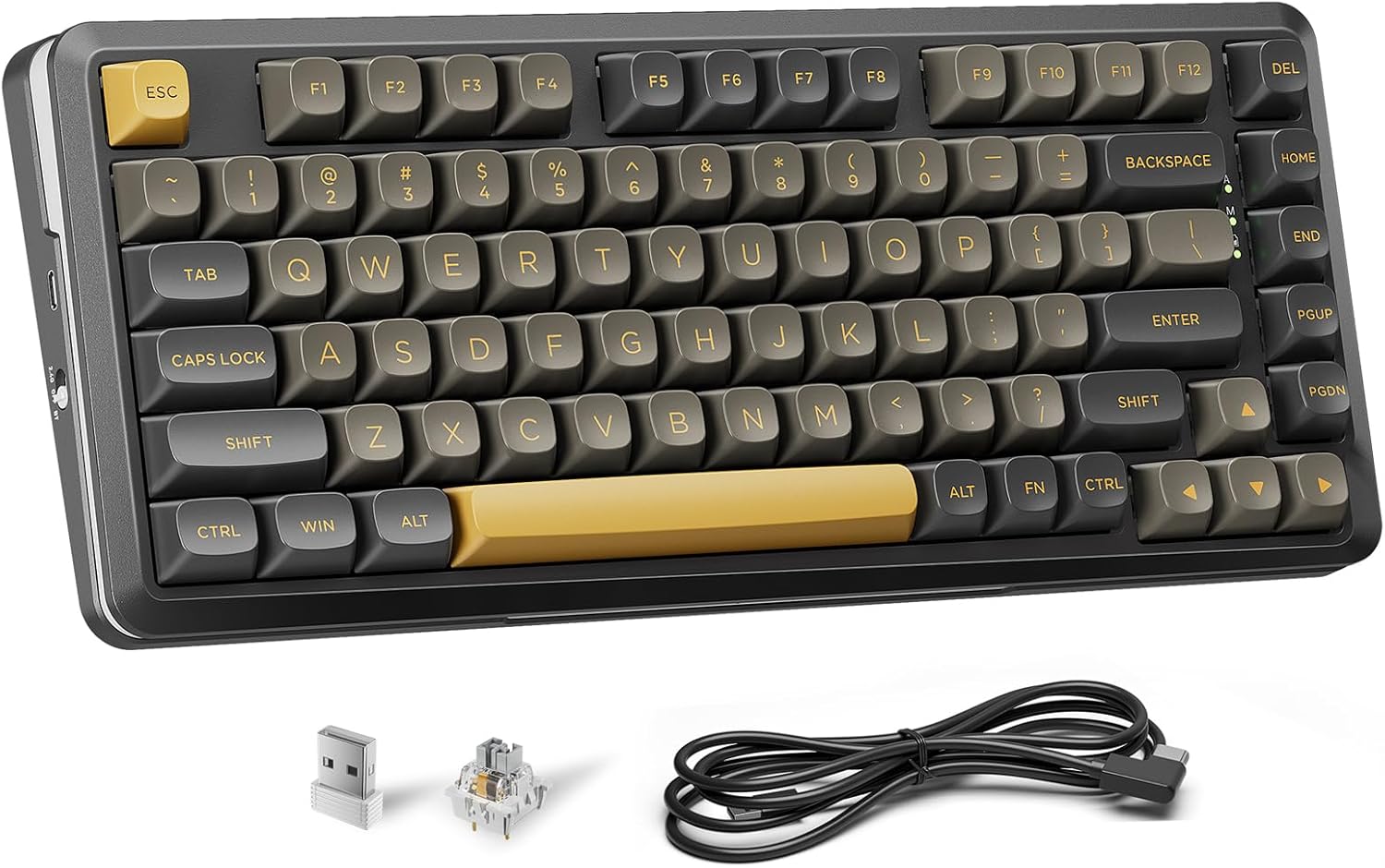
Figure 1: Redragon K738 Wireless Mechanical Keyboard.

Figure 2: Exploded view illustrating the gasket structure and PCB single key slotting for enhanced typing feel and sound.
2. Package Contents
- Redragon K738 Wireless Mechanical Keyboard
- USB-C to USB-A Cable
- 2.4GHz USB Receiver
- Keycap Puller
- Switch Puller
- User Manual (this document)
3. Setup
3.1 Charging the Keyboard
Before initial use, connect the keyboard to a USB power source using the provided USB-C cable. The keyboard features a 4000 mAh battery. A full charge ensures extended wireless operation.
3.2 Connection Modes
The K738 supports three connection modes: USB-C wired, 2.4GHz wireless, and Bluetooth. A switch on the left side of the keyboard allows selection between these modes.
3.2.1 USB-C Wired Connection
- Connect the USB-C end of the cable to the keyboard's port.
- Connect the USB-A end to an available USB port on your computer.
- Ensure the mode switch on the keyboard is set to "USB" (or wired mode indicator).
- The keyboard will be recognized automatically by your operating system.
3.2.2 2.4GHz Wireless Connection
- Locate the 2.4GHz USB receiver.
- Plug the receiver into an available USB port on your computer.
- Set the mode switch on the keyboard to "2.4G" (or wireless mode indicator).
- The keyboard should connect automatically. If not, press FN + 4 to initiate pairing.
3.2.3 Bluetooth Connection
The keyboard supports Bluetooth 3.0 and 5.0, allowing connection to multiple devices.
- Set the mode switch on the keyboard to "BT" (Bluetooth mode indicator).
- Press and hold FN + 1, FN + 2, or FN + 3 for 3-5 seconds to enter pairing mode for the desired Bluetooth channel. The indicator light will flash rapidly.
- On your device (PC, Mac, tablet, smartphone), open Bluetooth settings and search for "Redragon K738".
- Select the keyboard to pair. The indicator light will become solid once connected.
- To switch between paired Bluetooth devices, press FN + 1, FN + 2, or FN + 3 briefly.

Figure 3: Illustration of the keyboard's tri-mode connectivity, allowing connection to up to five devices.
4. Operating Instructions
4.1 Basic Key Functions
The K738 features a standard 75% layout with 82 keys. All keys function as labeled in their primary role.
4.2 Function (FN) Key Combinations
The FN key provides access to secondary functions printed on certain keycaps. Hold down the FN key and press the desired function key.
- FN + F1-F12: Multimedia controls (e.g., play/pause, volume up/down). Specific functions may vary.
- FN + 1/2/3: Switch between Bluetooth devices.
- FN + 4: Activate 2.4GHz pairing mode.
- FN + Alt: Check battery level (keys light up green for power above 30%, red for below 30%).
- FN + Backspace: Cycle through RGB lighting modes.
- FN + Arrow Keys: Adjust RGB lighting effects (e.g., brightness, speed, direction).

Figure 4: Pressing FN + Alt to display the current battery level via key backlighting.
4.3 RGB Lighting Control
The keyboard features 16.8 million color RGB backlighting with various preset modes. Use FN key combinations to adjust:
- Lighting Modes: Cycle through 16 different modes.
- Brightness: 5 levels of brightness adjustment.
- Speed: Adjust the speed of dynamic lighting effects.
- Solid Colors: Select from 7 solid color options.

Figure 5: The keyboard showcasing its customizable RGB backlighting.
4.4 Software Customization
For advanced customization, including key remapping, macro creation, and detailed RGB lighting adjustments, download the official Redragon software driver from the Redragon website. The software is compatible with Windows and Mac operating systems.

Figure 6: Software interface for customizing keyboard functions and RGB lighting.
5. Maintenance
5.1 Cleaning the Keyboard
- Disconnect the keyboard from all power sources and devices before cleaning.
- Use a soft, lint-free cloth slightly dampened with water or a mild cleaning solution to wipe the keycaps and chassis.
- For dust and debris between keys, use compressed air.
- Avoid harsh chemicals or abrasive materials.
5.2 Replacing Switches (Hot-Swappable Feature)
The K738 supports 3-pin and 5-pin hot-swappable mechanical switches, allowing for easy replacement without soldering.
- Using the provided keycap puller, carefully remove the keycap from the switch you wish to replace.
- Using the provided switch puller, gently grip the top and bottom clips of the switch and pull upwards to remove it from the PCB.
- Align the pins of the new switch with the holes on the PCB. Ensure the pins are straight to avoid bending.
- Press the new switch firmly into place until it clicks.
- Replace the keycap.
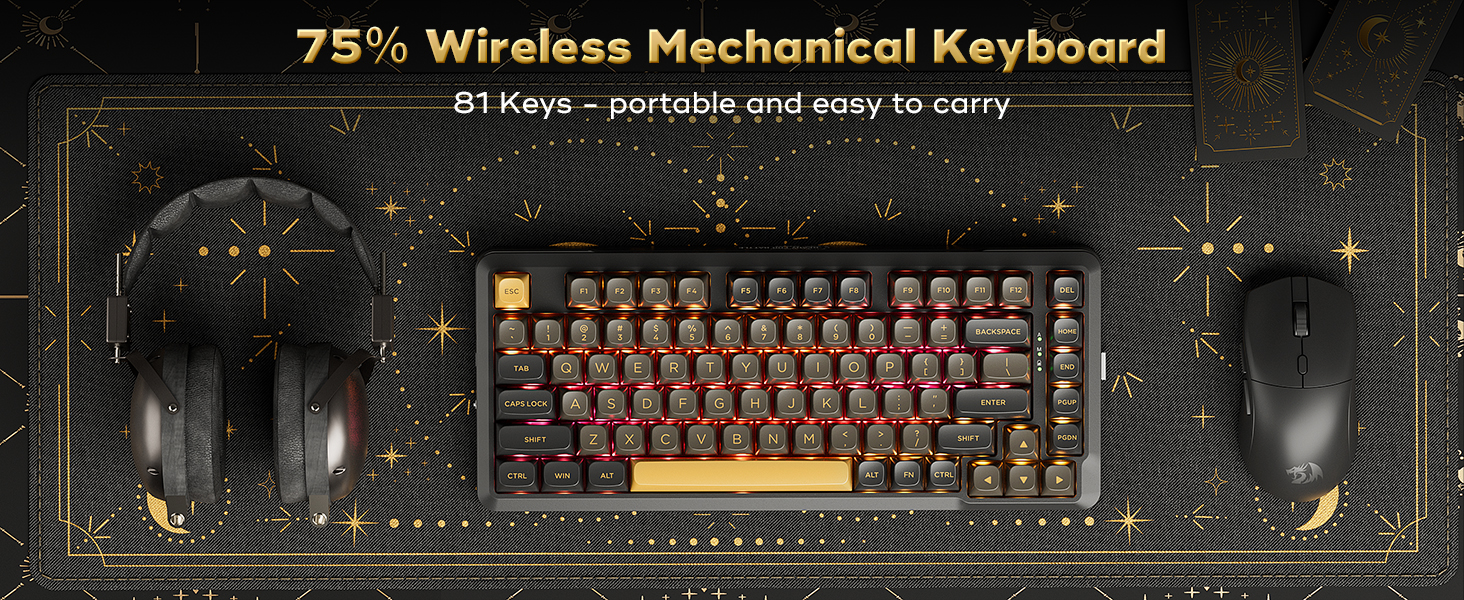
Figure 7: Demonstration of replacing a hot-swappable mechanical switch.
5.3 Replacing Keycaps
To replace keycaps, use the keycap puller to gently remove the existing keycap. Align the new keycap with the switch stem and press down firmly until it is seated.
6. Troubleshooting
- Keyboard not responding in wired mode:
- Ensure the USB-C cable is securely connected to both the keyboard and the computer.
- Verify the mode switch on the keyboard is set to wired mode.
- Try a different USB port on your computer.
- Test with a different USB-C cable.
- 2.4GHz wireless connection issues:
- Ensure the 2.4GHz USB receiver is plugged into a working USB port.
- Verify the mode switch is set to 2.4G.
- Press FN + 4 to re-pair the keyboard with the receiver.
- Reduce distance between keyboard and receiver, and remove potential interference sources.
- Bluetooth connection problems:
- Ensure the mode switch is set to BT.
- Press and hold FN + 1/2/3 to enter pairing mode for the desired channel.
- Forget the device in your computer's Bluetooth settings and attempt to re-pair.
- Ensure your device's Bluetooth is enabled and discoverable.
- Check keyboard battery level.
- Keys not responding or double-typing:
- Check if the switch is properly seated. If not, remove and re-insert it.
- Consider replacing the switch if the issue persists (refer to Section 5.2).
- Ensure the keyboard firmware is up to date (check Redragon website).
- RGB lighting not working:
- Check keyboard battery level.
- Ensure lighting is not turned off via FN key combinations or software.
- Reset keyboard settings (refer to software or manual for specific key combination if available).
7. Specifications
| Feature | Detail |
|---|---|
| Model Name | K738 |
| Layout | 75% (82 Keys) |
| Switch Type | Pre-lubed Linear, Hot-swappable (3/5-pin) |
| Connectivity | 2.4G Wireless, Bluetooth (3.0+5.0), USB-C Wired |
| Battery Capacity | 4000 mAh |
| RGB Backlighting | 16.8 Million Colors, Multiple Modes |
| Compatible Devices | PC, Mac |
| Dimensions | 14.57 x 7.44 x 2.52 inches |
| Item Weight | 2.2 pounds |
| Manufacturer | Redragon |
8. Warranty and Support
Redragon provides professional after-sales service for its products. If you encounter any issues or require assistance, please contact Redragon customer support. They aim to provide a rapid response within 24 hours.
For warranty information and support contact details, please visit the official Redragon website or refer to the warranty card included with your product.