Introduction
The Pebblebee Tracker Clip Universal and Pebblebee Tracker Card are rechargeable tracking devices designed to help you locate your valuable items. These trackers offer compatibility with both Google's Find Hub network and Apple's Find My network, providing flexibility for users across different ecosystems. They feature a bright LED light and a loud sound for easy location, with a Bluetooth range of up to 500 feet from your mobile device.
Note: You can use only one network (Google Find Hub or Apple Find My) at a time with these devices. Switching between networks requires re-pairing.

Image: The Pebblebee Tracker Clip (round, with a loop) and the slim Pebblebee Tracker Card, both in black.
Setup
To begin using your Pebblebee Tracker, follow these steps to pair it with your preferred network (Google Find Hub or Apple Find My).
- Charge Your Device: Before initial use, ensure your Pebblebee Tracker Clip or Card is fully charged using a USB-C cable. The LED indicator will show charging status.
- Choose Your Network: Decide whether you will use Google's Find Hub network or Apple's Find My network. Remember, only one can be active at a time.
- Download the App:
- For Google Find Hub: Download the Google Find My Device app from the Google Play Store.
- For Apple Find My: The Find My app is pre-installed on iOS devices.
- Activate Pairing Mode: Refer to the specific instructions provided with your Pebblebee device for how to put it into pairing mode. Typically, this involves pressing and holding a button until an indicator light flashes.
- Pair with Your Device:
- Google Find Hub: Open the Google Find My Device app and follow the on-screen prompts to add a new device.
- Apple Find My: Open the Find My app, navigate to the "Items" tab, tap the "+" icon, and select "Add Other Item." Follow the on-screen instructions.
- Name Your Tracker: Assign a descriptive name to your tracker (e.g., "Keys," "Wallet," "Backpack") within the app for easy identification.

Image: A smartphone screen displaying the "Find My Phone" feature within the Pebblebee app, showing options to play sound or get directions, with the Tracker Clip and Card in the foreground.
Operating Instructions
Once paired, your Pebblebee Tracker offers several functions to help you locate your items.
Locating Items Within Bluetooth Range (up to 500 ft)
- Play Sound: Open the Google Find My Device app or Apple Find My app. Select your Pebblebee Tracker and choose the option to "Play Sound." The tracker will emit a loud audible alert to help you pinpoint its location.
- Bright LED Light: In low-light conditions, the tracker's integrated LED light will illuminate, providing a visual cue to its location when the sound is activated.
- Use Voice Assistant: You can use Siri (for Apple Find My) or Google Assistant (for Google Find Hub) to command your tracker to play a sound. For example, "Hey Siri, find my keys" or "Hey Google, ring my wallet."
Locating Items Out of Bluetooth Range
If your item is out of your mobile device's Bluetooth range, its location is updated using other nearby devices within the respective network (Google Find Hub or Apple Find My). The app will display the last known location on a map, and if another device passes by your tracker, its location will be updated anonymously and securely.
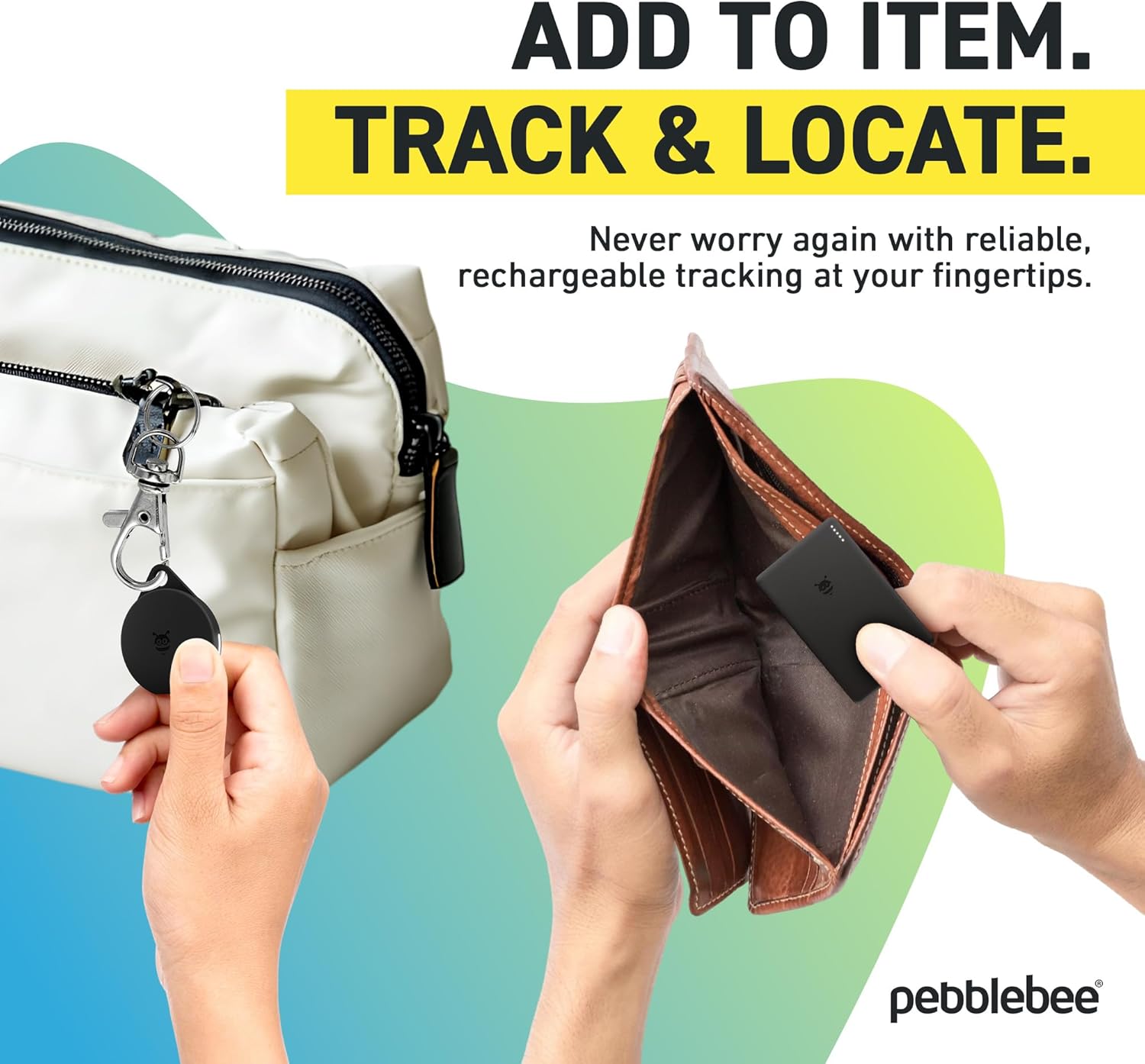
Image: A hand attaching the Pebblebee Tracker Clip to a handbag, and another hand placing the slim Pebblebee Tracker Card into a wallet, demonstrating how to add trackers to items.
Maintenance
The Pebblebee Tracker Clip and Card are designed for convenience with rechargeable batteries.
- Recharging: Both devices are rechargeable via a USB-C port. Connect a standard USB-C cable to the tracker and a power source. The LED indicator will show charging status and turn off or change color when fully charged.
- Battery Life: Battery life varies based on usage. Regularly check the battery status within the Google Find My Device or Apple Find My app.
- Cleaning: Wipe the device with a soft, dry cloth. Avoid using harsh chemicals or abrasive materials.
Troubleshooting
If you encounter issues with your Pebblebee Tracker, consider the following common solutions:
- Tracker Not Connecting/Losing Connection:
- Ensure the tracker is charged.
- Verify Bluetooth is enabled on your mobile device.
- Make sure the tracker is within Bluetooth range (up to 500 feet) of your mobile device.
- Restart your mobile device and the tracker (if applicable, by pressing and holding the button).
- If connection issues persist, try unpairing and re-pairing the device with the app.
- Sound Not Playing:
- Check the tracker's battery level.
- Ensure the volume on your mobile device is not muted or too low.
- Confirm the tracker is within Bluetooth range.
- Location Not Updating:
- Ensure your mobile device has an active internet connection.
- For out-of-range tracking, location updates rely on other devices in the network. This may take time depending on network density.
- Verify location services are enabled for the Find My Device/Find My app on your phone.
- Switching Networks (Google Find Hub / Apple Find My):
- To switch from one network to another, you must first remove the tracker from the currently active app.
- Then, follow the "Setup" instructions to pair it with the new network's app.
Specifications
| Brand | Pebble Bee |
| Model | Tracker Clip Universal, Tracker Card |
| Connectivity Technology | Bluetooth |
| Compatible Devices | Universal compatibility (Android & iOS) |
| Material | Plastic |
| Batteries Included | Yes |
| Rechargeable | Yes (USB-C) |
| Bluetooth Range | Up to 500 feet |
Warranty and Support
For warranty information, detailed support, or to contact customer service, please visit the official Pebblebee website or refer to the documentation included with your product.
You can also visit the Pebble Bee Store on Amazon for more product information and support resources.


