
Introduction
This manual provides essential information for the setup, operation, and maintenance of your JAPANNEXT JN-282i4KP-HSP 28.2-inch IPS 4K+ UHD Monitor. Please read it thoroughly before using the product to ensure proper functionality and longevity.
The JN-282i4KP-HSP monitor features a 28.2-inch IPS panel with a 4K UHD+ resolution (3840x2560) and a 3:2 aspect ratio, providing an extended vertical display area suitable for professional tasks like office work, graphic design, and intensive multitasking. It supports HDR for enhanced contrast and color fidelity with 100% sRGB coverage. The ergonomic HSP stand allows for height and tilt adjustments, and integrated blue light reduction technology helps minimize eye strain. Connectivity options include two HDMI and two DisplayPort inputs, along with integrated speakers.
Package Contents
Before proceeding with the setup, verify that all components are present in the package:
- JAPANNEXT JN-282i4KP-HSP Monitor
- Monitor Stand (Base and Neck)
- Power Cable
- HDMI Cable
- DisplayPort Cable
- Mounting Screws
- User Manual (this document)

Image: Included accessories for the JAPANNEXT monitor.
Setup
1. Assembling the Stand
- Carefully remove the monitor and stand components from the packaging.
- Attach the stand neck to the monitor panel using the provided screws. Ensure it is securely fastened.
- Connect the stand base to the stand neck. Tighten the screw at the bottom of the base to secure it.

Image: Side view of the monitor with stand.
2. Connecting to a Computer
The monitor supports DisplayPort and HDMI connections. Choose the appropriate cable for your computer.
- DisplayPort Connection: Connect one end of the DisplayPort cable to the DisplayPort output on your computer and the other end to one of the DisplayPort inputs on the monitor.
- HDMI Connection: Connect one end of the HDMI cable to the HDMI output on your computer and the other end to one of the HDMI inputs on the monitor.
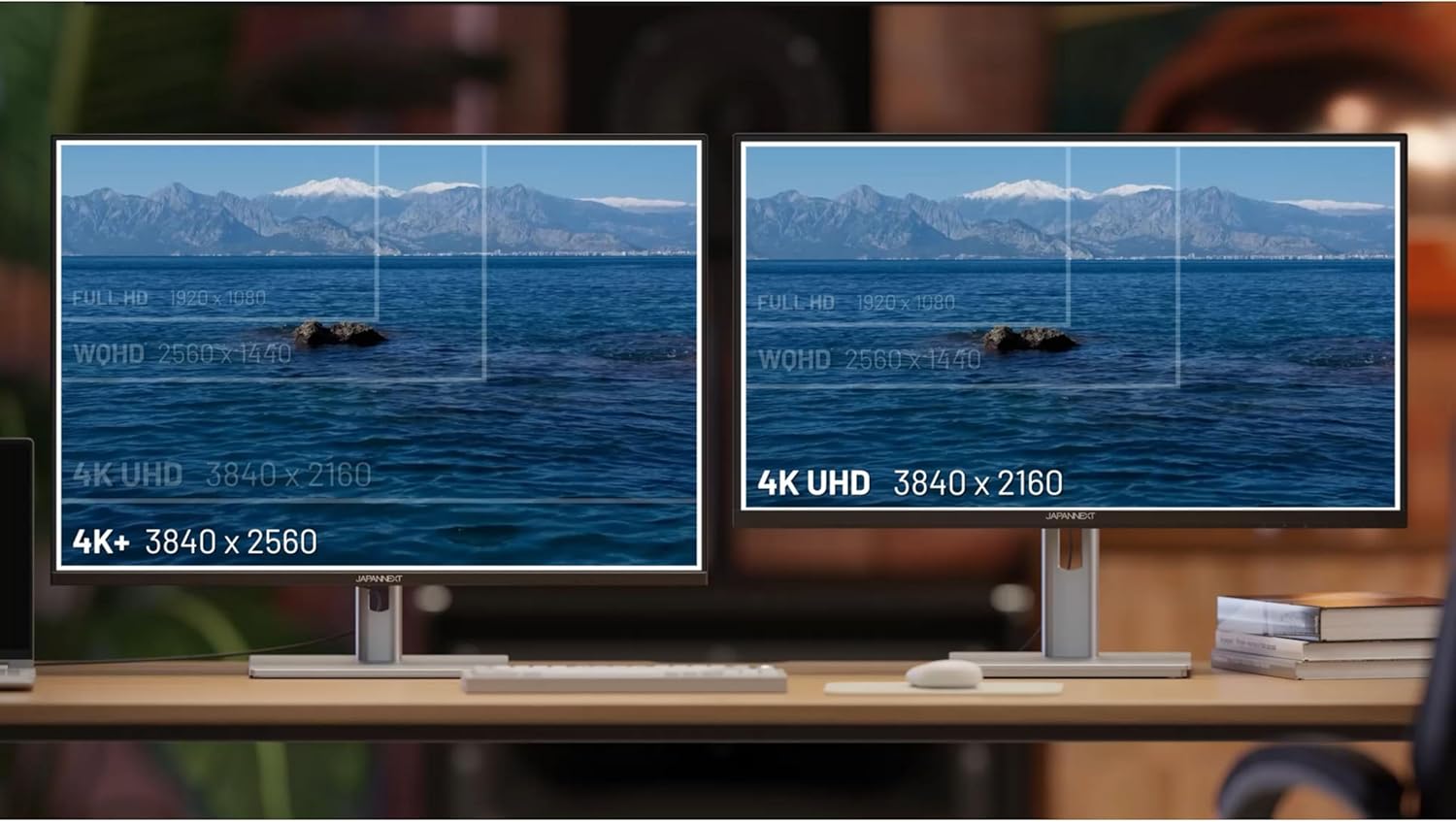
Image: Rear view showing monitor input ports.
3. Power Connection
Connect the power cable to the monitor's power input and then plug the other end into a power outlet.
4. Initial Power On
Press the power button on the monitor. The monitor should power on and display an image from your connected computer. If no image appears, ensure all cables are securely connected and the correct input source is selected (see Operating section).
Operating Instructions
1. On-Screen Display (OSD) Menu
The OSD menu allows you to adjust various monitor settings. Typically, buttons located on the back or bottom of the monitor are used to navigate the OSD.
- Power Button: Turns the monitor on/off.
- Menu Button: Opens the OSD menu.
- Navigation Buttons: Used to move through menu options and adjust values.
- Exit Button: Closes the OSD menu.
2. Input Source Selection
If your computer's image does not appear automatically, you may need to manually select the input source:
- Open the OSD menu.
- Navigate to the 'Input Source' or 'Source' option.
- Select the input (e.g., HDMI 1, DisplayPort 1) corresponding to your computer's connection.
3. Ergonomic Adjustments
The HSP stand allows for optimal viewing comfort:
- Height Adjustment: Gently push or pull the monitor panel up or down to achieve the desired height.
- Tilt Adjustment: Tilt the monitor panel forward or backward to adjust the viewing angle.

Image: Ergonomic stand adjustments (Tilt and Rotate).
4. Key Features
- 4K+ UHD Resolution (3840x2560): Provides exceptional detail and clarity for professional applications.
- HDR Support: Enhances contrast and color range for a more dynamic visual experience.
- 100% sRGB Coverage: Ensures accurate and faithful color reproduction, crucial for graphic work.
- Low Blue Light Mode: Reduces blue light emissions to minimize eye strain during prolonged use.
- Flicker-Free Technology: Eliminates screen flickering for a more comfortable viewing experience.
- G-Sync/FreeSync Compatibility: Synchronizes the monitor's refresh rate with your GPU for smooth, tear-free gaming and video playback.

Image: FreeSync technology for smooth visuals.

Image: Flicker-Free technology for eye comfort.
Maintenance
Cleaning the Monitor
- Always unplug the monitor from the power outlet before cleaning.
- Use a soft, lint-free cloth lightly dampened with water or a mild, non-abrasive screen cleaner.
- Do not spray cleaner directly onto the screen.
- Avoid using benzene, thinner, ammonia-based cleaners, or abrasive materials, as these can damage the screen surface.
- Wipe the screen gently to remove dust and smudges.
Troubleshooting
If you encounter issues with your monitor, refer to the following common problems and solutions:
| Problem | Possible Cause | Solution |
|---|---|---|
| No image on screen | Monitor not powered on; Incorrect input source selected; Loose video cable. | Ensure power cable is connected and monitor is on. Select correct input source via OSD. Check video cable connections. |
| Image is blurry or distorted | Incorrect resolution setting; Dirty screen. | Set your computer's display resolution to 3840x2560. Clean the screen as per maintenance instructions. |
| No sound from speakers | Volume too low or muted; Incorrect audio output selected on computer. | Adjust monitor volume via OSD. Ensure monitor is selected as the audio output device on your computer. |
| Monitor flickers | Video cable issue; Graphics card driver issue. | Replace video cable. Update graphics card drivers. Ensure Flicker-Free mode is enabled if available. |
Specifications
Below are the technical specifications for the JAPANNEXT JN-282i4KP-HSP monitor:
| Feature | Specification |
|---|---|
| Brand | Japannext |
| Model Number | JN-282i4KP-HSP |
| Screen Size | 28.2 Inches |
| Panel Type | IPS |
| Resolution | 3840x2560 Pixels (4K+ UHD) |
| Aspect Ratio | 3:2 |
| Refresh Rate | 60 Hz |
| Response Time | 8 milliseconds |
| Contrast Ratio | 1200:1 |
| Display Surface | Glossy |
| Color Coverage | 100% sRGB |
| HDR Support | Yes |
| Connectivity | 2x DisplayPort, 2x HDMI |
| Special Features | Blue Light Filter, Integrated Speakers, Tilt Adjustment, Pivot Adjustment |
| Power Consumption | 39 Watt |
| Color | Black |

Image: Overview of monitor specifications.
Warranty and Support
Warranty Information
JAPANNEXT monitors come with a 2-year manufacturer's warranty. This warranty covers defects in materials and workmanship under normal use. Please retain your proof of purchase for warranty claims.
A 14-day withdrawal period is applicable, in accordance with distance selling legislation.
Customer Support
For any questions, technical assistance, or warranty claims, please contact JAPANNEXT customer support:
- Email: contact@japannext.com


