
Introduction
Thank you for choosing the OMOTON Foldable Bluetooth Keyboard. This manual provides essential information for setting up, operating, and maintaining your device. This keyboard is designed for portability and multi-device compatibility, offering a full-size typing experience with a numeric keypad.
Key features include:
- Multi-Device Support: Connects to up to 3 devices simultaneously, allowing quick switching between them.
- Broad Compatibility: Supports iOS, Android, Windows, and MacOS devices.
- Portable Design: Folds into a compact size for easy transport.
- Full-Size Layout: Includes a numeric keypad for enhanced productivity.
- Long Battery Life: Offers extended use with a quick charging time.
- Integrated Phone Holder: Enhances comfort and efficiency when using with smartphones or tablets.

The OMOTON Foldable Bluetooth Keyboard is shown in its compact, folded form, its full-size unfolded state, and alongside the adjustable phone stand. This illustrates its portability and readiness for use with mobile devices.
Setup Instructions
Package Contents
Before you begin, please ensure all items are present:
- OMOTON Foldable Bluetooth Keyboard
- USB Charging Cable (Type-C)
- Adjustable Phone/Tablet Stand
- Drawstring Pouch
- Instruction Manual
Charging the Keyboard
The keyboard comes with a built-in rechargeable battery. For optimal performance, fully charge the keyboard before first use.
- Locate the USB-C charging port on the keyboard.
- Connect the provided USB charging cable to the keyboard and a power source (e.g., computer USB port, USB wall adapter).
- The charging indicator light will illuminate. A full charge typically takes approximately 2 hours.
- Once fully charged, the indicator light will change or turn off, depending on the model.

The keyboard is depicted on an airplane tray table next to a tablet, emphasizing its long battery life with 90 days standby and a quick 2-hour full charge, ideal for travel.
Power On/Off
To power on the keyboard, unfold it completely. The keyboard will automatically power on. To power off, fold the keyboard. It will automatically enter sleep mode after 30 minutes of inactivity.
Bluetooth Pairing
The OMOTON Foldable Bluetooth Keyboard can connect to up to three devices simultaneously.
- Select System Mode: Before pairing, press the appropriate function key combination to switch to your device's operating system:
- FN + Q for iOS (iPad, iPhone)
- FN + W for Android (Tablets, Smartphones)
- FN + E for Windows (Laptops, PCs)
- FN + R for MacOS (MacBook, iMac)
- Activate Pairing Mode: Press and hold one of the Bluetooth channel buttons (BT1, BT2, or BT3) for 3 seconds until its indicator light flashes quickly. This indicates the keyboard is in pairing mode.
- Enable Bluetooth on Your Device: Go to your device's Bluetooth settings and turn on Bluetooth.
- Select Keyboard: Look for "Bluetooth Keyboard" in the list of available devices and select it to connect.
- Confirm Connection: Once connected, the indicator light on the keyboard will stop flashing and remain solid for a few seconds before turning off.
- Repeat steps 2-5 for additional devices using BT2 and BT3.

A visual guide illustrating the function key combinations required to switch the keyboard's compatibility mode for iOS, Android, Windows, and Mac devices, ensuring proper key mapping.

A detailed view of the keyboard's Bluetooth channel buttons (BT1, BT2, BT3) and status indicators, accompanied by text explaining the pairing process for multiple devices.
Operating Instructions
Switching Between Connected Devices
Once paired with multiple devices, you can easily switch between them:
- Press the BT1 button to switch to the first paired device.
- Press the BT2 button to switch to the second paired device.
- Press the BT3 button to switch to the third paired device.
The keyboard will connect to the selected device within seconds.

This image demonstrates the keyboard's multi-device connectivity, showing it paired with a tablet, a smartphone in its stand, and a laptop, highlighting the ability to switch between them.
Using the Adjustable Stand
The included adjustable stand can be used to prop up your smartphone or tablet for a comfortable viewing and typing angle.
- Unfold the stand to its desired angle. It offers 5 adjustable angles.
- Place your device (smartphone or tablet) securely in the stand.

A user is shown typing on the keyboard with a tablet positioned in the adjustable stand, highlighting the stand's five adjustable angles for ergonomic viewing and comfortable typing.
Keyboard Functions
The keyboard features a full-size layout with a numeric keypad and various function keys:
- F1-F12: Standard function keys, often combined with the FN key for multimedia or system controls.
- Volume Control: Dedicated keys for adjusting audio volume.
- Numeric Keypad: For efficient data entry.
Sleep Function
To conserve battery, the keyboard will automatically enter sleep mode after 30 minutes of inactivity. Press any key to wake it up.
This video demonstrates the OMOTON Foldable Bluetooth Keyboard's multi-device support, showing how to connect and switch between a laptop, tablet, and smartphone for seamless workflow.
Maintenance
To ensure the longevity and optimal performance of your OMOTON Foldable Bluetooth Keyboard, follow these maintenance guidelines:
- Cleaning: Use a soft, dry, lint-free cloth to clean the keyboard surface. For stubborn dirt, slightly dampen the cloth with water or a mild, non-abrasive cleaner. Avoid excessive moisture.
- Avoid Liquids: Do not expose the keyboard to liquids. In case of accidental spills, power off the keyboard immediately and allow it to dry completely before use.
- Storage: When not in use, fold the keyboard to protect the keys and store it in the provided drawstring pouch. Avoid storing in extreme temperatures or high humidity.
- Battery Care: To maintain battery health, avoid fully discharging the battery frequently. Charge the keyboard regularly, even if not in constant use.
- Handle with Care: Avoid dropping the keyboard or subjecting it to strong impacts, as this can damage internal components.
Troubleshooting
If you encounter any issues with your OMOTON Foldable Bluetooth Keyboard, please refer to the following common solutions:
Keyboard Not Connecting/Pairing
- Check Power: Ensure the keyboard is powered on and has sufficient battery charge.
- Bluetooth On: Verify that Bluetooth is enabled on your device (smartphone, tablet, laptop).
- System Mode: Confirm you have selected the correct operating system mode (FN+Q/W/E/R) for your device.
- Re-enter Pairing Mode: Press and hold the desired BT button (BT1/BT2/BT3) for 3 seconds until the indicator flashes, then attempt to pair again from your device's Bluetooth settings.
- Forget Device: If previously paired, try 'forgetting' or 'removing' the keyboard from your device's Bluetooth list and then re-pair.
- Interference: Move away from other wireless devices that might cause interference.
Keys Not Responding/Typing Incorrectly
- System Mode: Double-check that the keyboard is set to the correct operating system mode (FN+Q/W/E/R). Incorrect mode can lead to incorrect key mapping.
- Battery Level: A low battery can affect keyboard performance. Charge the keyboard fully.
- Reconnection: Disconnect and reconnect the keyboard via Bluetooth.
Keyboard Disconnects Frequently
- Distance: Ensure your device is within the effective Bluetooth range (typically 10 meters/33 feet).
- Battery: Charge the keyboard fully.
- Interference: Minimize interference from other wireless devices or strong electromagnetic fields.
Adjustable Stand Issues
- Stability: Ensure the stand is fully unfolded and placed on a flat, stable surface.
- Device Fit: Confirm your device is properly seated in the stand's grooves.
Specifications
| Feature | Detail |
|---|---|
| Model Number | B0FH55LY29 |
| Brand | OMOTON |
| Connectivity Technology | Bluetooth |
| Compatible Devices | iOS, Android, Windows, MacOS, iPad, iPhone, Samsung Tablets, PC, Laptop, Computer |
| Keyboard Description | Full Size Keyboard |
| Special Features | 3 Bluetooth Channels, Foldable, Rechargeable |
| Color | Black |
| Material | Plastic |
| Item Weight | 15.2 ounces |
| Package Dimensions | 12.36 x 5.12 x 1.1 inches |
| Batteries | 1 Lithium Ion battery required (included) |
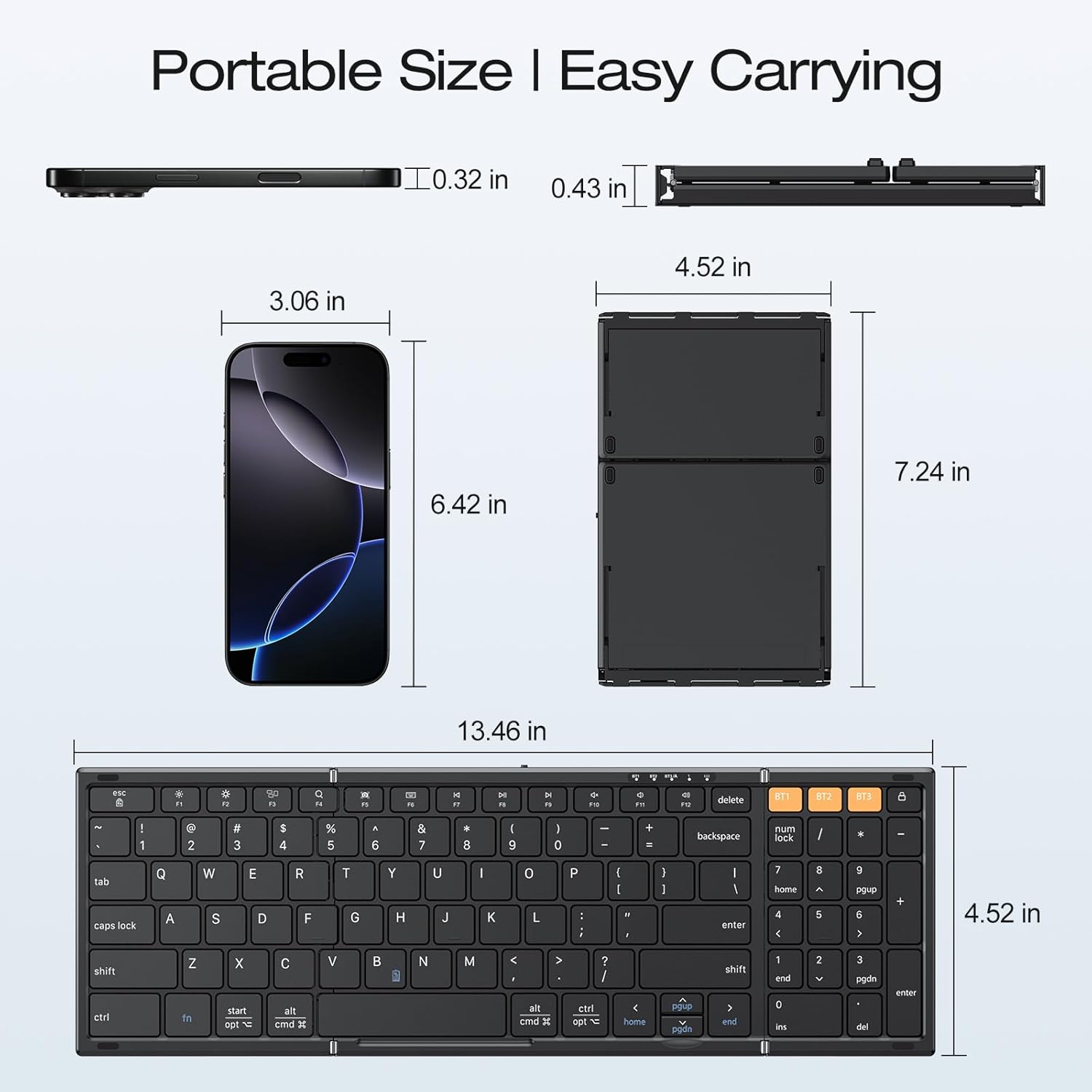
This image provides a size comparison of the folded keyboard next to a smartphone, illustrating its highly portable and compact design for easy carrying.
Warranty and Support
OMOTON products are designed for reliability and performance. For specific warranty details, please refer to the warranty card included in your product packaging or visit the official OMOTON website.
If you experience any issues not covered in the troubleshooting section or require further assistance, please contact OMOTON customer support through their official channels. Have your product model number (B0FH55LY29) and purchase information ready.
