
Blusafe Blusafe Apollo 2.3
Blusafe Apollo 2.3 Electronic Smart Door Lock User Manual
Model: Blusafe Apollo 2.3
1. Introduction
This manual provides detailed instructions for the installation, operation, and maintenance of your Blusafe Apollo 2.3 Electronic Smart Door Lock. Please read this manual thoroughly before installation and use to ensure proper function and safety.

Image 1.1: Blusafe Apollo 2.3 Smart Door Lock with multiple unlocking methods shown.
2. Product Overview
The Blusafe Apollo 2.3 is an advanced electronic smart door lock designed for enhanced security and convenience. It offers multiple unlocking methods and smart features for modern households.
Key Features:
- Childproof Interior Deadbolt: Provides additional security by preventing accidental or unauthorized exit by children and enhances resistance against forced entry.
- Multiple Unlocking Options: Access your door using fingerprint, passcode, IC card, the TTLock mobile application, or traditional mechanical keys.
- High Capacity Storage: Supports up to 100 fingerprints, 250 passcodes, and 1000 IC cards.
- App Control: Manage your lock remotely, generate temporary passcodes, and monitor access logs via the TTLock app (Wi-Fi bridge sold separately for remote access).
- Multipoint Lock Compatibility: Designed to fit 90% of lift-up handle multipoint locks, suitable for doors 40–90mm thick with a backset of ≥25mm.
- Durable and Weatherproof: Constructed from stainless steel with an IP65 rating, resistant to rain, dust, and extreme temperatures (-4°F to 140°F).
- Emergency Power & Backup: Powered by 4 AAA batteries with low-battery alerts, Type-C emergency charging port, and two mechanical keys for backup.

Image 2.1: Overview of Blusafe Apollo 2.3 Smart Lock features.
3. Package Contents
Please verify that all components are present and in good condition before proceeding with installation.
- 1 x External Door Handle (with integrated keypad and fingerprint sensor)
- 1 x Internal Door Handle (with childproof deadbolt)
- Fixing Components (screws, spindle, etc.)
- 2 x Mechanical Keys
- IC Cards (quantity may vary)
- Installation Template
- User Manual (this document)
4. Specifications
| Feature | Specification |
|---|---|
| Brand | Blusafe |
| Model Name | Blusafe Apollo 2.3 |
| Lock Type | Biometric Smart Lock |
| Unlocking Methods | Fingerprint, Passcode, IC Card, TTLock App, Mechanical Key |
| Material | Stainless Steel, Zinc |
| Color | OSP Frosted Silver |
| Item Dimensions (L x W x H) | 3.73 x 14.75 x 5.4 inches |
| Item Weight | 5.36 pounds |
| Door Thickness Compatibility | 40–90mm |
| Backset Compatibility | ≥25mm |
| Operating Temperature | -4°F to 140°F (-20°C to 60°C) |
| Waterproof Rating | IP65 |
| Power Source | 4 x AAA Batteries (not included) |
| Emergency Power | Type-C USB Port |
| Connectivity | Bluetooth (Wi-Fi with optional gateway) |
| Controller Type | Amazon Alexa, Android, Google Assistant, TTLocks, iOS (with optional gateway) |

Image 4.1: Product dimensions and specifications.

Image 4.2: Technical drawing with measurements in millimeters.
5. Compatibility
The Blusafe Apollo 2.3 is designed for broad compatibility with various door types and lock systems.
- Door Thickness: Compatible with doors ranging from 40mm to 90mm (1.57 to 3.54 inches).
- Backset: Requires a backset of 25mm (0.98 inches) or greater.
- Door Types: Works seamlessly with PVC, wooden, and metal doors.
- Lock Systems: Primarily designed for lift-up handle multipoint locks. Also compatible with regular mortises, lift-to-lock, and quick-release locks.
- Important Note: Extra drilling might be required during installation for certain door configurations. Ensure a minimum installation width of 1.5 inches after closing the door.
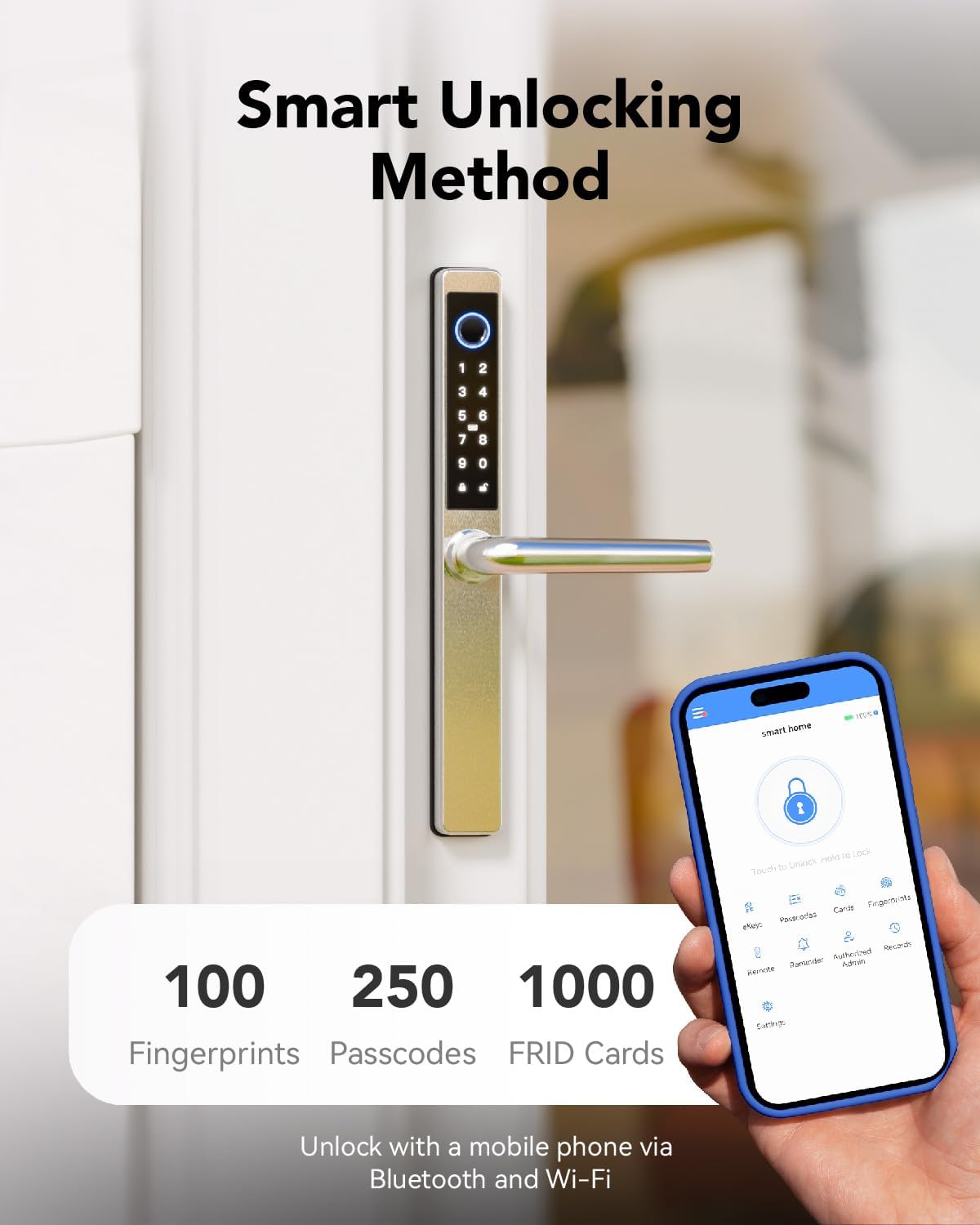
Image 5.1: Check compatibility before purchase.

Image 5.2: Compatibility with various door materials.
6. Installation Guide
The installation process for the Blusafe Apollo 2.3 is designed to be straightforward. For detailed step-by-step instructions, please refer to the included installation template and the full video guide (if available).
General Steps:
- Prepare the Door: Ensure your door meets the compatibility requirements (thickness, backset). Use the provided template to mark and drill any necessary holes.
- Install Mortise Lock: Insert the mortise lock into the door edge.
- Install Spindle and Posts: Attach the spindle and mounting posts to the mortise.
- Mount Exterior Handle: Secure the exterior handle assembly to the door, ensuring cables are routed correctly.
- Connect Cables: Connect the cables from the exterior handle to the interior handle.
- Mount Interior Handle: Secure the interior handle assembly to the door.
- Install Batteries: Insert 4 AAA batteries into the battery compartment of the interior handle.
- Test Functionality: Perform initial tests with the mechanical key and ensure the handle operates smoothly.
- App Configuration: Download the TTLock app and follow the on-screen instructions to pair your lock and set up initial users.
Caution: Incorrect installation can affect the lock's performance and security. If you are unsure about any step, consult a professional locksmith.
7. Operating Instructions
The Blusafe Apollo 2.3 offers multiple convenient ways to unlock your door.
7.1 Fingerprint Unlocking
- Place your registered finger firmly on the fingerprint sensor located on the exterior handle.
- The lock will emit a confirmation sound and unlock.
- Turn the handle to open the door.

Image 7.1: Fingerprint unlocking in action.
Tip: The lock features a built-in self-learning AI chip for 0.3-second recognition, improving speed and accuracy with each use. Fingerprint data is stored locally for maximum privacy.
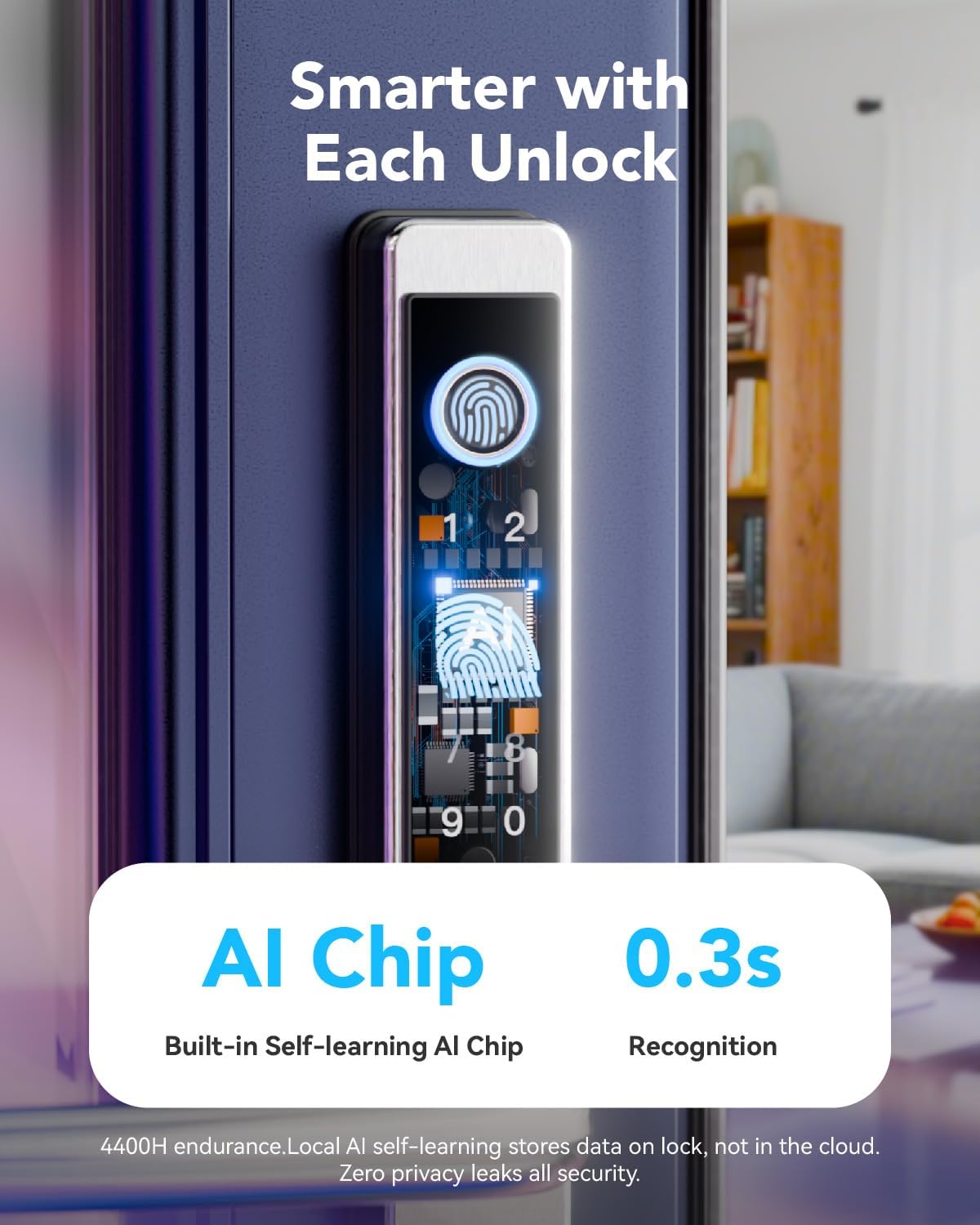
Image 7.2: AI chip for fast fingerprint recognition.
7.2 Passcode Unlocking
- Enter your registered passcode on the keypad.
- Press the '#' key to confirm.
- The lock will unlock.

Image 7.3: Passcode entry on the keypad.
7.3 IC Card Unlocking
- Tap your registered IC card against the designated card reader area on the exterior handle.
- The lock will emit a confirmation sound and unlock.

Image 7.4: Unlocking with an IC card.
7.4 Mechanical Key Unlocking
- Insert the mechanical key into the hidden keyhole.
- Turn the key to unlock the door.
- This method is primarily for emergency backup.

Image 7.5: Using the mechanical key for backup.
7.5 Childproof Deadbolt Operation
The interior handle features a childproof deadbolt for added safety.
- To activate the child-safety mode, push the thumbturn on the interior handle upwards. This will prevent the handle from being depressed and disable unlocking from the inside.
- To deactivate, push the thumbturn downwards.

Image 7.6: Childproof deadbolt feature.
8. App Control (TTLock)
The TTLock app provides comprehensive control and management features for your Blusafe Apollo 2.3 Smart Lock.
8.1 Initial Setup
- Download the "TTLock" app from your smartphone's app store (iOS or Android).
- Create an account and log in.
- Enable Bluetooth on your smartphone.
- In the app, tap "Add Lock" and select your Blusafe Apollo 2.3 from the list of nearby devices.
- Follow the on-screen prompts to pair the lock and set up the administrator.
8.2 App Features
- Unlock/Lock: Directly lock and unlock your door via Bluetooth when within range.
- Generate Passcodes: Create one-time, timed, recurring, or permanent passcodes for guests, family, or service personnel.
- Send e-Keys: Share digital keys with others, granting them access for specific periods.
- View Access Logs: Track who entered and when, providing a security record.
- User Management: Add, modify, or delete users (fingerprints, passcodes, IC cards).
- Remote Control (with Wi-Fi Gateway): Purchase and connect a TTLock Wi-Fi Gateway (sold separately) to control your lock from anywhere with an internet connection.
- Voice Control (with Wi-Fi Gateway): Integrate with Amazon Alexa or Google Assistant for voice commands (requires TTLock Wi-Fi Gateway).

Image 8.1: TTLock app interface for smart lock control.

Image 8.2: Remote control functionality with the app.

Image 8.3: Voice control integration with smart assistants.
9. Maintenance
9.1 Battery Replacement
The Blusafe Apollo 2.3 is powered by 4 AAA batteries (not included). Under normal usage, batteries can last up to 6+ months.
- The lock will provide low-battery alerts through the app and audible signals.
- To replace batteries, open the battery cover on the interior handle, remove old batteries, and insert new ones, ensuring correct polarity.

Image 9.1: Emergency Type-C charging port.

Image 9.2: Battery life and emergency charging.
9.2 Emergency Charging
If the batteries completely drain, you can temporarily power the lock using a power bank connected to the Type-C USB port on the exterior handle. This will allow you to unlock the door using a registered method.
9.3 Cleaning
Wipe the lock's surface with a soft, damp cloth. Avoid using abrasive cleaners or solvents that could damage the finish or electronic components.

Image 9.3: IP65 waterproof and dustproof rating.

Image 9.4: Weather resistance details.
10. Troubleshooting
If you encounter issues with your Blusafe Apollo 2.3 Smart Lock, refer to the following common problems and solutions.
| Problem | Possible Cause | Solution |
|---|---|---|
| Lock does not respond to fingerprint/passcode. | Low batteries, unregistered user, incorrect entry, sensor dirty. | Replace batteries. Ensure fingerprint/passcode is registered. Clean sensor. Re-enter passcode carefully. |
| Cannot lock from the keypad. | Locking mechanism issue, specific locking procedure not followed. | Ensure the door is fully closed. For some multipoint locks, you may need to lift the handle to engage the locking mechanism before pressing the lock button. Refer to your specific door's locking procedure. |
| App cannot connect to the lock. | Bluetooth off, lock out of range, app glitch, Wi-Fi gateway issue. | Ensure Bluetooth is on and you are within range. Restart the app. Check Wi-Fi gateway connection if using remote access. |
| Mechanical key does not work. | Incorrect key, obstruction in keyhole. | Ensure you are using the correct key. Check for any debris in the keyhole. |
| Lock is completely unresponsive. | Dead batteries. | Use the Type-C emergency charging port with a power bank to temporarily power the lock, then replace batteries. Use the mechanical key as a backup. |
If the problem persists after trying these solutions, please contact Blusafe customer support.
11. Warranty and Support
Your Blusafe Apollo 2.3 Electronic Smart Door Lock comes with a 1-year warranty from the date of purchase.
Blusafe is committed to providing excellent customer service. If you have any questions, require technical assistance, or need support, please contact our professional customer support team.
- Warranty Coverage: Covers manufacturing defects and malfunctions under normal use.
- Technical Support: Available 24/7 for expert assistance.
- Contact Information: Please refer to the Blusafe website or your purchase documentation for the most current contact details.
We aim to ensure a worry-free experience from installation to long-term use.
Related documentsBlusafe Apollo 2.3


Ask a question about this manual
Ask about setup, troubleshooting, compatibility, parts, safety, or missing instructions. Manuals+ will review the question and use this page’s manual context to help answer it.