
Nelko P21
Nelko P21 Bluetooth Label Maker Instruction Manual
Model: P21
Brand: Nelko
1. Introduction
The Nelko P21 Bluetooth Label Maker is a compact and portable thermal label printer designed for various organizational needs at home, in the office, or at school. It utilizes BPA-Free Direct Thermal Technology, eliminating the need for ink or toner. The device connects wirelessly via Bluetooth to your iOS or Android smartphone, allowing you to create and print custom labels using the dedicated Nelko application.
Key features include high-speed printing at 30mm/s, 203 DPI resolution for clear text, a built-in cutter, and a durable rechargeable battery. The accompanying app offers a wide range of templates, fonts, icons, and customization options for text, QR codes, barcodes, and images. Please note that this label maker prints in monochrome (black text only) and is not compatible with computers or continuous label tapes.
2. Setup Guide
2.1 Package Contents
Before you begin, please ensure all items are present in the package:
- 1 x Nelko P21 Label Maker
- 1 x User Manual
- 1 x USB Type-C Cable
- 3 x Rolls of Label Tape (14x40mm, pre-installed in the label maker)
- 1 x Guide Card
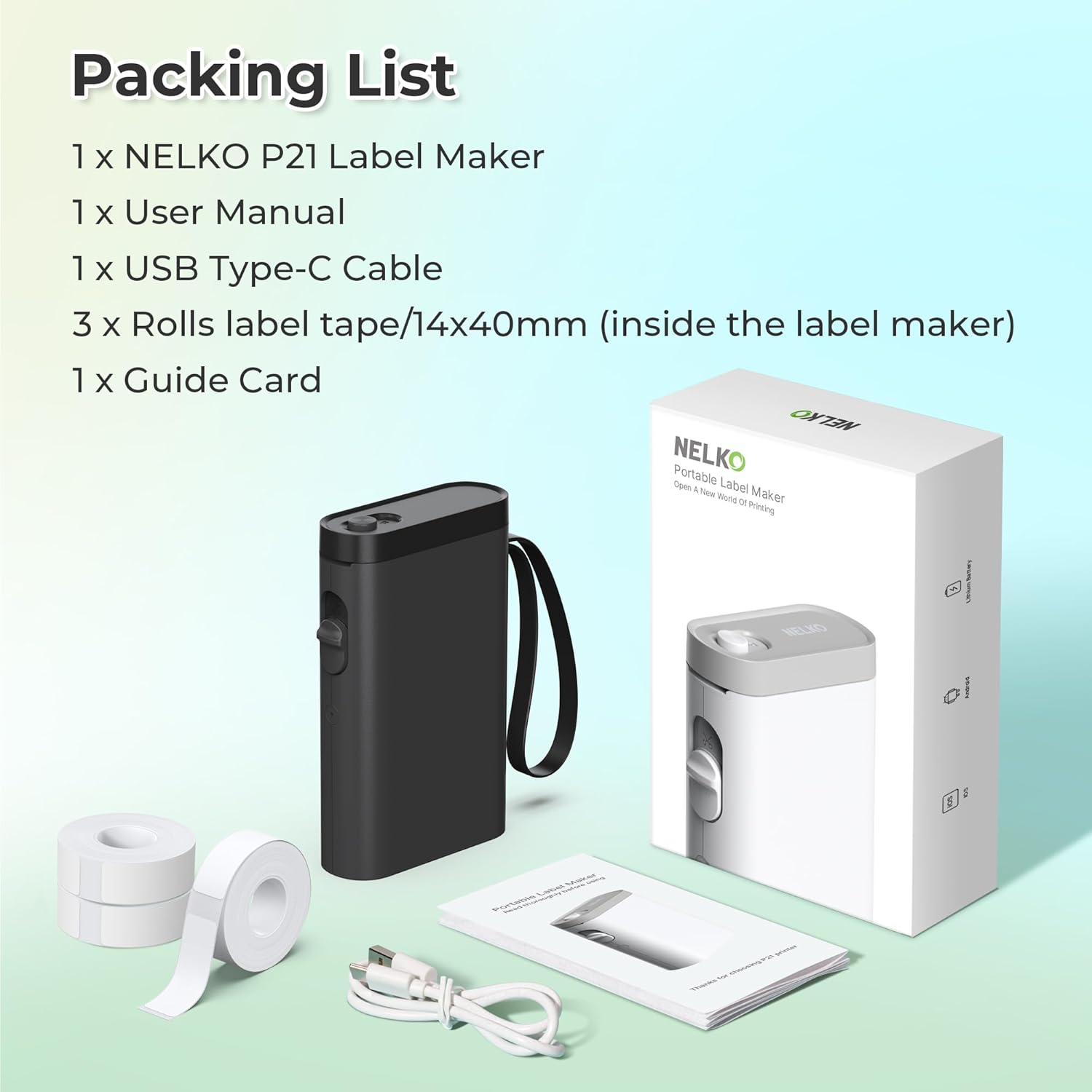
Figure 2.1: Nelko P21 Label Maker and included accessories.
2.2 Charging the Device
The label maker is equipped with a durable rechargeable battery. Use the provided USB Type-C cable to charge the device. Connect the cable to the label maker's charging port and a standard USB power adapter (not included). Avoid using fast charging adapters. The charging indicator light will provide feedback on the charging status.
2.3 Installing Label Tape
The Nelko P21 uses specific label tape rolls. Ensure you use compatible tapes. Continuous label tapes are not supported.
- Open the label maker's cover.
- Place the label roll into the designated compartment.
- Ensure that 2-3 cm of the label paper extends outside the machine.
- Close the cover securely.

Figure 2.2: Loading label tape into the Nelko P21.
2.4 App Download and Bluetooth Connection
The Nelko P21 operates via the 'Nelko' app on your smartphone.
- Download the App: Search for "Nelko" in the Google Play Store (for Android) or Apple App Store (for iOS) and install it.
- Turn on the Label Maker: Long press the power button on the device until the indicator light turns on.
- Enable Bluetooth: On your smartphone, ensure Bluetooth is enabled.
- Connect via App: Open the Nelko app. The app will search for nearby devices. Select "P21" from the list to connect. Follow any on-screen prompts to pair the device.

Figure 2.3: Nelko app Bluetooth connection process.
Video 2.1: How to connect the Nelko P21 Label Maker to an Android device via Bluetooth.
Video 2.2: How to connect the Nelko P21 Label Maker to an iOS device via Bluetooth.
3. Operating Instructions
3.1 Creating and Printing Labels
The Nelko app provides extensive customization options for your labels.
- Select a Template or Create New: Choose from over 160 system templates or tap the "+" icon to create a blank label.
- Customize Content: The app offers various features including text, QR codes, barcodes, materials (icons), images, time, and borders. You can select from over 90 fonts and 10+ languages.
- Adjust Settings: Modify font size, alignment, and other parameters as needed.
- Print: Once your label design is complete, select the number of copies and tap the "Print" button in the app. The label maker will print the labels at high speed (30mm/s).

Figure 3.1: Nelko app features for label design.

Figure 3.2: Customizing labels with various elements in the Nelko app.
Video 3.1: A tutorial on operating the Nelko P21 Label Maker, including app usage and printing.
3.2 Using the Built-in Cutter
After printing, use the built-in cutter to cleanly separate your labels. Simply slide the cutter button to cut the label tape.
3.3 Application Examples
The Nelko P21 is versatile for various labeling tasks:
- Home Organization: Label food storage containers, cosmetics, clothes, and mailings.
- Office Use: Organize notebook tags, price tags, reminder tags, and other office supplies.
- School Supplies: Ideal for classroom teachers and kids' school items, personal item identification, and name tags.

Figure 3.3: Examples of Nelko P21 label applications.
4. Maintenance
4.1 Cleaning the Print Head
To ensure optimal print quality, regularly clean the thermal print head. Use a soft, lint-free cloth lightly dampened with isopropyl alcohol. Gently wipe the print head surface. Ensure the device is turned off and disconnected from power before cleaning.
4.2 Battery Care
To prolong battery life, avoid fully discharging the battery frequently. Charge the device when the battery is low. If storing the device for an extended period, charge it to about 50% and store it in a cool, dry place.
4.3 Label Storage
Store label rolls in a cool, dry place away from direct sunlight and extreme temperatures to prevent degradation of the thermal material.
5. Troubleshooting
If you encounter issues with your Nelko P21 Label Maker, refer to the following common problems and solutions:
- Printing Multiple Copies Abnormal (iOS): If you are an iOS user experiencing issues with printing multiple copies, please update the Nelko APP to the latest version (V3.3.0 or later).
- Android 14 Compatibility: The label maker is not compatible with Google phones running Android 14.
- Charging Issues: Ensure you are using a standard USB power adapter. Fast charging adapters are not suitable. Charging may take several hours. The blinking indicator light will stop once fully charged.
- Poor Print Quality or Blank Labels: Ensure the green sticker on the back of the label strip is not torn or damaged, as this can affect printing. Verify the label roll is inserted correctly with the printable side facing the print head.
- No Bluetooth Connection: Ensure Bluetooth is enabled on your phone and the label maker is powered on. Restart both the app and the label maker, then try connecting again.
- Device Not Responding: Check the battery level. If low, charge the device. If the device is unresponsive, try resetting it (if a reset button is available, otherwise power cycle).
- Label Maker Not Working with Computers: This label maker is designed exclusively for use with smartphones via the Nelko app and is not compatible with computers.
6. Specifications
| Feature | Detail |
|---|---|
| Model Name | P21 |
| Brand | Nelko |
| Connectivity Technology | Bluetooth |
| Printing Technology | Thermal |
| Printer Output | Monochrome |
| Max Print Speed Monochrome | 30.0 mm/s |
| Resolution | 203 DPI |
| Compatible Devices | Smartphones (iOS & Android) |
| Maximum Media Size | 14x75 mm |
| Sheet Sizes Supported | 14x40 mm, 14x50 mm, 14x75 mm |
| Product Dimensions | 3.74 x 1.65 x 6.3 inches (9.5 x 4.2 x 16 cm) |
| Item Weight | 9.1 ounces (258 grams) |
| Batteries | 1 9V battery required (included) |
| Special Feature | Portable, Built-in Cutter |

Figure 6.1: Nelko P21 Label Maker dimensions and key features.
7. Warranty and Support
7.1 Product Warranty
For detailed information regarding the product warranty, please refer to the warranty card included in your product packaging or visit the official Nelko website. Warranty terms and conditions may vary.
7.2 Customer Support
If you require further assistance, have questions, or encounter issues not covered in this manual, please contact Nelko customer support. Contact information can typically be found on the product packaging, the official Nelko website, or within the Nelko application.
Related documentsP21


Ask a question about this manual
Ask about setup, troubleshooting, compatibility, parts, safety, or missing instructions. Manuals+ will review the question and use this page’s manual context to help answer it.