
1. Introduction
Thank you for choosing the Harman Kardon Onyx Studio 9 Portable Stereo Bluetooth Speaker. This premium speaker is designed to deliver immersive, high-fidelity sound with a sleek, contemporary design, perfect for enhancing your audio experience at home or on the go. This manual provides detailed instructions on how to set up, operate, maintain, and troubleshoot your speaker, ensuring optimal performance and longevity.
The Harman Kardon Onyx Studio 9 features advanced Self-Tuning technology, which intelligently adapts to its environment for optimal audio performance. It also supports wireless pairing of two units for expanded stereo sound and includes a built-in USB charging port for your mobile devices.
2. What's in the Box
Please ensure all items listed below are present in your package:
- Harman Kardon Onyx Studio 9 Portable Stereo Bluetooth Speaker
- 2x Aux Cable
- Power Supply
- Type-C Cable
- Fiber Cloth
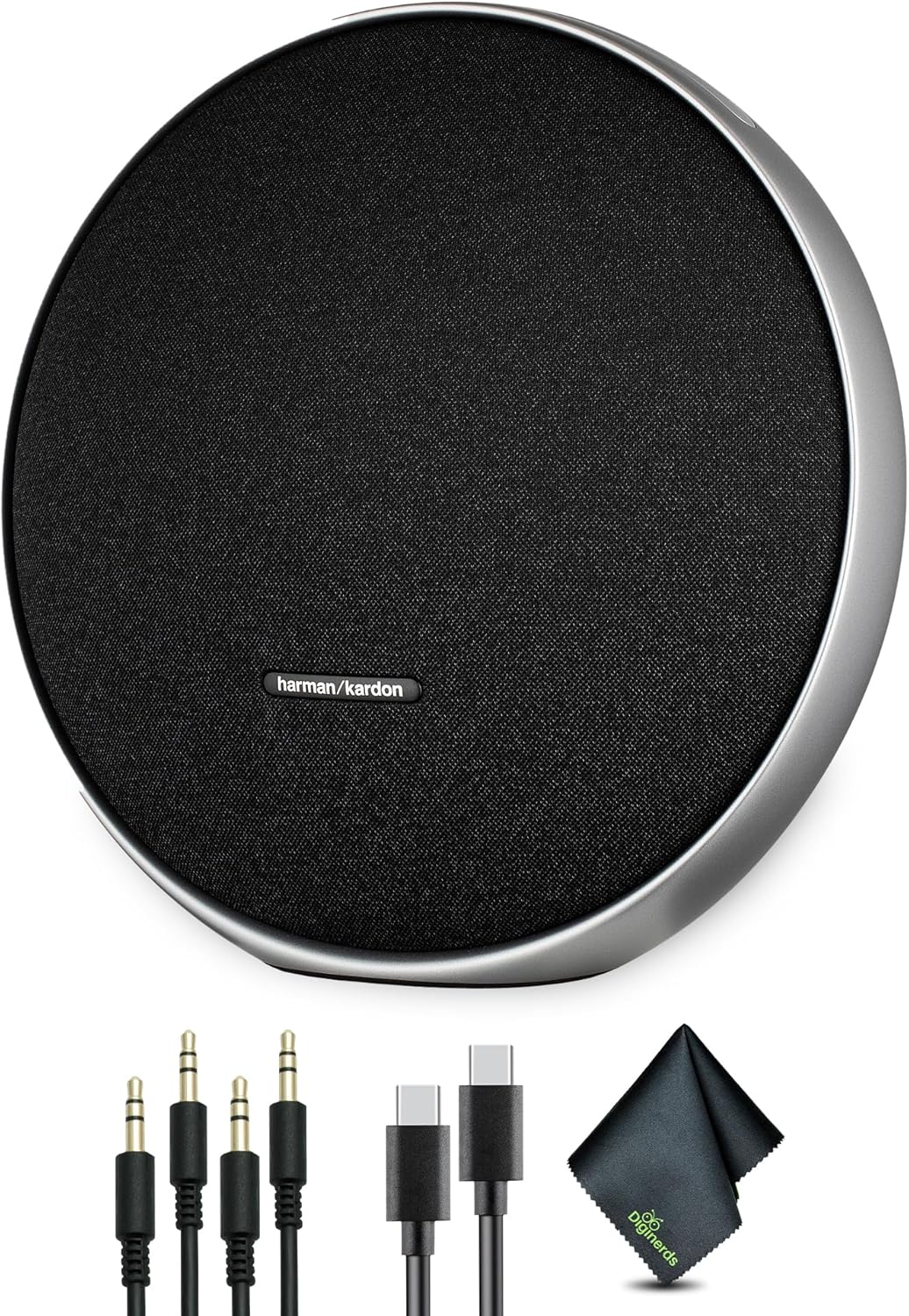
Figure 2.1: Harman Kardon Onyx Studio 9 speaker shown with its bundled accessories including two aux cables, a power supply, a USB-C cable, and a fiber cleaning cloth.

Figure 2.2: Front view of the Harman Kardon Onyx Studio 9 speaker, showcasing its circular design and fabric grille with the Harman Kardon logo.

Figure 2.3: Rear view of the Harman Kardon Onyx Studio 9 speaker, highlighting the Aux input, Power port, and Charge Out USB port.
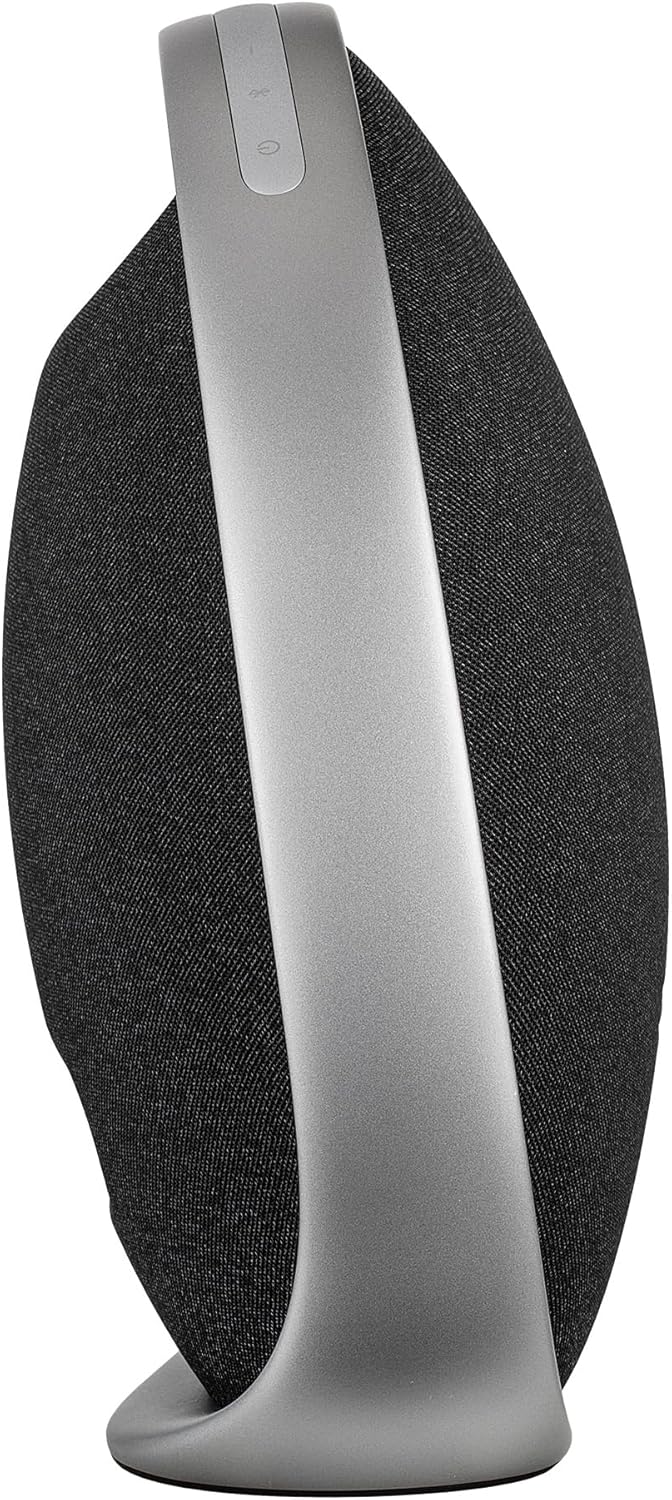
Figure 2.4: Side view of the Harman Kardon Onyx Studio 9 speaker, illustrating its integrated handle for portability.
3. Setup
3.1 Charging the Speaker
Before first use, fully charge your Onyx Studio 9 speaker. Connect the provided power supply to the speaker's power input port and then to a wall outlet. The speaker has a built-in rechargeable battery offering up to 8 hours of playtime on a full charge.
3.2 Powering On/Off
- To power on: Press the Power button located on the speaker.
- To power off: Press and hold the Power button until the speaker turns off.
3.3 Bluetooth Pairing
The Onyx Studio 9 can pair with up to two mobile devices simultaneously, allowing for seamless playlist sharing.
- Ensure the speaker is powered on.
- Press the Bluetooth button on the speaker. The Bluetooth indicator light will begin to flash, indicating it is in pairing mode.
- On your mobile device, navigate to the Bluetooth settings and select "Harman Kardon Onyx Studio 9" from the list of available devices.
- Once connected, the Bluetooth indicator light will become solid.
3.4 Wireless Stereo Pairing (Dual Speaker Mode)
For an expanded and more immersive stereo sound experience, you can wirelessly pair two Harman Kardon Onyx Studio 9 units.
- Ensure both Onyx Studio 9 speakers are powered on and not connected to any Bluetooth devices.
- On one speaker (this will be your primary speaker), press and hold the Bluetooth button until it enters pairing mode.
- On the second speaker, press the Bluetooth button briefly.
- The two speakers will automatically connect to each other. Once connected, the primary speaker's Bluetooth indicator will flash, and the secondary speaker's indicator will be solid.
- Now, connect your mobile device to the primary speaker via Bluetooth as described in section 3.3.
3.5 Self-Tuning Technology
The Onyx Studio 9 features intelligent Self-Tuning technology. Every time you power on the speaker, it automatically calibrates its audio output to optimize sound performance based on its environment. This ensures the clearest and richest sound possible, regardless of where the speaker is placed.
3.6 USB Charging Port
A built-in USB charging port allows you to charge your mobile device directly from the speaker while streaming music, ensuring your device stays powered.
4. Operating the Speaker
4.1 Audio Playback
Once connected via Bluetooth or Aux cable, simply start playing audio from your source device. The speaker will automatically output the sound.
4.2 Volume Control
Adjust the volume using the volume buttons (+/-) on the speaker or directly from your connected mobile device.
4.3 Harman Kardon One App
Enhance your experience by downloading the Harman Kardon One app. The app simplifies setup, allows for customization of EQ settings, and helps manage multiple compatible speakers from a single interface.
5. Maintenance
5.1 General Care
- Avoid exposing the speaker to extreme temperatures, humidity, or direct sunlight.
- Do not immerse the speaker in water or expose it to excessive moisture.
- Keep the speaker away from strong magnetic fields.
5.2 Cleaning
Use the provided fiber cloth or a soft, dry cloth to clean the exterior of the speaker. Do not use abrasive cleaners, waxes, or solvents.
6. Troubleshooting
6.1 No Power
- Ensure the power supply is securely connected to both the speaker and a working power outlet.
- Check if the battery is charged. If not, charge the speaker for at least 30 minutes.
6.2 No Sound
- Increase the volume on both the speaker and your source device.
- Ensure the speaker is correctly paired via Bluetooth or the Aux cable is fully inserted.
- If using Bluetooth, try disconnecting and re-pairing the device.
6.3 Bluetooth Connection Issues
- Ensure the speaker is within the Bluetooth range (typically 10 meters or 33 feet) of your device.
- Move the speaker and device away from other electronic devices that may cause interference.
- Turn off and on the Bluetooth function on your device, then try pairing again.
- If issues persist, forget the speaker from your device's Bluetooth list and re-pair.
6.4 Sound Quality Issues
- Ensure the audio source is of good quality.
- Check for any physical obstructions around the speaker that might be affecting sound dispersion.
- The Self-Tuning technology should optimize sound; however, if you suspect an issue, try moving the speaker to a different location.
7. Specifications
| Feature | Detail |
|---|---|
| Product Dimensions | 5.1 x 11.4 x 11.3 inches |
| Item Weight | 7.3 pounds |
| ASIN | B0FH38N2SM |
| Item Model Number | HKOS8BLKAM |
| Brand | Harman Kardon |
| UPC | 094148739885 |
| Battery Playtime | Up to 8 hours |
8. Warranty and Support
Harman Kardon products are built to the highest quality standards. For information regarding warranty coverage, please refer to the warranty card included with your product or visit the official Harman Kardon website.
For technical support, troubleshooting assistance, or service inquiries, please contact Harman Kardon customer support through their official channels. Keep your proof of purchase and model number (HKOS8BLKAM) ready when contacting support.


