
ASHATA ASHATA7eu29htvyw
ASHATA 4K Ultra HD Action Camera User Manual
Model: ASHATA7eu29htvyw
Thank you for choosing the ASHATA 4K Ultra HD Action Camera. This manual provides essential information for safe and optimal use of your device. Please read it thoroughly before operation.
1. Product Overview
The ASHATA 4K Ultra HD Action Camera is designed for capturing high-quality video and photos in various environments. Key features include 4K video resolution, 40MP image resolution, a 180° rotatable lens, a 1.3-inch HD screen, and WiFi connectivity for app control.
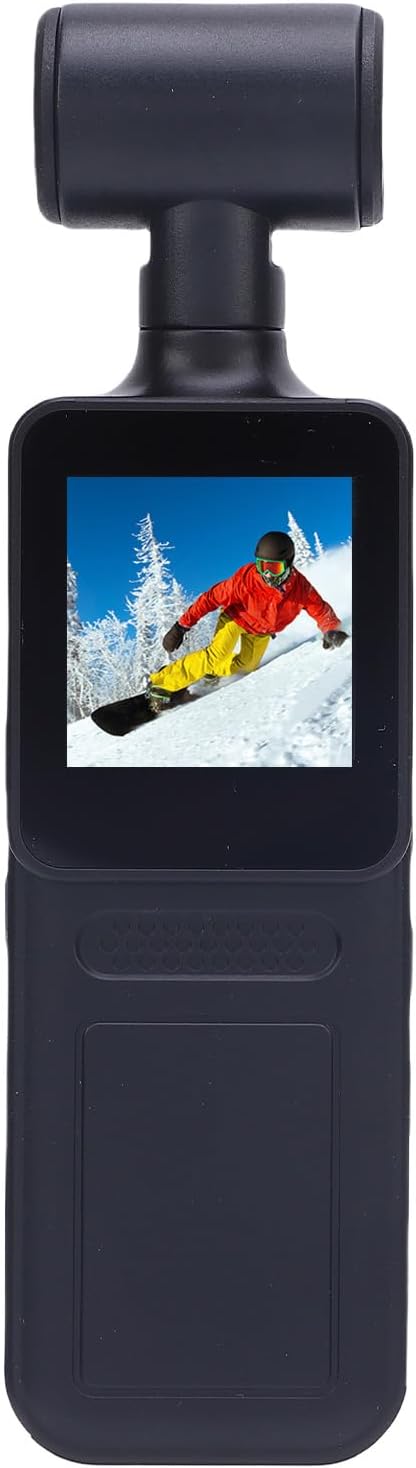
Figure 1.1: Front view of the ASHATA 4K Ultra HD Action Camera, showing the main body and the rotatable lens assembly.
2. Package Contents
Verify that all items are present in your package:
- 1 x ASHATA Action Camera
- 2 x Charging Cables (Type-C)
- 1 x User Manual
3. Setup
3.1 Charging the Battery
The camera features a built-in 1000mAh Li battery. Before first use, fully charge the camera.
- Connect one of the provided Type-C charging cables to the camera's charging port.
- Connect the other end of the cable to a USB power adapter (not included) or a computer's USB port.
- The charging indicator light will illuminate. It will turn off or change color when charging is complete.

Figure 3.1: The camera's Type-C charging port and an illustration of its internal battery.
3.2 Inserting a Memory Card
The camera supports Micro SD cards (Small Memory Card) from 4GB to 256GB. A memory card is required for recording videos and photos (not included).
- Locate the memory card slot on the side of the camera.
- Gently insert the Micro SD card with the gold contacts facing the back of the camera until it clicks into place.
- To remove, push the card in slightly until it springs out.
Note: Ensure the camera is powered off before inserting or removing the memory card to prevent data loss or damage.
3.3 Powering On/Off
- To Power On: Press and hold the Power button (usually marked with a power symbol) for a few seconds until the screen illuminates.
- To Power Off: Press and hold the Power button again until the screen turns off.
4. Operating the Camera
4.1 Basic Controls and Screen Navigation
The camera features a 1.3-inch HD screen for real-time viewing and menu navigation. Use the physical buttons on the camera body to navigate menus and control functions.

Figure 4.1: Side view of the camera highlighting the control buttons and the screen.
4.2 Video Recording
The camera supports up to 4K Ultra HD video recording with a 135° wide-angle lens.
- Power on the camera.
- Ensure the camera is in video recording mode (indicated by an icon on the screen). If not, navigate to video mode using the mode button.
- Press the OK/Record button to start recording. A red indicator or timer on the screen will confirm recording is active.
- Press the OK/Record button again to stop recording.

Figure 4.2: Illustration of the camera's 4K picture quality and 135° wide-angle viewing range.
4.3 Image Capture
Capture still images up to 40MP resolution.
- Power on the camera.
- Switch to photo mode.
- Frame your shot using the 1.3-inch HD screen.
- Press the OK/Shutter button to take a photo.
4.4 180° Rotatable Lens
The camera features a unique 180° rotatable lens, allowing for flexible shooting angles and perspectives.
- Gently rotate the lens assembly to your desired angle.
- The 1.3-inch screen will display the live view, allowing you to adjust the angle precisely.
- For specific orientations, the companion app can be used to flip videos left or right.

Figure 4.3: The camera's 180° rotatable lens feature, demonstrating its flexibility.
4.5 WiFi Connectivity and App Control
Connect your camera to a smartphone via WiFi for live preview, playback, and remote control.
- Download the dedicated ASHATA camera app from your smartphone's app store.
- On the camera, enable WiFi (refer to the camera's menu settings).
- On your smartphone, go to WiFi settings and connect to the camera's WiFi network (SSID and password usually displayed on the camera screen or in the manual).
- Open the ASHATA app. You should now see a live preview from the camera and be able to control recording, playback, and download files.

Figure 4.4: The camera's wireless connection feature, showing real-time view and playback on a smartphone.
4.6 Loop Recording
The camera supports loop recording, which automatically overwrites the oldest files when the memory card is full. This feature is useful for continuous recording scenarios.
- Enable loop recording in the camera's settings menu.
- You can typically set the duration of each video segment (e.g., 1, 3, 5 minutes).

Figure 4.5: Visual representation of the loop recording function, showing continuous video segments.
4.7 Low Light Recording (LED Fill Light)
The camera is equipped with an LED fill light to assist in low-light environments, providing clearer video and picture quality.
- Activate the LED fill light through the camera's menu settings or a dedicated button, if available.
- The fill light helps to capture colorful and clear images during the day and enhances visibility at night.
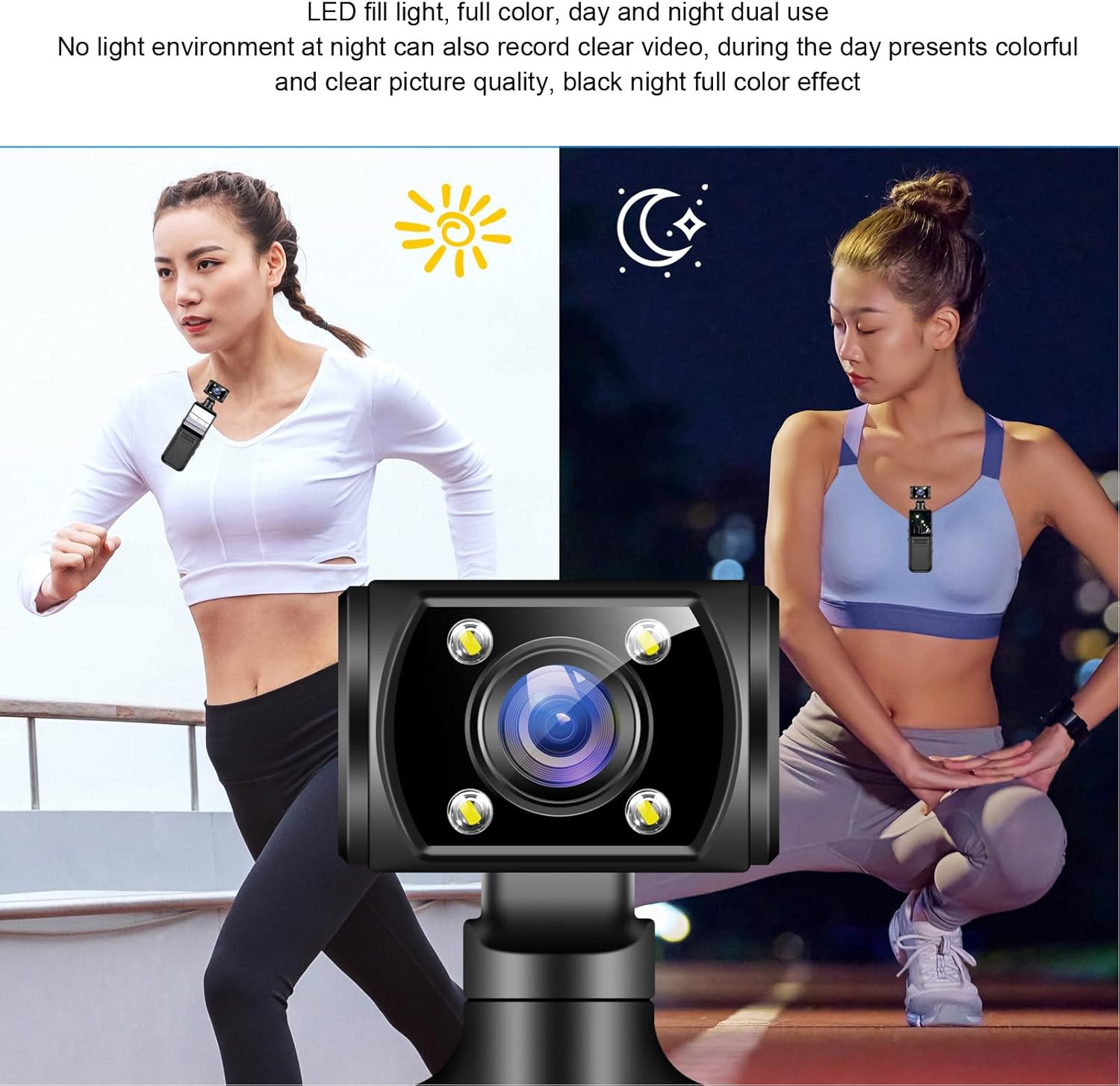
Figure 4.6: Comparison of camera performance in day and night conditions with the LED fill light.
4.8 Mounting Options
The camera is designed for versatile mounting, compatible with various accessories (not included) such as cycling mounts, car suction cup mounts, and body clips.

Figure 4.7: Examples of the camera being used with different mounts for various activities.
5. Maintenance
5.1 Cleaning the Camera
- Use a soft, lint-free cloth to clean the camera body.
- For the lens, use a specialized lens cleaning cloth and solution to avoid scratches.
- Do not use harsh chemicals or abrasive materials.
5.2 Storage
- Store the camera in a cool, dry place away from direct sunlight and extreme temperatures.
- If storing for extended periods, ensure the battery is partially charged (around 50%) to prolong its lifespan.
5.3 Battery Care
- Avoid fully discharging the battery frequently.
- Charge the battery regularly, even if not in use, to maintain its health.
- Do not expose the battery to high temperatures or puncture it.
6. Troubleshooting
| Problem | Possible Cause | Solution |
|---|---|---|
| Camera does not power on. | Battery is depleted. | Charge the camera fully using the provided Type-C cable. |
| Cannot record video/take photos. | No memory card inserted or card is full/corrupted. | Insert a compatible Micro SD card (4-256GB). Format the card in the camera settings or replace it. |
| WiFi connection issues. | Incorrect WiFi password or camera WiFi not enabled. | Ensure WiFi is enabled on the camera and enter the correct password on your smartphone. Restart both devices. |
| Poor image/video quality. | Lens is dirty or lighting conditions are poor. | Clean the lens. Use the LED fill light in low-light conditions. Ensure sufficient ambient light. |
7. Specifications
| Feature | Specification |
|---|---|
| Item Type | Action Camera |
| Material | ABS |
| Video Resolution | 4K (Maximum) |
| Image Resolution | 40MP (Maximum) |
| Storage | Supports 4 to 256GB Small Memory Card (Not Included) |
| Battery | 1000mAh Li Battery (Built-in) |
| Screen Size | 1.3 Inch HD Screen |
| Lens Rotation | 180° |
| Connectivity | WiFi, Type-C USB |
| Item Weight | 6.4 ounces |
| Model Number | ASHATA7eu29htvyw |
8. Warranty and Support
ASHATA products are manufactured to high quality standards. For warranty information, please refer to the documentation provided at the time of purchase or contact ASHATA customer support.
For technical assistance, troubleshooting, or further inquiries, please visit the official ASHATA website or contact their customer service department. Contact details are typically available on the product packaging or the brand's official online presence.
Online Resources: ASHATA Store on Amazon
Ask a question about this manual
Ask about setup, troubleshooting, compatibility, parts, safety, or missing instructions. Manuals+ will review the question and use this page’s manual context to help answer it.