
Introduction
Thank you for choosing the Cryfokt 16-Key Programmable Macro Keyboard. This compact and versatile mechanical keyboard is designed to enhance your productivity and gaming experience with customizable keys and knobs. This manual provides detailed instructions for setup, operation, customization, and maintenance to ensure optimal performance.
Package Contents
- 1 x Cryfokt 16-Key Programmable Macro Keyboard
- 1 x USB-C Cable
- 1 x User Manual

Image: The Cryfokt 16-Key Programmable Macro Keyboard connected to a laptop via its USB-C cable, illustrating its compact and portable design.
Specifications
| Brand | Cryfokt |
| Model Number | Cryfokt4u1noz62ak-11 |
| Keys | 16 Programmable Keys |
| Knobs | 3 Programmable Knobs |
| Key Switch Type | Red Mechanical Switches |
| Connection Type | Wired (USB Type-C) |
| Material | ABS, Acrylic (Body), Aluminum Alloy (Knobs) |
| Dimensions (L x W x H) | 132 x 105 x 34.5 mm (5.2 x 4.13 x 1.36 inches) |
| Weight | Approximately 240 g |
| Durability | Over 20 million keystrokes |
| Special Features | Programmable Keys & Knobs, LED Backlighting, Hot-swappable switches |
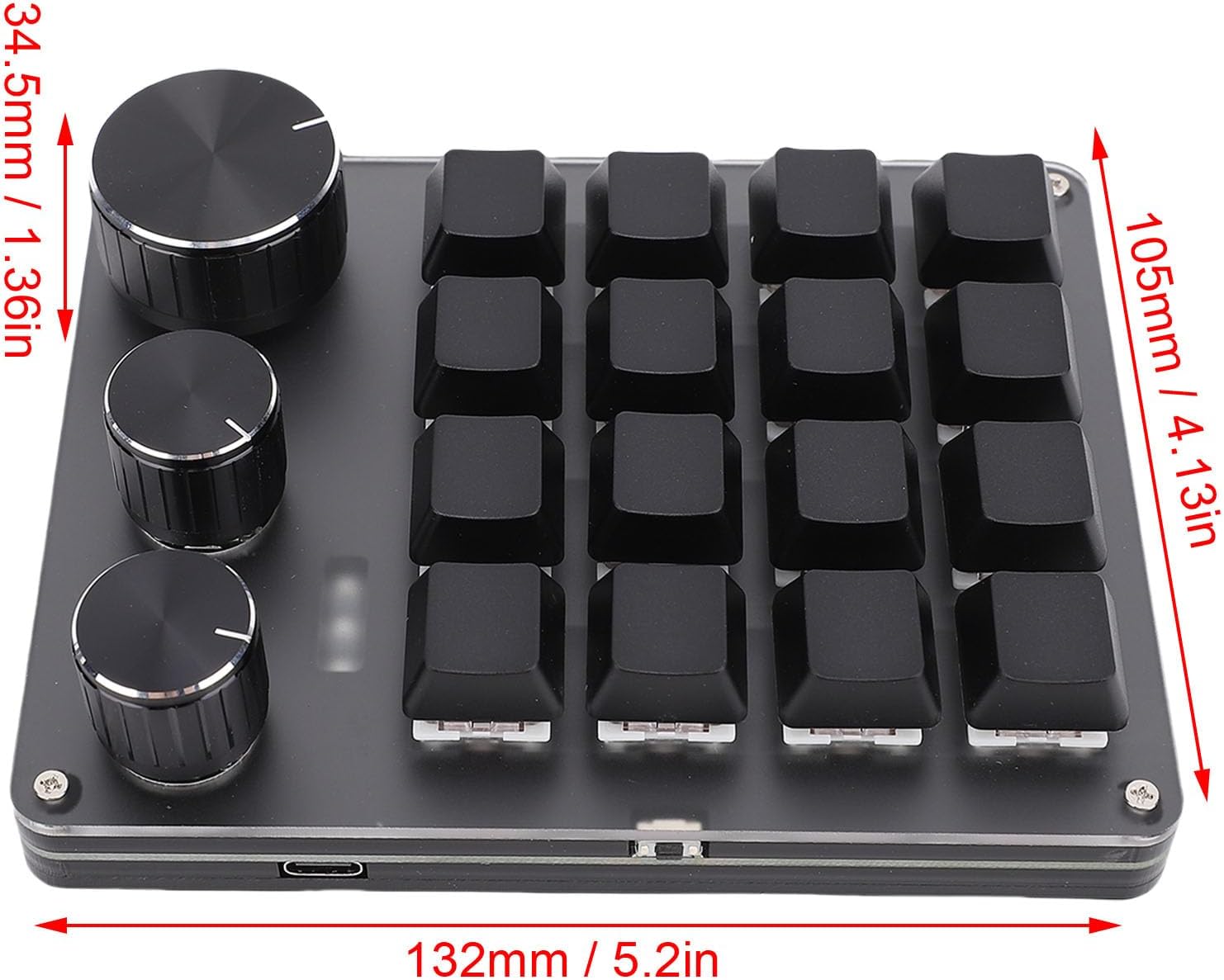
Image: Technical drawing showing the dimensions of the keyboard: 132mm length, 105mm width, and 34.5mm height.
Setup
- Unpack the Keyboard: Carefully remove the keyboard and USB-C cable from the packaging.
- Connect to Computer: Insert one end of the provided USB-C cable into the Type-C port on the keyboard. Insert the other end of the USB-C cable into an available USB port on your computer (laptop or desktop).
- Driver Installation: The keyboard is plug-and-play for basic functionality. For advanced customization, download the dedicated software from the manufacturer's official website. The software supports OS X and Windows operating systems.
- Initial Power On: Once connected, the keyboard's LED backlighting will illuminate, indicating it is powered on and ready for use.

Image: Detailed view highlighting the mechanical switch, the USB-C port for connection, and the durable metal knob on the keyboard.
Operating Instructions
The Cryfokt Macro Keyboard is designed for intuitive operation, offering both standard input and advanced programmable functions.
Basic Use
- Key Input: Press any of the 16 keys to activate its assigned function. By default, keys may have standard numeric or function assignments.
- Knob Operation: The three knobs can be rotated clockwise or counter-clockwise and pressed. Their functions are programmable (e.g., volume control, zoom, scroll).
- LED Backlighting: The integrated LED lights provide visual feedback and can be customized for various effects and colors through the software.
Layer Keys
The keyboard supports three layers of key assignments. This allows you to switch between different sets of programmed functions, effectively tripling the number of available macros. The LED light status will indicate which layer is currently active. Refer to the customization software for details on how to switch between and program these layers.
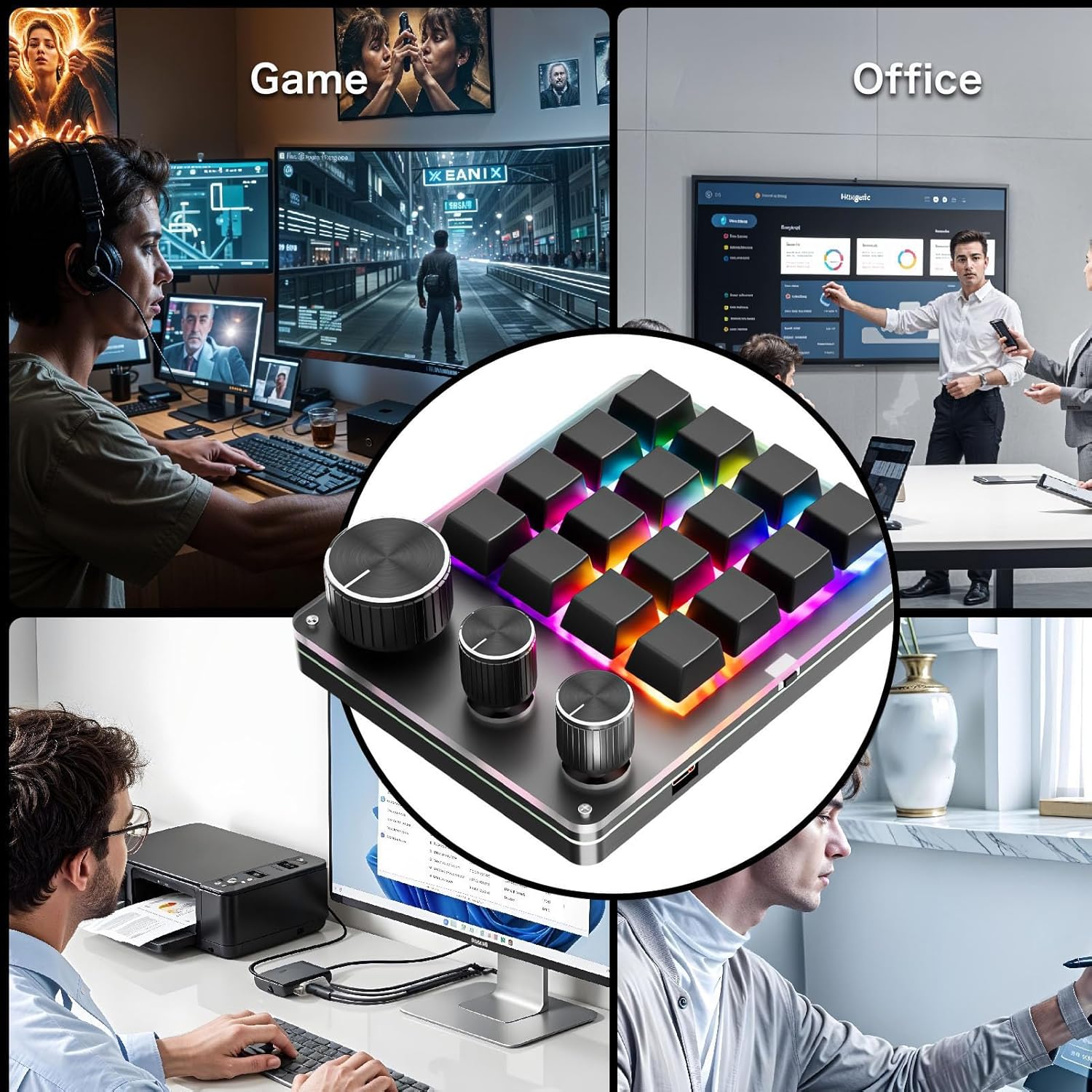
Image: The Cryfokt macro keyboard integrated into different work and leisure environments, demonstrating its versatility for gaming, office, and creative applications.
Customization
The Cryfokt Macro Keyboard offers extensive customization options for its 16 keys and 3 knobs.
- Software Download: Download the official customization software from the Cryfokt website. Ensure you download the version compatible with your operating system (Windows/OS X).
- Key Assignment: Use the software interface to assign single keys, key combinations, or complex macros to any of the 16 keys.
- Knob Functions: Program the three knobs for various actions such as volume up/down, mute, scrolling, zooming, or other custom commands. Each knob's rotation and press action can be configured independently.
- Layer Management: Configure different sets of key and knob assignments for each of the three available layers. This allows for quick switching between profiles for different applications or games.
- LED Customization: Adjust LED lighting effects, colors, and brightness to match your preference or indicate active layers/profiles.
Save your configurations within the software. The keyboard's internal memory will store your settings, allowing you to use your custom layout on different computers without re-programming, once the software has uploaded the profile to the device.
Maintenance
Proper maintenance ensures the longevity and performance of your Cryfokt Macro Keyboard.
- Cleaning: Use a soft, dry cloth to wipe the surface of the keyboard. For stubborn dirt, slightly dampen the cloth with water or a mild, non-abrasive cleaner. Avoid spraying liquids directly onto the keyboard.
- Keycap Removal: The keyboard features hot-swappable switches. If you need to clean under the keycaps or replace switches, use a keycap puller and switch puller (not included) to carefully remove them.
- Avoid Liquids: Keep the keyboard away from liquids to prevent damage to internal components.
- Storage: When not in use for extended periods, store the keyboard in a clean, dry environment.
Troubleshooting
- Keyboard Not Responding:
- Ensure the USB-C cable is securely connected to both the keyboard and the computer.
- Try connecting the keyboard to a different USB port on your computer.
- Test the keyboard on another computer to rule out a computer-specific issue.
- Restart your computer.
- LED Lights Not Working:
- Check the customization software to ensure LED lighting is enabled and configured correctly.
- Ensure the keyboard is receiving sufficient power from the USB port.
- Custom Functions Not Working:
- Verify that the customization software is installed and the desired profile is loaded onto the keyboard.
- Ensure you are on the correct layer if you have multiple layers configured.
- Check for software updates for the customization tool.
- Keys Feel Sticky or Unresponsive:
- Clean around and under the keycaps as described in the Maintenance section.
- If a switch is faulty, it can be replaced due to the hot-swappable design.
Warranty and Support
For warranty information and technical support, please refer to the documentation included with your purchase or visit the official Cryfokt website. Keep your proof of purchase for warranty claims.
If you encounter issues not covered in this manual, please contact Cryfokt customer support for assistance.