
1. Product Overview
This HAAM Google TV offers a 55-inch QLED UHD display with a 144Hz refresh rate, providing clear, vibrant visuals and smooth motion. Integrated Google TV smart features allow access to streaming services, applications, and device mirroring. Its modern design complements any living space, making it suitable for home entertainment, movies, and gaming.
Key Features:
- Google Smart TV: Access YouTube, Netflix, and more using the integrated Google TV platform.
- 4K Ultra HD (3840 x 2160): Clear and detailed visuals, ideal for movies and gaming.
- 144Hz Refresh Rate: Smooth operation ideal for fast-paced content and streaming.
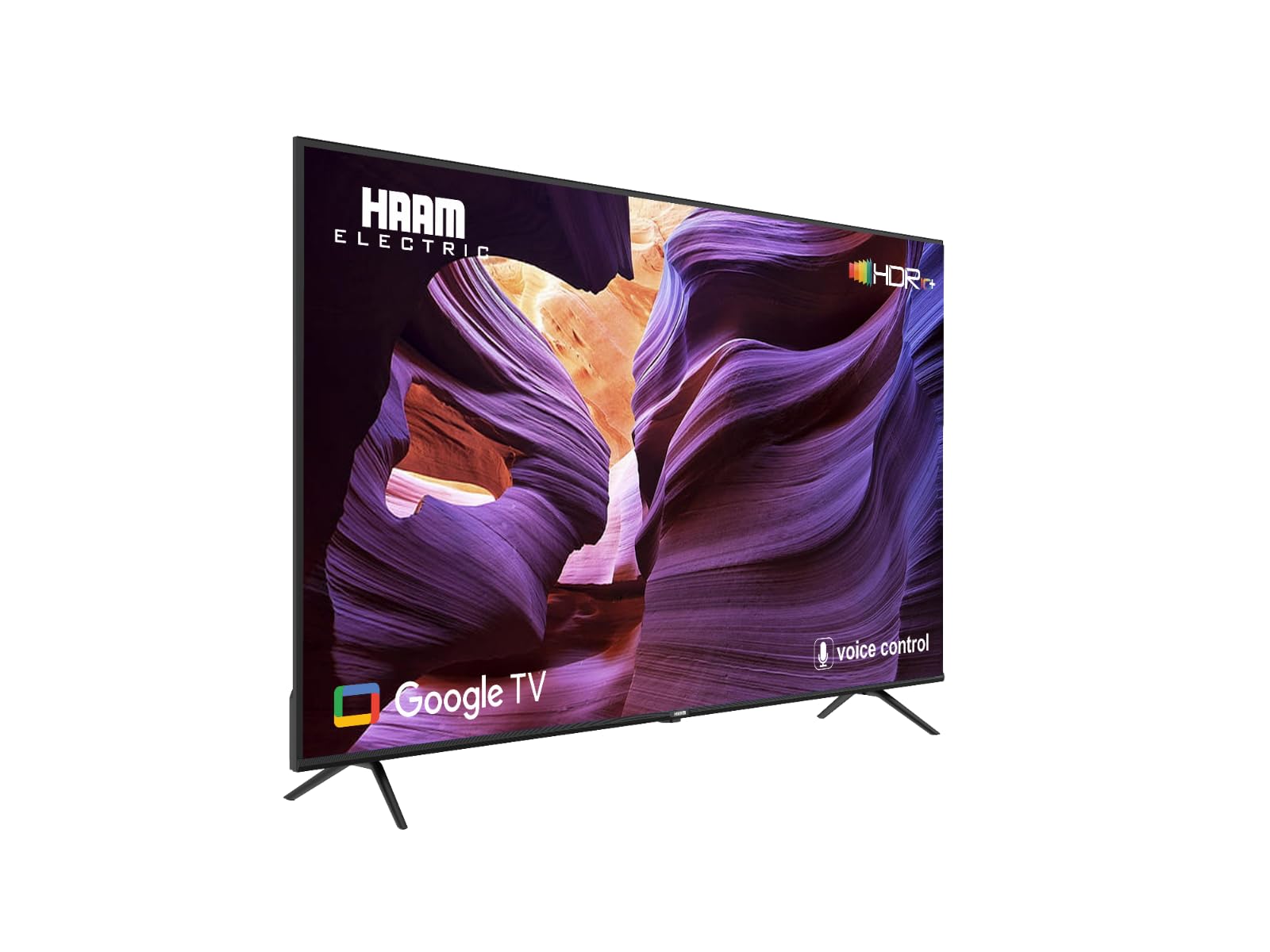
Image 1.1: Front view of the HAAM 55-inch Google TV.
2. Setup Guide
2.1 Unpacking
Carefully remove the television from its packaging. Ensure all accessories, including the remote control, power cable, and stand components, are present.
2.2 Stand Installation
- Place the TV screen-down on a soft, flat surface to prevent damage.
- Align the stand legs with the corresponding screw holes on the bottom of the TV.
- Secure the stand legs using the provided screws. Do not overtighten.
2.3 Connecting Peripherals
Connect your external devices (e.g., cable box, gaming console, soundbar) to the appropriate ports on the back of the TV.

Image 2.1: Side and back view of the TV with input ports.

Image 2.2: Rear view of the TV.
Common Ports:
- HDMI: For high-definition audio and video devices.
- USB: For connecting USB storage devices.
- Ethernet (LAN): For wired internet connection.
- Optical Audio Out: For connecting to a sound system.
3. Operating Instructions
3.1 Power On/Off
- Connect the power cable to the TV and a power outlet.
- Press the Power button on the remote control or on the TV itself to turn it on.
- To turn off, press the Power button again.
3.2 Initial Setup (Google TV)
Upon first power-on, the TV will guide you through the initial setup process. This includes:
- Language selection.
- Network connection (Wi-Fi or Ethernet).
- Google account sign-in for full Google TV features.
- Channel scanning (if connecting an antenna).
3.3 Remote Control Functions
The remote control provides access to all TV functions. Familiarize yourself with buttons such as Power, Volume, Channel, Input, Home, Back, and navigation keys.
3.4 Smart Features
Utilize the Google TV interface to browse and launch applications like YouTube and Netflix. Use the voice control feature for hands-free navigation and content search.
3.5 Input Selection
Press the 'Input' or 'Source' button on your remote to switch between connected devices (e.g., HDMI 1, HDMI 2, TV tuner).
4. Maintenance
4.1 Cleaning the Screen
- Turn off the TV and unplug it from the power outlet.
- Gently wipe the screen with a soft, dry microfiber cloth.
- For stubborn marks, lightly dampen the cloth with water or a screen-cleaning solution specifically designed for electronics. Do not spray liquid directly onto the screen.
4.2 Cleaning the Body
Use a soft, dry cloth to wipe the TV's frame and back panel. Avoid abrasive cleaners or solvents.
4.3 Software Updates
Ensure your TV is connected to the internet to receive automatic software updates. These updates can improve performance and add new features.
5. Troubleshooting
Refer to the table below for common issues and their solutions.
| Issue | Possible Cause | Solution |
|---|---|---|
| No Power | Power cable disconnected; Power outlet issue | Check power cable connection; Test outlet with another device. |
| No Picture, but Sound is Present | Incorrect input source; External device issue | Verify correct input source; Check external device connections. |
| No Sound | Volume too low/muted; External audio system issue | Increase volume, unmute; Check external audio system connections. |
| Remote Control Not Working | Dead batteries; Obstruction; Remote not paired | Replace batteries; Remove obstructions; Re-pair remote if necessary. |
| Wi-Fi Connection Issues | Router issue; Incorrect password; Signal interference | Restart router; Re-enter Wi-Fi password; Move TV closer to router or use Ethernet. |
If the issue persists after attempting these solutions, please contact customer support.
6. Technical Specifications
| Feature | Specification |
|---|---|
| Manufacturer | HAAM |
| Country of Origin | China |
| Product Dimensions (WxDxH) | 124 x 26 x 78 cm |
| Weight | 13 kg |
| ASIN | B0FH2R9WX1 |
| Screen Size | 55 inches |
| Brand | HAAM Electric |
| Display Technology | QLED |
| Resolution | 4K (3840 x 2160) |
| Refresh Rate | 144 hertz |
| Special Features | QLED, Google TV, 4K Ultra HD, 144Hz |
| Connectivity Technology | HDMI, USB |
| Aspect Ratio | 16:9 |
| Supported Internet Services | Google TV, YouTube, Netflix |
7. Warranty and Support
This product comes with a manufacturer's warranty. Please refer to the warranty card included in your product packaging for specific terms and conditions, including warranty period and coverage details.
For technical support, service inquiries, or to report any issues not covered in the troubleshooting section, please contact HAAM Electric customer service. Contact information can typically be found on the manufacturer's official website or on your product's warranty documentation.
Please have your model number (QHM55UH585KGO144H) and purchase date ready when contacting support.