
Introduction
Thank you for choosing the pTron Flick M2 Wireless Gaming Mouse. This manual provides detailed instructions for setting up, operating, and maintaining your device. Please read this manual carefully before use to ensure optimal performance and longevity of your mouse.
Package Contents
- 1N Wireless Mouse
- 1N USB Receiver
- 1N Charging Cable (Type-C)
- 1N User Guide
Product Overview
The pTron Flick M2 features an ergonomic design with RGB lighting and dual wireless connectivity. It is equipped with 6 buttons and adjustable DPI settings for precise control.

Image: Overview of the pTron Flick M2 Wireless Gaming Mouse with its 6 buttons labeled: Left Click, Right Click, Scroll Wheel, DPI Button, Forward Button, and Backward Button.
Key Features:
- Dual Wireless Modes: Connect via 2.4GHz USB receiver or Bluetooth.
- RGB LED Lighting: Dynamic multi-color lighting effects.
- 6-Button Design: Includes Left/Right-Click, Scroll Wheel, DPI Adjustment, Forward, and Backward buttons.
- Adjustable DPI: Three levels (1000/1200/1600) for precision tracking.
- Ergonomic Design: Lightweight and comfortable for extended use.
- Rechargeable Battery: Built-in battery with Type-C charging port.
Setup Instructions
1. Charging the Mouse
Before first use, ensure the mouse is fully charged. Connect the provided Type-C charging cable to the mouse's charging port and the other end to a USB power source (e.g., computer, wall adapter).
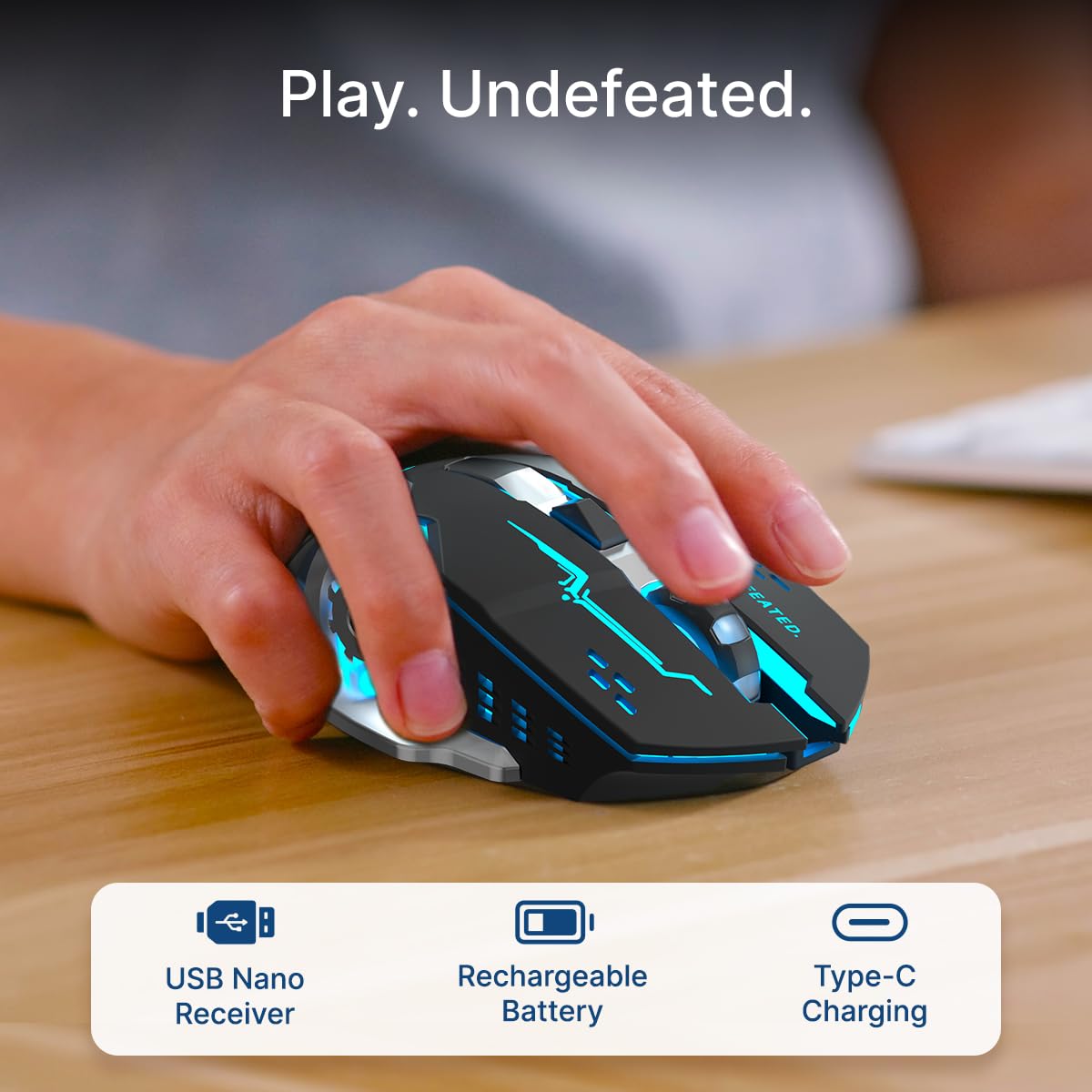
Image: A user's hand operating the pTron Flick M2 mouse, with icons indicating the USB Nano Receiver, Rechargeable Battery, and Type-C Charging features.
2. Connecting the Mouse
The pTron Flick M2 offers two wireless connection methods:
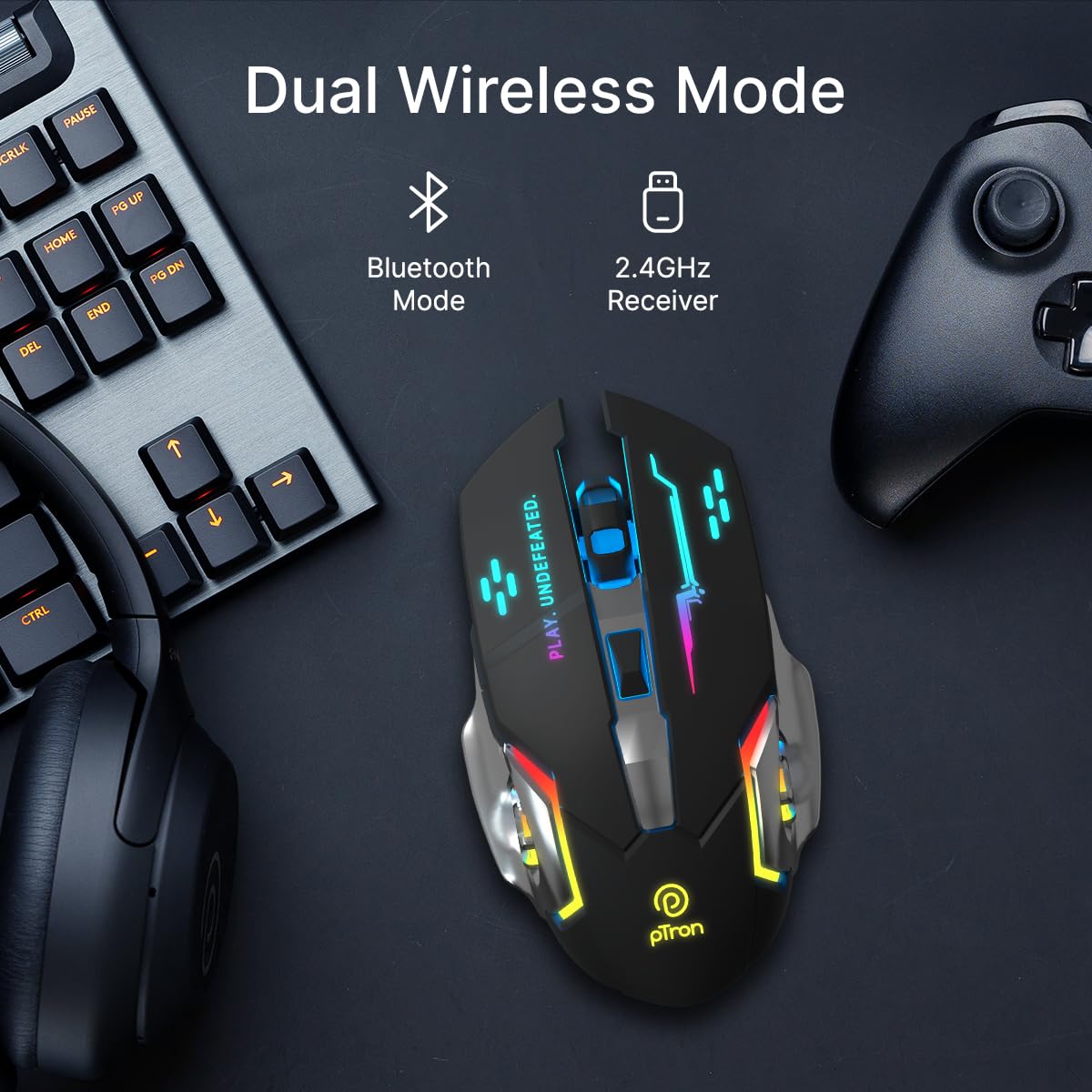
Image: The pTron Flick M2 mouse displayed with text indicating its Dual Wireless Mode capability, offering both Bluetooth and 2.4GHz Receiver options.
2.1. 2.4GHz Wireless Mode (USB Receiver)
- Locate the USB Nano Receiver, typically stored in a compartment on the underside of the mouse.
- Plug the USB Nano Receiver into an available USB port on your computer, laptop, or compatible device.
- Turn on the mouse using the power switch located on its underside.
- The mouse should automatically connect to your device. No additional drivers are usually required.
2.2. Bluetooth Mode
- Turn on the mouse using the power switch on its underside.
- On your device (computer, smartphone, tablet), enable Bluetooth and search for new devices.
- Select "pTron Flick M2" from the list of available Bluetooth devices to pair.
- Once paired, the mouse is ready for use.
Operating Instructions
1. DPI Adjustment
The mouse features an adjustable DPI (Dots Per Inch) button to change cursor sensitivity. There are three preset DPI levels: 1000, 1200, and 1600.

Image: The pTron Flick M2 mouse with an overlay indicating its Adjustable DPI feature, offering 1000 DPI, 1200 DPI, and 1600 DPI options.
- Press the DPI button (located behind the scroll wheel) to cycle through the available DPI settings.
- Each press will change the sensitivity, allowing you to find the optimal speed for your tasks or games.
2. RGB Lighting
The pTron Flick M2 features dynamic multi-color RGB LED lighting.

Image: The pTron Flick M2 mouse illuminated with vibrant multi-color lighting, showcasing its aesthetic appeal.
- The RGB lighting automatically cycles through various colors and effects when the mouse is active.
- The lighting enhances the gaming experience and provides visual feedback.
Maintenance
To ensure the longevity and optimal performance of your pTron Flick M2 Wireless Gaming Mouse, follow these maintenance guidelines:
- Cleaning: Use a soft, dry cloth to wipe the surface of the mouse. For stubborn dirt, slightly dampen the cloth with water or a mild cleaning solution. Avoid using harsh chemicals or abrasive materials.
- Sensor Care: Keep the optical sensor on the underside of the mouse clean and free from dust or debris. Use a cotton swab or compressed air if necessary.
- Storage: When not in use, store the mouse in a cool, dry place away from direct sunlight and extreme temperatures.
- Battery: Avoid fully discharging the battery frequently. Charge the mouse regularly to maintain battery health.
Troubleshooting
If you encounter issues with your pTron Flick M2 Wireless Gaming Mouse, refer to the following common solutions:
| Problem | Possible Cause | Solution |
|---|---|---|
| Mouse not responding | Low battery; Mouse is off; Incorrect connection mode; USB receiver not detected. | Charge the mouse; Turn on the mouse; Ensure correct mode (2.4GHz/Bluetooth) is selected; Re-insert USB receiver or try a different USB port. |
| Lag or intermittent connection | Interference; Distance from receiver/device; Low battery. | Move closer to the receiver/device; Ensure no large metal objects are between mouse and receiver; Charge the mouse; Try a different USB port for the receiver. |
| DPI button not changing sensitivity | Button malfunction; Software conflict. | Ensure the mouse is properly connected; Restart your device; If the issue persists, contact customer support. |
| RGB lights not working | Mouse is off; Low battery; Malfunction. | Turn on the mouse; Charge the mouse; If the issue persists, contact customer support. |
Specifications
| Feature | Detail |
|---|---|
| Brand | pTron |
| Model | Flick M2 |
| Connectivity | 2.4GHz Wireless, Bluetooth |
| DPI Levels | 1000 / 1200 / 1600 |
| Buttons | 6 (Left, Right, Scroll Wheel, DPI, Forward, Backward) |
| Sensor Type | Optical |
| Lighting | RGB LED |
| Power Source | Rechargeable Battery (Lithium Ion) |
| Charging Port | Type-C |
| Compatible Devices | Personal Computer, Smartphone, Tablet |
| Item Weight | 96 g |
| Material | Plastic |
Official Product Video
Video: An official product video showcasing the pTron Flick M2 Wireless Gaming Mouse, its dual wireless capabilities, RGB lighting, adjustable DPI, and ergonomic design.
Warranty and Support
The pTron Flick M2 Wireless Gaming Mouse comes with a 6 Months Manufacturer Warranty on manufacturing defects.
For warranty claims, technical support, or any other inquiries, please contact:
- Manufacturer: Palred Electronics Pvt. Ltd.
- Customer Care Contact: 040-67138888
- Email Support: support@ptron.in
- Address: SY.NO. 56, 1ST FLOOR, GUNDLAPOCHAMPALLY VILLAGE, TECH PARK MTP, TSIIC-IALA NACHARAM, HYDERABAD - 500076, TELANGANA, INDIA

