
BOTSLAB G300H Plus-Front and Rear
BOTSLAB 4K Dash Cam Front and Rear User Manual
Model: G300H Plus-Front and Rear | Brand: BOTSLAB
Introduction
Thank you for choosing the BOTSLAB 4K Dash Cam Front and Rear. This advanced dual-camera system provides crystal-clear 4K front and 1080P rear resolution, powered by a STARVIS 2 sensor for superior low-light performance. It features voice control, built-in GPS, WDR night vision, and a wide 170° front and 150° rear viewing angle to enhance your driving safety and record crucial moments. This manual provides detailed instructions for setup, operation, and maintenance to ensure optimal performance of your dash cam.
What's in the Box
- BOTSLAB 4K Dash Cam (Front Unit)
- Rear Camera
- 64GB MicroSD Card
- Car Charger
- Charging Cable
- Installation Tool
- Quick Guide
- User Manual
Key Features
- 4K+1080P Ultra HD with STARVIS 2 Sensor: Dual cameras deliver stunning 4K front + 1080P rear resolution for crystal-clear footage capture. The STARVIS 2 sensor excels in low-light scenes with vivid true-to-life colors, capturing every frame in ultra-sharp detail—clearly recording license plates, road signs, and surroundings—day and night.
- 170°+150° Wide-Angle Blind Spot Killer: The dash cam's 170° front and 150° rear wide-angle lenses enhance driving safety by expanding your view, allowing you to monitor multiple lanes and anticipate hazards.
- Hands-Free Voice Control: Effortlessly control the dash cam by simply saying commands like “Take photo” or “Video start” to stay focused on the road and minimize distractions.
- Superior Night Vision: The front camera’s F1.5 aperture and the rear’s F2.0 aperture deliver vibrant, detailed footage even in low-light conditions, ensuring safe and secure driving after dark.
- Hassle-Free Installation: The sleek design allows for seamless installation, effortlessly complementing any vehicle interior with straightforward peel-and-stick wiring.
- Built-in GPS: Integrated GPS for seamless trip tracking and accurate location data.
- 5GHz WiFi: Fast wireless connectivity for app control and video transfer.
- 24H Parking Mode: Provides continuous surveillance when parked (requires hardwire kit, not included).
Setup and Installation
Follow these steps for proper installation of your BOTSLAB Dash Cam:
- Choose Mounting Location: Select a spot on your windshield for the front camera that does not obstruct your view. Typically, this is behind the rearview mirror. For the rear camera, mount it on the rear windshield.
- Clean Surface: Ensure the mounting surface is clean and dry before attaching the adhesive mount.
- Attach Front Camera: Peel off the protective film from the adhesive mount and firmly press the front dash cam onto the chosen spot on the windshield. Hold for 30 seconds to ensure strong adhesion.
- Connect Power: Route the power cable neatly along the windshield edge and dashboard, using the included installation tool to tuck it into crevices. Plug the car charger into your vehicle's cigarette lighter socket and connect the charging cable to the dash cam.
- Install Rear Camera: Attach the rear camera to the rear windshield using its adhesive mount. Connect the rear camera cable to the main front unit. Route this cable carefully to avoid interference.
- Insert MicroSD Card: Insert the provided 64GB MicroSD card into the designated slot on the dash cam. Ensure it clicks into place.
- Power On and Test: Start your vehicle. The dash cam should power on automatically and begin recording. Check the display to ensure both front and rear camera feeds are visible.
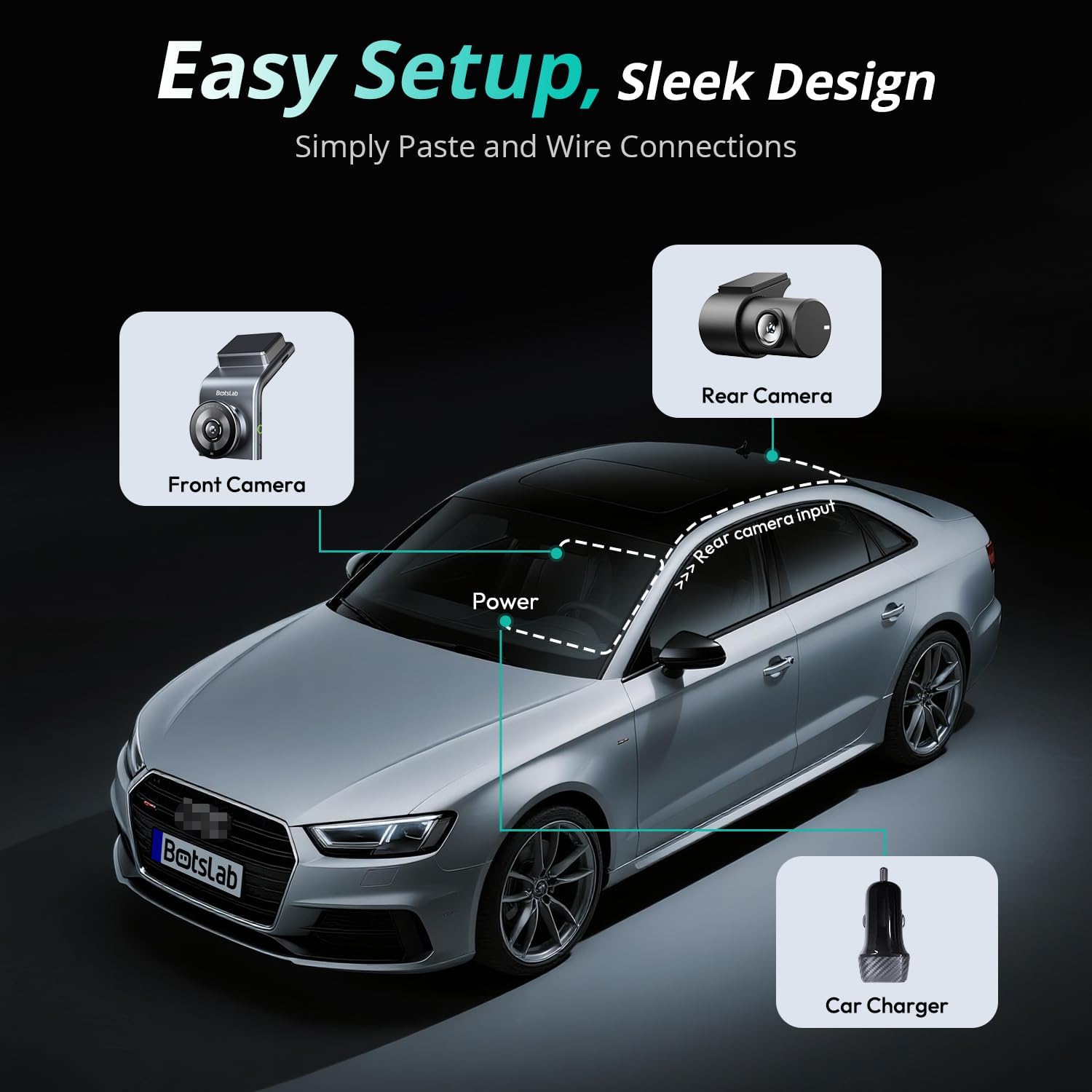
Figure 1: Easy Setup and Wiring Diagram. This image illustrates the simple peel-and-stick wiring for the front camera, rear camera, and connection to the car charger.
Video 1: Installation and Feature Overview. This video demonstrates the easy installation process of the BOTSLAB G300H Plus dash cam, including mounting the front and rear cameras and connecting power. It also highlights key features such as 4K+1080P resolution, voice control, and parking protection.
Operating Instructions
Automatic Recording and Loop Recording
Once powered on, the dash cam automatically begins recording. It utilizes loop recording, continuously overwriting the oldest footage when the memory card is full, ensuring uninterrupted recording. Important footage can be locked to prevent overwriting.
Voice Control
The BOTSLAB Dash Cam supports hands-free voice commands for common functions. Simply speak the command clearly:
- "Take photo": Captures a still image.
- "Video start": Begins recording video.
- Other commands may be available; refer to the quick guide for a complete list.

Figure 2: Hands-Free Voice Control. This image demonstrates how to use simple voice commands to operate the dash cam, allowing the driver to maintain focus on the road.
App Control and Instant Preview (5GHz WiFi)
Download the BOTSLAB App from your smartphone's app store. Connect your phone to the dash cam's 5GHz WiFi network to access features such as:
- Live view of front and rear cameras.
- Playback recorded videos and photos.
- Download footage directly to your phone.
- Adjust dash cam settings.
- Share captured moments to social media.

Figure 3: Capture, Edit, and Share via Botslab App. This image shows the mobile application interface, allowing users to manage and share their dash cam footage easily.
Built-in GPS and Trip Tracking
The integrated GPS module records your driving route, speed, and location data. This information can be viewed and tracked via the BOTSLAB App, providing a comprehensive record of your journeys with Google Maps precision.
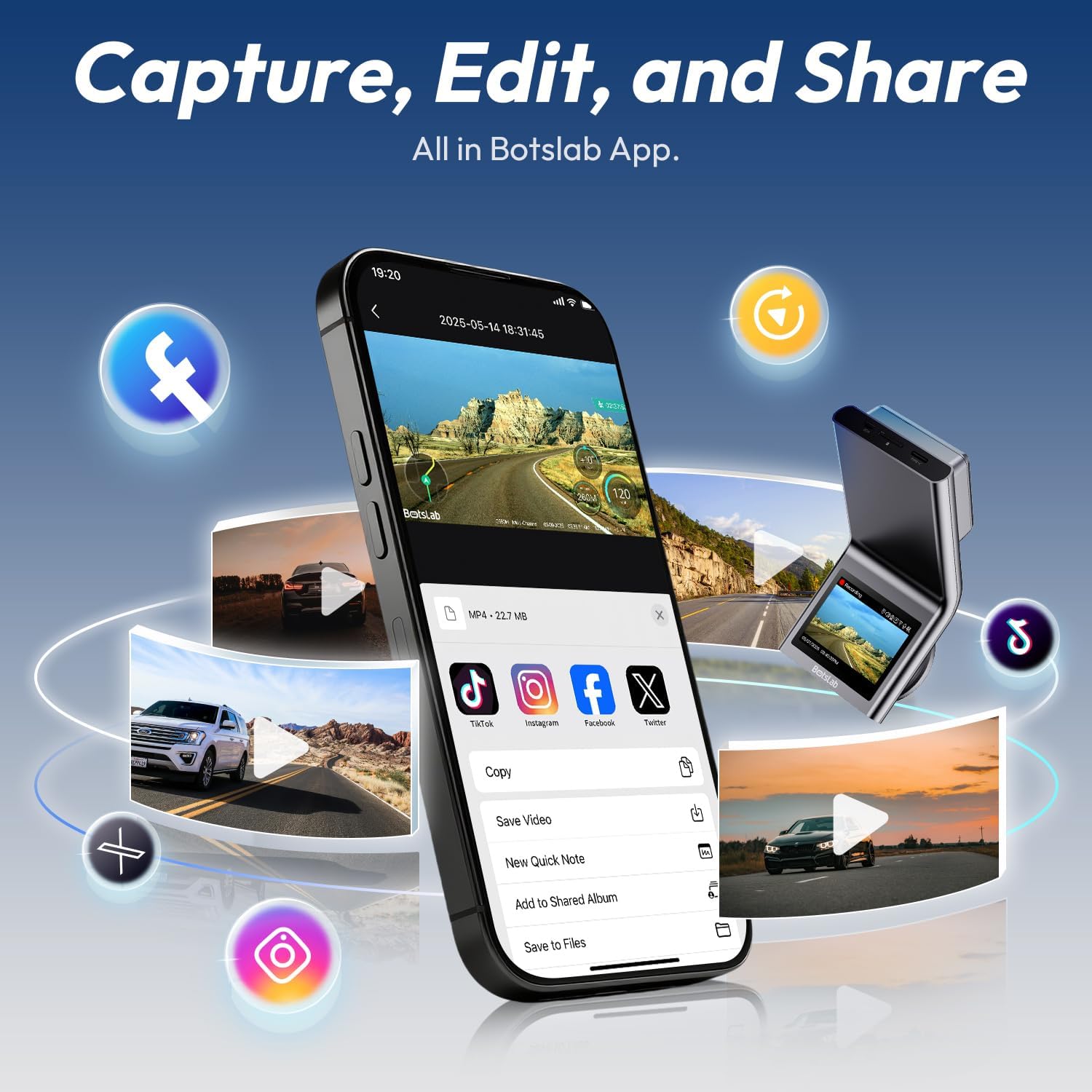
Figure 4: Seamless Trip Tracking with Integrated GPS. This image demonstrates the dash cam's ability to track and display driving routes on a map through the companion app.
24H Parking Mode (Requires Hardwire Kit)
For continuous surveillance when your vehicle is parked, the 24H Parking Mode can be activated. This feature requires a separate hardwire kit (not included) to provide constant power to the dash cam. The parking mode includes:
- Time-Lapse Recording: Records at a low frame rate to save storage space while capturing extended periods.
- Collision-Detected Recording: Automatically initiates a 1-minute recording upon detecting a collision or impact, even when the vehicle is off.
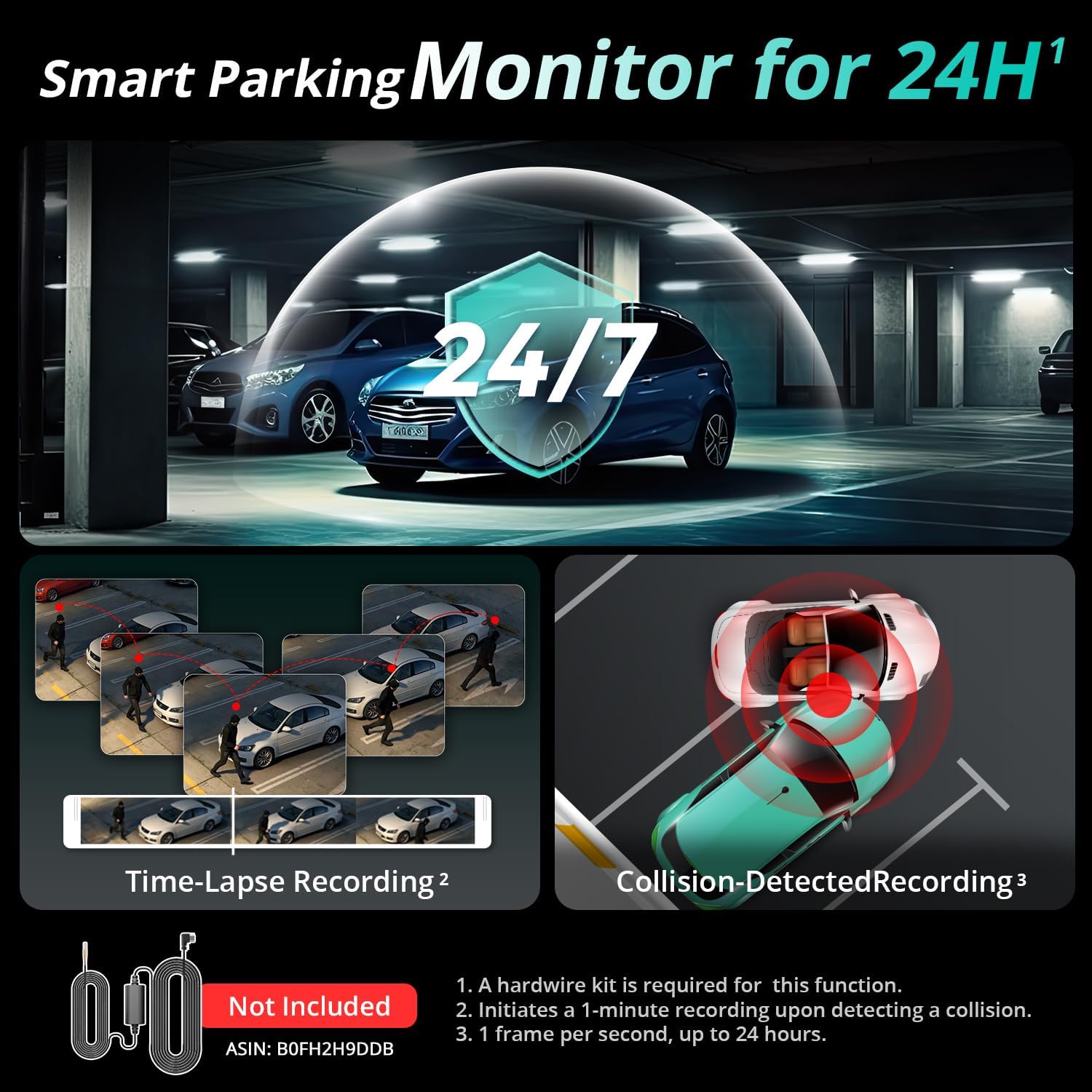
Figure 5: Smart Parking Monitor for 24H. This image illustrates the comprehensive parking surveillance features, including time-lapse and collision-triggered recording.
Advanced Imaging: STARVIS 2 Sensor & Wide Angle Lenses
The dash cam's STARVIS 2 sensor ensures exceptional image clarity and color accuracy, especially in challenging lighting conditions. Coupled with the 170° front and 150° rear wide-angle lenses, it minimizes blind spots and captures a broad view of the road.
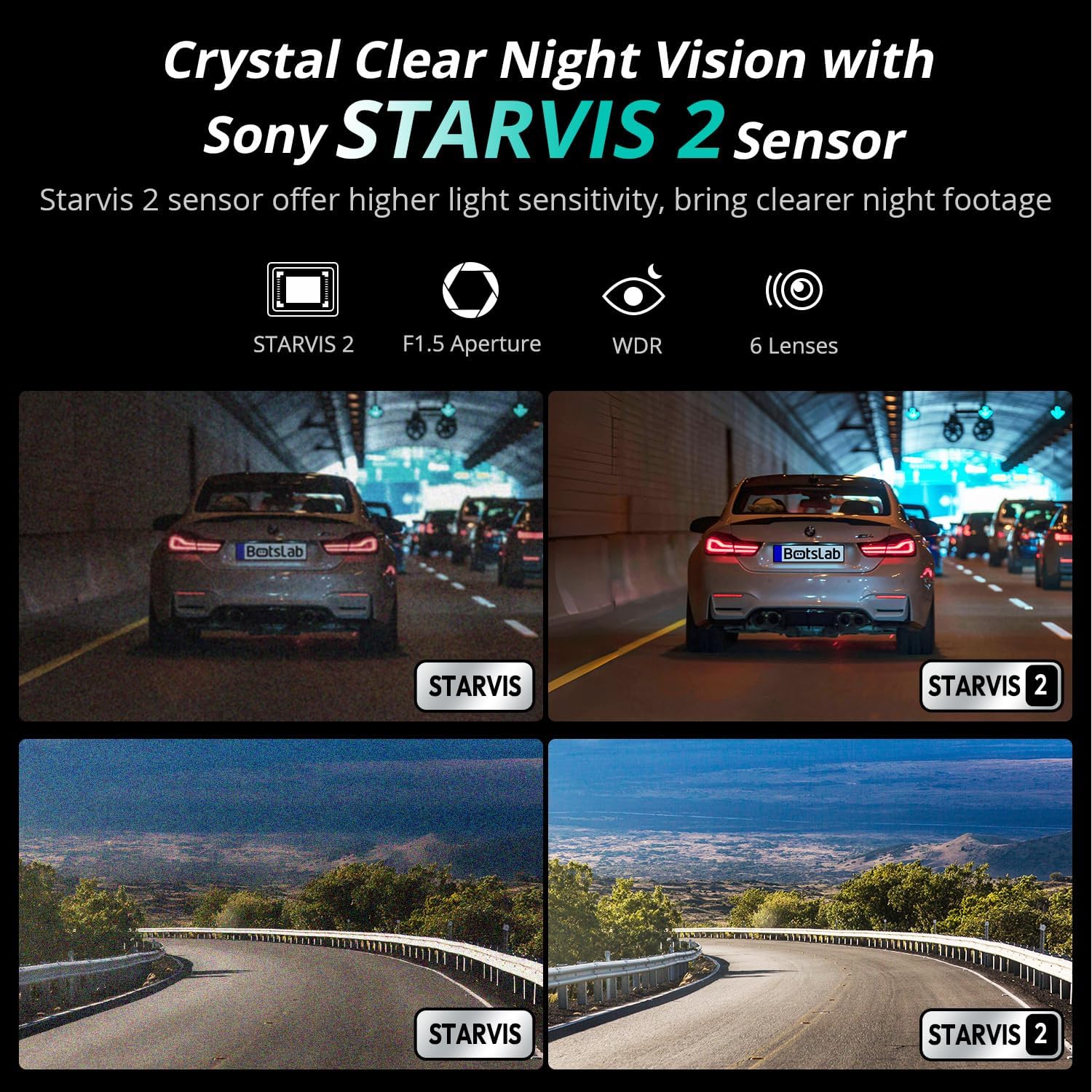
Figure 6: Crystal Clear Night Vision with Sony STARVIS 2 Sensor. This image highlights the superior low-light performance of the dash cam, providing clear footage even in dark conditions.

Figure 7: Expanded Vision for Safer Driving. This image illustrates the wide field of view provided by the 170° front and 150° rear lenses, reducing blind spots.
Maintenance
- Clean Lenses: Regularly wipe the camera lenses with a soft, lint-free cloth to ensure clear recordings. Avoid abrasive materials.
- Format MicroSD Card: Format the MicroSD card monthly to prevent data corruption and ensure optimal recording performance. Back up any important files before formatting.
- Firmware Updates: Check the BOTSLAB App periodically for firmware updates. Keeping your dash cam's firmware up-to-date ensures the best performance and access to new features.
- Temperature: Avoid exposing the dash cam to extreme temperatures for prolonged periods. While designed for automotive environments, prolonged direct sunlight in hot climates can affect longevity.
Troubleshooting
| Problem | Possible Cause | Solution |
|---|---|---|
| Dash cam does not power on. | No power supply; loose connection; faulty charger. | Check car charger connection and vehicle's cigarette lighter socket. Try a different USB port or charger. Ensure vehicle ignition is on. |
| Recording stops or footage is corrupted. | MicroSD card full or corrupted; low-quality MicroSD card; card error. | Format the MicroSD card regularly. Use a high-endurance, reputable brand MicroSD card (Class 10 or U3 recommended). Replace the card if issues persist. |
| WiFi connection issues with app. | Incorrect WiFi password; phone too far from dash cam; app glitch. | Ensure correct WiFi password. Move phone closer to dash cam. Restart both dash cam and phone. Reinstall the BOTSLAB App. |
| Poor video quality at night. | Dirty lens; extreme low light conditions; incorrect settings. | Clean the camera lens. Ensure WDR (Wide Dynamic Range) is enabled in settings. While STARVIS 2 is excellent, extreme darkness can still limit visibility. |
| Voice control not responding. | Loud background noise; unclear pronunciation; feature disabled. | Speak clearly and directly towards the dash cam. Reduce background noise. Check settings in the BOTSLAB App to ensure voice control is enabled. |
Specifications
| Feature | Detail |
|---|---|
| Model Name | G300H Plus-Front and Rear |
| Video Capture Resolution | Front: 4K (2160p), Rear: 1080P |
| Image Sensor | STARVIS 2 Sensor |
| Lens Aperture | Front: F1.5, Rear: F2.0 |
| Viewing Angle | Front: 170°, Rear: 150° |
| Connectivity Technology | Wi-Fi (5GHz), Built-in GPS |
| Special Features | App Control, G-Sensor, Night Vision, Voice Control, 24H Parking Mode (requires hardwire kit) |
| Included Storage | 64GB MicroSD Card |
| Product Dimensions | 2.28 x 4.13 x 0.45 inches |
| Item Weight | 1.1 pounds |
| Mounting Type | Windshield Mount |
Warranty and Support
BOTSLAB is committed to providing excellent customer service and product support. Your BOTSLAB Dash Cam comes with:
- 365-Day Professional Service: Comprehensive support for one year from purchase.
- Lifetime Technical Help: Ongoing technical assistance for the lifespan of your product.
- 30-Day Free Returns: Hassle-free returns within 30 days of purchase.
- 24/7 Customer Support: Dedicated support available around the clock for any inquiries or issues.
For further assistance, please visit the official BOTSLAB website or contact customer support directly.
Ask a question about this manual
Ask about setup, troubleshooting, compatibility, parts, safety, or missing instructions. Manuals+ will review the question and use this page’s manual context to help answer it.