
BOTSLAB G980H 3 Channel Dashcam
BOTSLAB G980H 3-Channel 4K Dash Cam User Manual
Model: G980H 3 Channel Dashcam
1. Introduction
This manual provides detailed instructions for the installation, operation, and maintenance of your BOTSLAB G980H 3-Channel 4K Dash Cam. Please read this manual thoroughly before using the device to ensure proper functionality and safety. Keep this manual for future reference.
2. Package Contents
Verify that all items listed below are included in your package. If any items are missing or damaged, please contact customer support.

Image: Contents of the BOTSLAB G980H Dash Cam package, including the main unit, rear camera, cables, and accessories.
- BOTSLAB G980H Multi-Channel Dash Cam Unit
- Rear Camera (6.5M cable)
- 128GB MicroSD Card
- Car Charger (3.5M cable)
- Installation Pry Bar
- Electrostatic Film (x2)
- 3M Tapes (x2)
- User Manual
- Warning Card
3. Product Overview
The BOTSLAB G980H is a 3-channel dash camera system designed to record video from the front, rear, and interior of your vehicle. It features 4K front recording, 1080P for rear and cabin cameras, a 3.18-inch touch screen, voice control, built-in GPS, and 5.8GHz Wi-Fi for fast file transfers.
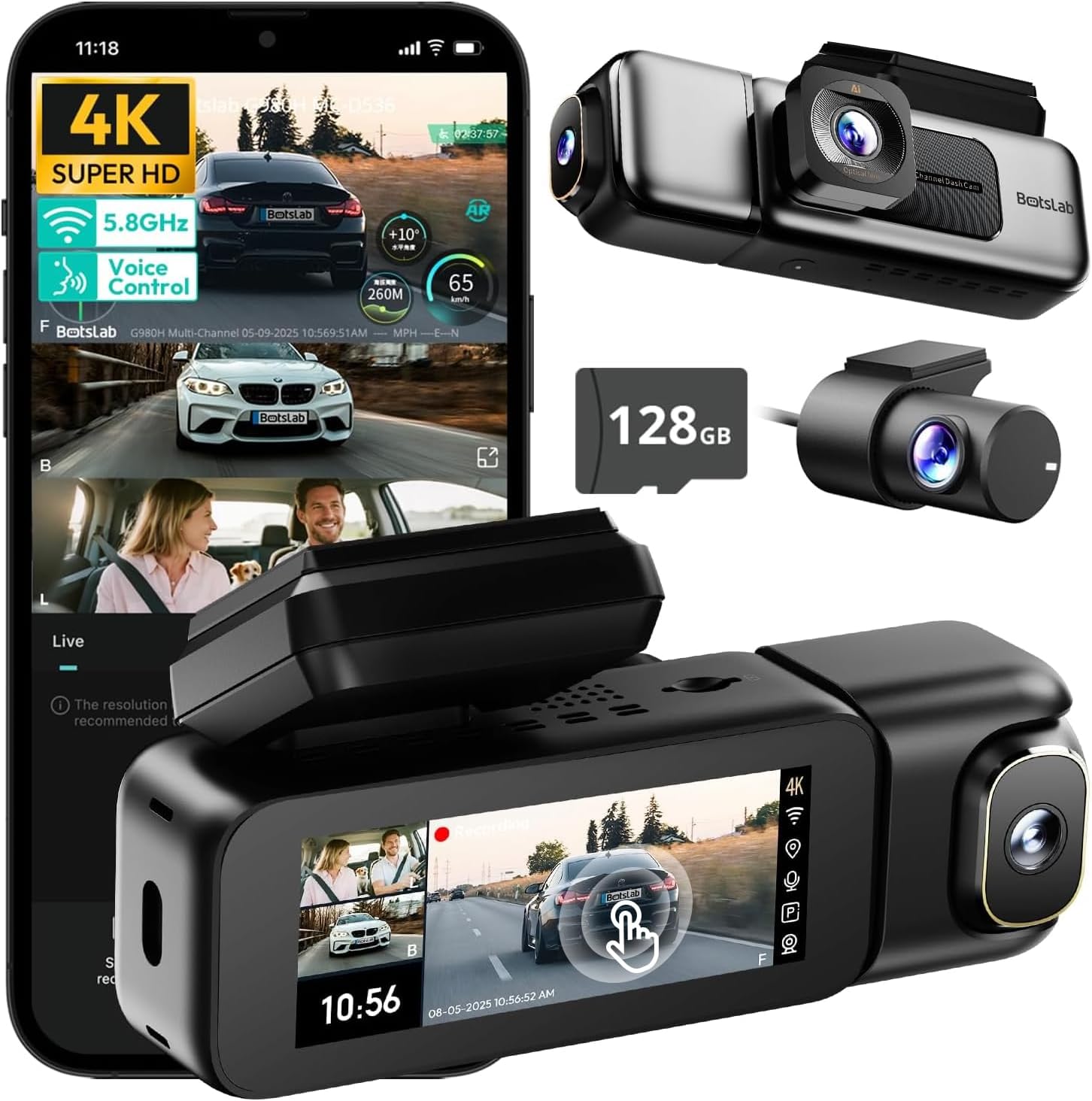
Image: The BOTSLAB G980H 3-Channel Dash Cam, showing the main unit, detachable cabin camera, rear camera, and a 128GB MicroSD card.

Image: Visual representation of the dash cam's wide viewing angles: 170° for the front camera (4K), 120° for the cabin camera (1080P), and 150° for the rear camera (1080P).

Image: Diagram illustrating the dash cam's low-light performance features, including F1.8 aperture, 940nm infrared lights, WDR technology, and a 6-lens system for clear footage.

Image: Illustration highlighting the supercapacitor's role in maintaining data safety during sudden power loss and its resistance to extreme temperatures (-20°C to 70°C).
Key Features:
- 3-Channel Recording: Simultaneous 4K front, 1080P rear, and 1080P cabin recording.
- Wide View Angles: 170° front, 150° rear, and 120° cabin for comprehensive coverage.
- 3.18" Touch Screen: Intuitive interface for settings adjustment and playback.
- Voice Control: Hands-free operation for common functions.
- Built-in GPS: Records speed, location, and routes.
- 5.8GHz Wi-Fi: Fast file transfer and app connectivity.
- Parking Monitor: Three modes (Sentry, Time-Lapse, Collision Detection) for 24/7 surveillance (requires hardwire kit).
- Supercapacitor: Enhanced durability and safety in extreme temperatures.
- WDR & HDR: Optimized imaging in varying light conditions.
- Loop Recording: Continuous recording, overwriting oldest files when the card is full.
- G-Sensor: Automatically locks footage during collisions.
4. Setup & Installation
Follow these steps to properly install your BOTSLAB G980H Dash Cam in your vehicle.

Image: The dash cam's adjustable design, featuring a magnetic snap-on mechanism for the cabin camera and 90-degree vertical and 360-degree horizontal rotation for optimal view customization.

Image: A simplified diagram showing the typical installation points for the G980H Multi-Channel Dash Cam, including the main unit on the windshield, the rear camera, and the car charger connection.
- Prepare the MicroSD Card: Insert the provided 128GB MicroSD card into the dash cam's card slot. Ensure the card is correctly oriented.
- Mount the Front Camera:
- Clean the windshield area where you intend to mount the dash cam.
- Apply the electrostatic film to the chosen area on the windshield.
- Attach the dash cam mount to the electrostatic film using the 3M adhesive tape. Ensure a secure fit.
- Slide the main dash cam unit onto the mounted bracket.
- Install the Rear Camera:
- Identify a suitable location on your rear windshield for the rear camera. Clean the area.
- Attach the rear camera using its adhesive.
- Route the rear camera cable to the main dash cam unit, tucking it along the vehicle's headliner and pillars using the pry bar.
- Connect the rear camera cable to the designated port on the main dash cam unit.
- Connect Power:
- Connect the car charger cable to the main dash cam unit.
- Plug the car charger into your vehicle's 12V power outlet (cigarette lighter socket).
- Route the power cable neatly to avoid obstruction.
- Adjust Camera Angles: Power on the dash cam and adjust the front, cabin (if detachable), and rear camera angles to ensure optimal coverage. The cabin camera features a magnetic snap-on design and can be rotated 90 degrees vertically, while the main unit allows 360-degree rotation for the front lens.
5. Basic Operation
Learn how to use the primary functions of your dash cam.
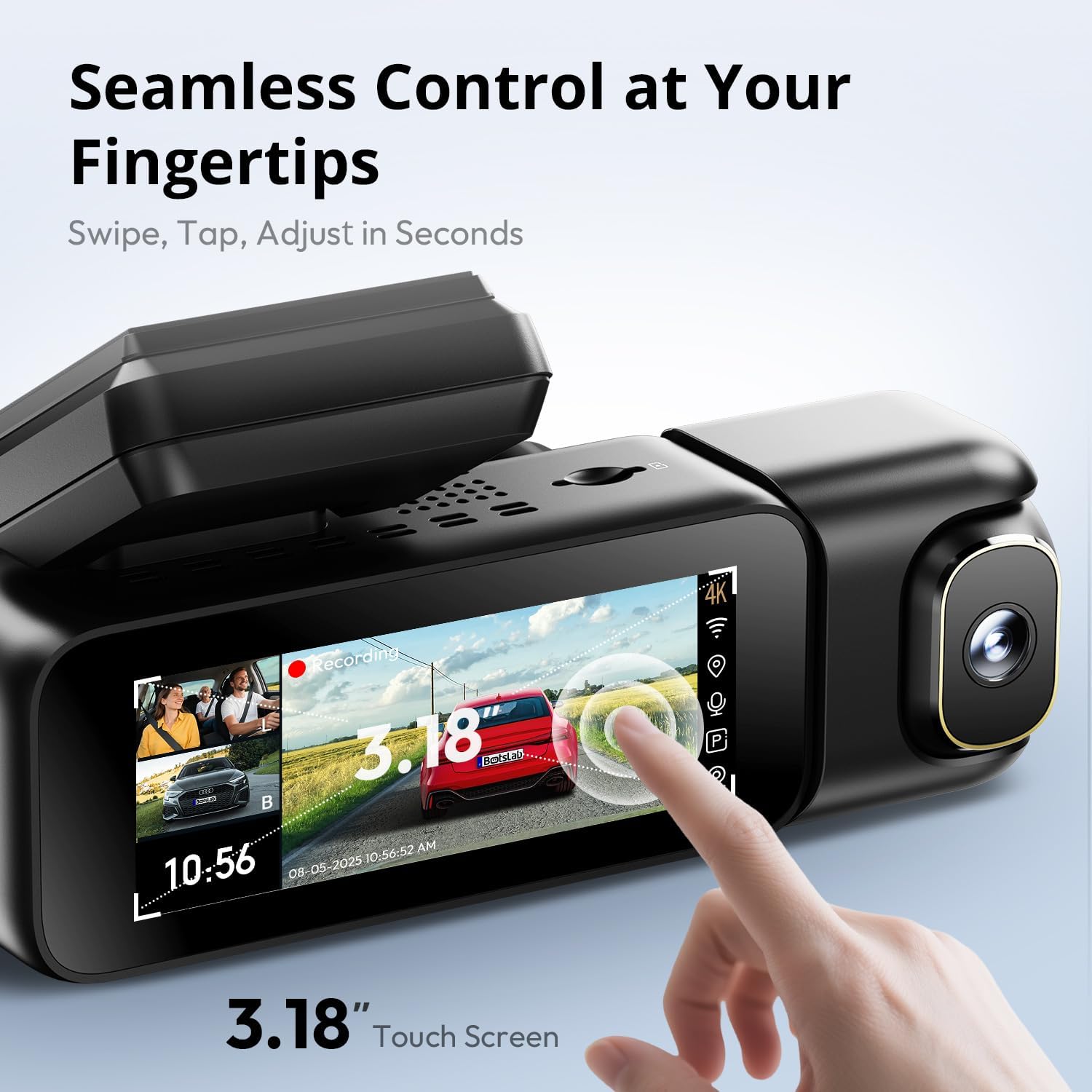
Image: A close-up of the dash cam's 3.18-inch touch screen, showing the live view from multiple cameras and on-screen controls for recording and settings.
Power On/Off:
- The dash cam will automatically power on and begin recording when your vehicle's ignition is turned on.
- It will automatically power off shortly after the ignition is turned off.
Recording:
- Normal Recording: The dash cam continuously records in a loop. When the MicroSD card is full, the oldest unlocked files are overwritten.
- Emergency Recording (G-Sensor): In the event of a sudden impact or collision, the built-in G-sensor will automatically detect the event and lock the current video segment (including 8 seconds prior to the event) to prevent it from being overwritten.
Screen Operation:
- The 3.18-inch touch screen allows you to navigate menus, adjust settings, and view live footage or recorded videos.
- Swipe and tap gestures are used for control.
6. Advanced Features
Voice Control:
Operate your dash cam hands-free using voice commands for safer driving. The dash cam responds to specific phrases.
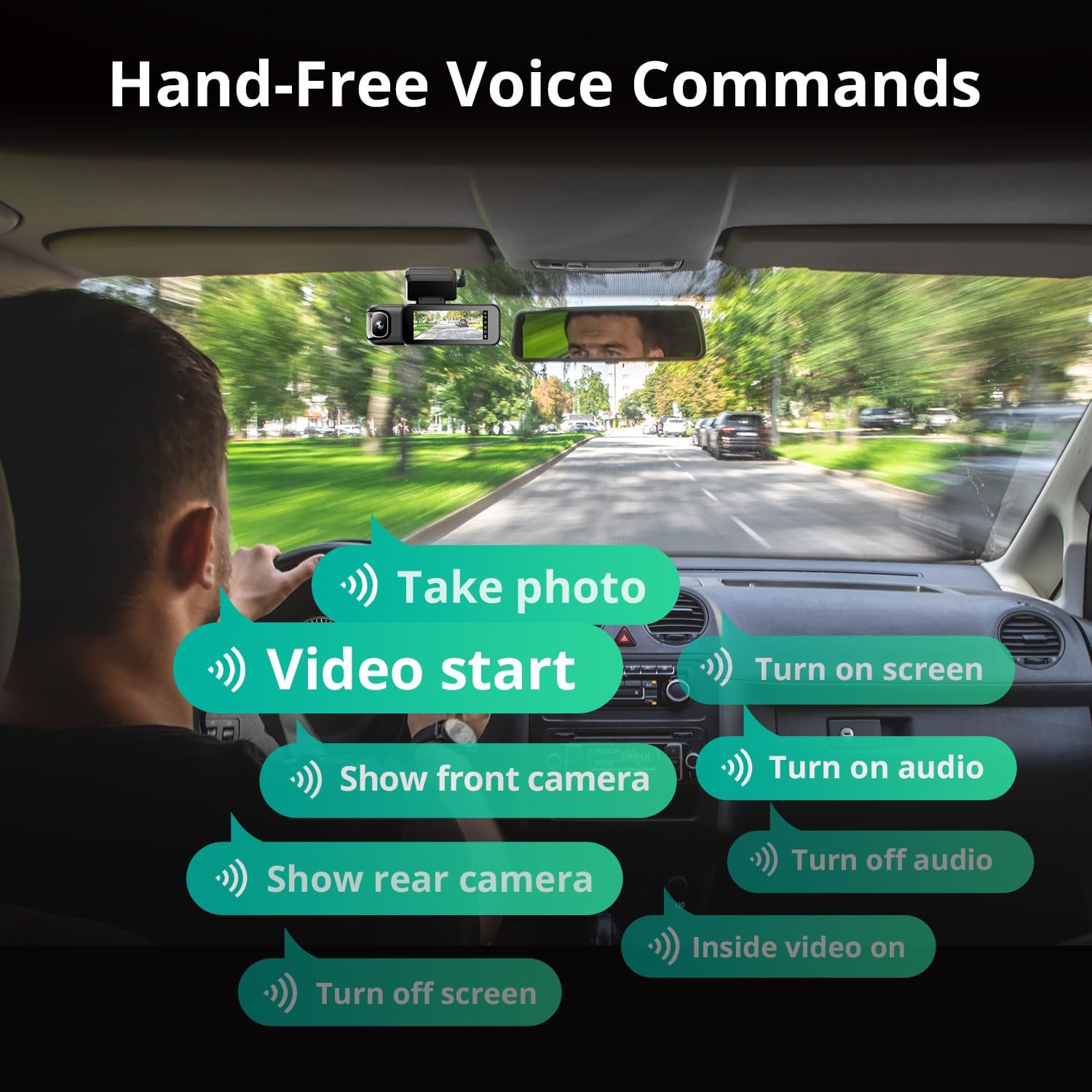
Image: A visual guide to the available voice commands, such as "Take photo," "Video start," "Turn on screen," "Show front camera," "Show rear camera," "Turn on audio," "Turn off audio," "Inside video on," and "Turn off screen."
Common voice commands include:
- "Take photo"
- "Video start"
- "Turn on screen"
- "Show front camera"
- "Show rear camera"
- "Turn on audio"
- "Turn off audio"
- "Inside video on"
- "Turn off screen"
24/7 Parking Monitor:
The dash cam offers continuous surveillance when your vehicle is parked. A hardwire kit (ASIN: B0FH2H9DDB) is required for this functionality.
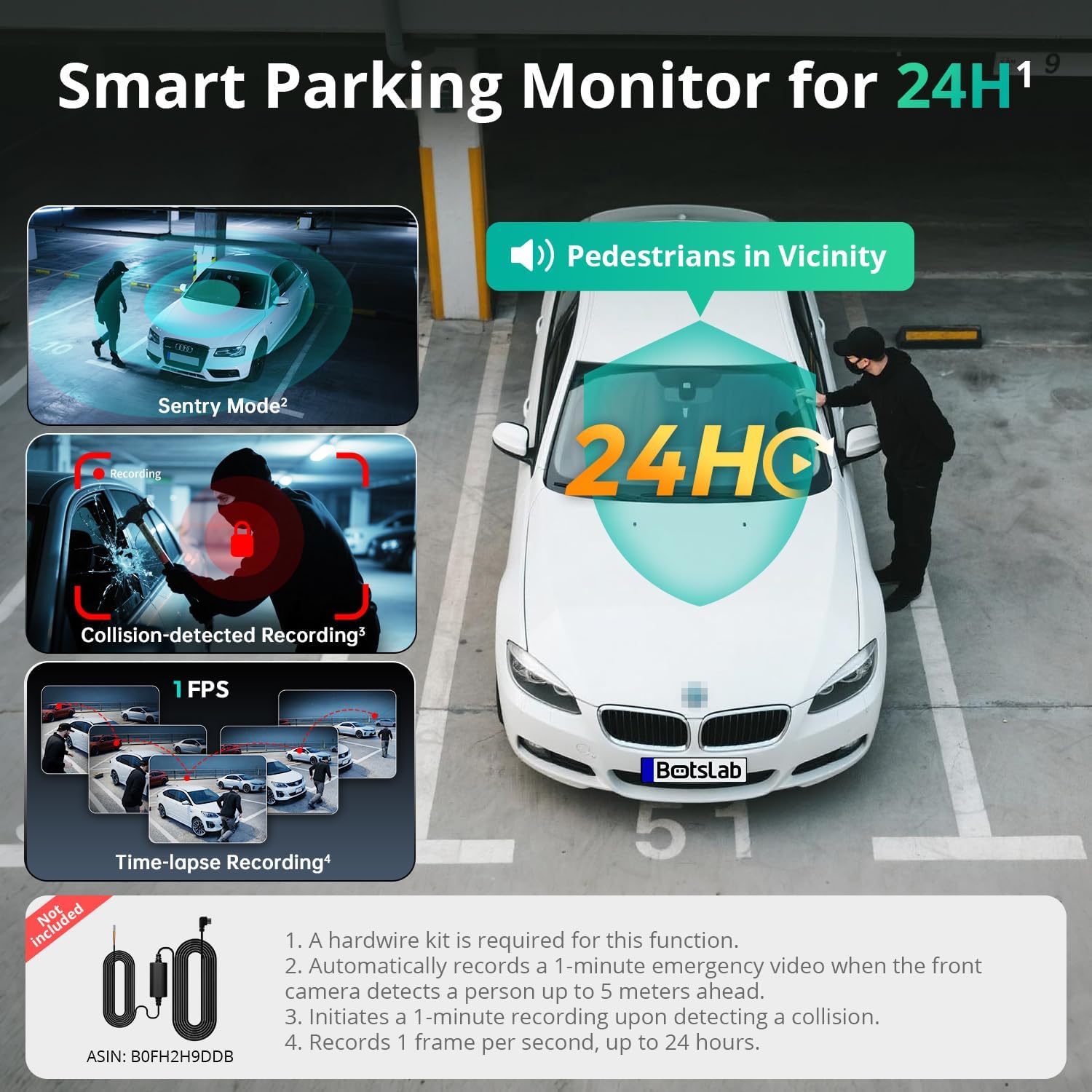
Image: An illustration of the three parking monitor modes: Sentry Mode (detects people within 5 meters), Collision-detected Recording (locks footage on impact), and Time-lapse Recording (1 frame per second for extended surveillance).
Available modes:
- Sentry Mode: Automatically records a 1-minute emergency video when the front camera detects a person within 5 meters.
- Time-Lapse: Records at 1 frame per second for extended surveillance, up to 24 hours.
- Collision Detection: Locks 1-minute footage upon detecting an impact.
Built-in GPS:
The integrated GPS module records your vehicle's speed, location, and driving routes. This data can be viewed via Google Maps integration through the BOTSLAB App or a dedicated PC player.

Image: A visual showing the dash cam's built-in GPS functionality, displaying recorded routes, speed, and location data integrated with Google Maps on a smartphone and computer.
5.8GHz Wi-Fi & BOTSLAB App:
Connect your dash cam to the BOTSLAB App on your smartphone via 5.8GHz (or 2.4GHz) Wi-Fi for fast file transfers, live view, settings configuration, video editing, and sharing.

Image: An illustration demonstrating the 5.8GHz Wi-Fi capability for 5X faster file transfer speeds, enabling quick preview and playback of recorded videos on a smartphone.

Image: Screenshots of the Botslab App interface on a smartphone, showing options to capture, edit, and share video footage, as well as a timeline for video playback and management.
Image: A smartphone displaying the Botslab App icon, with logos for Google Play and the App Store, indicating where to download the application.
To use the app:
- Download the BOTSLAB App from the Google Play Store or Apple App Store.
- Register and sign in to your account.
- Follow the in-app instructions to connect your dash cam via Wi-Fi.
7. Maintenance
- Clean the Lenses: Regularly clean the camera lenses with a soft, lint-free cloth to ensure clear video quality.
- MicroSD Card: Format the MicroSD card periodically (e.g., once a month) through the dash cam's settings to maintain optimal performance and prevent data corruption. Back up any important files before formatting.
- Firmware Updates: Check for firmware updates via the BOTSLAB App to ensure your dash cam has the latest features and improvements.
- Temperature: Avoid exposing the dash cam to extreme temperatures for prolonged periods when not in use. The supercapacitor design supports a wide operating temperature range of -20°C to 70°C.
8. Troubleshooting
| Problem | Possible Cause | Solution |
|---|---|---|
| Dash cam does not power on. | No power supply; faulty car charger; loose connection. | Check car charger connection; try a different 12V outlet; ensure vehicle ignition is on. |
| Recording stops or freezes. | MicroSD card error; card full; incompatible card. | Format the MicroSD card; replace with a high-quality U3 or higher speed card; ensure card capacity is supported (up to 512GB). |
| Poor video quality. | Dirty lens; protective film still on lens; incorrect resolution settings. | Clean lenses; remove any protective films; check video resolution settings in the menu. |
| Wi-Fi connection issues. | Incorrect password; distance from phone; app issues. | Ensure correct Wi-Fi password; keep phone close to dash cam; restart app and dash cam. |
| Voice control not responding. | Loud environment; incorrect commands; microphone obstructed. | Speak clearly and directly to the dash cam; ensure correct commands are used; check for obstructions near the microphone. |
| Parking monitor not working. | Hardwire kit not installed; incorrect settings. | Ensure the hardwire kit (ASIN: B0FH2H9DDB) is correctly installed; verify parking monitor settings are enabled. |
9. Specifications
| Feature | Detail |
|---|---|
| Model Name | G980H 3 Channel Dashcam |
| Front Camera Resolution | 4K (2160p) |
| Rear/Cabin Camera Resolution | 1080P |
| Field of View | Front: 170°, Rear: 150°, Cabin: 120° |
| Display | 3.18" Touch Screen |
| Connectivity | 2.4/5.8GHz Wi-Fi |
| GPS | Built-in GPS |
| Storage | Supports up to 512GB MicroSD card (128GB included) |
| Power Source | Supercapacitor |
| Operating Temperature | -20°C to 70°C (-4°F to 158°F) |
| Dimensions | 3.5 x 3.5 x 1.18 inches |
| Item Weight | 1.78 pounds |
10. Warranty & Support
BOTSLAB is committed to providing excellent customer service and support for your product.

Image: An overview of Botslab Care services, including 365-day professional service, lifetime technical help, 30-day free returns, and 24/7 customer support.
Image: Contact information for Botslab support, including the Botslab APP, global.botslab.com, service@botslab.com, and Botslab Users Group on Facebook.
- Warranty: Your BOTSLAB G980H Dash Cam comes with a comprehensive 12-month warranty.
- Technical Support: Lifetime technical support is available for all BOTSLAB products.
- Contact Support: If you encounter any issues or have questions, please contact us through the Amazon Message Center or via the following channels:
- BOTSLAB App: Download the app, then navigate to Me > Support.
- Website: Visit global.botslab.com
- Email: service@botslab.com
- Community: Join the Botslab Users Group on Facebook.
Ask a question about this manual
Ask about setup, troubleshooting, compatibility, parts, safety, or missing instructions. Manuals+ will review the question and use this page’s manual context to help answer it.