
1. Introduction
This manual provides detailed instructions for the installation, operation, and maintenance of your Hiseeu 4G LTE Cellular Security Camera Solar Powered, Model TDK04U. Please read this manual thoroughly before using the product to ensure proper functionality and safety. This camera is designed for outdoor surveillance in areas without Wi-Fi access, utilizing a 4G cellular network and solar power for continuous operation.
2. Product Overview
2.1 What's in the Box
- Camera
- Charging Cable
- Instruction Manual
- Solar Panel
2.2 Key Features
- 4G Cellular Connectivity: Operates exclusively on 4G LTE networks, ideal for remote locations without Wi-Fi. (Data plan required after trial period).
- Solar Powered: Equipped with a solar panel to keep the camera battery charged, ensuring uninterrupted surveillance.
- Always-on Video (AOV): Records continuously by capturing frames at intervals, compiling them into a smooth video timeline. Automatically switches to standard recording upon motion detection.
- 2K HD Video & Color Night Vision: Delivers clear 2K full HD video day and night. Four built-in spotlights provide full-color night vision up to 48 ft.
- PIR Motion Detection & AI Analysis: Highly sensitive PIR sensor with AI technology for accurate human motion detection and instant notifications.
- 360° Pan & 90° Tilt: Offers a wide viewing angle with 355° horizontal pan and 90° vertical tilt.
- Two-Way Talk: Built-in microphone and speaker for real-time communication via the app.
- Pre-Installed 64GB SD Card: Provides local storage for plug-and-play security. Expandable up to 128GB.
- IP66 Weatherproof: Designed to withstand temperatures from -4°F to 122°F and various weather conditions.
3. Setup Guide
3.1 Physical Installation
Before installation, ensure the camera is fully charged using the provided USB-C cable or by exposing the solar panel to direct sunlight for several hours. The camera comes with a pre-installed 64GB SD card and a trial 4G data plan.
- Mounting the Solar Panel: Attach the solar panel to its mounting bracket using the provided screws. Choose a location that receives maximum direct sunlight throughout the day.
- Mounting the Camera: The camera's mounting bracket slides off for easy installation. Secure the bracket to a solid surface (e.g., wooden fence, wall) using the appropriate screws. Ensure the bracket is oriented correctly for the desired camera angle.
- Connecting Solar Panel to Camera: Plug the USB-C cable from the solar panel into the camera's charging port. Ensure the connection is secure and weatherproof.
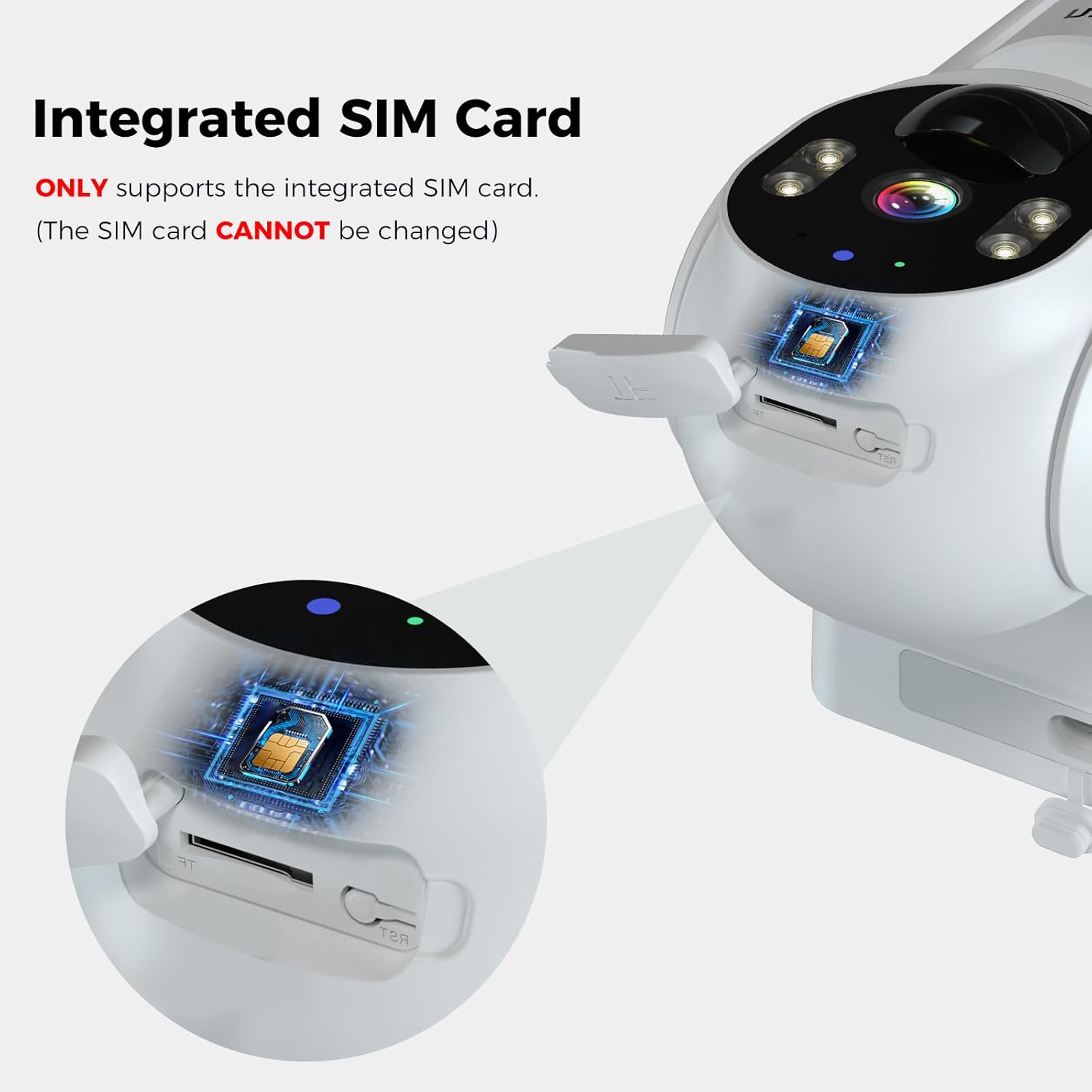
Image: Hiseeu 4G LTE Cellular Security Camera with Solar Panel. The camera is shown mounted with its solar panel, illustrating the connection.

Image: Hiseeu 4G LTE Cellular Security Camera mounted on a tree. This image demonstrates a typical outdoor installation scenario for the camera and its solar panel.
3.2 App Setup and Data Plan Activation
The Hiseeu camera uses the EseeCloud app for remote monitoring and control. Download the app from your device's app store (iOS or Android).
- Download the App: Search for "EseeCloud" in the App Store (iOS) or Google Play Store (Android) and install it.
- Register/Log In: Open the EseeCloud app and follow the on-screen instructions to register a new account or log in if you already have one.
- Add Camera: In the app, select the option to add a new device. Scan the QR code located on the camera body or its packaging.
- Activate Data Plan: The camera includes a trial data plan. After the trial, you will need to purchase a cellular data plan directly through the EseeCloud app to keep the camera online. The camera only supports Hiseeu's 4G data plans.

Image: Hiseeu 4G Cellular Data Plan options. This image displays the available data plans for the Hiseeu 4G LTE Cellular Security Camera, including monthly and annual options.

Image: Integrated SIM Card in Hiseeu 4G LTE Cellular Security Camera. This image highlights the integrated SIM card slot, emphasizing that the camera only supports the integrated SIM card and it cannot be changed.
Video: Hiseeu 4G LTE Cellular Security Camera Features. This video demonstrates key features of the Hiseeu 4G LTE cellular security camera, including 2K HD video, night vision, motion detection, two-way audio, solar power, IP66 weather resistance, and 360° pan/tilt functionality.
4. Operating Instructions
4.1 Live View and Playback
Access the EseeCloud app to view live footage from your camera. You can also review recorded events stored on the 64GB SD card or cloud storage (if subscribed).
4.2 Pan and Tilt Control
Use the directional controls within the EseeCloud app to remotely adjust the camera's viewing angle. The camera supports 355° horizontal pan and 90° vertical tilt for comprehensive coverage.

Image: Hiseeu 4G LTE Cellular Security Camera with 360 degree viewing angle. This image illustrates the camera's 355° pan and 90° tilt capabilities, providing a wide area of coverage.
4.3 Motion Detection and Alerts
The camera features PIR motion detection with AI analysis to identify human movement. When motion is detected, you will receive instant push notifications on your smartphone. You can adjust sensitivity settings in the app to minimize false alarms.

Image: Hiseeu 4G LTE Cellular Security Camera motion detection and push notifications. This image shows the camera detecting human motion and sending an alert to a smartphone, highlighting the siren and two-way talk features.
4.4 Two-Way Talk
Utilize the two-way talk feature in the EseeCloud app to communicate with individuals near the camera. This is useful for deterring intruders or simply interacting with visitors.

Image: Hiseeu 4G LTE Cellular Security Camera with Two-Way Audio. This image shows a user communicating through the camera via a smartphone app, demonstrating the two-way audio feature.
4.5 Night Vision
The camera provides 2K HD video with both full-color night vision (using built-in spotlights) and infrared night vision for clear visibility in low-light conditions.

Image: Hiseeu 4G LTE Cellular Security Camera with Crystal-clear Night Vision. This image demonstrates the camera's ability to provide clear, full-color details at night using its built-in spotlights, as well as infrared night vision.
4.6 Always-on Video (AOV)
The AOV mode ensures continuous recording by capturing frames at regular intervals, creating a comprehensive video timeline. This mode consumes less power than traditional continuous recording. Upon detecting motion, the camera automatically switches to standard recording for detailed capture.

Image: Hiseeu 4G LTE Cellular Security Camera Always-on Video mode. This image illustrates the camera's Always-on Video (AOV) feature, which captures images at intervals to create a continuous video timeline with low power consumption.
5. Maintenance
- Clean Solar Panel: Regularly wipe the solar panel with a soft, damp cloth to remove dust, dirt, or debris that may reduce charging efficiency.
- Check Connections: Periodically inspect all cable connections, especially the solar panel to camera connection, to ensure they are secure and free from damage.
- Battery Health: Monitor battery levels via the app. Ensure the solar panel receives adequate sunlight to maintain optimal battery performance.
- Software Updates: Keep the EseeCloud app and camera firmware updated to benefit from the latest features and security enhancements.
6. Troubleshooting
- Camera Offline: Check 4G signal strength in the app. Ensure the data plan is active and not expired. Verify the camera is powered on and the solar panel is charging effectively.
- No Motion Alerts: Confirm motion detection is enabled in the app settings. Adjust PIR sensitivity. Ensure the camera's view is not obstructed.
- Poor Video Quality: Check the camera lens for dirt or condensation. Ensure adequate lighting for night vision. Verify network signal strength.
- App Issues: Restart the app or your smartphone. Ensure the app is updated to the latest version. If issues persist, try reinstalling the app.
- Reset Camera: If experiencing persistent issues, long-press the "Reset" button on the camera (located under the rubber tab) to restore factory settings. Re-add the camera to the app after resetting.
7. Specifications
| Feature | Specification |
|---|---|
| Brand | Hiseeu |
| Model Name | Solar Security Cameras Wireless Outdoor (TDK04U) |
| Connectivity Technology | 4G LTE Cellular (Wireless) |
| Recommended Uses | Outdoor Security, Surveillance (360 Degree Coverage) |
| Special Features | HD Resolution, Motion Sensor, Night Vision (Night Color), PT Technology (Pan/Tilt), Weather Proof |
| Indoor/Outdoor Usage | Outdoor |
| Compatible Devices | Desktop, Laptop, Smartphone, Tablet |
| Controller Type | Amazon Alexa, SmartThings |
| Mount Type | Wall Mount |
| Color | White |
| Form Factor | Dome |
| Water Resistance Level | IP66 (Water Resistant) |
| Light Source | Infrared+LED |
| Video Encoding | H.265 |
| Video Capture Format | MPEG-4 |
| Flash Memory Installed Size | 64 GB (Micro SD) |
| Flash Memory Supported Size Maximum | 128 GB |
| Power Source | Solar Powered |
| Video Capture Resolution | 3K |
| Viewing Angle | 100 Degrees |
| Item Dimensions | 6.89 x 4 x 6.69 inches |
8. Warranty and Support
Hiseeu offers a 30-day free return policy and a product warranty. For any technical assistance, lifetime tech support is available. You can also find support by scanning the QR code below:


