
1. Product Overview
The QRD Spark N5 is a versatile wireless gaming controller designed for a wide range of platforms. It features advanced technologies such as Hall Effect joysticks and analog triggers for precise control, a 6-axis gyroscope for motion sensing, dual vibration feedback, a multi-function touchpad, and programmable macro back paddles. This manual provides detailed instructions for setup, operation, maintenance, and troubleshooting.

Image 1.1: QRD Spark N5 Wireless Controller and USB dongle.
2. Setup and Connection
2.1. Compatibility
The QRD Spark N5 controller is compatible with PS5, PS5 Slim, PS5 Pro, PS4, PS4 Slim, PS4 Pro, PS3, PS2, Steam Deck, PC (Windows, macOS), iOS, and Android TV boxes/phones.

Image 2.1: QRD Spark N5 Wireless Controller multi-platform compatibility.
2.2. Connecting to PS5
To use the QRD Spark N5 with a PS5 console, ensure the 'Use USB cable' setting is enabled on your PS5. This setting only needs to be turned on once and does not affect Bluetooth connections.
- On your PS5, navigate to Settings (gear icon) and then select Accessories.
- In the Accessories menu, find Controller (General) and open Communication Method.
- Check the 'Use USB Cable' option.
- Plug the BlackPill USB adapter into an empty USB port on your PS5. The LED indicator light on the BlackPill will start flashing.
- While the controller is turned off, press and hold the 'Q' and 'SHARE' buttons simultaneously until the controller's LED light starts flashing.
- Press and hold the 'PAIR' button on the BlackPill adapter until its LED light flashes faster.
- The BlackPill adapter and the controller will pair automatically. The controller may turn off after pairing. Press the 'Q' button to reconnect to the PS5.
Video 2.2: Demonstrates the steps to connect and set up the QRD Spark N5 controller with a PS5 console using the BlackPill adapter.
2.3. Connecting to PC (Windows/macOS)
The controller can be connected to a PC via USB cable or wirelessly via Bluetooth V5.3 (if your PC has Bluetooth capability).
- Wired Connection: Connect the controller to your PC using a USB-C cable. The controller should be recognized automatically. The status lights will illuminate green.
- Wireless Connection (Bluetooth): Hold the 'HOME' and 'SHARE' buttons until the lights flash. On your PC, go to Bluetooth settings and select 'DUALSHOCK 4 Wireless Controller' to pair.
- You can switch between X-input (default for PC) and D-input modes by holding the 'SHARE' and 'OPTIONS' buttons for 3 seconds.
2.4. Connecting to Mobile Devices (iOS/Android)
To connect the controller to a smartphone or tablet:
- Hold the 'HOME' and 'SHARE' buttons on the controller until the lights start flashing.
- On your mobile device, enable Bluetooth and search for available devices.
- Select 'DUALSHOCK 4 Wireless Controller' from the list to pair. Once paired, the lights will stop flashing.
Video 2.4: Demonstrates connecting the QRD Spark N5 controller to a smartphone and testing its touchpad functionality in a game.
Video 2.5: Guide on how to connect the QRD Spark N5 to various gaming platforms.
3. Operating Instructions
3.1. Hall Effect Joysticks and Analog Triggers
The controller features Hall Effect joysticks and analog triggers, providing precise control and quick response. This technology minimizes stick drift and enhances durability.

Image 3.1: Internal view of a Hall Effect joystick.

Image 3.2: Hall Sensing Analog Triggers with high precision.
3.2. Multi-Function Touchpad
The integrated touchpad supports various gestures and functions, similar to PS4 controllers, enhancing gameplay and navigation in compatible games.
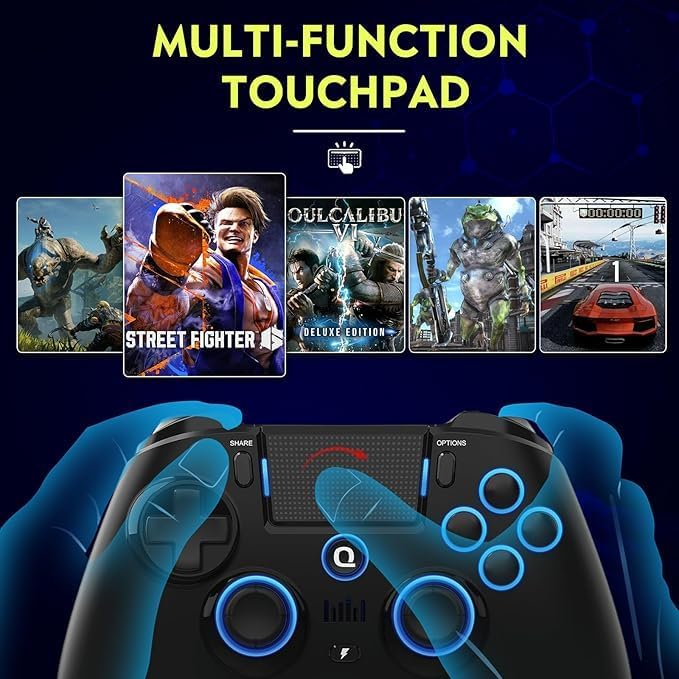
Image 3.3: Multi-function touchpad in action.
3.3. Macro and Turbo Functions
The controller includes two programmable macro back paddles (N1 & N2) and a Turbo function. These allow players to assign complex sequences or rapid button presses to a single input.
- Macro: Assign tedious or hard-to-memorize shortcuts to N1 or N2.
- Turbo: Enable auto or manual turbo mode for any key, with customizable speed settings (3 different gears).

Image 3.4: Macro back paddles N1 and N2.
Video 3.5: Demonstration of powerful macro programming without software.
3.4. 6-Axis Gyroscope
The built-in 6-axis gyroscope supports motion sensing, allowing for intuitive control in compatible games, particularly for aiming and navigation.
3.5. Dual Vibration Feedback
Experience immersive gameplay with adjustable dual vibration motors. Customize vibration intensity for various in-game events like explosions, collisions, and shooting.

Image 3.6: Dual vibration shock feature.
3.6. LED Lighting
The controller features customizable LED lighting around the joysticks and face buttons, offering various color options and modes.
4. Maintenance
4.1. Factory Reset
If the controller experiences issues such as unresponsive buttons or charging problems, a factory reset may resolve them.
- Ensure the controller is powered ON.
- Locate the hidden 'Reset' button on the back of the controller (usually a small pinhole).
- Use a small pin or needle to gently press the 'Reset' button.
Video 4.1: Instructions on how to restore factory settings if the controller fails to charge or has other issues.
4.2. Trigger Calibration
To manually calibrate the triggers for optimal performance:
- While the controller is turned off, hold down the 'TURBO' + 'OPTION' + 'HOME' buttons for 3 seconds to enter the calibration settings menu. The HOME LED will flash yellow.
- Press the 'X' button to turn off automatic calibration and proceed with manual calibration.
- Rotate the Right Stick (RS) and Left Stick (LS) slowly, fully touching the ring corners 3 times each.
- Fully press and release the R2 and L2 triggers 3 times each.
- Once calibration is complete, the controller will vibrate once.
- For Gyro calibration, place the controller on a flat and stable surface, then press the 'OPTION' button. Once Gyro calibration is finished, the controller exits settings and returns to standby.
Video 4.2: Guide on how to manually calibrate the triggers on the QRD Spark N5 controller.
5. Troubleshooting
- Controller not connecting: Ensure the controller is fully charged. For PS5, verify 'Use USB cable' is enabled in settings. For wireless connections, ensure the controller is in pairing mode (flashing lights) and your device's Bluetooth is on. Try resetting the controller to factory settings.
- Buttons unresponsive: Perform a factory reset. If the issue persists, contact customer service.
- Charging issues: Ensure you are using the provided USB-C cable or a compatible one. Try a different charging port or power source. If charging still fails, perform a factory reset.
- Stick drift: The Hall Effect joysticks are designed to prevent stick drift. If you experience this, try calibrating the triggers and joysticks as described in Section 4.2.
6. Specifications
- Model: Spark N5
- Brand: QRD
- Connectivity: Wireless (Bluetooth V5.3), Wired (USB-C)
- Compatibility: PS5, PS4, PS3, PS2, Steam Deck, PC (Windows, macOS), iOS, Android TV Box/Phone
- Special Features: Hall Effect Joysticks, Hall Sensing Analog Triggers, 6-Axis Gyroscope, Dual Vibration, Multi-function Touchpad, Programmable Macro Back Paddles (N1 & N2), Turbo Function, Customizable LED Lighting
- Item Weight: 14.4 ounces
- Package Dimensions: 7.4 x 5.31 x 2.68 inches
7. Warranty and Support
For any issues or inquiries regarding your QRD Spark N5 Wireless Controller, please refer to the official QRD website or contact customer service for assistance. Specific warranty details are typically provided with your product packaging or on the manufacturer's website.


