
1. Introduction
The ENOMIR Wireless CarPlay and Android Auto Adapter provides a seamless wireless connection for your smartphone to your car's infotainment system. This device eliminates the need for cables, offering convenience and a tidy vehicle interior. It supports both Apple CarPlay and Android Auto, automatically detecting your device's operating system for a smooth user experience.
This manual provides detailed instructions for setting up, operating, and maintaining your adapter, along with troubleshooting tips and product specifications.
2. Setup Instructions
Setting up your ENOMIR Wireless Adapter is a straightforward process designed for quick integration with your vehicle.
2.1 Initial Connection
- Locate USB Port: Identify the USB-A or USB-C data port in your vehicle. This is typically the port used for wired CarPlay or Android Auto.
- Insert Adapter: Plug the ENOMIR Wireless Adapter into the vehicle's USB data port. The adapter is designed for a flush fit.
- Power On: Once plugged in, the adapter will power on, indicated by a green LED light. Your car's infotainment screen should display a message indicating a connection attempt or a prompt to connect.

Image: The ENOMIR Wireless Adapter inserted into a vehicle's USB-A port, showing its compact design and connection indicator.

Image: Visual guide demonstrating the four-step pairing process for the wireless adapter.
2.2 Pairing Your Smartphone
- Enable Wireless Functions: On your smartphone, ensure both Wi-Fi and Bluetooth are enabled. Do not manually connect to the adapter's Wi-Fi network at this stage.
- Bluetooth Pairing: On your phone, go to Bluetooth settings and search for available devices. Select the device named "Smartbox-XXXX" (where XXXX is a unique identifier).
- Confirm Pairing: A pairing request will appear on your phone and potentially on your car's screen. Confirm the pairing by entering the displayed code if prompted.
- Automatic Connection: After successful Bluetooth pairing, your phone will automatically establish a Wi-Fi connection with the adapter, and either CarPlay or Android Auto will launch on your car's display.
Once paired, the adapter will automatically reconnect to your phone each time you enter the vehicle, provided your phone's Bluetooth and Wi-Fi are active.
3. Operating Instructions
The ENOMIR Wireless Adapter provides a seamless and interactive experience, mirroring your smartphone's interface onto your car's display.
3.1 Automatic Reconnection
After the initial setup, the adapter is designed to automatically reconnect to your previously paired smartphone within approximately 3 seconds of starting your vehicle. This ensures a quick and hassle-free start to your journey.

Image: The adapter automatically reconnecting to a smartphone as the user approaches the vehicle.
3.2 Using Voice Assistants
Access your smartphone's voice assistant (Siri for Apple CarPlay, Google Assistant for Android Auto) directly through your car's microphone and speakers. This allows for hands-free control of navigation, calls, messages, and music.
- Activate Siri: Say "Hey Siri" or press the voice command button on your steering wheel.
- Activate Google Assistant: Say "Hey Google" or press the voice command button on your steering wheel.

Image: A driver using voice commands to interact with their smartphone's assistant via the car's system.

Image: Multiple users interacting with AI voice assistants for various commands while driving.
3.3 Car Control Integration
The adapter maintains compatibility with your vehicle's original control methods, allowing you to interact with CarPlay or Android Auto using:
- Touch Screen: Directly interact with the car's display if it is touch-enabled.
- Control Knob: Use the vehicle's central control knob for navigation and selection.
- Steering Wheel Buttons: Utilize existing steering wheel controls for audio, calls, and voice commands.

Image: Demonstrating compatibility with various car control interfaces, including knob, touch screen, and steering wheel buttons.
4. Compatibility
The ENOMIR Wireless Adapter is designed for broad compatibility with a range of smartphones and vehicles.
4.1 Smartphone Compatibility
- Apple CarPlay: Compatible with iPhone 6 or later models running iOS 10 or later.
- Android Auto: Compatible with Android phones running Android 11 or later.

Image: Visual representation of smartphone compatibility for both Apple CarPlay and Android Auto.
4.2 Vehicle Compatibility
The adapter is compatible with over 300 car models that support wired CarPlay or Android Auto from the factory. For a detailed list of compatible vehicles, please refer to the official CarPlay and Android Auto websites:

Image: Overview of vehicle compatibility, suggesting a wide range of supported car models.
Note: Your vehicle must have a factory-installed wired CarPlay or Android Auto system for this adapter to function.
5. Maintenance
The ENOMIR Wireless Adapter requires minimal maintenance to ensure optimal performance and longevity.
- Cleaning: Gently wipe the adapter with a soft, dry cloth to remove dust or smudges. Avoid using liquid cleaners or abrasive materials.
- Storage: When not in use for extended periods, store the adapter in a cool, dry place away from direct sunlight and extreme temperatures.
- Handling: Handle the adapter with care. Avoid dropping it or subjecting it to strong impacts, which could damage internal components.
- Connection Integrity: Ensure the USB connection port in your vehicle is clean and free of debris to prevent connection issues.
6. Troubleshooting
If you encounter issues with your ENOMIR Wireless Adapter, please refer to the following common solutions:
6.1 Connection Issues
- Adapter Not Connecting:
- Ensure the adapter is fully inserted into the car's USB data port.
- Verify that your car supports wired CarPlay or Android Auto natively.
- Check if your phone's Bluetooth and Wi-Fi are enabled.
- Try unplugging the adapter and plugging it back in.
- Restart your phone and your car's infotainment system.
- Frequent Disconnections:
- Ensure your phone is within close proximity to the adapter and not obstructed.
- Check for any potential interference from other wireless devices.
- If using an extension cable, ensure it is securely connected and not damaged. The product includes two extension cables if needed.
- Update your phone's operating system to the latest version.
- Automatic Reconnection Failure:
- If the adapter does not automatically reconnect, try toggling your phone's Wi-Fi off and then back on. This often resolves the issue.
- Ensure the adapter is not being unplugged and replugged frequently, which can sometimes disrupt the auto-connect feature.
6.2 Performance Issues
- Lag or Delay:
- Ensure your phone is not running too many background applications.
- Check your phone's signal strength, especially for navigation apps.
- The adapter uses dual-band Wi-Fi (2.4G/5.8Ghz) and Bluetooth 5.2 for stable connection. Ensure no other devices are heavily utilizing these frequencies nearby.
- Audio Quality:
- Verify that your car's audio system is functioning correctly.
- Ensure the volume on both your phone and car is appropriately set.
If these steps do not resolve your issue, please contact customer support for further assistance.
7. Specifications
| Feature | Detail |
|---|---|
| Model | 2025 Upgrade |
| Connectivity | Wireless CarPlay, Wireless Android Auto |
| Wireless Technology | Dual-band Wi-Fi (2.4G/5.8Ghz), Bluetooth 5.2 |
| Dimensions | 3.94 x 3.31 x 1.46 inches |
| Item Weight | 3.84 ounces |
| Power Source | Corded Electric (via car's USB port) |
| Compatible iPhone OS | iOS 10 or later (iPhone 6 or later) |
| Compatible Android OS | Android 11 or later |
| Included Accessories | USB to USB Extension Cable, USB to USB-C Data Cable |

Image: The compact adapter shown alongside the included USB to USB and USB to USB-C extension cables.
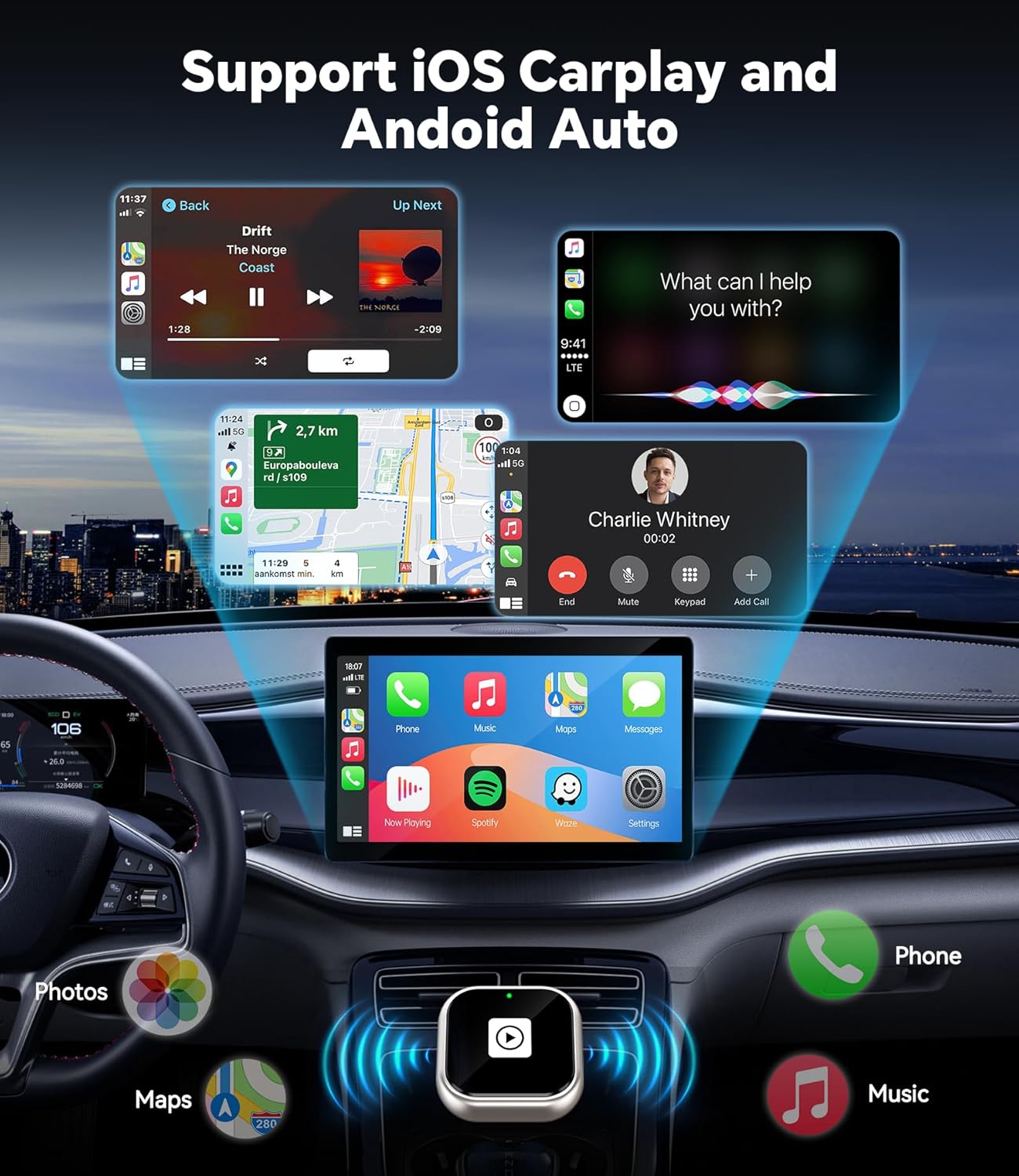
Image: Internal chip architecture of the adapter, emphasizing its 5.8GHz Wi-Fi and Bluetooth 5.2 capabilities for stable transmission.
8. Warranty and Support
ENOMIR is committed to providing high-quality products and excellent customer service.
- Warranty: This product is backed by a 3-year warranty from the date of purchase. This warranty covers manufacturing defects and ensures hassle-free unit replacement.
- Customer Service: For any questions, technical support, or warranty claims, please contact ENOMIR customer service. Our support team is available 24 hours a day, 7 days a week to assist you with troubleshooting and inquiries.
- Contact Information: Please refer to the contact details provided on the product packaging or the official ENOMIR website for the most current support channels.
We aim to make your experience with our technology as smooth and stress-free as possible.