
Lomiluskr B0FH1WJ5L5
Lomiluskr Wired Ergonomic Keyboard User Manual
Model: B0FH1WJ5L5
1. Introduction
Thank you for choosing the Lomiluskr Wired Ergonomic Keyboard. This manual provides essential information for setting up, operating, and maintaining your new keyboard. Designed for comfort and efficiency, this keyboard features a split ergonomic layout, an integrated PU wrist rest, and a reliable wired connection to enhance your typing experience.
Please read this manual thoroughly before using the product to ensure proper function and longevity.
2. Package Contents
Verify that all items are present in your package:
- Lomiluskr Wired Ergonomic Keyboard
- Detachable USB-C to USB-A Cable
- USB-A to USB-C Converter
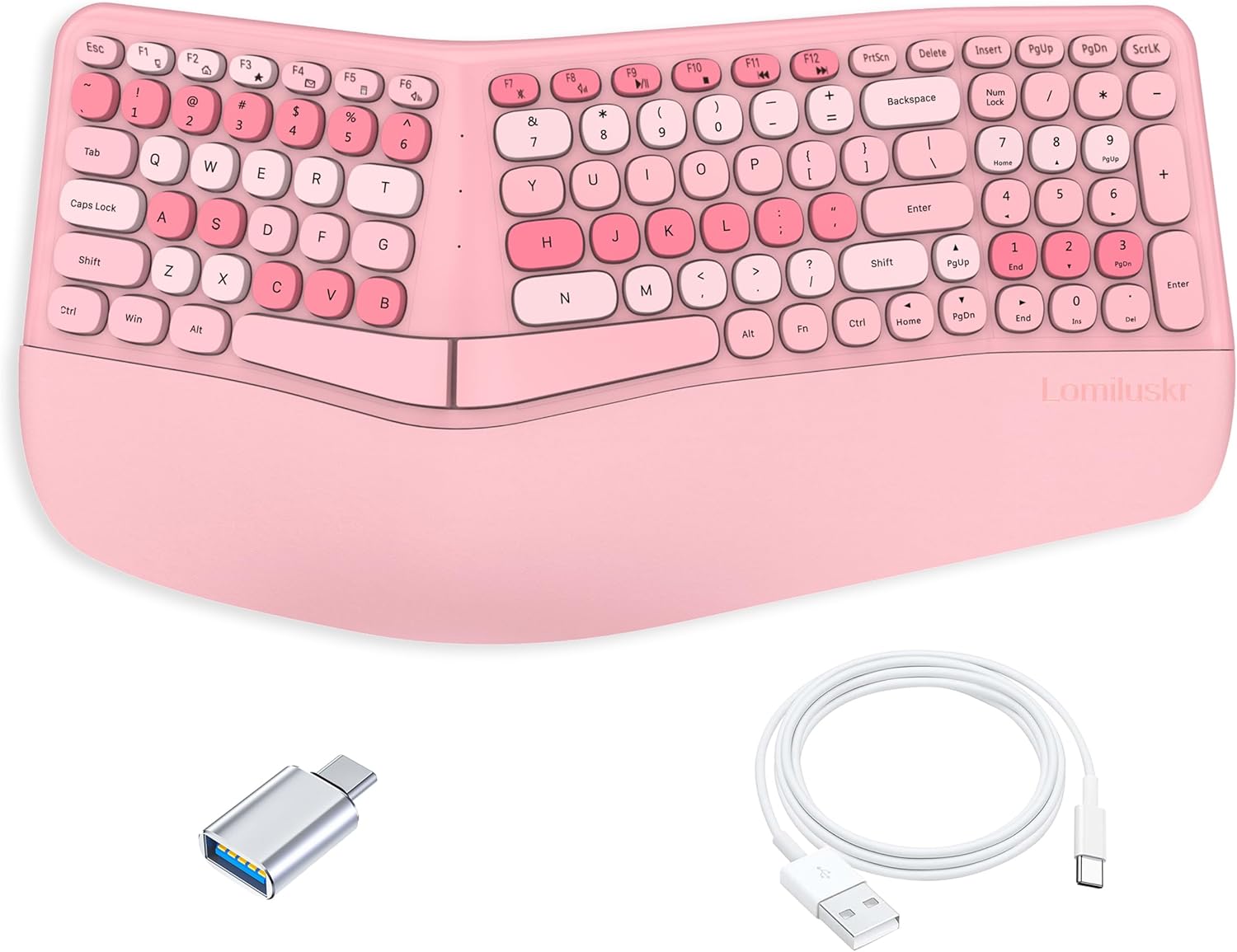
Image: Lomiluskr Wired Ergonomic Keyboard, showing the keyboard, detachable USB-C cable, and USB-A to USB-C converter.
3. Setup Instructions
The Lomiluskr Wired Ergonomic Keyboard is designed for plug-and-play functionality, requiring no additional driver installation for basic use.
- Connect the Cable: Insert the USB-C end of the provided cable into the USB-C port on the keyboard.
- Connect to Computer:
- If your computer has a USB-A port, connect the USB-A end of the cable directly to an available USB-A port on your PC or laptop.
- If your computer only has USB-C ports, attach the included USB-A to USB-C converter to the USB-A end of the cable, then plug the converter into an available USB-C port on your PC or laptop.
- System Recognition: Your operating system (Windows or Mac) should automatically detect and configure the keyboard. You can begin using the keyboard immediately.

Image: The Lomiluskr keyboard connected to a desktop computer, illustrating the plug-and-play connection.
4. Operating the Keyboard
4.1 Ergonomic Design and Typing Posture
This keyboard features a split and tilted design with a raised center and angled sides. This layout is intended to align your arms and hands in a more natural position, reducing wrist torsion and muscle strain in your wrists and forearms. The integrated PU wrist rest provides continuous support, promoting a neutral wrist posture during extended typing sessions.

Image: A user's hands resting on the split ergonomic keyboard, demonstrating a natural and comfortable typing posture.

Image: A visual comparison showing how the integrated PU palm rest helps reduce wrist fatigue and improve wrist posture.
4.2 Key Features
- Membrane Keys: The keyboard utilizes membrane keys, offering a shorter key stroke for easier and quieter typing.
- Integrated Wrist Rest: The high-quality PU leather wrist rest provides comfort and supports a neutral wrist posture.
- Colorful Keycaps: The keycaps feature a colorful design.

Image: A close-up view of the keyboard keys and hands typing, highlighting the thin, soundless, and comfortable key design.
4.3 Multimedia Shortcut Keys
The keyboard includes dedicated function keys (F1-F12) that provide quick access to multimedia and system functions. These functions are primarily available on Windows operating systems. For Mac users, only F6 (Volume Down), F7 (Mute), F8 (Volume Up), F9 (Play/Pause), F10 (Stop), F11 (Previous Song), and F12 (Next Song) are supported.
- F1: My Computer
- F2: Webhome
- F3: My Favorite
- F4: Email
- F5: Calculate
- F6: Volume Down
- F7: Mute
- F8: Volume Up
- F9: Play/Pause
- F10: Stop
- F11: Previous Song
- F12: Next Song

Image: A diagram illustrating the functions of the multimedia shortcut keys (F1-F12) and the location of indicator lights.
4.4 Indicator Lights
The keyboard features indicator lights for:
- Keypad Lock Indicator: Illuminates when the numeric keypad is active.
- Caps Lock Indicator: Illuminates when Caps Lock is active.
- Low Battery/Connection Indicator: (Note: This keyboard is wired and does not have a battery. This indicator may refer to connection status on some models or be a generic label.)
4.5 Numeric Keypad Layout Note
Please note that the layout of the numeric keypad on this ergonomic keyboard may differ from standard keyboards. Specifically, the '0' key is positioned differently and does not occupy two key spaces. Users accustomed to traditional numeric keypad layouts may require a brief adjustment period.
5. Maintenance and Care
To ensure the longevity and optimal performance of your keyboard, follow these maintenance guidelines:
- Cleaning: Use a soft, slightly damp cloth to wipe the surface of the keyboard and wrist rest. Avoid using harsh chemicals, abrasive cleaners, or excessive moisture.
- Dust Removal: Use compressed air to remove dust and debris from between the keys.
- Storage: Store the keyboard in a clean, dry environment away from extreme temperatures and direct sunlight.
- Cable Care: Avoid bending or twisting the cable excessively to prevent damage.
6. Troubleshooting
If you encounter issues with your Lomiluskr keyboard, refer to the following common solutions:
- Keyboard Not Responding:
- Ensure the USB cable is securely connected to both the keyboard and your computer.
- Try connecting the keyboard to a different USB port on your computer.
- If using the USB-A to USB-C converter, ensure it is properly attached and try a different converter if available.
- Restart your computer.
- Specific Keys Not Working:
- Check for any debris or obstructions under the non-functioning key.
- Test the keyboard on another computer to determine if the issue is with the keyboard or the computer's software/drivers.
- Numeric Keypad Issues:
- Ensure the Num Lock indicator light is on. Press the 'Num Lock' key to toggle it.
- Familiarize yourself with the unique layout of the numeric keypad, especially the '0' key placement, as it differs from standard keyboards.
7. Specifications
Technical specifications for the Lomiluskr Wired Ergonomic Keyboard:
| Feature | Detail |
|---|---|
| Model | B0FH1WJ5L5 |
| Brand | Lomiluskr |
| Connectivity Technology | USB-A (via detachable USB-C cable and converter) |
| Keyboard Description | Membrane |
| Special Feature | Ergonomic, Integrated PU Wrist Rest |
| Compatible Devices | Laptop, PC |
| Product Dimensions | 17.28"L x 9.17"W x 1.89"H (439 x 233 x 48 mm) |
| Item Weight | 1.84 pounds (836 g) |
| Number of Keys | 101 keys |
| Color | Pink |
| Recommended Use | Daily use |

Image: A diagram detailing the product dimensions (length, width, height) and weight of the Lomiluskr ergonomic keyboard.
8. Warranty and Support
Lomiluskr provides a product guarantee for this keyboard. All products are inspected for quality before shipping. If any quality issues arise with the product within one year of purchase, Lomiluskr offers a refund or a free replacement.
For any questions or support inquiries, please contact Lomiluskr customer service through the retailer where the product was purchased or refer to the contact information provided with your product packaging.
Ask a question about this manual
Ask about setup, troubleshooting, compatibility, parts, safety, or missing instructions. Manuals+ will review the question and use this page’s manual context to help answer it.