
ANFIER A8 & M3
ANFIER A8 Translator & M3 Translator Earbuds User Manual
Model: A8 & M3
Introduction
Welcome to the user manual for your ANFIER A8 Translator and M3 Translator Earbuds. These devices are designed to facilitate seamless communication across language barriers, offering both online and offline translation capabilities. The A8 is an independent handheld translator with a built-in screen, while the M3 is a compact pen-style translator. This manual provides essential information on setting up, operating, maintaining, and troubleshooting your devices to ensure optimal performance.

Image: The ANFIER A8 Translator and M3 Translator Earbuds, shown with their packaging. The A8 is a white device with earbuds, and the M3 is a gold and white pen-style translator.
The A8 translator earbuds offer a remarkable 144 online language translations and 16 offline language translations, providing high accuracy and a rapid response time of approximately 0.5 seconds. A key feature of the A8 is its independence from smartphones and applications, making it a standalone translation solution.

Image: A comparison illustrating that the innovative A8 translator does not require a phone or app, unlike other translator earbuds that typically require a phone and app for setup.
The M3 translator, a compact and portable device, supports 144 online languages with 98% accuracy and an impressive 0.01-second response time. It also features real-time two-way offline translation in 11 languages, making it ideal for situations without internet access.
Setup Guide
Initial Charging
Before first use, fully charge both the A8 translator device (including its earbuds) and the M3 translator. Use the provided USB-C cable and a compatible power adapter (not included).
- A8 Translator: Insert the USB-C cable into the charging port on the bottom of the A8 device. The charging indicator light will illuminate.
- M3 Translator: Insert the USB-C cable into the charging port on the side of the M3 device.
Powering On/Off
- A8 Translator: Press and hold the power button (usually on the side) for a few seconds until the screen lights up. To power off, press and hold the power button until a power-off option appears on the screen, then confirm.
- M3 Translator: Press and hold the power button (usually on the side) for a few seconds until the device vibrates or an indicator light appears. To power off, press and hold the power button until the device shuts down.
Connecting to Wi-Fi (A8 Translator)
For online translation, the A8 translator requires an internet connection.
- From the main screen, navigate to "Settings".
- Select "Wi-Fi" and turn it on.
- Choose your desired Wi-Fi network from the list.
- Enter the Wi-Fi password if prompted and connect.
Language Selection
Both devices allow you to select source and target languages.
- A8 Translator: On the main translation interface, tap on the language displayed to open the language selection menu. Choose your desired input and output languages.
- M3 Translator: Use the dedicated language selection buttons or navigate through the menu (if applicable) to set your source and target languages.

Image: The screen of the ANFIER A8 Translator displaying the language selection interface, showing options for various languages like English, Japanese, Korean, Russian, and Spanish.
Operating Instructions
Using the A8 Translator Earbuds
The A8 device functions as a standalone translator and also pairs with its included earbuds for a more immersive translation experience.
- Voice Translation Mode: Select "Voice Translation" on the A8 screen. Speak into the device's microphone, and it will translate and display the text, and optionally play the audio through its speaker or connected earbuds.
- Translator Earbuds Mode: Ensure the earbuds are charged and placed in the A8 device. Select "Translator Earbuds" mode. One earbud can be given to another person for two-way communication.
- Offline Translation: Select "Offline Translation" mode. This mode supports 16 languages without an internet connection. Ensure the necessary language packs are downloaded beforehand (if required).
- Chat AI: Explore the "Chat AI" feature for interactive language learning or conversational practice.

Image: Individuals utilizing the ANFIER A8 translator for offline translation in various settings, highlighting its capability to translate in 16 languages without an internet connection.
Using the M3 Translator
The M3 translator is designed for quick and accurate real-time translation.
- Online Translation: Connect the M3 to Wi-Fi or a mobile hotspot. Select your source and target languages. Press and hold the designated button (usually marked with a microphone icon) and speak clearly. Release the button to hear the translation.
- Offline Translation: The M3 supports real-time two-way offline translation in 11 languages. No internet is required for these specific language pairs. Simply select the languages and proceed with translation.

Image: The ANFIER M3 Translator, a sleek, pen-style device in gold and white, designed for portable translation.

Image: Two individuals engaging in real-time two-way offline translation using the ANFIER M3 translator, demonstrating its use in a travel setting. Supported offline languages are displayed.
Maintenance
Cleaning
- Wipe the devices with a soft, dry, lint-free cloth.
- Do not use abrasive cleaners, alcohol, or chemical solvents, as these may damage the surface or internal components.
- For earbuds, gently clean ear tips with a slightly damp cloth and ensure they are dry before placing back in the charging case.
Storage
- Store the devices in a cool, dry place away from direct sunlight and extreme temperatures.
- Keep them away from excessive dust or moisture.
Battery Care
- Charge the devices regularly, even if not in use, to maintain battery health. Avoid fully discharging the battery for extended periods.
- Use only the provided charging cable or a certified equivalent.
Troubleshooting
| Problem | Possible Cause | Solution |
|---|---|---|
| Device does not power on. | Low battery; device frozen. | Charge the device for at least 30 minutes. Perform a hard reset by holding the power button for 10-15 seconds. |
| Cannot connect to Wi-Fi. | Incorrect password; out of range; network issue. | Double-check the Wi-Fi password. Move closer to the Wi-Fi router. Restart your router. |
| Translation is inaccurate or slow. | Poor internet connection (online mode); unclear speech; background noise. | Ensure a stable internet connection. Speak clearly and at a moderate pace. Reduce background noise. Update firmware if available. |
| Earbuds not pairing (A8). | Earbuds not in charging case; low earbud battery; pairing issue. | Ensure earbuds are correctly seated in the A8 charging case. Charge earbuds. Try resetting the A8 device and re-pairing. |
If you encounter issues not listed here, please refer to the support section for further assistance.
Specifications
ANFIER A8 Translator Earbuds
- Online Translation: 144 languages and 70 accents
- Offline Translation: 16 languages
- Accuracy: Approximately 98%
- Response Time: Approximately 0.5 seconds
- Connectivity: Wi-Fi
- Operation: Standalone, no phone or app required
ANFIER M3 Translator
- Online Translation: 144 languages
- Offline Translation: 11 languages (Real-time two-way)
- Accuracy: 98%
- Response Time: 0.01 seconds
- Dimensions: 13.4 cm (5.3 in) x 3.5 cm (1.4 in)
- Weight: 1.65 oz
- Connectivity: Wi-Fi, Hotspot
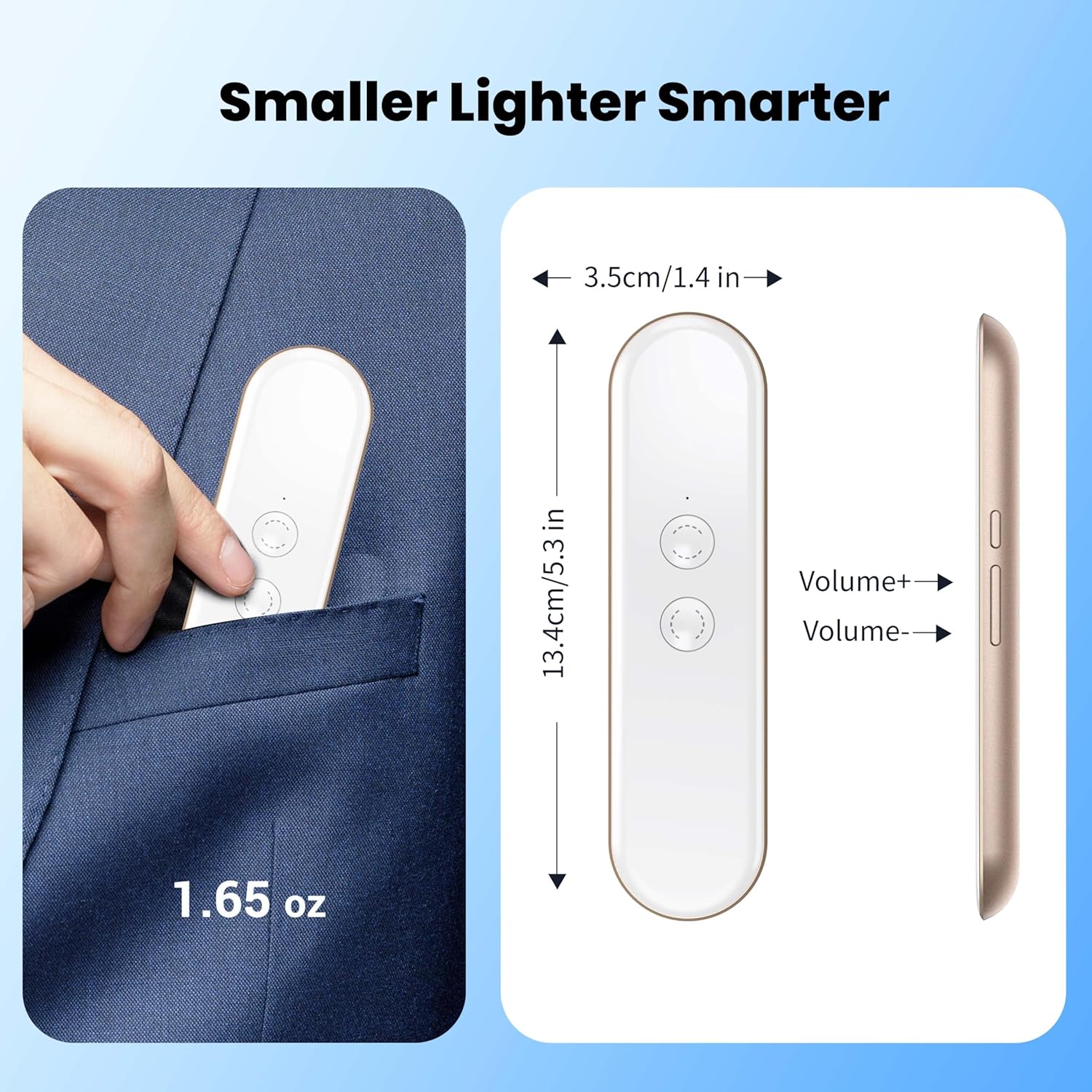
Image: The ANFIER M3 Translator with its dimensions indicated: 13.4 cm (5.3 inches) in length and 3.5 cm (1.4 inches) in width, and a weight of 1.65 oz.
General Specifications
- ASIN: B0FH1S7219
- Date First Available: May 15, 2025
Warranty Information
ANFIER products typically come with a limited warranty covering manufacturing defects. For specific warranty terms and conditions, please refer to the warranty card included with your product or visit the official ANFIER website. Keep your proof of purchase for warranty claims.
Customer Support
For technical assistance, troubleshooting, or general inquiries, please contact ANFIER customer support. You can usually find contact information on the official ANFIER website or through the retailer where you purchased the product.
Online Resources:
- Visit the ANFIER Store on Amazon for product updates and additional information.
Ask a question about this manual
Ask about setup, troubleshooting, compatibility, parts, safety, or missing instructions. Manuals+ will review the question and use this page’s manual context to help answer it.