
Introduction
This user manual provides essential information for operating your TCL ION V (T607DL) smartphone. It covers initial setup, basic operations, maintenance tips, and troubleshooting common issues. Please read this manual thoroughly to ensure proper use and longevity of your device.
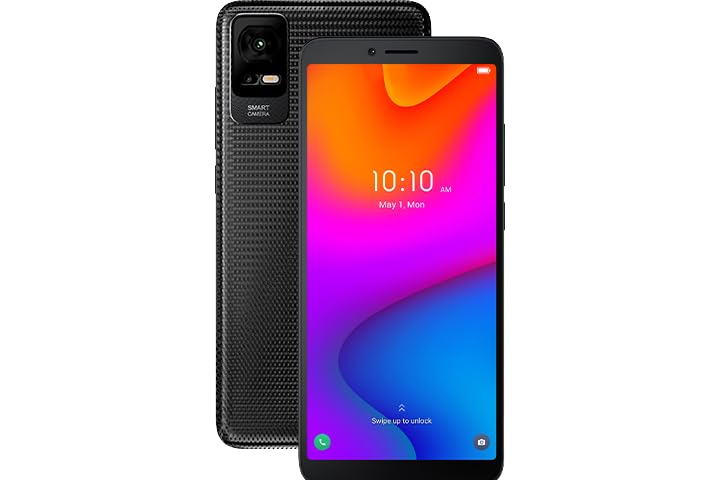
Image: The TCL ION V (T607DL) smartphone, showcasing its front display with a vibrant wallpaper and the textured black back panel with the camera module visible.
What's in the Box
Upon unboxing your TCL ION V (T607DL) smartphone, please verify that all the following items are included:
- TCL ION V (T607DL) Smartphone
- USB-C Cable
- SIM Ejector Tool
Setup
1. Inserting the SIM Card and microSD Card (Optional)
- Locate the SIM card tray on the side of your phone.
- Insert the SIM ejector tool into the small hole next to the tray and press gently until the tray pops out.
- Place your Nano-SIM card(s) and/or microSD card (if applicable) into the designated slots on the tray. Ensure the gold contacts are facing down.
- Carefully push the tray back into the phone until it clicks into place.
2. Initial Power On and Setup Wizard
- Press and hold the Power button (usually on the right side) until the TCL logo appears.
- Follow the on-screen instructions to complete the initial setup. This includes selecting your language, connecting to a Wi-Fi network, setting up your Google account, and configuring security options.
3. Charging the Battery
Before first use, it is recommended to fully charge the device. Connect the USB-C cable to the phone's charging port and the other end to a compatible power adapter (not included) or a computer's USB port.
Operating Your Device
Basic Navigation
- Home Screen: Swipe left or right to access different home screens.
- Notifications Panel: Swipe down from the top of the screen to view notifications and quick settings.
- App Drawer: Swipe up from the bottom of the screen to access all installed applications.
- Back Button: Tap the back arrow to return to the previous screen.
- Recent Apps: Tap the square icon (or swipe up and hold from the bottom if using gesture navigation) to view and switch between recently used applications.
Making Calls and Sending Messages
- Calls: Open the "Phone" app, enter the number, and tap the call icon.
- Messages: Open the "Messages" app, tap the new message icon, enter the recipient, and type your message.
Camera Usage
Open the "Camera" app. Tap the shutter button to take a photo. Swipe left or right to switch between photo, video, and other modes. Tap the camera switch icon to toggle between front and rear cameras.
Connectivity
- Wi-Fi: Go to Settings > Network & internet > Wi-Fi. Turn Wi-Fi on and select your desired network.
- Bluetooth: Go to Settings > Connected devices > Connection preferences > Bluetooth. Turn Bluetooth on to pair with other devices.
- Mobile Data: Ensure mobile data is enabled in Settings > Network & internet > Mobile network for internet access via your carrier.
Maintenance
- Cleaning: Use a soft, lint-free cloth to clean the screen and body. Avoid harsh chemicals.
- Software Updates: Regularly check for system updates via Settings > System > System update to ensure optimal performance and security.
- Battery Care: To prolong battery life, avoid extreme temperatures. It is recommended to keep the battery charge between 20% and 80% for daily use.
- Storage Management: Periodically clear unnecessary files and apps to free up storage space via Settings > Storage.
Troubleshooting
| Problem | Solution |
|---|---|
| Device does not turn on | Ensure the battery is charged. Press and hold the Power button for at least 10 seconds to force a restart. |
| Cannot connect to Wi-Fi | Check if Wi-Fi is enabled in settings. Restart your router and the phone. Ensure you have the correct password. |
| Poor network signal | Move to an area with better coverage. Restart the phone. Check with your carrier for network issues in your area. |
| Apps are crashing or freezing | Clear the app's cache (Settings > Apps > [App Name] > Storage & cache > Clear cache). Update the app. Restart the phone. |
| Battery drains quickly | Reduce screen brightness. Close unused apps. Disable unnecessary features like GPS or Bluetooth when not in use. Check battery usage in settings to identify power-hungry apps. |
Specifications
| Feature | Detail |
|---|---|
| Model Name | TCL ION V (T607DL) |
| Operating System | Android 13.0 |
| Display | 6.0" HD+ Display |
| Internal Storage | 32 GB |
| RAM | 3 GB |
| CPU Model | MediaTek Helio |
| CPU Speed | 2 GHz |
| Battery Power Rating | 3000 mAh |
| Color | Black |
| Wireless Carrier | Straight Talk (Locked) |
| Connector Type | USB Type C |
Warranty and Support
For warranty information and technical support, please refer to the documentation provided with your purchase or visit the official TCL support website. As this is a renewed product, specific warranty terms may vary and are typically provided by the seller (e.g., Amazon Renewed or Techrific Deals). Please retain your proof of purchase for any warranty claims.
For further assistance, you may contact the seller directly or the manufacturer's customer service if applicable.


