
1. Introduction
This manual provides detailed instructions for the installation, operation, and maintenance of your SIXTOP Motorcycle CarPlay Screen. This device is designed to enhance your riding experience by integrating smartphone functionalities directly onto your motorcycle's dashboard.
Key features include wireless Apple CarPlay and Android Auto, dual Bluetooth connectivity for phone and headset, a 6-inch IP68 waterproof touch screen, GPS navigation support, mirror link functionality, and voice control via Siri or Google Assistant.

Image 1.1: SIXTOP Motorcycle CarPlay Screen and included accessories.
2. Safety Information
Please read all safety warnings and instructions before using this product to ensure safe operation and prevent damage. Keep this manual for future reference.
- Installation Safety: Ensure the device is securely mounted and all wiring is properly insulated and routed away from moving parts or heat sources. Incorrect installation can lead to accidents or damage.
- Power Connection: Connect the device to a 12V switched power source to prevent battery drain when the motorcycle is off.
- Waterproof Rating: The device is IP68 waterproof, suitable for various weather conditions. However, avoid submerging the device in water for extended periods or using high-pressure water jets directly on it.
- Operating Temperature: The device is designed to operate within a temperature range of -4°F to 149°F (-20°C to 65°C).
- Distraction: Do not operate the device or adjust settings while riding. Always pull over to a safe location before interacting with the screen.
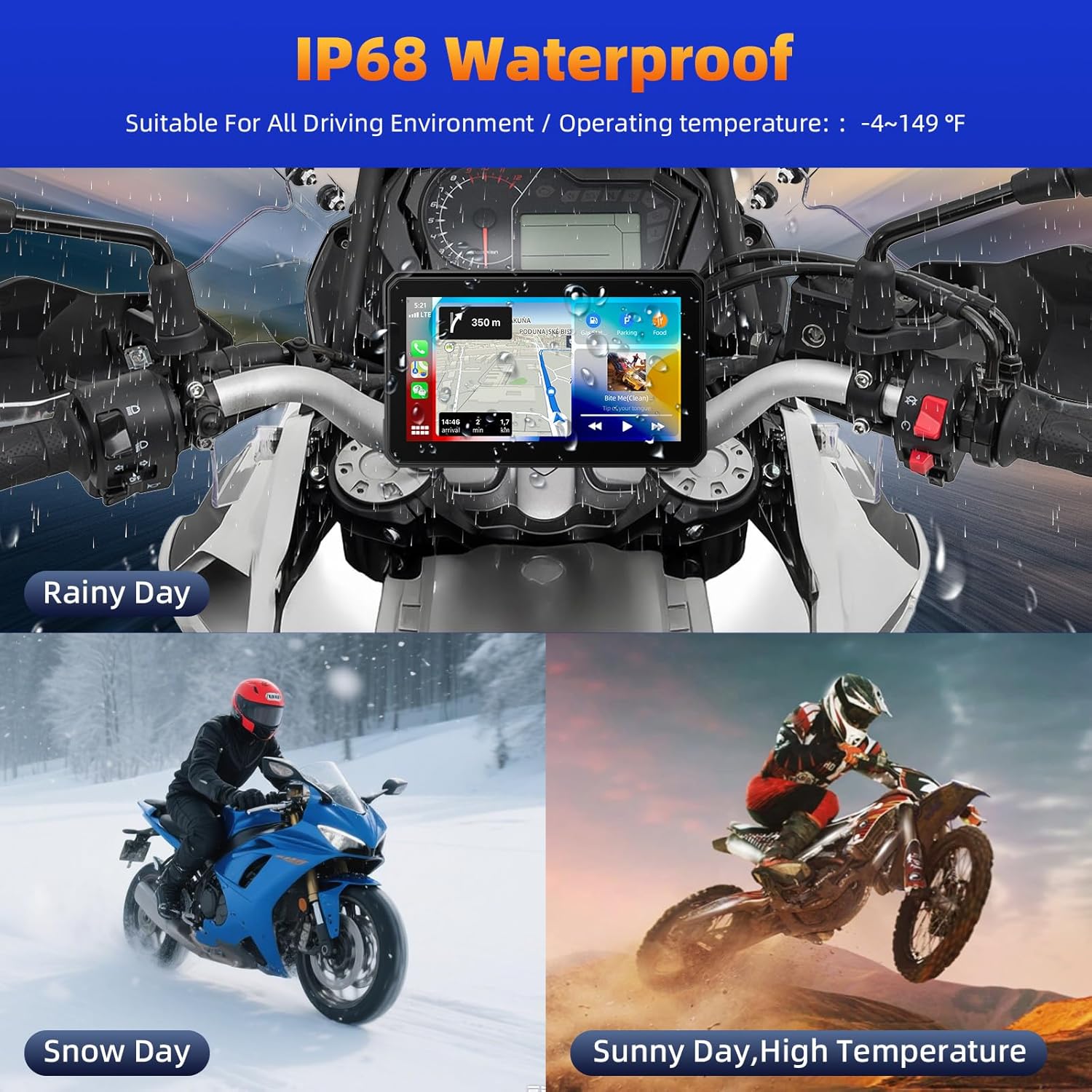
Image 2.1: The device is IP68 waterproof, suitable for diverse riding environments.
3. Package Contents
Verify that all items are present in the package before proceeding with installation.
- 1 x Motorcycle Screen
- 1 x Power Cable (1.5m)
- 1 x Rolling Tape
- 1 x User Manual
- 1 x Direct Package (Mounting Bracket Kit and Tools)

Image 3.1: Package contents and device dimensions.
4. Setup
4.1 Mounting the Device
The SIXTOP Motorcycle CarPlay Screen comes with a bracket kit for handlebar mounting. Choose a location on your handlebar that provides clear visibility without obstructing your view of the road or motorcycle controls.
- Assemble the mounting bracket components according to the desired angle and position.
- Securely attach the bracket to your motorcycle's handlebar using the provided tools.
- Attach the CarPlay screen to the mounted bracket, ensuring it is firmly locked in place.

Image 4.1: Examples of device mounting on motorcycle handlebars.
4.2 Wiring Instructions
The device requires a direct connection to your motorcycle's 12V battery system. It is recommended to connect to a switched power source (ACC power) to ensure the unit powers off with the ignition, preventing battery drain.
- Locate your motorcycle's battery.
- Connect the Red (Power) wire from the provided power cable to the motorcycle battery's positive terminal (or an ACC power supply). Ensure an inline fuse is used for protection.
- Connect the Black (Ground) wire to the motorcycle battery's negative terminal or a suitable chassis ground point.
- Connect the power cable to the CarPlay screen. The connection is detachable and waterproof.
- Route all cables safely, away from hot engine parts, exhaust, and moving components, securing them with rolling tape or zip ties.

Image 4.2: Wiring diagram for power connection.
5. Operating Instructions
5.1 Wireless CarPlay & Android Auto
The device supports wireless Apple CarPlay and Android Auto, allowing seamless integration with your smartphone for navigation, music, calls, and more.
- Ensure Wi-Fi and Bluetooth are enabled on your smartphone.
- On the CarPlay screen, navigate to the CarPlay or Android Auto icon.
- On your smartphone, search for Bluetooth devices and connect to the device named "Car-BT-xxxx".
- Allow the connection prompt on your smartphone.
- The CarPlay/Android Auto interface should appear on the screen within 10-20 seconds.

Image 5.1: Wireless CarPlay and Android Auto in action.
5.2 Dual Bluetooth Connectivity
The device features dual Bluetooth, allowing you to connect your smartphone and a Bluetooth headset/helmet simultaneously for hands-free communication and audio.
- Connect your smartphone to the CarPlay screen via Bluetooth as described in Section 5.1.
- Ensure your Bluetooth headset or helmet is turned on and in pairing mode.
- On the CarPlay screen, navigate to the Bluetooth settings and pair with your headset/helmet.
- Note: Do not connect your mobile phone directly to the Bluetooth helmet/earphone, as this may interfere with the pairing process with the CarPlay screen.

Image 5.2: Dual Bluetooth setup for phone and headset.
5.3 Voice Control (Siri/Google Assistant)
Utilize voice commands for safe and convenient operation while riding.
- Once connected to CarPlay or Android Auto, activate Siri or Google Assistant through the screen's interface or by using the voice command button on your connected headset (if available).
- You can use voice commands for navigation, making calls, playing music, and other functions.

Image 5.3: Voice control features for hands-free operation.
5.4 GPS Navigation
After connecting your smartphone via CarPlay or Android Auto, the screen will display your preferred navigation application.
- Open your navigation app (e.g., Apple Maps, Google Maps, Waze) on your smartphone.
- The navigation interface will be mirrored and optimized for the CarPlay screen.
- The 6-inch HD touch screen with 1440*720 resolution provides clear and responsive visuals, even in bright sunlight.

Image 5.4: GPS Navigation display on the screen.
5.5 Mirror Link Function
The mirror link function allows you to cast your smartphone's screen directly onto the CarPlay display.
- Ensure your phone's Wi-Fi is on and connected to the CarPlay screen's Wi-Fi network (password usually 12345678).
- For iOS devices, pull down the control center and select 'Screen Mirroring' or 'AirPlay'. Choose the CarPlay device from the list.
- For Android devices, enable screen casting/mirroring in your phone's settings and select the CarPlay device.
- This feature is useful for displaying content not natively supported by CarPlay/Android Auto, such as videos or specific apps, when parked.

Image 5.5: Airplay connection steps for screen mirroring.
5.6 User Interface (UI) Overview
The device features an intuitive touch-responsive interface. Familiarize yourself with the main icons and settings for optimal use.
- Home Screen: Provides quick access to CarPlay/Android Auto, Bluetooth, Phone, Music, and other applications.
- Settings Menu: Allows customization of display, sound, system language, date/time, and other preferences.
- Phonebook/Dialer: Access contacts and make calls directly from the screen when connected via Bluetooth.

Image 5.6: Various UI screens of the device.
6. Maintenance
Proper maintenance ensures the longevity and optimal performance of your CarPlay screen.
- Cleaning: Use a soft, damp cloth to clean the screen and exterior. Avoid abrasive cleaners or solvents that could damage the display or casing.
- Waterproof Seals: Periodically inspect the waterproof seals around the device and cable connections for any signs of wear or damage. Ensure all covers (e.g., TF card slot) are securely closed.
- Cable Inspection: Regularly check the power cable for fraying, cuts, or loose connections. Replace if any damage is found.
- Storage: If storing the motorcycle for an extended period, consider disconnecting the device from the power source to prevent any potential battery drain.
7. Troubleshooting
This section addresses common issues you might encounter.
| Problem | Possible Cause | Solution |
|---|---|---|
| Device does not power on. | No power, loose connection, blown fuse. | Check power cable connections to the battery and device. Inspect the inline fuse. Ensure the motorcycle ignition is on if connected to ACC power. |
| Wireless CarPlay/Android Auto fails to connect. | Bluetooth/Wi-Fi off on phone, incorrect pairing, phone OS version too old. | Ensure phone's Bluetooth and Wi-Fi are on. Forget previous pairings on both devices and re-pair. Ensure your phone's OS is iOS 13+ or Android 11+. |
| No audio from headset. | Headset not paired, headset connected directly to phone. | Ensure headset is paired to the CarPlay screen, not directly to your phone. Check headset volume. |
| Screen difficult to see in bright sunlight. | Screen brightness too low. | Adjust screen brightness in the device settings. The screen is designed for high visibility, but extreme glare can still affect it. |
| Device remains on after motorcycle is off. | Connected to constant 12V power instead of switched ACC power. | Rewire the power cable to a switched ACC power source on your motorcycle. Consult a professional if unsure. |
8. Specifications
| Feature | Specification |
|---|---|
| Model | B0FGY5GYK5 |
| Display Size | 6 Inches |
| Resolution | 1440*720 (HD) |
| Waterproof Rating | IP68 |
| Operating Temperature | -4°F to 149°F (-20°C to 65°C) |
| Connectivity | Wireless CarPlay, Wireless Android Auto, Dual Bluetooth, Mirror Link (Android/iOS) |
| Voice Control | Siri, Google Assistant |
| Item Weight | 1.54 pounds (0.7 kg) |
| Product Dimensions | 6.65 x 3.7 x 3.54 inches (16.9 x 9.4 x 9.0 cm) |
| Mounting Type | Handlebar Mount |
9. Warranty and Support
SIXTOP is committed to providing high-quality products and customer satisfaction.
- Warranty: This product comes with a 2-year warranty.
- Replacement Service: A 12-month replacement service is available for eligible issues.
- Money Back Guarantee: Enjoy a 30-day money-back guarantee from the date of purchase.
- Technical Support: A 24-hour expert support team is available to assist with installation, functionality, or any other concerns.
For support, please contact us via email:
Email: SIXTOP123@163.com

Image 9.1: Online support available for assistance.

