
1. Introduction and Overview
This manual provides detailed instructions for the installation, operation, and maintenance of your AINAVI Touch Screen Car Stereo Radio, specifically designed for Honda CRV models from 2017 to 2022. This unit integrates advanced features such as a QLED touchscreen, GPS navigation, wireless CarPlay, and Android Auto to enhance your driving experience.

Figure 1.1: AINAVI Touch Screen Car Stereo Radio with accessories.
2. Product Features
- High-Resolution QLED Touchscreen: Features an 11.5-inch QLED display with 2000x1200 resolution, offering enhanced color accuracy, brightness, and contrast for a superior visual experience.
- Wireless CarPlay & Android Auto: Seamlessly integrate your smartphone for navigation, music, calls, and messages. Supports stable signal flow and 1080P video playback.
- Advanced GPS Navigation: Supports various satellite services with 5G WiFi for accurate navigation. Includes Google Maps with 2D/3D perspectives, multiple route options, and voice guidance.
- High Performance: Equipped with an 8-Core CPU and Dual-Core GPU for smooth operation and rendering of 3D environments. Features 6GB RAM and 64GB ROM for multitasking and app storage.
- 5G WiFi Connectivity: Faster network speeds (2.4GHz & 5GHz) for real-time traffic information and a smooth app experience.
- Split Screen Mode: Allows simultaneous display of two applications, such as navigation and music, for enhanced convenience.
- 1080P Rear View Camera Support: Provides a high-definition view when reversing, complete with astern ruler lines for precise parking.
- Professional DSP Audio: Features a 48-EQ (Equalizer) with voice point touch control, offering various sound modes (Normal, Jazz, Pop, Classical, Heavy Metal, Vocal, Soft) and surround sound patterns for a customized audio experience.
- Manual Knob Design: Two large knobs allow for easy adjustment of temperature and wind speed, with a press function to switch modes.
- Full RCA Output: Supports connecting external displays for rear seat entertainment.

Figure 2.1: QLED Touch Screen specifications.

Figure 2.2: Wireless CarPlay and Android Auto in operation.
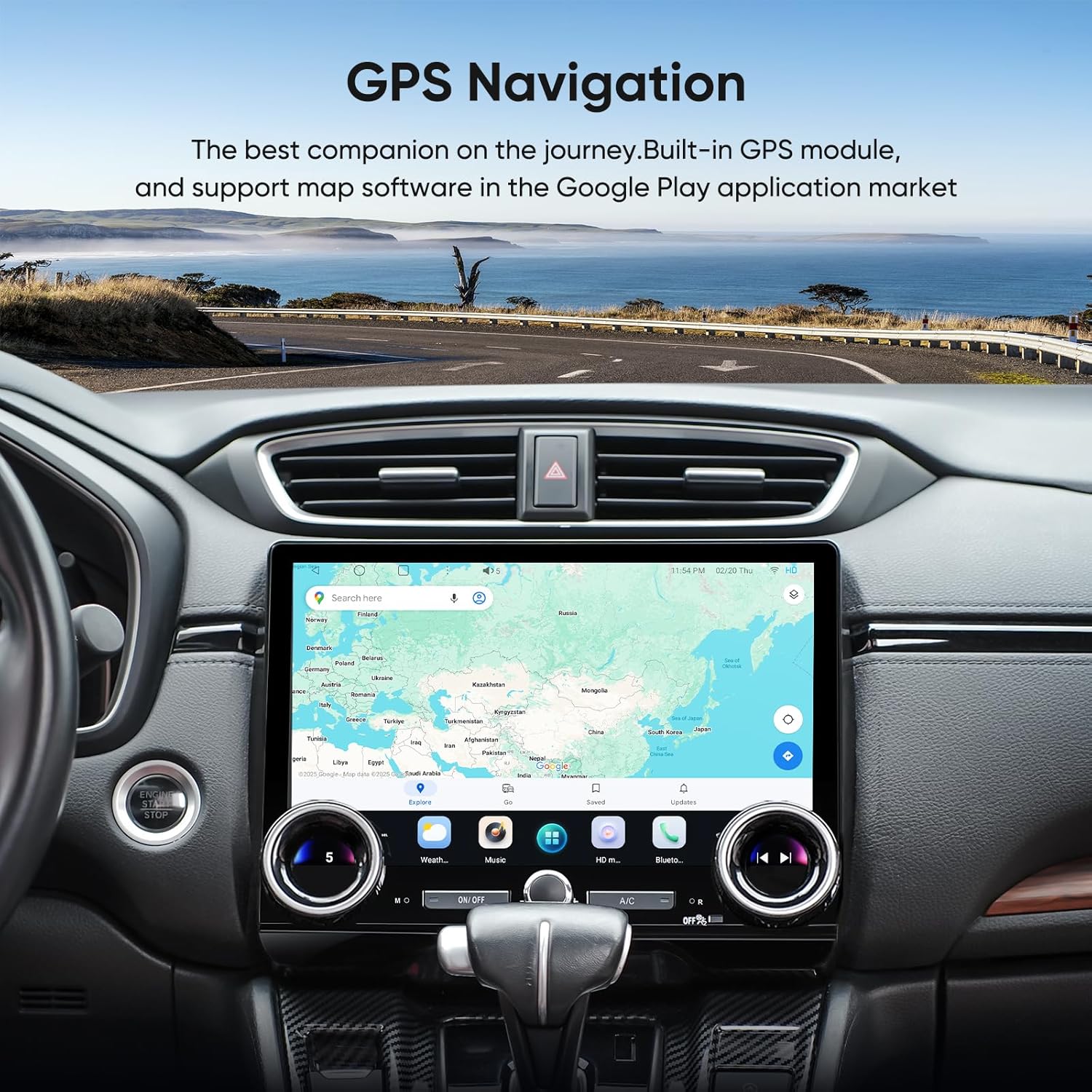
Figure 2.3: GPS Navigation interface.

Figure 2.4: WiFi and Bluetooth connection interfaces.

Figure 2.5: Split Screen Mode and Steering Wheel Control.

Figure 2.6: Rear View Camera display.

Figure 2.7: Digital Sound Processor (DSP) interface.

Figure 2.8: Manual knob design for climate control.

Figure 2.9: Full RCA Output for external displays.
3. What's Included
The package for your AINAVI Car Stereo Radio includes the following components:
- Car Stereo Radio Head Unit (2000*1200) with Frame for Honda CRV (2017-2022)
- User Manual
- Power Cable
- AHD 1080P Rear View Camera
- Microphone
- Blue Frame Removal Tool
- GPS Antenna
- USB 4Pin Cable
- USB 6Pin Cable

Figure 3.1: Included components diagram.
4. Setup and Installation
Installation of the AINAVI Car Stereo Radio requires careful attention to wiring and dashboard disassembly. It is recommended to seek professional assistance for installation to ensure proper functionality and avoid damage to your vehicle or the unit.
4.1 Pre-Installation Checks
- Verify all components listed in Section 3 are present.
- Ensure your Honda CRV model is within the 2017-2022 range.
- Disconnect the vehicle's battery before starting installation.
4.2 Installation Steps (General)
- Carefully remove the existing car stereo unit and dashboard trim using appropriate tools, such as the included Blue Frame Removal Tool.
- Connect the power cable, GPS antenna, USB cables, and other necessary wiring to the new head unit. Ensure all connections are secure.
- If installing the rear view camera, route the camera cable to the rear of the vehicle and connect it to the head unit.
- Mount the new AINAVI head unit into the dashboard opening.
- Reassemble the dashboard trim.
- Reconnect the vehicle's battery and test the unit's functionality.

Figure 4.1: Visual comparison of the dashboard before and after installation.
5. Operating Instructions
5.1 Basic Operation
- Power On/Off: Press and hold the power button on the unit or use the vehicle's ignition.
- Volume Control: Adjust using the physical knobs or on-screen controls.
- Touch Screen Interface: Navigate through menus and applications by tapping and swiping on the QLED display.
5.2 Wireless CarPlay and Android Auto
To connect your smartphone wirelessly:
- Ensure Bluetooth and Wi-Fi are enabled on your smartphone.
- On the car stereo, navigate to the CarPlay or Android Auto application.
- Follow the on-screen prompts to pair your device via Bluetooth first, then confirm the Wi-Fi connection.
- Once connected, your phone's interface will be mirrored on the car stereo display, allowing access to compatible apps.
5.3 GPS Navigation
The unit comes with pre-installed navigation capabilities. To use:
- Tap the 'Maps' icon on the home screen.
- Enter your destination using the on-screen keyboard or voice command.
- Select your preferred route from the options provided. The system supports 2D and 3D map views and real-time traffic updates via 5G WiFi.
5.4 Audio Features (DSP & EQ)
Customize your audio experience:
- Access the 'Sound Settings' or 'DSP' application.
- Adjust the 48-band equalizer to fine-tune frequencies.
- Select from preset sound modes (e.g., Jazz, Pop, Classical) or create custom profiles.
- Utilize the voice point touch control to optimize sound based on seating position.
5.5 Split Screen Mode
To use two applications simultaneously:
- Open the first application you wish to use.
- Swipe up from the bottom of the screen or use the designated split-screen button (if available) to enter split-screen mode.
- Select the second application from the app drawer to display it alongside the first.

Figure 5.1: Split Screen and Mirroring in action.
5.6 Steering Wheel Control (SWC)
The unit supports your vehicle's existing steering wheel controls. Configuration may be required:
- Go to 'Settings' > 'Steering Wheel Control'.
- Follow the on-screen instructions to map your steering wheel buttons to the corresponding functions on the stereo.
5.7 Rear View Camera
When the vehicle is shifted into reverse, the display will automatically switch to the rear view camera feed, showing a 1080P image with parking guidelines.
6. Maintenance
- Screen Cleaning: Use a soft, lint-free cloth specifically designed for electronic screens. Do not use abrasive cleaners or solvents.
- Software Updates: Periodically check for available software updates through the unit's settings or the manufacturer's website to ensure optimal performance and access to new features.
- General Care: Avoid exposing the unit to extreme temperatures, direct sunlight for prolonged periods, or excessive moisture.
7. Troubleshooting
If you encounter issues with your AINAVI Car Stereo Radio, refer to the following common problems and solutions:
- No Power:
- Check all power connections to ensure they are secure.
- Verify the vehicle's fuse for the stereo is intact.
- Ensure the vehicle's battery is properly connected and charged.
- No Sound:
- Check speaker wire connections.
- Verify volume is not muted or set too low.
- Ensure the correct audio source is selected.
- GPS Not Working/Inaccurate:
- Ensure the GPS antenna is properly installed and has a clear view of the sky.
- Check for obstructions that might block the GPS signal.
- Verify that location services are enabled in the unit's settings.
- Wireless CarPlay/Android Auto Disconnection:
- Ensure your phone's Bluetooth and Wi-Fi are stable.
- Restart both your phone and the car stereo.
- Check for any software updates for both the stereo and your phone.
- Touch Screen Unresponsive:
- Restart the unit.
- Ensure the screen is clean and free of debris.
If these steps do not resolve the issue, please contact customer support.
8. Specifications
| Feature | Specification |
|---|---|
| Brand | AINAVI |
| Model Number | B0FGXVMQBS |
| Operating System | Android |
| Screen Size | 11.5 Inches |
| Display Resolution | 2000 x 1200 |
| RAM | 6GB |
| ROM | 64GB |
| Processor | Qualcomm Octa Core |
| Connectivity Technology | Bluetooth, USB, Wi-Fi (2.4GHz & 5GHz) |
| Special Features | Touchscreen, Wireless CarPlay, Android Auto, DSP, GPS Navigation |
| Audio Output Mode | Stereo |
| Mounting Type | Dashboard Mount |
| Item Weight | 4.66 pounds |
| Package Dimensions | 13.08 x 12.64 x 5.59 inches |
9. Warranty and Support
9.1 Manufacturer's Warranty
Your AINAVI Car Stereo Radio is covered by a 12-Month Manufacturer's Guarantee from the date of purchase. This warranty covers defects in materials and workmanship under normal use. Please retain your proof of purchase for warranty claims.
9.2 Technical Support
For installation assistance, troubleshooting, or any other inquiries, AINAVI provides a professional technical support team. You can reach us through the following channels:
- Customer Service Phone: +1 833 858 5016
- Working Hours: 01:00 PM to 00:00 AM PST
- Email: info@ainavi.com
Please have your product model number (B0FGXVMQBS) and purchase details ready when contacting support.

Figure 9.1: Customer Installation Support information.

Figure 9.2: Contact information for AINAVI support.