
Redragon SS-552
Redragon SS552 Stream Controller Deck User Manual
Model: SS-552
1. Introduction
This manual provides detailed instructions for the setup, operation, and maintenance of your Redragon SS552 Stream Controller Deck. Designed for content creators, streamers, and gamers, this device offers customizable controls to streamline your workflow on both PC and Mac platforms.
2. Product Overview
The Redragon SS552 Stream Controller Deck is an all-in-one macro pad featuring programmable keys, dials, and a touch strip for enhanced control over your applications and streaming software.
2.1 Key Features
- 14 Programmable Controls: Includes 10 customizable LCD buttons and 4 rotary dials.
- Customizable LCD Keys: Personalize each of the 10 LCD buttons with images and animations (JPG, PNG, GIF) for easy function identification.
- One-Touch Operation: Execute individual commands or complex macro sequences with a single press.
- Versatile Compatibility: Supports Windows and macOS, integrating with popular software like OBS and Streamlabs.
- Integrated Plugins: Features essential plugins such as a clock, weather updates, and a calendar.
- USB-C Connectivity: Simple plug-and-play connection.
2.2 Package Contents
- Redragon SS552 Stream Controller Deck
- USB Cable
- User Manual (this document)

Figure 1: Redragon SS552 Stream Controller Deck, showing the 10 LCD buttons, touch strip, and 4 rotary dials.
3. Setup
3.1 Connecting the Device
- Connect the provided USB-C cable to the USB-C port on the back of the Redragon SS552 Stream Controller Deck.
- Connect the other end of the USB cable to an available USB port on your computer (PC or Mac).
- For optimal performance and to avoid connectivity issues, it is recommended to connect the device directly to your computer's USB port rather than through an unpowered USB hub. A powered USB hub may be used if a direct connection is not feasible.

Figure 2: The Redragon SS552 Stream Controller Deck connected to a computer via its USB-C cable.
3.2 Software Installation
To unlock the full customization features of your SS552, you must install the Redragon Stream Station software.
- Visit the official Redragon website (www.redragonzone.com or www.redragonshop.com).
- Navigate to the support or downloads section and locate the software for the SS552 Stream Controller Deck.
- Download the appropriate version for your operating system (Windows or macOS).
- Run the installer and follow the on-screen instructions to complete the software installation.
- Launch the Redragon Stream Station software.
Note: Ensure your antivirus software does not block necessary connections for the software to function correctly. Some features, such as icon and action sets, may require internet access.

Figure 3: Screenshot of the Redragon Stream Station software interface, showing customization options.
4. Operation
4.1 Customizing LCD Buttons
The 10 LCD buttons can be personalized to display custom images or animations, making it easy to identify their assigned functions.
- Open the Redragon Stream Station software.
- Select the desired button on the virtual representation of your SS552.
- Choose an image (JPG, PNG) or animation (GIF) from your computer or the software's built-in library to assign to the button.
- Confirm your selection to update the button's display.
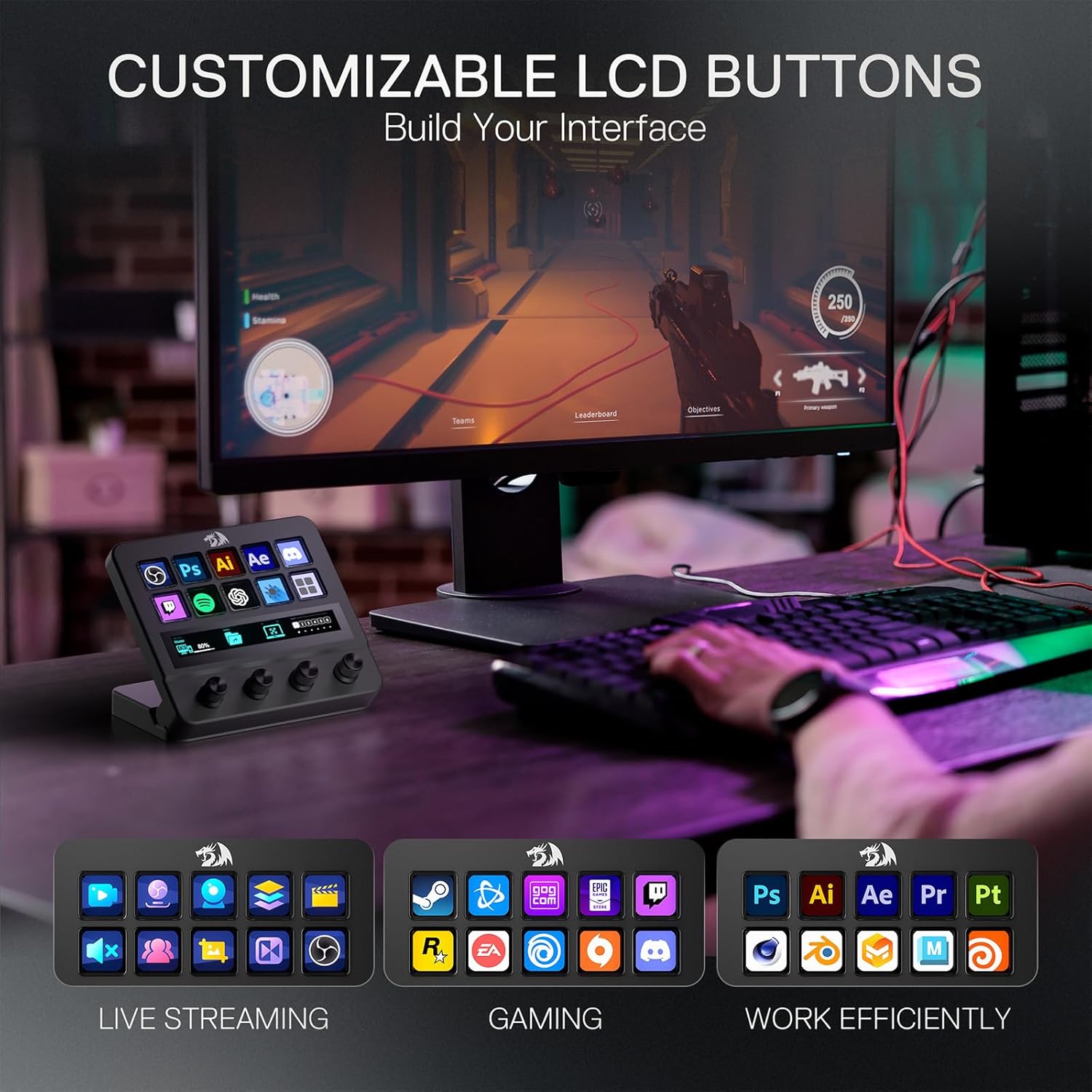
Figure 4: The SS552 with various application icons displayed on its LCD buttons, demonstrating customization.
4.2 Assigning Actions and Macros
Each of the 14 controls (10 LCD buttons, 4 dials) can be programmed to perform specific actions or complex macros.
- In the Stream Station software, select a button or dial.
- Choose from available actions such as:
- Launching applications
- Executing keyboard shortcuts
- Switching scenes in streaming software (e.g., OBS, Streamlabs)
- Controlling media playback
- Triggering multi-command macros
- For macros, record a sequence of key presses or actions within the software.
- Save your configuration.

Figure 5: Illustration of one-touch chain actions, where a single button press triggers multiple commands across different applications.
4.3 Using Dials and Touch Strip
- Dials: The four rotary dials can be assigned to control various parameters such as volume levels, screen brightness, or scrolling. Their stepped tactile feedback allows for precise adjustments.
- Touch Strip: The touch strip can be programmed for actions like switching between pages of controls, quick navigation, or other custom functions.

Figure 6: Visual representation of the SS552's customizable controls, including tap actions for buttons, touch actions for the strip, and turn actions for the dials.
4.4 Pages and Profiles
Organize your controls efficiently by creating multiple pages within a profile, or different profiles for various applications or workflows (e.g., streaming, gaming, video editing).
- Profiles: Create distinct profiles for different activities. For example, one profile for streaming with OBS controls, and another for video editing with software shortcuts.
- Pages: Within each profile, you can set up multiple pages of controls. Use the touch strip or a dedicated button to switch between these pages, expanding the number of accessible functions.
5. Maintenance
5.1 Cleaning
- To clean the device, use a soft, dry cloth.
- Avoid using harsh chemicals or abrasive materials, as these can damage the surface and LCD screens.
- Do not spray cleaning solutions directly onto the device.
5.2 Software Updates
Regularly check the Redragon website for software and firmware updates. Updates often include new features, performance improvements, and bug fixes, ensuring your device operates optimally.
6. Troubleshooting
| Issue | Possible Cause | Solution |
|---|---|---|
| Device not recognized by computer. | Loose USB connection, unpowered USB hub, driver issue. |
|
| Software download fails or file is empty. | Incorrect download link, temporary server issue, antivirus blocking. |
|
| Buttons feel "mushy" or unresponsive. | Physical design characteristic, or software not registering input. |
|
| Custom icons/actions not appearing or working. | Incorrect configuration, software glitch, missing files. |
|
| Existing Redragon keyboard settings are affected after installing SS552 software. | Software conflict or shared configuration files. |
|
7. Specifications
| Feature | Detail |
|---|---|
| Model Number | SS-552 |
| Brand | Redragon |
| Programmable Keys | 10 LCD Buttons |
| Dials | 4 Rotary Dials |
| Connectivity | USB-C |
| Compatible Devices | PC, Laptop |
| Hardware Platform | PC/Mac |
| Item Weight | 1.63 pounds |
| Package Dimensions | 7.87 x 7.32 x 3.19 inches |
| Supported Software | FL Studio (and others via customization) |
8. Warranty and Support
8.1 Warranty Information
Redragon products typically come with a limited manufacturer's warranty. Please refer to the warranty card included with your product or visit the official Redragon website for detailed warranty terms and conditions specific to the SS552 Stream Controller Deck.
8.2 Customer Support
For technical assistance, troubleshooting, or any questions regarding your Redragon SS552 Stream Controller Deck, please contact Redragon customer support through their official website:
- Website: www.redragonzone.com
- Support Page: Look for a "Support" or "Contact Us" section on the website.
When contacting support, please have your product model (SS-552) and purchase information ready.
Related documentsSS-552

Ask a question about this manual
Ask about setup, troubleshooting, compatibility, parts, safety, or missing instructions. Manuals+ will review the question and use this page’s manual context to help answer it.