
ATTACK SHARK R82HE
ATTACK SHARK R82HE Mechanical Gaming Keyboard User Manual
Model: R82HE
Introduction
The ATTACK SHARK R82HE is a high-performance 75% mechanical gaming keyboard designed for competitive gaming. It features Hall Effect Magnetic Switches, an 8KHz polling rate, and ultra-low latency for precise and responsive input. This manual provides comprehensive instructions for setting up, operating, maintaining, and troubleshooting your R82HE keyboard.

Image: The ATTACK SHARK R82HE keyboard, showcasing its compact 75% layout and branding.
Setup
Package Contents
Before you begin, ensure all components are present in the package:
- ATTACK SHARK R82HE Keyboard
- C01 Ultra Coiled Keyboard Cable
- Keycap Puller
- Switch Puller
- User Manual
- Other accessories (e.g., wrist strap, stickers)

Image: All items included in the ATTACK SHARK R82HE keyboard package, neatly laid out.
Connecting the Keyboard
- Locate the USB-C port on the back of the ATTACK SHARK R82HE keyboard.
- Connect the USB-C end of the C01 Ultra Coiled Keyboard Cable to the keyboard.
- Connect the USB-A end of the cable to an available USB port on your computer.
- The keyboard will automatically be recognized by your operating system.

Image: The keyboard connected via its coiled USB-C cable, highlighting the 8K polling rate and colorful LED features of the cable.
Operating the Keyboard
Key Features Overview
The R82HE keyboard incorporates several advanced features for an enhanced gaming and typing experience:
- Hall Effect Magnetic Switches: Provide precise and adjustable actuation.
- 0.005mm Rapid Trigger Accuracy: Enables instant key response and reset.
- 8KHz Polling Rate: Ensures ultra-low latency (0.08ms) for rapid input processing.
- 5-Layer Sound-Dampening System: For improved acoustics and typing feel.
- 256K Scan Sampling Rate: High-frequency chip for faster input registration.
- Hot-Swappable Design: Allows for easy switch replacement and customization.

Image: A composite image illustrating the keyboard's core technologies, including rapid trigger accuracy, 8KHz polling rate, 5 layers of padding, 256K scanning rate, the C01 Ultra cable, and the esport chip.
Understanding Hall Effect Magnetic Switches and Rapid Trigger
Unlike traditional mechanical switches, Hall Effect switches use magnetic fields to detect key presses, allowing for adjustable actuation points and rapid trigger functionality. Rapid Trigger (RT) allows a key to register a press and reset instantly based on movement, rather than a fixed point, providing unparalleled responsiveness in fast-paced games.
Customization via Web Driver
The ATTACK SHARK R82HE keyboard offers extensive customization through its web-based driver, eliminating the need for software installation. Access the driver at qmk.top to configure settings such as:
- Rapid Trigger (RT): Adjust the sensitivity for instant key activation and deactivation.
- Dynamic Keystrokes (DKS): Assign different actions based on how far a key is pressed.
- Mod-Tap (MT): Perform one action when tapped and another when held.
- Toggle Key (TGL): Toggle functions on/off with a single key press.
- Adjustable Actuation Range: Set the actuation point from 0.1mm to 3.0mm for each key.
- Key Bindings: Remap keys and create macros.

Image: The web-based driver interface for the R82HE, showing options for magnetic switch settings, advanced key settings, and support for various magnetic switch types.
RGB Lighting Control
The keyboard features 16.8 million colors of RGB lighting with over 20 preset effects. Control the lighting directly from the keyboard using the following key combinations:
- FN + \|: Switch Light Mode
- FN + ←: Light On/Off
- FN + Del: Switch Light Color
- FN + ↓: Backlit Speed ±
- FN + ↑: Backlit Brightness ±
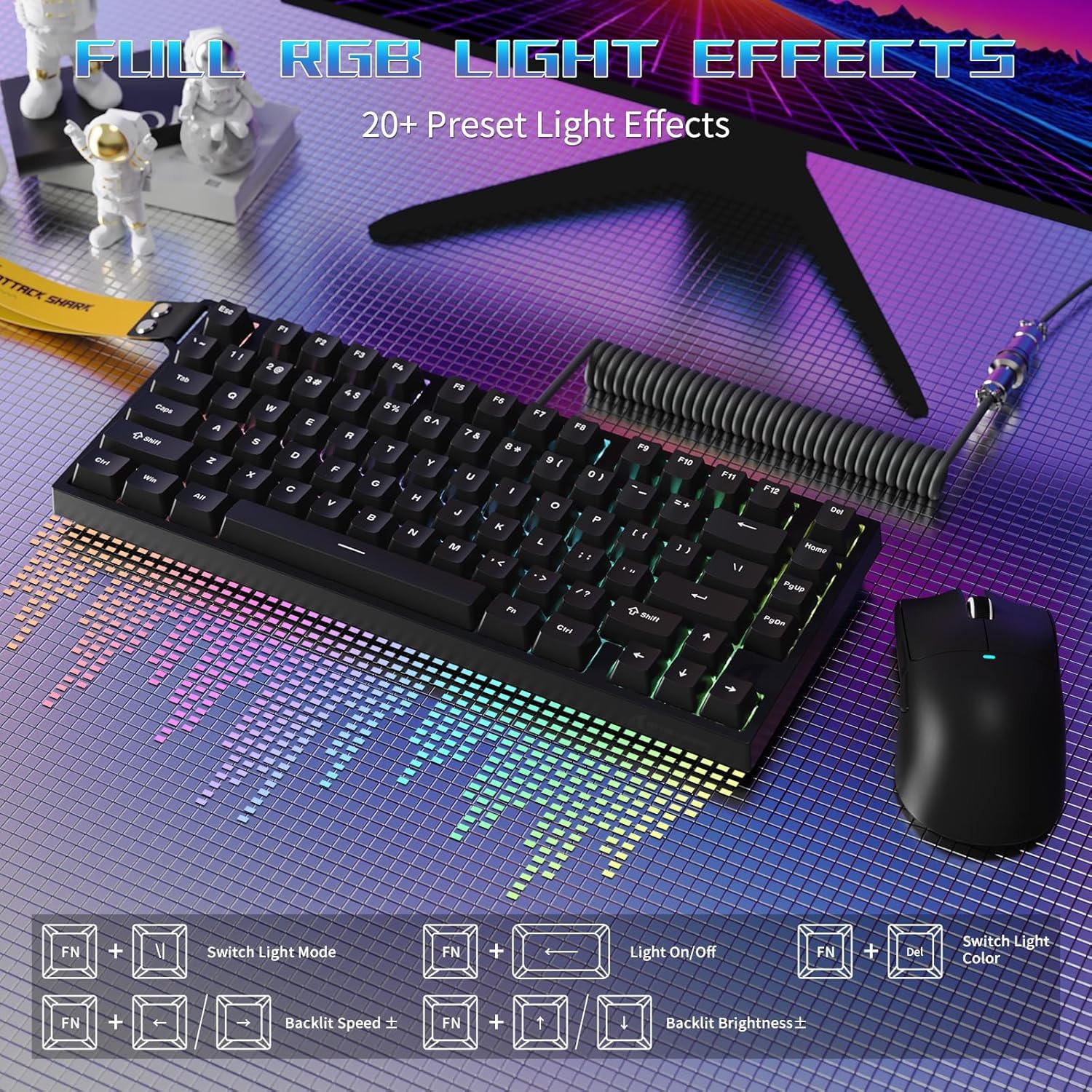
Image: The R82HE keyboard displaying its full RGB lighting effects, with a visual guide to the function key combinations for controlling lighting modes, on/off, color, speed, and brightness.
Hot-Swappable Switches
The R82HE supports hot-swapping, allowing you to easily replace switches without soldering. This feature enables you to customize the feel and sound of your keyboard by installing different compatible magnetic switches.

Image: The R82HE keyboard with several keycaps and switches removed, illustrating its full hot-swappable capability and the magnetic switches.
Product Demonstration Video
Video: A short demonstration of the ATTACK SHARK R82HE gaming keyboard in use, highlighting its features and responsiveness.
Maintenance
Cleaning Your Keyboard
To maintain optimal performance and appearance, regularly clean your keyboard:
- Dust Removal: Use compressed air to remove dust and debris from between keycaps.
- Keycap Cleaning: Gently pull off keycaps using the provided keycap puller. Clean them with a mild soap solution and a soft cloth, then dry thoroughly before reattaching.
- Surface Cleaning: Wipe the keyboard surface with a slightly damp, lint-free cloth. Avoid excessive moisture.
Switch Replacement
If a switch needs replacement or you wish to change switch types:
- Power off the keyboard or disconnect it from your computer.
- Use the switch puller to carefully grip the switch and pull it straight up.
- Align the pins of the new switch with the holes on the PCB and press it firmly into place until it clicks.
- Reconnect the keyboard and test the new switch.
Troubleshooting
If you encounter issues with your ATTACK SHARK R82HE keyboard, refer to the following common solutions:
- Keyboard Not Responding:
- Ensure the USB cable is securely connected to both the keyboard and the computer.
- Try connecting the keyboard to a different USB port.
- Restart your computer.
- RGB Lighting Not Working:
- Check if the lighting is turned off using the FN + ← key combination.
- Ensure the keyboard firmware is up to date via the web driver.
- Keys Not Registering Correctly:
- Clean under the affected keycap to remove any debris.
- If using custom actuation settings, reset them to default via the web driver and reconfigure.
- Consider hot-swapping the affected switch with a known working one to diagnose if the switch is faulty.
- Web Driver Not Accessible:
- Ensure your computer has an active internet connection.
- Verify you are using the correct URL: qmk.top.
- Try a different web browser.
Specifications
| Feature | Detail |
|---|---|
| Brand | ATTACK SHARK |
| Model | R82HE |
| Keyboard Description | Mechanical Gaming Keyboard |
| Connectivity Technology | Wired |
| Switch Type | Hall Effect Magnetic Switches |
| Polling Rate | 8000 Hz |
| Latency | 0.08ms |
| Actuation Range | 0.1mm to 3.0mm (Adjustable) |
| Number of Keys | 80 (75% Layout) |
| Backlighting | RGB (16.8 million colors, 20+ effects) |
| Special Features | Rapid Trigger, Dynamic Keystrokes, Mod-Tap, Toggle Key, Hot-Swappable, Web Driver Customization |
| Compatible Devices | PC |
| Color | Black (as per current model) |
| Item Weight | 9.9 pounds |
| Package Dimensions | 13.78 x 6.69 x 1.77 inches |
| UPC | 752010613298 |
Warranty and Support
The ATTACK SHARK R82HE keyboard comes with a manufacturer's warranty. For detailed warranty information, including terms and conditions, please refer to the warranty card included in your product packaging or visit the official ATTACK SHARK website.
For technical support, troubleshooting assistance beyond this manual, or inquiries about replacement parts, please contact ATTACK SHARK customer service through their official channels. Keep your purchase receipt or order number handy for faster service.
You can also visit the ATTACK SHARK Store on Amazon for more product information and support resources.
Related documentsR82HE


Ask a question about this manual
Ask about setup, troubleshooting, compatibility, parts, safety, or missing instructions. Manuals+ will review the question and use this page’s manual context to help answer it.