
Introduction
The Redragon SS551 Stream Controller is a versatile macro pad designed to enhance workflow for content creators, streamers, gamers, and professionals. It features programmable LCD keys and dials, offering customizable control over various applications and functions on both PC and Mac operating systems. This manual provides detailed instructions for setup, operation, maintenance, and troubleshooting to ensure optimal use of your device.
Package Contents
- Redragon SS551 Stream Controller
- USB-C to USB-A Cable
- User Manual (this document)
Product Overview
The Redragon SS551 Stream Controller features a compact design with a combination of programmable LCD keys and rotary dials for intuitive control.
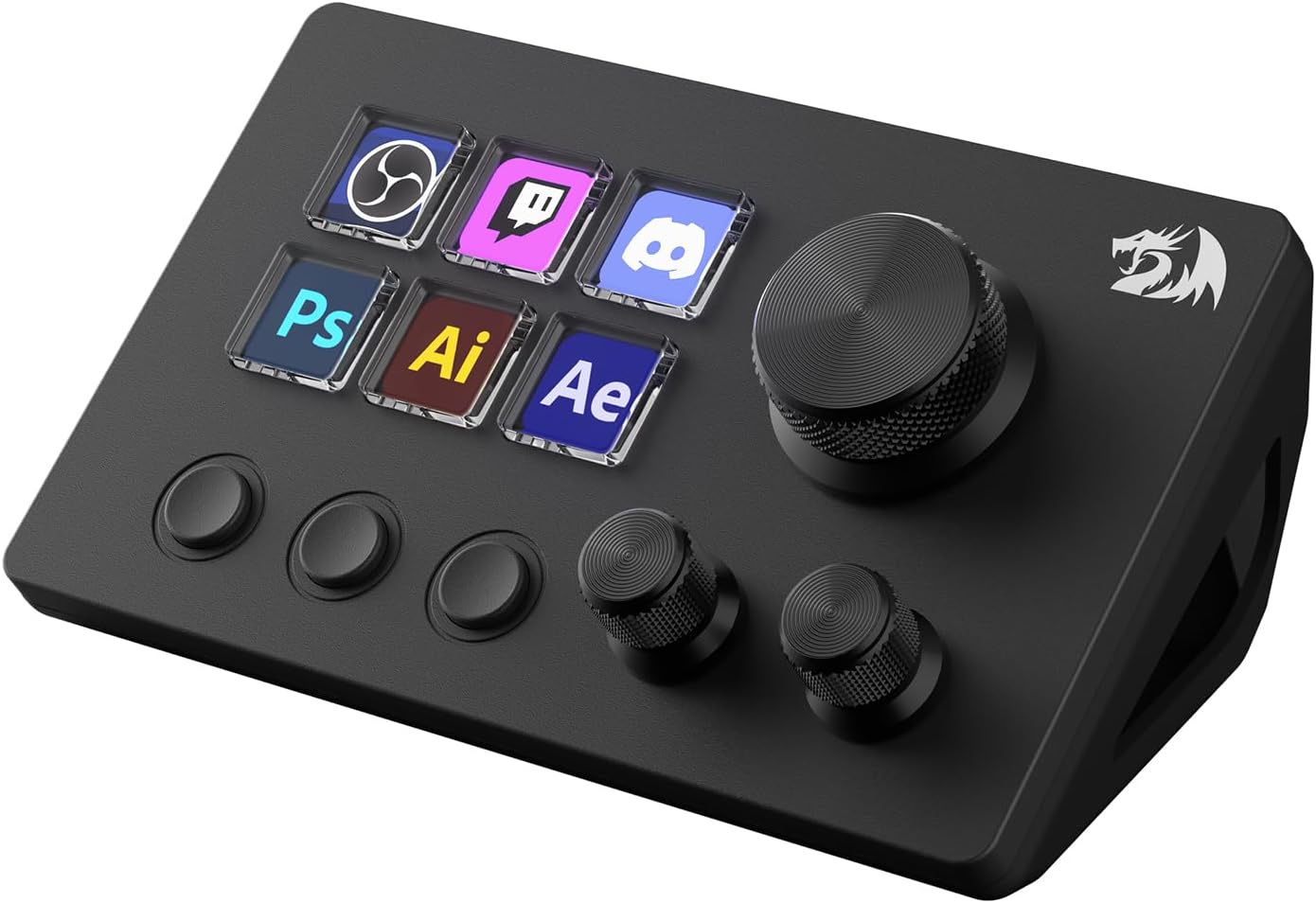
Figure 1: Redragon SS551 Stream Controller with its detachable stand.
Key Features:
- 6 Customizable LCD Keys: These buttons can display custom images, animations (JPG, PNG, GIF), and text, providing visual feedback for assigned functions.
- 3 Rotary Dials: Two smaller dials and one larger dial offer precise control for adjustments such as volume, brightness, or scrolling. These dials also feature a clickable function.
- Detachable Stand: The device includes a stand that can be removed if desired, though the USB-C port is located on the bottom, making the stand generally necessary for stable use.

Figure 2: Detailed view of the programmable LCD keys and rotary dials, illustrating tap and turn functionalities.
Setup
1. Software Installation
To utilize the full functionality of the Redragon SS551 Stream Controller, you must install the dedicated software. This software allows for key customization, macro creation, and device management.
- Visit the official Redragon website (e.g., www.redragonzone.com or www.redragonshop.com).
- Navigate to the support or downloads section and locate the software for the SS551 Stream Controller.
- Download and install the software following the on-screen instructions.

Figure 3: Software download and configuration interface for the SS551.
2. Hardware Connection
Connect the SS551 Stream Controller to your computer using the provided USB-C cable.
- Ensure the detachable stand is securely attached to the controller for stability.
- Connect the USB-C end of the cable to the port on the bottom of the SS551 Stream Controller.
- Connect the USB-A end of the cable to an available USB port on your PC or Mac.
- The device should be automatically recognized by your operating system. Launch the installed Redragon software to begin customization.
Operating Instructions
Customizing Keys and Dials
The SS551 allows extensive customization of its 6 LCD keys and 3 rotary dials through the Redragon software.
- Programmable Keys: Each of the 6 LCD keys can be assigned individual commands, hotkeys, or complex macro sequences. Use the software's drag-and-drop interface to link actions to specific keys.
- Customizable LCD Displays: Personalize the visual appearance of each LCD button by uploading custom images or GIFs (JPG, PNG, GIF formats supported). This helps in quick identification of functions.
- Rotary Dial Functions: The three dials can be configured for various adjustments, such as volume control, media playback, application-specific settings, or scrolling. The clickable function of the dials can also be assigned.
- Multiple Profiles/Pages: Create multiple profiles or pages within the software to switch between different sets of commands for various applications or tasks (e.g., one profile for streaming, another for video editing, and another for gaming).

Figure 4: Examples of customizable LCD buttons for different usage scenarios.
One-Touch Operations
Configure the SS551 to execute multiple commands or complex actions with a single press of a button.
- Macro Sequences: Record and assign a series of keystrokes and mouse clicks to a single button for automated tasks.
- Scene Switching: For streamers, integrate with software like OBS or Streamlabs to switch scenes, mute microphones, or start/stop streams with a single button press.
- Application Launch: Program keys to launch frequently used applications or open specific files/folders.

Figure 5: The SS551 executing multiple commands with a single touch.
Compatibility and Integration
The SS551 is designed for broad compatibility and seamless integration.
- Operating Systems: Compatible with Windows and macOS.
- Software Integration: Supports popular streaming software like OBS and Streamlabs, as well as various productivity and creative applications.
- Desktop Companion Features: The software includes essential plugins such as a clock, weather updates, and a calendar, which can be displayed on the LCD keys.

Figure 6: The SS551 offers broad compatibility with Windows and Mac applications.
Maintenance
To ensure the longevity and optimal performance of your Redragon SS551 Stream Controller, follow these maintenance guidelines:
- Cleaning: Use a soft, dry cloth to wipe the surface of the device. For stubborn smudges, slightly dampen the cloth with water. Avoid harsh chemicals or abrasive materials.
- Storage: Store the device in a cool, dry place away from direct sunlight and extreme temperatures.
- Cable Care: Avoid bending or twisting the USB-C cable excessively. Always grasp the connector, not the cable, when plugging or unplugging.
- Software Updates: Regularly check the Redragon website for software and firmware updates to ensure your device has the latest features and bug fixes.
Troubleshooting
If you encounter issues with your Redragon SS551 Stream Controller, refer to the following common troubleshooting steps:
- Device Not Recognized:
- Ensure the USB-C cable is securely connected to both the controller and your computer.
- Try connecting the device to a different USB port on your computer.
- Test with a different USB-C cable if available.
- Restart your computer.
- Software Not Launching or Connecting:
- Verify that the Redragon software is installed correctly. Reinstall if necessary.
- Ensure your operating system is up to date.
- Temporarily disable any antivirus or firewall software that might be blocking the application.
- Run the software as an administrator (Windows).
- Buttons or Dials Not Responding:
- Check the software to ensure that functions are correctly assigned to the unresponsive keys/dials.
- Verify that you are on the correct profile/page within the software.
- Perform a factory reset of the device through the software, if available.
- Device Slides on Desk:
- Ensure the detachable stand is properly attached.
- Place the device on a non-slip surface or use a desk mat to prevent movement during use.
- LCD Keys Not Displaying Correctly:
- Check the image file format and resolution in the software. Ensure they are compatible (JPG, PNG, GIF).
- Adjust the brightness settings for the LCDs within the software.
Specifications
| Brand | Redragon |
| Model Name | SKYRIDER (SS551) |
| Compatible Devices | PC, Laptop |
| Controller Type | Macro Pad / Stream Controller |
| Connectivity Technology | USB-C |
| Programmable Keys | 6 LCD Buttons |
| Rotary Dials | 3 |
| Hardware Platform | PC |
| Item Dimensions (L x W x H) | 5.16 x 3.15 x 1.5 inches |
| Item Weight | 1 Grams (approximate) |
| Color | Black |
Warranty Information
The Redragon SS551 Stream Controller comes with a 1-year limited warranty from the date of purchase. This warranty covers manufacturing defects and malfunctions under normal use. It does not cover damage caused by misuse, accidents, unauthorized modifications, or external factors. Please retain your proof of purchase for warranty claims. For detailed warranty terms and conditions, refer to the official Redragon website or contact customer support.
Support
For further assistance, technical support, or to download the latest software and drivers, please visit the official Redragon support channels:
- Website: www.redragonzone.com or www.redragonshop.com
- Refer to the contact section on the website for email or phone support options.
