1. Product Overview
The Redragon K740 is a 98-key wired RGB mechanical gaming keyboard designed for performance and durability. It features a solid aluminum base, custom linear switches, and PBT keycaps, offering a premium typing experience. The compact 98-key layout retains full functionality while saving desk space.

Image 1.1: Redragon K740 Wired RGB Gaming Keyboard
Key Features:
- Original Aluminum Board: The K740 features a robust aluminum metal board with a brushed surface, ensuring stability and durability.
- Custom Dragon Chant Switch: Equipped with thick-lubed custom linear switches for a cushioned, smooth, and responsive typing experience.
- Tactical 98 Keys: An innovative layout that maintains the functionality of a full-size keyboard in a 20% smaller footprint.
- One-Knob Control: A dedicated knob for easy adjustment of keyboard backlight brightness and media controls (volume, play/pause, track switching).
- Pro Software Supported: Customizable software allows for designing new lighting modes, effects, macros, and key redefinitions.

Image 1.2: Redragon K740 Key Features Overview
2. Setup Instructions
2.1 Package Contents
- Redragon K740 Wired RGB Gaming Keyboard
- USB-C Cable
- Keycap Puller
- Switch Puller
- Spare Switches (4 units)
- User Manual
2.2 Connecting the Keyboard
- Locate the USB-C port on the back of the Redragon K740 keyboard.
- Connect one end of the provided USB-C cable to the keyboard's USB-C port.
- Connect the other end of the USB-C cable to an available USB port on your computer.
- The keyboard will automatically be recognized by your operating system.
2.3 Software Installation (Optional)
For advanced customization options, including macro editing, RGB backlight configuration, and key redefinition, download and install the Redragon Pro Software from the official Redragon website (redragonshop.com).
- Visit the official Redragon website.
- Navigate to the support or downloads section.
- Locate the software for the K740 model and download the installer.
- Follow the on-screen instructions to complete the installation.
3. Operating Instructions
3.1 Basic Keyboard Functions
The Redragon K740 functions as a standard 98-key keyboard. All keys perform their labeled functions upon connection.

Image 3.1: K740 Tactical 98-Key Layout
3.2 RGB Backlight Control
The K740 features vivid RGB backlighting with 18 pre-set modes and on-board control.
- Changing Backlight Modes: Press Fn + Ins to cycle through different RGB lighting effects.
- Adjusting Brightness: Use the dedicated control knob. Press Fn + Knob to switch the knob's function between volume and brightness control. Rotate the knob to increase or decrease brightness.
- Changing Backlight Colors (Static Modes): Press Fn + PgDn to change the color in static backlight modes.

Image 3.2: On-board Backlight Control
3.3 Dedicated Control Knob
The multi-function knob provides quick access to media and lighting controls.
- Volume Control: By default, rotate the knob to adjust the system volume. Press the knob to mute/unmute audio.
- Backlight Brightness Control: Press Fn + Knob to switch the knob's function to backlight brightness adjustment. Rotate to adjust brightness.

Image 3.3: Dedicated Control Knob
3.4 Pro Software Functions
Once the Pro Software is installed, you can access advanced customization options:
- Macro Editing: Create and assign complex key sequences to single keys.
- RGB Backlight Customization: Design custom lighting effects and color patterns.
- Key Redefinition: Remap keys to perform different functions.

Image 3.4: Pro Software Interface
4. Maintenance
4.1 General Cleaning
To maintain optimal performance and appearance, regularly clean your keyboard:
- Disconnect the keyboard from your computer before cleaning.
- Use a can of compressed air to remove dust and debris from between the keycaps.
- Wipe the keycaps and keyboard surface with a soft, slightly damp cloth. Avoid excessive moisture.
- Do not use harsh chemicals or abrasive materials.
4.2 Keycap and Switch Replacement
The Redragon K740 features hot-swappable switches, allowing for easy replacement without soldering.
- Removing Keycaps: Use the provided keycap puller to gently remove the desired keycap. Hook the puller onto the keycap and pull straight up.
- Removing Switches: Use the provided switch puller. Align the prongs of the switch puller with the clips on the top and bottom of the switch. Squeeze the clips and gently pull the switch straight up.
- Installing Switches: Align the pins of the new switch with the holes on the PCB. Gently push the switch down until it clicks into place. Ensure the pins are straight to avoid bending.
- Installing Keycaps: Place the keycap over the switch stem and press down firmly until it is seated.

Image 4.1: Custom Linear Switch Details
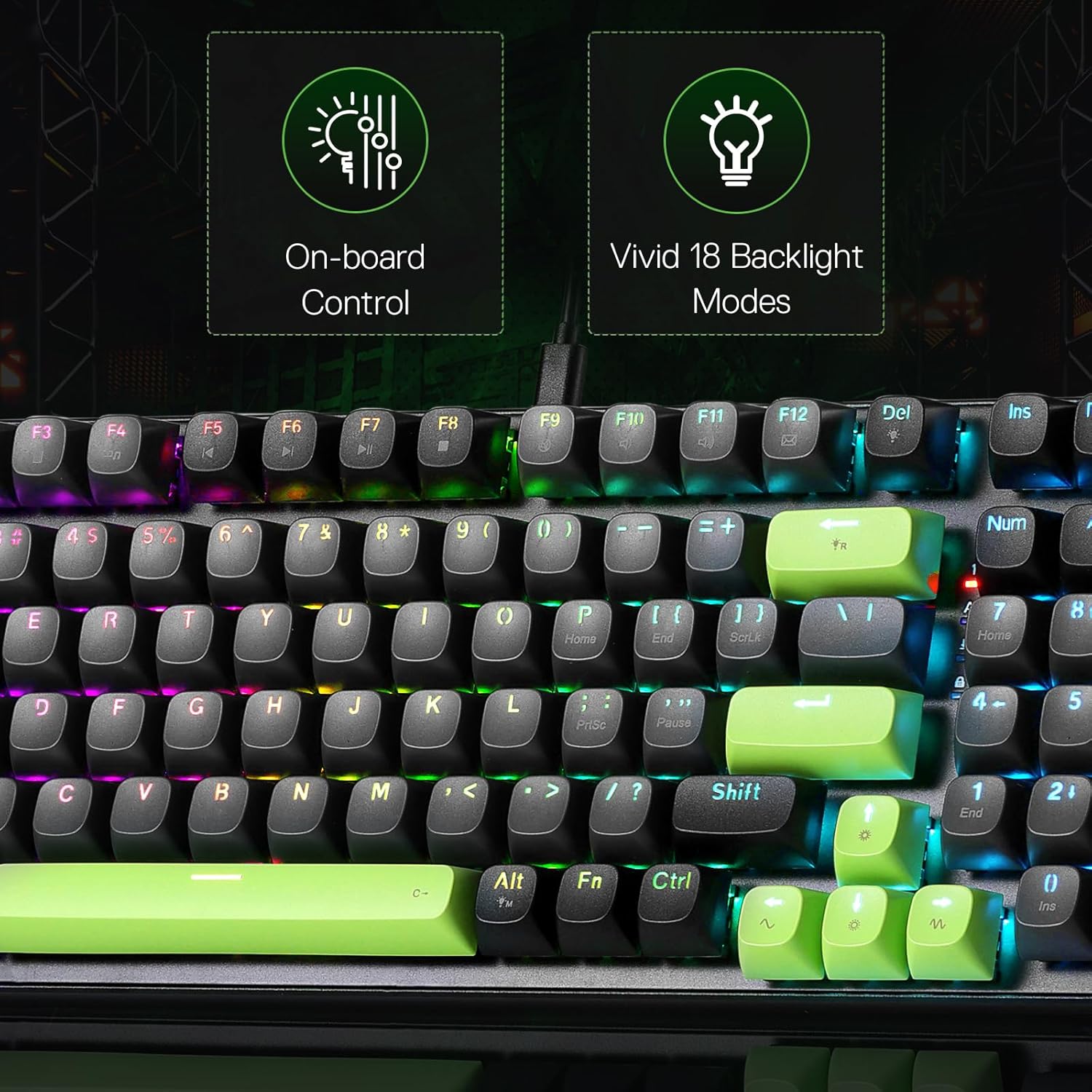
Image 4.2: Mixed Color Round PBT Keycaps
5. Troubleshooting
If you encounter issues with your Redragon K740 keyboard, refer to the following common troubleshooting steps:
- Keyboard Not Responding:
- Ensure the USB-C cable is securely connected to both the keyboard and the computer.
- Try connecting the keyboard to a different USB port on your computer.
- Test the keyboard on another computer to rule out a computer-specific issue.
- Restart your computer.
- RGB Backlighting Not Working/Dim:
- Check the brightness level using the control knob (ensure it's in brightness mode by pressing Fn + Knob).
- Cycle through different backlight modes using Fn + Ins.
- If using the Pro Software, ensure lighting settings are correctly configured and applied.
- Keys Not Registering:
- If a specific key is not working, try replacing its switch with one of the spare switches provided (refer to Section 4.2).
- Ensure no debris is lodged under the keycap or switch.
- Software Issues:
- Ensure you have the latest version of the Redragon Pro Software installed.
- Try reinstalling the software.
- Check for any conflicting software or drivers on your system.
For further assistance, please contact Redragon customer support.
6. Specifications
| Feature | Detail |
|---|---|
| Model Name | Dharma 98 (K740) |
| Keys Layout | 98 Keys (Tactical Layout) |
| Connectivity Technology | USB-C (Wired) |
| Switch Type | Custom Linear Switch |
| Keycap Material | PBT Round Keycaps |
| Base Material | Solid Aluminum Alloy Board |
| Special Features | 98 Keys Gasket Design, Dedicated Knob Control, Hot-Swap Socket |
| Backlighting | RGB (18 Vivid Backlight Modes) |
| Compatible Devices | PC |
| Item Weight | 3.12 pounds |
| Package Dimensions | 16.26 x 6.54 x 2.2 inches |
| Manufacturer | Redragon |
7. Warranty Information
For detailed warranty information regarding your Redragon K740 keyboard, please refer to the warranty card included with your product or visit the official Redragon website. Warranty terms and conditions may vary by region and purchase date.
8. Support
If you require technical support, have questions about your product, or need assistance with troubleshooting, please contact Redragon customer service through their official website:
- Website: www.redragonshop.com
- Refer to the 'Support' or 'Contact Us' section on the website for specific contact methods (email, phone, live chat).