
1. Introduction
The Tsnam Bluetooth Transmitter Receiver JS7 is a versatile audio adapter designed to enhance your audio experience. It functions as both a Bluetooth transmitter (TX mode) to send audio wirelessly from non-Bluetooth devices to Bluetooth headphones or speakers, and a Bluetooth receiver (RX mode) to enable Bluetooth audio streaming to non-Bluetooth audio systems. Key features include an LED display for easy setup, dual link capability for connecting two devices simultaneously, a built-in microphone for hands-free calls, and support for TF card playback.
2. Safety Information
- Battery Safety: Do not dispose of the device in fire or water. Keep it away from extreme temperatures and high humidity to prevent damage and ensure safe operation.
- Bluetooth Interference: This device uses Bluetooth wireless technology, which may interfere with other wireless devices. Always follow instructions for proper use and disposal to minimize potential interference.
3. Package Contents
- Tsnam Bluetooth Transmitter Receiver JS7
- 3.5mm Audio Cable
- USB-C Charging Cable
- Instruction Manual
4. Device Layout
Familiarize yourself with the buttons and ports on your Tsnam Bluetooth Transmitter Receiver JS7.

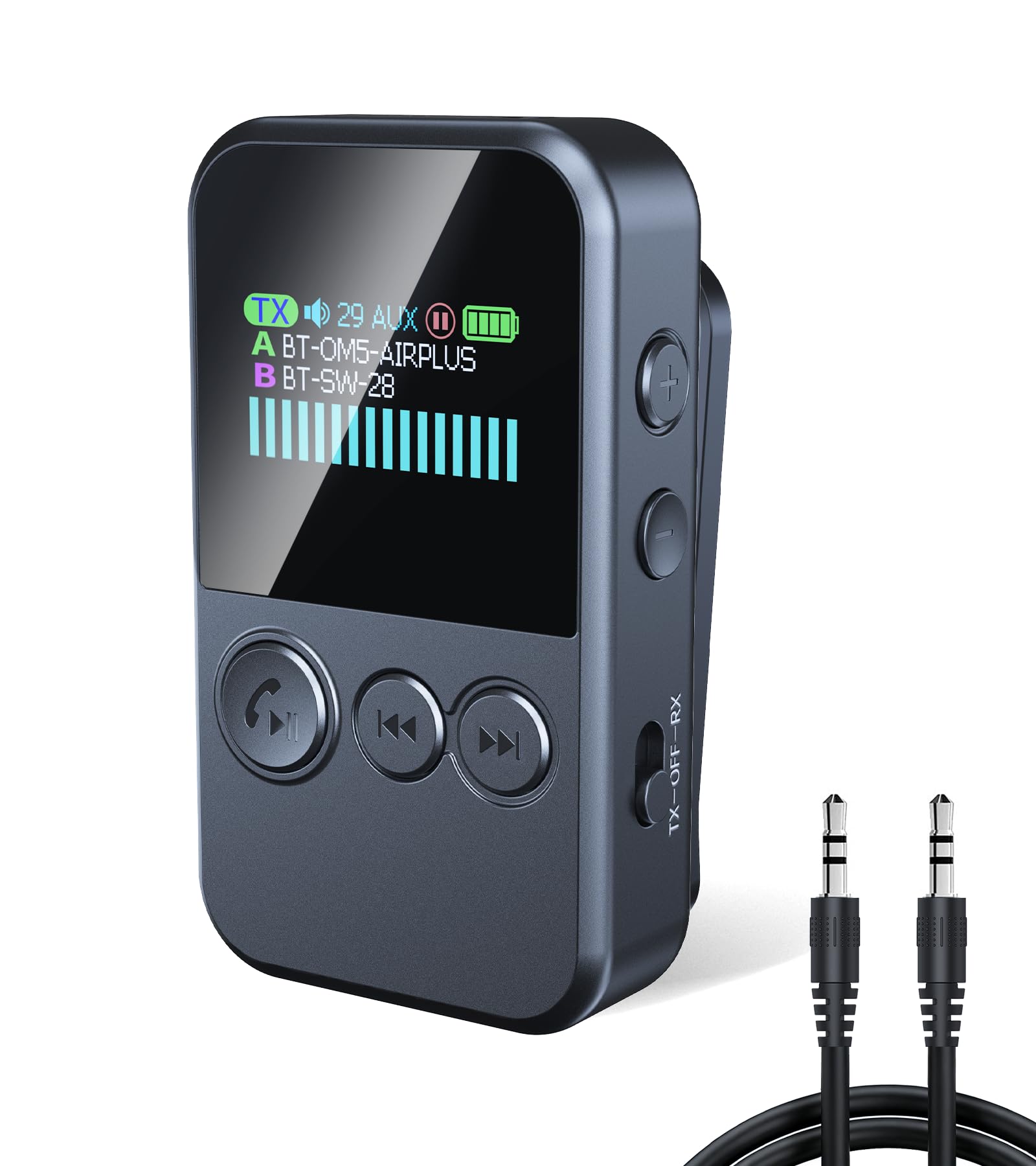
- LED Display: Shows battery life, mode, connection status, and device name.
- Multi-Function Button (Phone Icon): Power On/Off, Play/Pause, Answer/End Call.
- Previous Track / Volume Down Button: Short press for previous track, long press for volume down.
- Next Track / Volume Up Button: Short press for next track, long press for volume up.
- TX/RX Mode Switch: Slide to select Transmitter (TX) or Receiver (RX) mode.
- 3.5mm AUX Port: For audio input/output.
- USB-C Charging Port: For charging the device.
- TF Card Slot: For playing music directly from a TF card.
- Clip: For attaching the device to clothing or bags.
5. Setup and Pairing
5.1 Charging the Device
Before first use, fully charge the device. Connect the included USB-C charging cable to the device's USB-C port and plug the other end into a standard USB power adapter (not included). A full charge takes approximately 2 hours. The LED display will indicate charging status.

5.2 Power On/Off and Mode Selection
- Power On: Press and hold the Multi-Function button for 3 seconds. The LED display will light up.
- Power Off: Press and hold the Multi-Function button for 3 seconds. The LED display will turn off.
- Mode Selection: Use the TX/RX switch on the side of the device to select the desired operating mode.
5.3 TX Mode (Transmitter) - Connecting to Headphones/Speakers
In TX mode, the device transmits audio from a non-Bluetooth source (e.g., TV, PC, airplane entertainment system) to Bluetooth headphones or speakers.
- Slide the TX/RX switch to TX mode. The LED display will show 'TX'.
- Connect the Tsnam device to your audio source's 3.5mm audio output port using the provided 3.5mm audio cable.
- Put your Bluetooth headphones or speaker into pairing mode. Refer to your headphone/speaker manual for specific instructions.
- The Tsnam device will automatically search for nearby Bluetooth devices. The LED display will show a list of available devices.
- Use the Previous/Next track buttons to navigate the list and select your desired Bluetooth device. Press the Multi-Function button to confirm pairing.
- Once connected, the device name on the LED display will turn white, and audio will transmit wirelessly.


Dual Link Function (TX Mode)
To connect a second pair of Bluetooth headphones or speaker:
- After successfully pairing the first device, put the second Bluetooth device into pairing mode.
- Double-click the Multi-Function button on the Tsnam device to initiate a search for the second device.
- Select the second device from the list on the LED display and confirm pairing.

5.4 RX Mode (Receiver) - Connecting to Phone/Tablet
In RX mode, the device receives audio wirelessly from a Bluetooth-enabled source (e.g., smartphone, tablet, laptop) and outputs it to a non-Bluetooth audio system (e.g., car stereo, home stereo, wired headphones).
- Slide the TX/RX switch to RX mode. The LED display will show 'RX'.
- Connect the Tsnam device to your audio system's 3.5mm audio input port using the provided 3.5mm audio cable.
- On your smartphone, tablet, or other Bluetooth-enabled device, enable Bluetooth and search for new devices.
- Select 'JS7' (or similar device name displayed on the LED screen) from the list of available devices to pair.
- Once connected, the device name on the LED display will turn white, and you can stream audio wirelessly from your source device to your audio system.

5.5 TF Card Playback
The device supports direct playback of audio files from a TF (MicroSD) card.
- Insert a TF card (up to 64GB, not included) containing supported audio formats (FLAC, WMA, WAV, MP3, APE) into the TF card slot.
- The device will automatically detect the TF card and switch to TF card playback mode. The LED display will show track information.
- Use the Previous/Next track buttons to navigate through your music. Press the Multi-Function button to play or pause.

6. Operating Instructions
6.1 LED Display Information
The LED display provides real-time information about the device's status:
- Battery Life: Indicated by a battery icon.
- Current Mode: 'TX' for Transmitter, 'RX' for Receiver, or track info for TF Card mode.
- Connection Status: Shows if Bluetooth devices are connected. Device names are green when unconnected and white when connected.
- Volume Level: Displayed as a bar graph.
6.2 Button Functions
| Button | Action | Function |
|---|---|---|
| Multi-Function (Phone Icon) | Long Press (3s) | Power On/Off |
| Short Press | Play/Pause (music), Answer/End Call (phone) | |
| Double Press | Redial Last Number (phone) | |
| Long Press (during call) | Activate Voice Assistant | |
| Previous Track / Volume Down | Short Press | Previous Track |
| Long Press | Volume Down | |
| Next Track / Volume Up | Short Press | Next Track |
| Long Press | Volume Up |
6.3 Hands-Free Calling (RX Mode)
When the device is in RX mode and connected to your smartphone, you can make and receive calls using the built-in microphone.
- Answer Call: Short press the Multi-Function button.
- End Call: Short press the Multi-Function button during a call.
- Reject Call: Long press the Multi-Function button when a call comes in.
7. Maintenance
- Keep the device clean and dry. Avoid exposure to extreme temperatures, humidity, and direct sunlight.
- Use a soft, dry cloth for cleaning. Do not use harsh chemicals or abrasive cleaners.
- Store the device in a cool, dry place when not in use.
- Avoid dropping or subjecting the device to strong impacts.
8. Troubleshooting
- Device not powering on: Ensure the device is fully charged. Connect it to a power source using the USB-C cable. If the issue persists, try a different charging cable or power adapter.
- Cannot pair with Bluetooth device:
- Ensure the Tsnam device is in the correct mode (TX for transmitting, RX for receiving).
- Make sure your target Bluetooth device (headphones, speaker, phone) is in pairing mode and within range (typically 10 meters).
- Clear previous pairings on both the Tsnam device and your target Bluetooth device, then attempt to pair again.
- Restart both devices.
- Audio delay (lip sync issues): Some Bluetooth connections may experience slight audio delay, which can be influenced by the audio source or the receiving Bluetooth device. Try restarting both devices. Ensure the audio source is not causing the delay.
- TF card not playing or control buttons not working:
- Ensure the TF card is inserted correctly into the slot.
- Verify that the TF card contains supported audio formats (FLAC, WMA, WAV, MP3, APE).
- Note that some Bluetooth headphones or speakers may not support remote control functions (play/pause, skip track) when the Tsnam device is operating in TF card playback mode.
- Short battery life: Battery life can vary based on the operating mode (TX vs. RX) and volume levels. Ensure the device is fully charged before use. If the screen remains on for extended periods, it will consume more power.
9. Specifications
| Feature | Detail |
|---|---|
| Brand | Tsnam |
| Model Name | JS7 |
| Connectivity Technology | 3.5 mm, AUX, Bluetooth, TF Card |
| Power Source | Battery Powered |
| Material | Metal, Plastic |
| Color | Black |
| Supported Media Type | TF Card, Bluetooth |
| Display Type | LED |
| Rechargeable Battery Included | Yes |
| Voltage | 5 Volts |
| Number of Batteries | 1 Nonstandard Battery (included) |
| Battery Charge Time | 2 Hours |
| Lithium-Battery Energy Content | 0.1 Milliampere Hour (mAh) |
| Item Dimensions (L x W x H) | 1.5"L x 1"W x 2.5"H |
| Item Weight | 0.3 Ounces |
| Special Features | Built-In Microphone, Dual Pairing, Hands-Free Calls, LED Display, Low Latency |
| Compatible Devices | Car Stereo System, Headphone, Home Stereo System, Television, iPhone, iPad, MacBook, Samsung, AirPods, AirPods Max, Sony, TV, PC, Game Console, MP3, MP4 |
| Supported Application | Spotify, YouTube, MP3, AAC, WMA, APE, WAV, FLAC |
| Control Method | Push Button |
| Audio Output Type | Headphone, Speaker |
| Audio Input | Microphone |
| Audio Output Mode | Stereo |
| Number of Channels | 2 |
10. Warranty and Support
10.1 Warranty Information
This Tsnam product is covered by a 1-year manufacturer's warranty from the date of purchase. This warranty covers defects in materials and workmanship under normal use. It does not cover damage caused by misuse, accidents, unauthorized modifications, or normal wear and tear.
10.2 Customer Support
For technical assistance, troubleshooting, or warranty claims, please contact Tsnam customer support through the platform where you purchased the product. You may also visit the official Tsnam brand store for additional resources and contact information.
Tsnam Brand Store: https://www.amazon.com/stores/TSNAM/page/0187DAF4-A838-40F0-9C90-27BE134C7CC3
11. Product Video
Watch this video for a visual demonstration of the Tsnam Bluetooth Transmitter Receiver's functions.

