
1. Introduction
This manual provides detailed instructions for the installation, operation, and maintenance of your Leadfan Car Stereo for Nissan Altima models from 2013 to 2018. Please read this manual thoroughly before installation and use to ensure proper functionality and safety.
2. Compatibility and Important Notes
This car stereo is designed for Nissan Altima vehicles manufactured between 2013 and 2018. It features an Android 12 system, 4-Core processor, 2GB RAM, 32GB ROM, and a 9-inch 2.5D IPS touch screen.
- Important: This unit does not support factory amplifiers or factory cameras.
- Before purchasing and installation, verify your car's model, year, dimensions, and the shape of the center console.
- The installation is designed to be plug-and-play, eliminating the need to cut existing cables.

Image 2.1: Leadfan Car Stereo installed in a Nissan Altima dashboard. This image illustrates the compatible dashboard configurations for the 2013-2018 Nissan Altima models, indicating which factory radio setups are supported (green checkmarks) and which are not (red cross).
3. Setup and Installation
The Leadfan Car Stereo is designed for straightforward installation. Ensure the vehicle's power is off before beginning. Refer to the wiring diagram provided in the package for specific connections.
3.1. Pre-Installation Check
- Confirm all components listed in the 'Package Contents' section are present.
- Disconnect the vehicle's battery to prevent electrical shorts.
3.2. Wiring Connections
- Connect the main power cable harness to the vehicle's wiring.
- Connect the RCA cables for audio output and auxiliary input.
- Attach the USB cables for external device connectivity.
- Connect the reverse input cable for the backup camera.
- Install the GPS antenna in a location with a clear view of the sky.
- Connect the radio antenna.
- Connect the included backup camera to the designated input.
- If applicable, connect the external microphone for improved call quality.
3.3. Mounting the Unit
- Secure the car stereo into the dashboard opening using the provided mounting brackets.
- Ensure all cables are neatly routed and not pinched.
3.4. Initial Power-Up
- Reconnect the vehicle's battery.
- Turn on the vehicle's ignition and power on the car stereo.
- Follow any on-screen prompts for initial setup.
4. Operating Instructions
4.1. Touch Screen Interface
The unit features a 9-inch 1280*720P HD capacitive touch screen. Navigate through menus and applications by tapping, swiping, and pinching gestures, similar to a smartphone or tablet. The system supports 1080P video playback.
4.2. Wireless CarPlay and Android Auto
Connect your smartphone wirelessly via Bluetooth and Wi-Fi hotspot to access CarPlay (for Apple phones) or Android Auto (for Android phones). This allows for integrated navigation, music, calls, and messaging directly from the car stereo display.

Image 4.1: Wireless CarPlay and Android Auto functionality. This image displays the user interface for both Apple CarPlay and Android Auto, showing how smartphone applications like music, maps, and messaging are integrated into the car stereo display.
4.3. Mirror Link Function
Mirror Link allows you to display your phone's screen on the car stereo. Apple phones support one-way control (view only), while Android phones support two-way control (view and interact).
4.4. GPS Navigation and Wi-Fi Connectivity
The built-in GPS receiver supports both online and offline navigation. Connect to Wi-Fi to download offline maps or use online navigation services. Wi-Fi also enables internet browsing and downloading additional applications from the app store, such as YouTube or Spotify.

Image 4.2: GPS Navigation and Wi-Fi connectivity. This image highlights the GPS navigation interface with map display and various online applications accessible via Wi-Fi, such as social media and streaming services.
4.5. Bluetooth 5.0
Bluetooth 5.0 provides faster transfer speeds and a stable connection for hands-free phone calls and audio streaming. Pair your smartphone to play music and access your contacts book. An external microphone jack is included for clear voice communication.

Image 4.3: Built-in Bluetooth functionality. This image illustrates the Bluetooth interface for both music playback and hands-free calling, emphasizing seamless connectivity for audio and communication.
4.6. FM Radio
The integrated FM radio allows you to listen to real-time traffic, news broadcasts, and weather forecasts. It supports manual and automatic station search with unlimited preset stations.
4.7. Rear-view Camera Input
The system includes an AHD backup camera with a 170° viewing angle. When reverse gear is engaged, the screen automatically switches to the reverse interface, providing a clear view for safe parking and maneuvering.
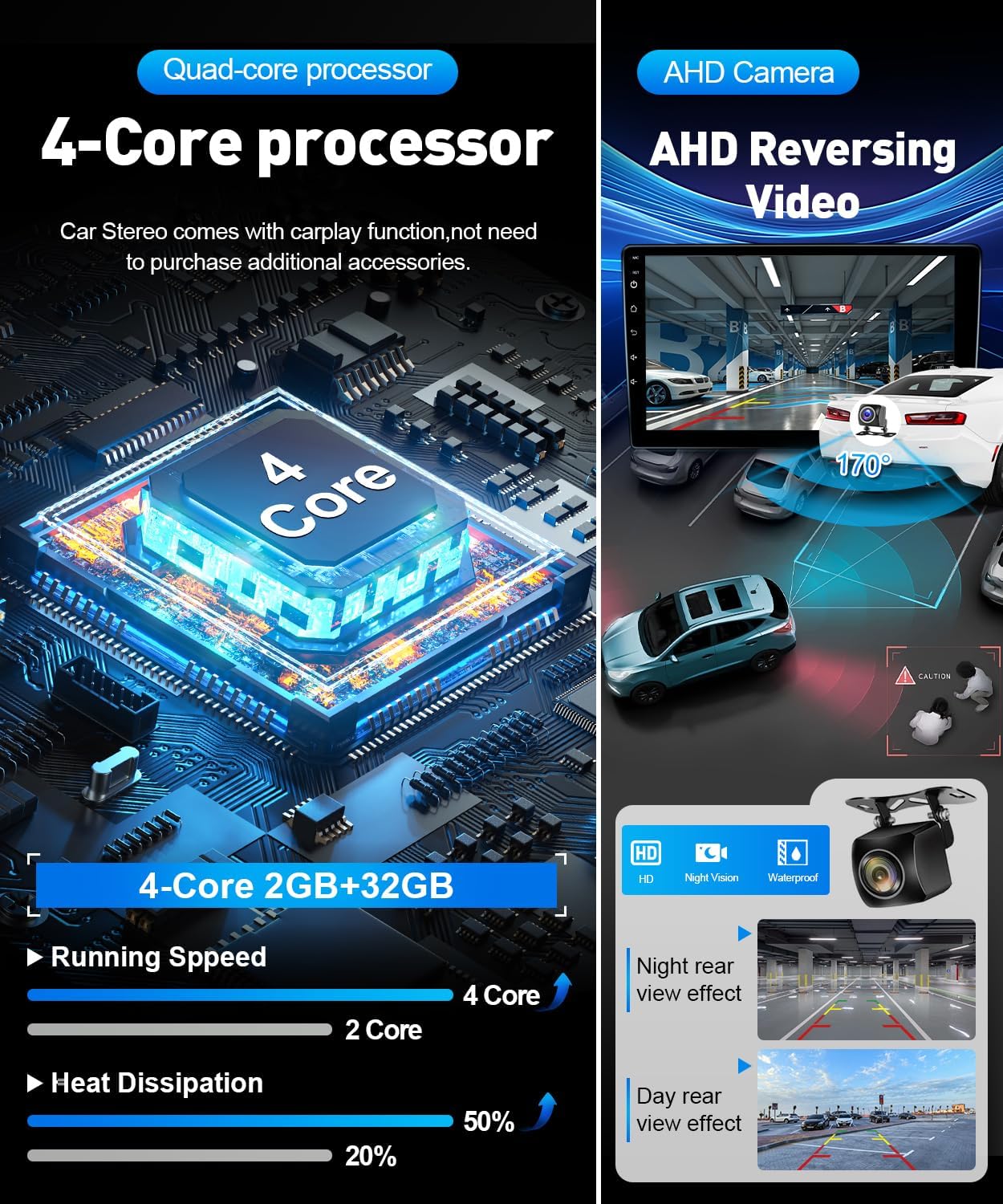
Image 4.4: AHD Reversing Video and system processor. This image details the AHD reversing video feature, showing both day and night rear-view effects, alongside information about the 4-Core processor and its performance benefits.
4.8. Split Screen Functionality
The split-screen feature allows you to run two applications simultaneously, such as navigation and music playback, enhancing multitasking capabilities.
4.9. Steering Wheel Controls (SWC)
The unit supports integration with your vehicle's existing steering wheel controls, allowing you to manage audio, calls, and other functions without taking your hands off the wheel. Configuration may be required in the system settings.

Image 4.5: EQ Setting, Split Screen, and Steering Wheel Controls. This image illustrates the graphical equalizer (EQ) settings, the split-screen view for simultaneous app usage, and the interface for configuring steering wheel controls.
4.10. EQ Setting
Adjust audio output with the built-in Equalizer (EQ) settings to customize your listening experience.
5. Specifications
| Feature | Specification |
|---|---|
| Brand | Leadfan |
| Model Number | For Altima 2013-2018 (without AC Vent) |
| Operating System | Android 12 |
| Processor | 4-Core |
| RAM | 2 GB |
| Memory Storage Capacity | 32 GB |
| Screen Size | 9 Inches |
| Display Type | LED, 2.5D IPS Touch Screen |
| Resolution | 1280*720P HD |
| Connectivity Technology | Bluetooth 5.0, USB, Wi-Fi |
| Supported Navigation System | GPS (North America, Worldwide maps) |
| Special Features | Wireless CarPlay, Android Auto, Mirror Link, Split Screen, FM Radio, Steering Wheel Control, EQ Setting |
| Included Components | Backup Camera |
| Audio Output Mode | Stereo |
| Mounting Type | Dashboard Mount |
| Item Weight | 2.5 Pounds |
6. Package Contents
Verify that all the following items are included in your package:
- Leadfan Car Stereo Unit
- Power Cable
- RCA Cable
- USB Cable (x2)
- Reverse Input Cable
- GPS Antenna
- Radio Antenna
- Backup Camera
- Rear View Input Cable
- Microphone (MIC)
- Radio Adapter
- Mounting Brackets
- Canbus Decoder (if applicable)
- User Manual
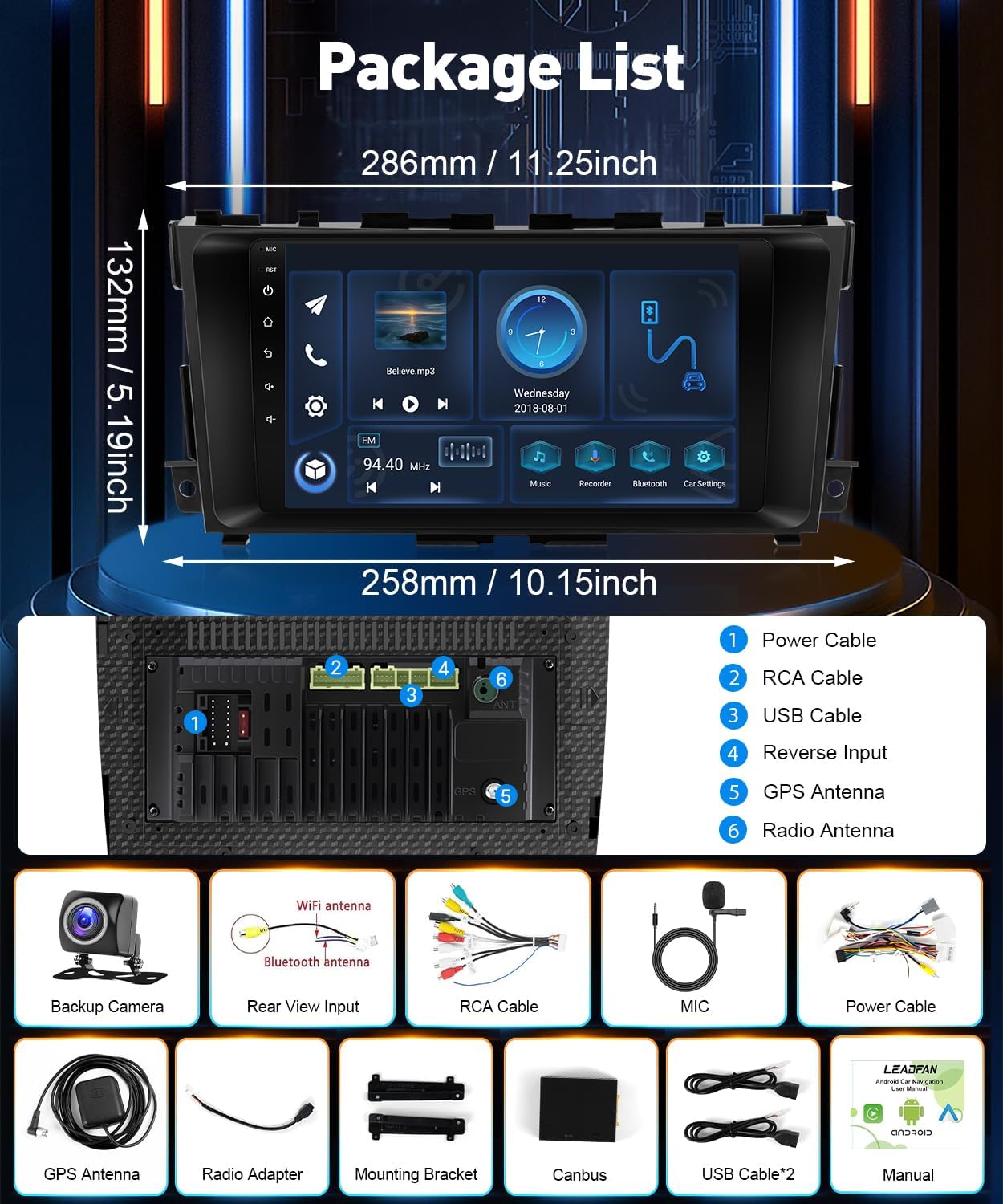
Image 6.1: Package contents and unit dimensions. This image provides a visual representation of all accessories included in the package, such as cables, antennas, and the backup camera, along with the main unit's dimensions.
7. Maintenance
- Cleaning: Use a soft, dry cloth to clean the screen and unit. Avoid abrasive cleaners or solvents.
- Software Updates: Periodically check for software updates through the system settings or the manufacturer's website to ensure optimal performance and access to new features.
- Environmental Conditions: Avoid exposing the unit to extreme temperatures or direct sunlight for prolonged periods.
8. Troubleshooting
| Problem | Possible Cause | Solution |
|---|---|---|
| Unit does not power on | Loose power connection, blown fuse, vehicle battery issue. | Check power cable connections. Inspect vehicle fuses. Ensure vehicle battery is charged. |
| No sound | Volume too low, incorrect audio source, loose speaker wires, incompatible factory amplifier. | Increase volume. Select correct audio source. Check speaker wire connections. Note: Unit does not support factory amplifiers. |
| GPS signal lost or inaccurate | GPS antenna not properly installed, obstructed view of sky. | Ensure GPS antenna is installed in a clear location. Check antenna connection. |
| Bluetooth connection issues | Bluetooth not enabled, device not paired, interference. | Ensure Bluetooth is enabled on both devices. Re-pair the device. Move closer to the unit. |
| Backup camera not displaying | Loose camera connection, incorrect reverse input wiring, incompatible factory camera. | Check camera cable and reverse input connections. Note: Unit does not support factory cameras. |
| Steering Wheel Controls not working | Incorrect wiring, not configured in settings. | Verify SWC wiring. Configure SWC in the unit's system settings. |
9. Warranty and Support
This Leadfan Car Stereo comes with a 1-year warranty from the date of purchase. For warranty claims, technical support, or further assistance, please contact Leadfan customer service through the retailer where the product was purchased or visit the official Leadfan website.
Please retain your proof of purchase for warranty validation.


