
1. Introduction
The SIXWIN 6-inch Wireless Motorcycle CarPlay Android Auto Display is designed to enhance your riding experience by providing seamless smartphone integration, navigation, and media control directly on your motorcycle's handlebars. This device supports both Wireless CarPlay and Android Auto, offering access to maps, music, messages, and voice assistants like Siri and Google Assistant. It also features an IP68 waterproof rating and optional TPMS support for added safety and convenience.

Figure 1: SIXWIN 6-inch Wireless Motorcycle CarPlay Android Auto Display
2. Safety Information
Please read and understand all safety instructions before installing and operating this device. Failure to follow these instructions may result in injury or damage to the product or motorcycle.
- Installation: Ensure the device is securely mounted and all wiring is correctly connected to prevent interference with motorcycle controls or accidental detachment during operation.
- Power: Connect the device to a switched 12V accessory power source to prevent battery drain when the motorcycle is off.
- Visibility: Mount the display in a position that does not obstruct your view of the road or motorcycle instruments.
- Operation: Operate the device only when it is safe to do so. Avoid prolonged interaction with the screen while riding. Utilize voice commands for navigation and media control whenever possible.
- Water Resistance: While the device is IP68 waterproof, avoid submerging it or exposing it to high-pressure water jets.
3. Package Contents
Verify that all items listed below are included in your package:
- SIXWIN 6-inch Wireless Motorcycle CarPlay Android Auto Display Unit
- Power Cable (1.5m)
- Handlebar Mounting Bracket Kit (various accessories for installation)
- Cable Ties
- User Manual
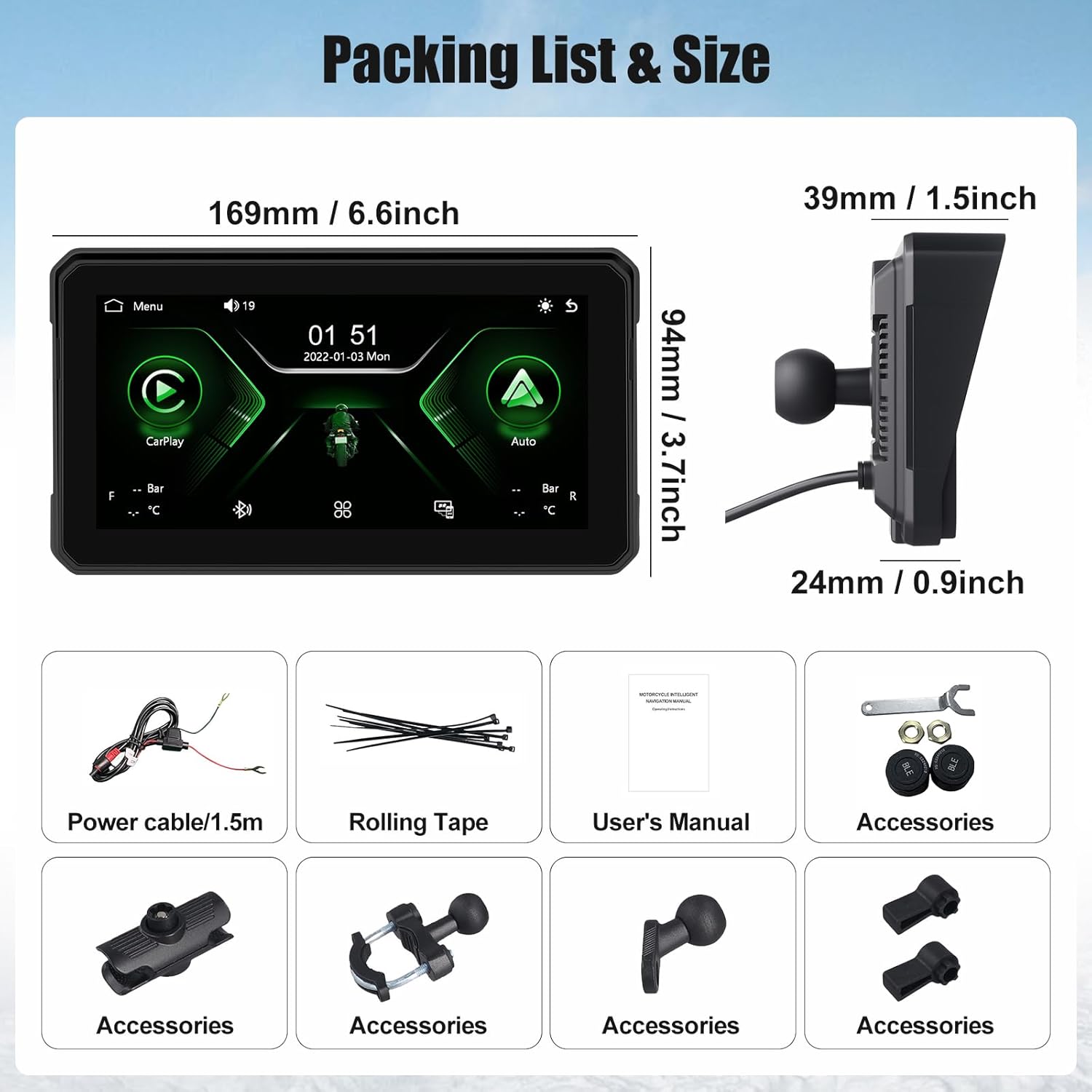
Figure 2: Package Contents
Video 1: Unboxing the YZW Motorcycle CarPlay Screen, showing the display unit and included accessories.
4. Setup
4.1 Mounting the Display
The display unit comes with a versatile handlebar mounting bracket. Choose a location on your motorcycle's handlebars that provides clear visibility without obstructing your view or access to controls.
- Assemble the mounting bracket components according to your preferred angle and position. The bracket features multiple swivel points for optimal adjustment.
- Securely attach the clamp portion of the bracket to your motorcycle's handlebar. Use the provided rubber shims to ensure a snug fit and prevent scratching.
- Attach the display unit to the ball mount on the bracket. Tighten the adjustment knob to fix the display in your desired orientation.

Figure 3: Mounting the Display Unit
Video 2: Demonstration of easy installation for the motorcycle CarPlay screen, showing attachment to handlebars and power connection.
4.2 Wiring the Power Cable
The device requires a 12V power source. The provided power cable includes an ACC (Accessory) wire and a ground wire.
- Connect the red wire (ACC) to a switched 12V power source on your motorcycle. This ensures the device turns on and off with your ignition.
- Connect the black wire (Ground) to a suitable ground point on your motorcycle chassis.
- Route the power cable neatly and securely using the provided cable ties, ensuring it does not interfere with moving parts or get pinched.
Video 3: Installation guide for a CarPlay screen on a motorcycle, including wiring steps.
5. Operating Instructions
5.1 Initial Power-On and Interface
Once properly wired, turn your motorcycle's ignition key to the ON position. The display will power on and show the main interface with options for CarPlay, Android Auto, and Settings.

Figure 4: Main Interface Overview
5.2 Wireless CarPlay and Android Auto Connection
To use CarPlay or Android Auto, you need to pair your smartphone via Bluetooth.
- On the SIXWIN display, select either 'CarPlay' or 'Android Auto'. The screen will display a Bluetooth device name (e.g., CAR-BT_4DAF) and a PIN code (usually 0000).
- On your smartphone, go to Bluetooth settings and enable Bluetooth.
- Search for the device name displayed on the SIXWIN unit and select it to pair. Enter the PIN code if prompted.
- Once paired, confirm the connection on your phone to allow CarPlay or Android Auto to launch on the display.

Figure 5: Wireless CarPlay and Android Auto Interfaces
5.3 GPS Navigation
Access your preferred navigation apps (e.g., Apple Maps, Google Maps) through CarPlay or Android Auto. Use voice commands for hands-free operation.
- Voice Control: Activate Siri or Google Assistant by pressing the voice command button on your phone or the display (if available) and speak your destination.
- Touchscreen Input: You can also use the 6-inch IPS touchscreen to input destinations or browse maps when safely stopped.
Figure 6: GPS Navigation and Voice Control
5.4 Media Playback
Stream music, podcasts, and audiobooks from your smartphone directly to your Bluetooth-enabled helmet speakers.
- App Access: Select your music or podcast app from the CarPlay/Android Auto interface.
- Controls: Use the touchscreen controls for play, pause, skip, and volume adjustment.
5.5 Hands-Free Calling
Make and receive calls safely while riding by connecting your phone via Bluetooth.
- Incoming Calls: Incoming calls will appear on the display. You can accept or decline using the touchscreen or voice commands.
- Outgoing Calls: Initiate calls using voice commands or by selecting contacts from your phone app on the display.

Figure 7: Bluetooth Hands-Free Calling
5.6 TPMS (Tire Pressure Monitoring System) Support
The device supports external TPMS sensors (sold separately) to monitor tire pressure in real-time, enhancing riding safety.
- Sensor Pairing: Refer to the TPMS sensor's manual for pairing instructions. Once paired, tire pressure data will be displayed on the SIXWIN unit.
- Monitoring: The display will show current tire pressure and temperature, alerting you to any significant changes.

Figure 8: Tire Pressure Monitoring
5.7 Screen Features
- 6-inch IPS Touchscreen: Provides clear visuals and responsive touch control.
- Automatic Light Sensing: The screen brightness adjusts automatically to ambient light conditions for optimal visibility.
- IP68 Waterproof: Designed to withstand various weather conditions, including rain and dust.

Figure 9: IP68 Waterproof and Weather Resistance
6. Maintenance
Proper maintenance ensures the longevity and optimal performance of your SIXWIN display.
- Cleaning: Use a soft, damp cloth to clean the screen and exterior. Avoid abrasive cleaners or solvents that may damage the surface.
- Storage: When not in use for extended periods, store the device in a cool, dry place away from direct sunlight and extreme temperatures.
- Cable Inspection: Periodically check all cables and connections for signs of wear or damage. Replace any damaged components immediately.
7. Troubleshooting
If you encounter issues with your SIXWIN display, refer to the following common problems and solutions:
| Problem | Possible Cause | Solution |
|---|---|---|
| Device does not power on. | No power supply or incorrect wiring. | Check power cable connections to the motorcycle battery and ACC source. Ensure the ignition is on. |
| CarPlay/Android Auto not connecting. | Bluetooth not paired or connection issues. | Ensure Bluetooth is enabled on your phone and the device. Try re-pairing the device. Restart both the display and your phone. |
| No audio output. | Bluetooth audio not connected to helmet speakers. | Verify your helmet's Bluetooth speakers are paired and connected to the SIXWIN display. Check volume levels on both devices. |
| Screen is dim or difficult to see. | Brightness settings or direct sunlight glare. | Adjust screen brightness in the settings menu. The automatic light sensing should adapt, but manual adjustment is possible. Ensure the sun visor is properly positioned. |
| Touchscreen unresponsive. | Temporary software glitch or physical obstruction. | Restart the device. Ensure the screen is clean and free from water droplets or debris. |
8. Specifications
- Screen Size: 6 Inches
- Display Type: IPS Touchscreen
- Waterproof Rating: IP68
- Connectivity: Bluetooth, Wireless CarPlay, Wireless Android Auto
- Special Features: Hands-Free Calling, Tyre Pressure Monitoring (with optional sensors), GPS Navigation, Automatic Light Sensing
- Vehicle Service Type: Motorcycle
- Mounting Type: Handlebar Mount
- Power Input: 12V
- Product Dimensions: 0.39 x 0.39 x 0.39 inches
- Item Weight: 1.65 pounds
9. Warranty
SIXWIN products are covered by a limited warranty against defects in materials and workmanship. Please retain your proof of purchase for warranty claims. For specific warranty terms and conditions, refer to the product packaging or contact customer support.
10. Support
For technical assistance, troubleshooting, or any inquiries regarding your SIXWIN Wireless Motorcycle CarPlay Android Auto Display, please contact our customer support team:
- Email: sixwin_vip@163.com
Our support team is available to provide online help and further user manual guidance.