
1. Introduction
Thank you for choosing the SABLUTE KM25Pro Wireless Keyboard and Mouse Combo. This manual provides detailed instructions for setting up, operating, and maintaining your new device. Please read this manual thoroughly before use to ensure optimal performance and longevity.
Package Contents
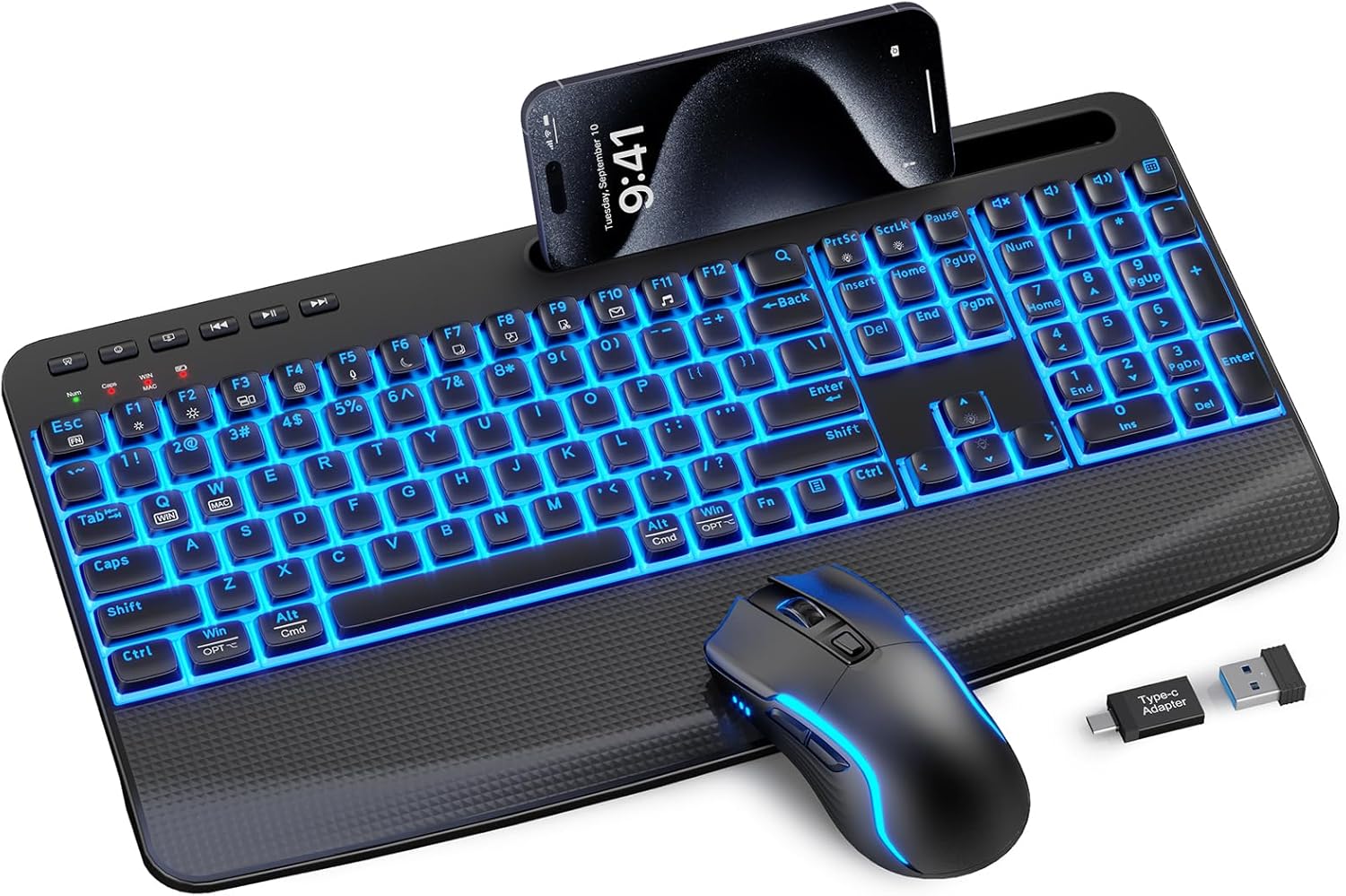
- SABLUTE KM25Pro Wireless Keyboard
- SABLUTE Wireless Mouse
- 2.4GHz USB Receiver (Dongle)
- USB-C Charging Cable
- USB-A to USB-C Adapter
2. Setup Instructions
Initial Charging
Before first use, it is recommended to fully charge both the keyboard and mouse.
- Connect the USB-C charging cable to the charging port on the keyboard and mouse.
- Plug the other end into a USB power source (e.g., computer USB port, wall adapter).
- The keyboard has a 4000mAh battery, providing up to two weeks of use on a single charge. The mouse has a 750mAh battery, offering extended usage. Full charging typically takes 8 hours.

Connecting the Devices
- Locate the 2.4GHz USB receiver. It is often stored in a compartment on the mouse.
- Plug the USB receiver into an available USB port on your computer. If your computer only has USB-C ports, use the provided USB-A to USB-C adapter.
- Turn on the keyboard and mouse using their respective power switches.
- The devices should automatically connect to your computer. No additional drivers are typically required for Windows or macOS.
Operating System Switching
The keyboard supports both Windows and Mac operating systems. To switch between modes:
- For Windows mode: Press Fn + Q.
- For Mac mode: Press Fn + W.
3. Operating Instructions
Keyboard Features
Backlight Control
The keyboard features 7-color backlighting with adjustable brightness.
- To turn the backlight on/off: Press Fn + PrtSc.
- To switch backlight color: Press Fn + ScrlLk.
- To adjust brightness (3 levels): Press Fn + Up Arrow (increase) or Fn + Down Arrow (decrease).
Note: The key legends have limited transparency. Under certain angles, the backlight may appear slightly dim or characters may look blurred. This design protects legends from wear and ensures durability.
Typing Experience
The keyboard is designed for a soft and silent typing experience, utilizing scissor-switch keys that produce noise levels as low as 38dB.


Ergonomic Design and Phone Holder
The keyboard features an oversized palm rest and dual adjustable tilt legs (6° and 10°) to enhance comfort and reduce wrist strain. A built-in stand accommodates smartphones and iPad Mini devices (note: not for phone cases over 0.59 inches thick).

Multimedia and Hotkeys
The keyboard includes dedicated multimedia keys and function hotkeys for quick access to common tasks:
- Media Controls: Play/Pause, Previous Track, Next Track.
- Volume Controls: Mute, Volume Down, Volume Up.
- Quick Access: Search, Email, Web Browser, Calculator, Sleep.
Mouse Features
DPI Adjustment
The mouse offers adjustable DPI settings for precise cursor control. Press the DPI button on top of the mouse to cycle through 800, 1200, and 1600 DPI.
RGB Lighting
The mouse features dynamic RGB lighting with an auto-cycling glow. A switch on the bottom allows you to turn the lighting on or off to conserve battery.

4. Maintenance
Cleaning
- To clean the keyboard and mouse, power them off first.
- Use a soft, damp cloth to wipe down the surfaces. Avoid using harsh chemicals or abrasive materials.
- For dust and debris between keys, use compressed air.
Battery Care
- To prolong battery life, turn off the keyboard and mouse when not in use.
- The devices feature an auto-sleep function to conserve power during periods of inactivity.
- Recharge the devices when the battery indicator shows low power.
5. Troubleshooting
Connection Issues
- Device not responding: Ensure both the keyboard and mouse are powered on and fully charged.
- No connection: Try unplugging and re-inserting the USB receiver into a different USB port.
- Interference: Move the devices closer to the USB receiver or away from other wireless devices that might cause interference.
Backlight Problems
- Backlight not working: Ensure the keyboard is charged. Press Fn + PrtSc to toggle the backlight.
- Incorrect color/brightness: Use Fn + ScrlLk to change color and Fn + Up/Down Arrow to adjust brightness.
Typing/Mouse Lag
- Delayed input: Check battery levels and ensure the USB receiver is not obstructed.
- Mouse cursor erratic: Clean the mouse sensor. Adjust DPI settings if sensitivity is too high or low.
6. Specifications
| Model Number | KM25Pro |
| Product Dimensions | 16.85 x 8.46 x 1.38 inches |
| Item Weight | 2.2 pounds |
| Keyboard Battery | 4000mAh Lithium Metal (included) |
| Mouse Battery | 750mAh Lithium Metal (included) |
| Connectivity Technology | 2.4GHz Wireless (USB Receiver) |
| Special Features | Backlit, Ergonomic, Phone Holder, Rechargeable, Wrist Rest |
| Compatible Devices | Gaming Console, Laptop, Personal Computer, Projector, Tablet |
| Keystroke Durability | 10 Million Keystrokes |
7. Warranty and Support
The SABLUTE KM25Pro Wireless Keyboard and Mouse Combo comes with a 30-day return policy and a 1-year replacement warranty.
For technical support or warranty claims, please contact SABLUTE customer service through the retailer where the product was purchased or visit the official SABLUTE website for contact information.
8. Product Videos
Full Product Demo, Quiet Scissor-Switch Keyboard Mouse Combo
This video provides a comprehensive demonstration of the SABLUTE KM25Pro Wireless Keyboard and Mouse Combo, highlighting its quiet scissor-switch keys and overall functionality.
Overview - Silent Keyboard with Scissor-Switch & Mouse
An overview video showcasing the silent operation and key features of the SABLUTE KM25Pro keyboard and mouse, emphasizing the scissor-switch technology.