
1. Introduction
This manual provides essential information for setting up, operating, maintaining, and troubleshooting your MSI Codex Z2 A8NVP-486US Gaming Desktop Computer. Please read this manual thoroughly before using your new system to ensure proper function and longevity.
The MSI Codex Z2 A8NVP-486US is a high-performance gaming desktop featuring an AMD Ryzen 7 8700F processor, NVIDIA GeForce RTX 5070 graphics, 32GB DDR5 RAM, and a 2TB SSD, designed for an immersive gaming experience and demanding applications.
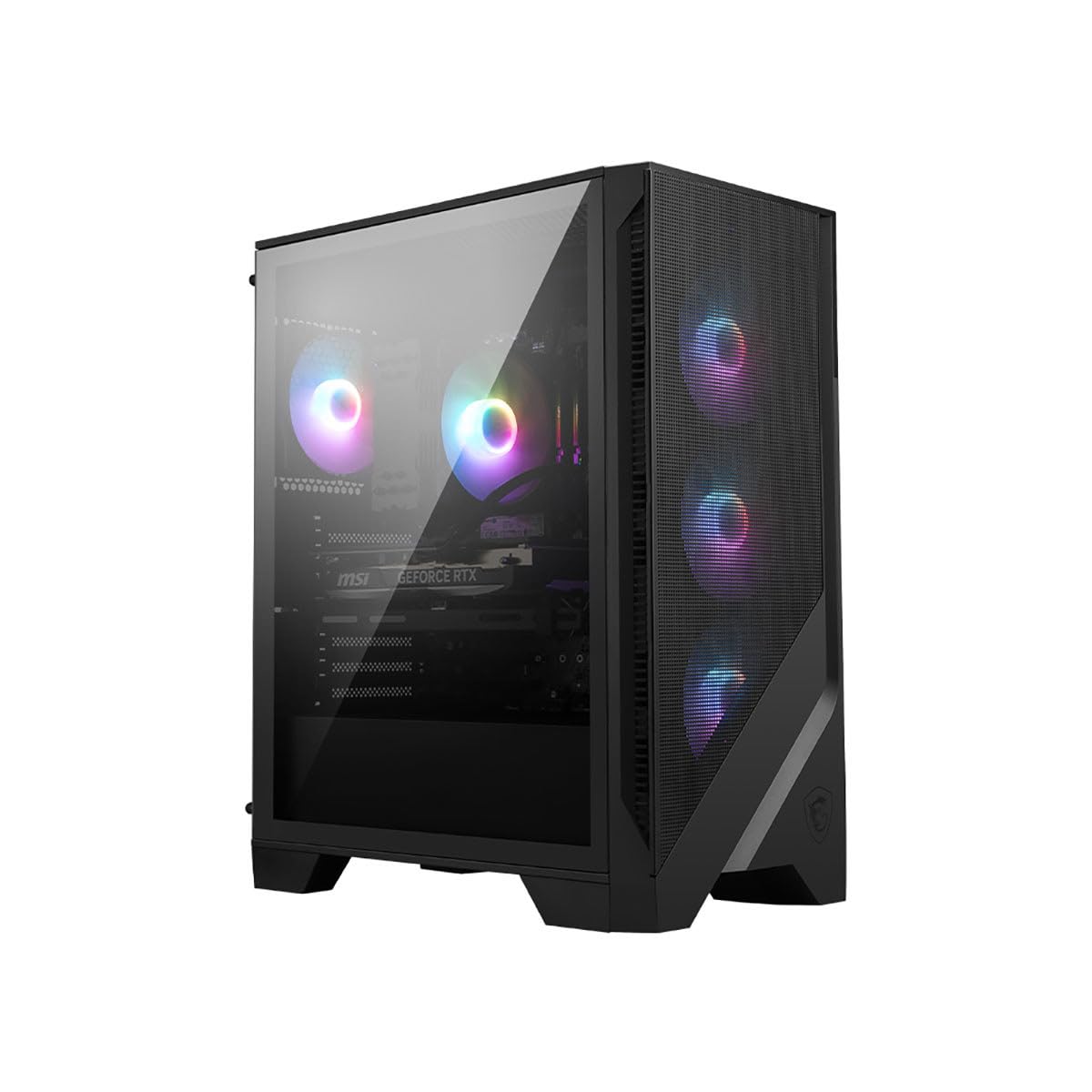
Figure 1: MSI Codex Z2 A8NVP-486US Gaming Desktop Computer (Overall View)
2. Safety Information
No specific safety warnings are applicable beyond standard electronic device handling. Always ensure the computer is placed on a stable surface, away from direct sunlight, heat sources, and moisture. Do not block ventilation openings. Disconnect the power cord before cleaning or performing any internal maintenance.
3. Package Contents
Verify that all items are present in the package. If any item is missing or damaged, contact your retailer immediately.
- MSI Codex Z2 A8NVP-486US Gaming Desktop Computer
- Power Cord
- Documentation (Quick Start Guide, Warranty Card)
- Additional accessories (may vary by region/retailer, e.g., keyboard, mouse)
4. Setup Guide
4.1 Unpacking and Placement
- Carefully remove the computer from its packaging.
- Place the computer on a flat, stable surface with adequate ventilation around all sides. Ensure the mesh front panel and rear exhaust are unobstructed.

Figure 2: Front view of the MSI Codex Z2, highlighting the mesh panel for airflow.
4.2 Connecting Peripherals
Connect your monitor, keyboard, mouse, and other peripherals to the appropriate ports on the rear and top of the computer.
- Monitor: Connect your monitor to the graphics card ports (HDMI or DisplayPort) located on the lower rear section of the computer. Do not use the motherboard video outputs if a dedicated graphics card is installed.
- Keyboard and Mouse: Connect to any available USB ports.
- Network: For a wired connection, connect an Ethernet cable to the LAN port. For wireless, ensure antennas are connected (if applicable) or rely on the internal Wi-Fi.
- Audio: Connect speakers or headphones to the audio jacks.

Figure 3: Rear I/O panel showing various ports for monitor, USB, network, and audio connections.

Figure 4: Top I/O panel with power button, USB ports, and audio jacks for convenient access.
4.3 Power Connection and Initial Boot
- Connect the power cord to the power supply unit (PSU) at the rear of the computer, then plug the other end into a grounded electrical outlet.
- Press the power button located on the top panel of the computer.
- Follow the on-screen instructions to complete the Windows 11 Home setup process. This typically involves selecting your region, language, creating a user account, and connecting to a network.
5. Operating Instructions
5.1 Power On/Off
- Power On: Press the power button on the top panel.
- Shut Down: In Windows, click the Start button, then Power > Shut down.
- Restart: In Windows, click the Start button, then Power > Restart.
- Sleep: In Windows, click the Start button, then Power > Sleep.
5.2 Basic Usage and Gaming
Your MSI Codex Z2 is pre-installed with Windows 11 Home. Utilize the powerful AMD Ryzen 7 8700F processor and NVIDIA GeForce RTX 5070 graphics card for demanding tasks and high-fidelity gaming. The 32GB DDR5 RAM ensures smooth multitasking and responsiveness.
- Gaming: Install your preferred games and ensure graphics drivers are up to date for optimal performance. The RTX 5070 is capable of handling modern titles at high settings.
- Storage: The 2TB M.2 NVMe Gen4 SSD provides rapid boot times and quick loading for applications and games.
- Connectivity: Use the various USB ports for peripherals and external storage. Bluetooth is available for wireless accessories.
6. Maintenance
6.1 Cleaning
- Exterior: Use a soft, damp cloth to clean the exterior surfaces. Avoid harsh chemicals.
- Ventilation: Regularly check and clean the mesh front panel and rear exhaust vents for dust buildup using compressed air. This maintains optimal airflow and cooling performance.
- Internal: For advanced cleaning, consult a professional or refer to MSI's detailed maintenance guides. Always disconnect power before opening the chassis.
6.2 Software Updates
Keep your operating system and drivers updated to ensure system stability, security, and optimal performance.
- Windows Updates: Regularly check for and install updates via Windows Settings > Windows Update.
- Graphics Drivers: Download the latest NVIDIA GeForce drivers from the official NVIDIA website.
- MSI Utilities: Utilize any pre-installed MSI software for system monitoring, fan control (Frozr AI Cooling), and driver updates.
6.3 Data Backup
Regularly back up your important data to an external drive or cloud storage to prevent data loss.
7. Troubleshooting
This section addresses common issues you might encounter.
| Problem | Possible Cause | Solution |
|---|---|---|
| Computer does not power on | Power cable loose, PSU switch off, faulty power outlet | Check power cable connections, ensure PSU switch is ON, try a different outlet. |
| No display on monitor | Monitor cable loose, incorrect input selected, monitor off, cable connected to motherboard instead of GPU | Ensure monitor cable is securely connected to the graphics card, check monitor power and input source, try a different cable. |
| System is slow or unresponsive | Too many applications running, insufficient RAM, malware, outdated drivers | Close unnecessary programs, check Task Manager for resource usage, run antivirus scan, update drivers. |
| Overheating | Blocked vents, dust buildup, fan malfunction | Ensure vents are clear, clean dust from fans and vents, check fan operation. Frozr AI Cooling should manage fan speeds automatically. |
If you continue to experience issues, please refer to the Warranty & Support section for further assistance.
8. Specifications
The following table outlines the key specifications of the MSI Codex Z2 A8NVP-486US Gaming Desktop Computer:
| Feature | Detail |
|---|---|
| Model Number | Codex Z2 A8NVP-486US |
| Processor | AMD Ryzen 7 8700F (4.1GHz base, 3.2 GHz reported) |
| Graphics Card | NVIDIA GeForce RTX 5070 12GB (8GB reported for RAM size) |
| RAM | 32GB DDR5 SDRAM |
| Storage | 2TB M.2 NVMe Gen4 SSD |
| Operating System | Windows 11 Home |
| Wireless Connectivity | Bluetooth, Wi-Fi (type not specified) |
| Max Screen Resolution | 3840 x 2160 |
| Cooling System | Integrated Air Cooler with Frozr AI Cooling |
| Item Weight | 31.7 pounds |
| Hardware Platform | PC |
| Specific Uses | Gaming |
9. Warranty and Support
9.1 Warranty Information
Your MSI Codex Z2 A8NVP-486US Gaming Desktop Computer comes with a limited warranty. Please refer to the warranty card included in your package for detailed terms and conditions, including coverage period and limitations. Keep your proof of purchase for warranty claims.
9.2 Technical Support
For technical assistance, driver downloads, or service inquiries, please visit the official MSI website or contact MSI customer support directly. Have your product model number (Codex Z2 A8NVP-486US) and serial number ready when contacting support.
- MSI Official Website: www.msi.com
- Support Page: Locate the support section on the MSI website for your specific product model.


