
Introduction
This manual provides essential information for setting up, operating, maintaining, and troubleshooting your HP 15S Laptop. Designed for productivity and everyday use, this laptop features a 15.6-inch HD display, Intel Processor, 16GB DDR4 RAM, and a 512GB SSD, running on Windows 11 Pro.
Please read this manual thoroughly to ensure proper use and to maximize the lifespan of your device.
Setup
- Unpacking: Carefully remove the laptop and all accessories from the packaging. Ensure all components are present: HP 15S Laptop, 65W USB-C Charger.
- Initial Charge: Connect the 65W USB-C charger to the laptop's USB-C port and a power outlet. Allow the laptop to charge for at least 30 minutes before the first use, or until the battery indicator shows sufficient charge.
- First Boot: Open the laptop lid. The laptop may power on automatically. If not, press the power button located on the keyboard.
- Windows 11 Pro Setup: Follow the on-screen instructions to complete the Windows 11 Pro setup process. This includes selecting your region, language, connecting to a Wi-Fi network, and creating a user account.
Operating Instructions
Display and Visuals
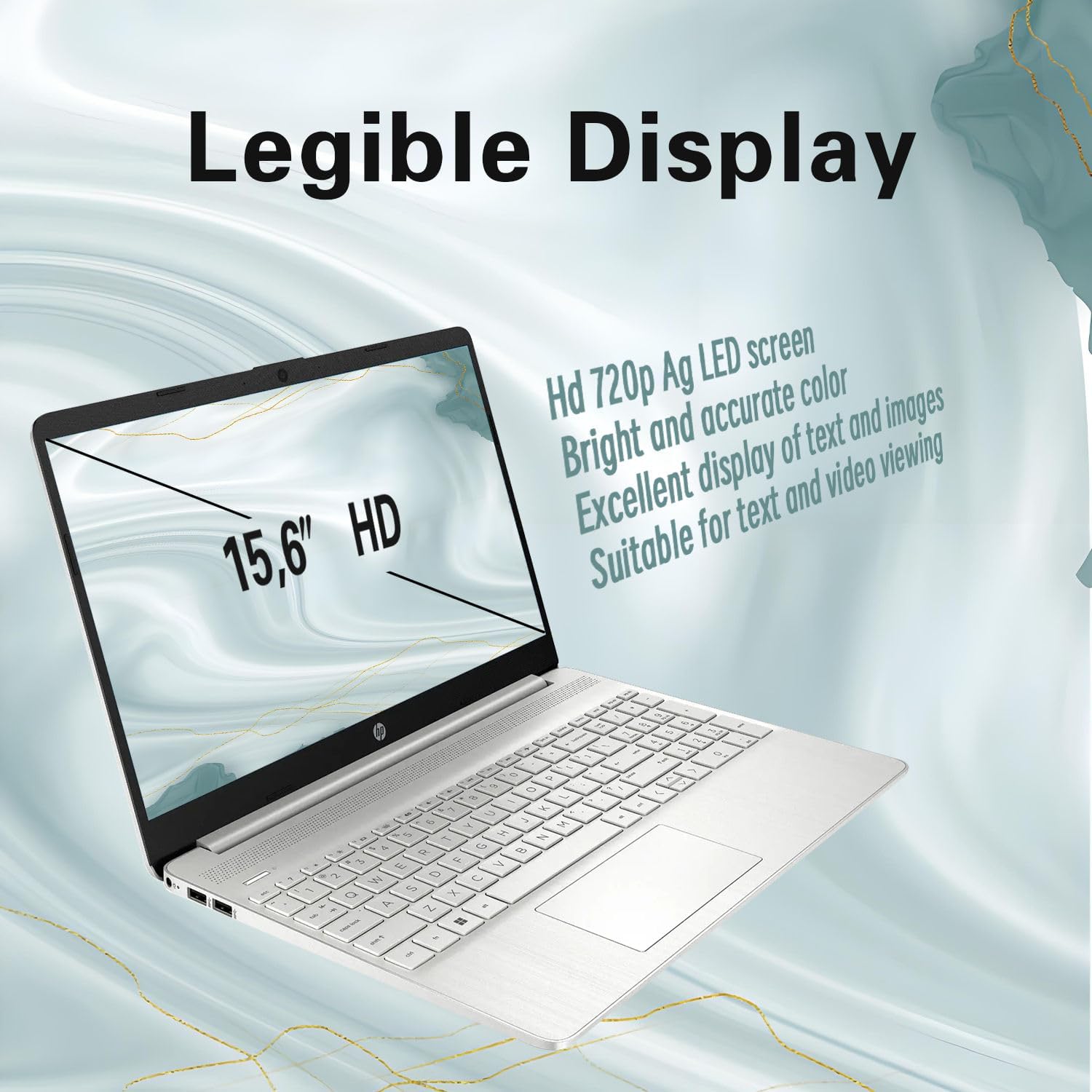
Image: The 15.6-inch HD display provides clear visuals and vibrant colors, suitable for various tasks.
The HP 15S features a 15.6-inch HD (1366 x 768) LED Anti-Glare display. This matte finish helps reduce reflections, improving visibility in various lighting conditions. The display is optimized for clear text and video viewing.
Keyboard and Touchpad
The laptop is equipped with a full-size US English keyboard, including a numeric keypad for efficient data entry. The touchpad supports multi-touch gestures for navigation and interaction with the operating system.
Connectivity

Image: The laptop's side ports, including USB-A, USB-C, SD card reader, and HDMI, allow for diverse peripheral connections.
- USB Ports: Includes 1x USB-C and 2x USB 3.1 Gen 1 ports for connecting external devices.
- Video Output: HDMI 1.4b and DisplayPort are available for connecting external monitors or projectors.
- Audio: A 3.5mm headphone/microphone combo jack is provided for audio peripherals.
- Card Reader: An SD card reader allows direct access to memory cards.
- Ethernet: An RJ-45 Ethernet port is included for wired network connections.
- Wireless: Integrated Wi-Fi (802.11bgn) and Bluetooth for wireless connectivity.
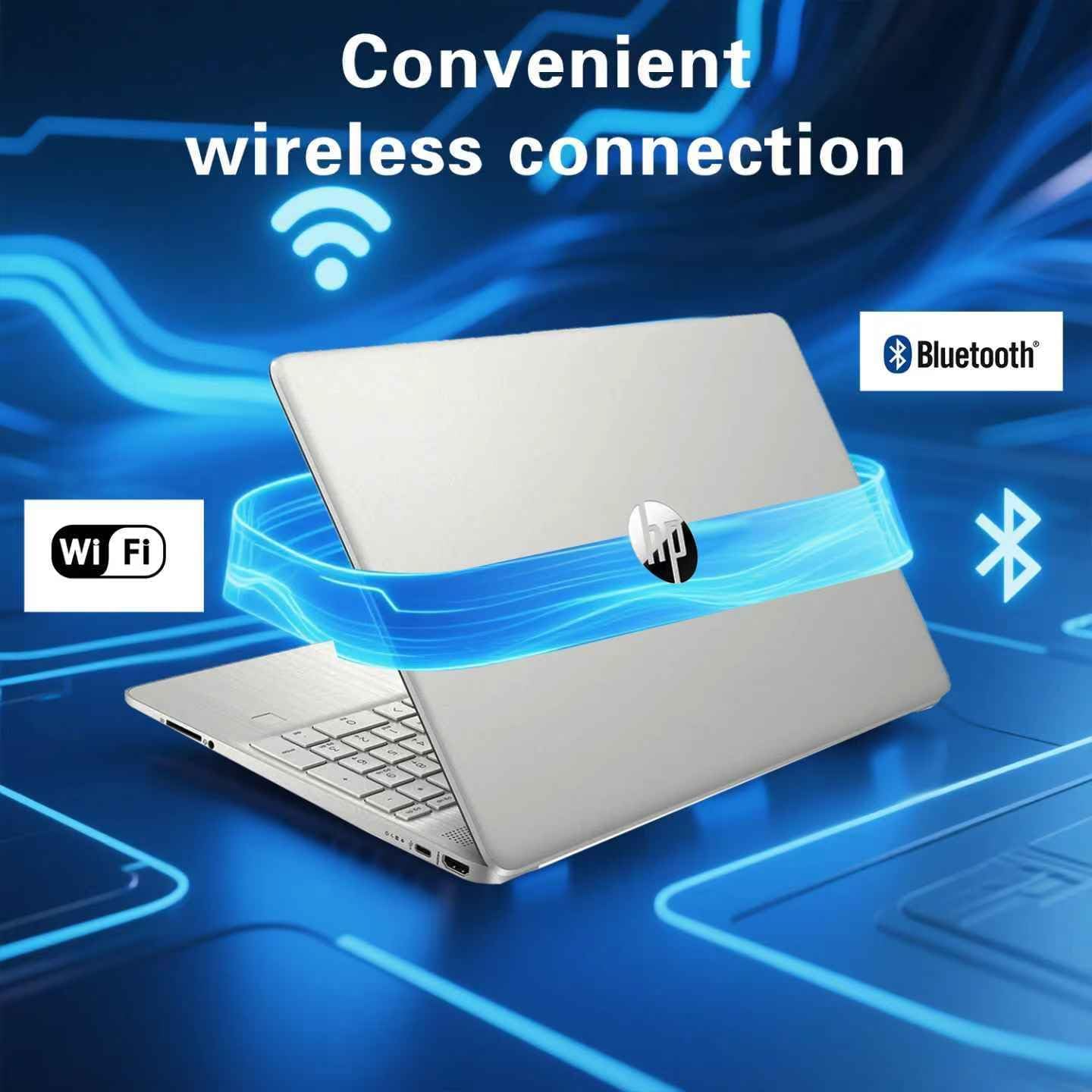
Image: Wireless connectivity options, including Wi-Fi and Bluetooth, are integrated for convenient networking and peripheral pairing.
Webcam

Image: The laptop features an HD 720p front camera with a privacy shutter, suitable for video conferencing.
The integrated HD 720p webcam includes a privacy shutter. To use the webcam, ensure the privacy shutter is open. For privacy, close the shutter when the webcam is not in use.
Maintenance
- Cleaning: Use a soft, lint-free cloth to clean the screen and exterior surfaces. For stubborn marks, dampen the cloth slightly with water or a screen-safe cleaner. Avoid harsh chemicals.
- Software Updates: Regularly check for and install Windows updates and HP driver updates to ensure optimal performance and security.
- Battery Care: To prolong battery life, avoid extreme temperatures and fully discharging the battery frequently.
- Storage Management: Periodically review and delete unnecessary files to free up storage space on the 512GB PCIe SSD, which helps maintain system speed.
Troubleshooting
-
Laptop Not Powering On:
Ensure the charger is securely connected to both the laptop and a working power outlet. If the battery is completely drained, it may take a few minutes of charging before the laptop can power on.
-
Display Issues (Dim/Poor Quality):
Adjust the screen brightness using the function keys (usually F2/F3 or similar icons). Check display settings in Windows to ensure the correct resolution (1366 x 768) is selected. If issues persist, ensure graphics drivers are updated.
-
Cursor Sticking/Unresponsive Touchpad:
Ensure the touchpad is clean and free of debris. Try restarting the laptop. If the issue continues, check for updated touchpad drivers on the HP support website.
-
Slow Performance:
Close unnecessary applications running in the background. Check for sufficient free space on the SSD. Run a system scan for malware. Ensure Windows and drivers are up to date.
Specifications
| Feature | Detail |
|---|---|
| Brand | HP |
| Model Name | 15S |
| Screen Size | 15.6 Inches |
| Resolution | 1366 x 768 pixels (HD) |
| Display Type | LED Anti-Glare |
| Processor | Intel Celeron N4120 (Quad-Core, 1.1 GHz, up to 2.6 GHz) |
| RAM | 16GB DDR4 SDRAM |
| Storage | 512GB PCIe Solid State Drive (SSD) |
| Graphics | Intel UHD Graphics 600 (Integrated) |
| Operating System | Windows 11 Pro 64-bit |
| Webcam | HD 720p with Privacy Shutter |
| Connectivity | Wi-Fi (802.11bgn), Bluetooth, Ethernet (RJ-45) |
| Ports | 1x USB-C, 2x USB 3.1 Gen 1, 1x DisplayPort, 1x HDMI 1.4b, 1x 3.5mm Headphone/microphone Combo, 1x SD Card Reader |
| Battery | 38Wh |
| Dimensions (L x W x H) | 14.11 x 9.53 x 0.71 inches |
| Weight | 3.75 lbs |
| Color | Natural Silver |
Warranty and Support
Your HP 15S Laptop comes with a standard manufacturer's warranty. For specific warranty terms and conditions, please refer to the documentation included with your product or visit the official HP support website.
For technical assistance, driver downloads, and further support, please visit the official HP support portal. HP support is available to assist with product-related issues and inquiries.
Additional protection plans may be available for purchase to extend coverage beyond the standard warranty period. Refer to your retailer for details on available protection plans.


